
Laptop fans are designed to keep internal components cool during operation. But when your device is sitting idle—no heavy programs running, no video streaming—you shouldn’t hear a constant jet-engine-like whir. A loud fan under minimal load is not normal and often signals underlying issues that can affect performance, battery life, and hardware longevity.
This article breaks down the most common reasons behind excessive fan noise during idle periods and provides actionable, step-by-step solutions. Whether you're using a Windows laptop, Chromebook, or MacBook, these practical fixes apply across platforms and can restore quiet operation without requiring technical expertise or costly repairs.
Common Causes of Excessive Fan Noise at Idle
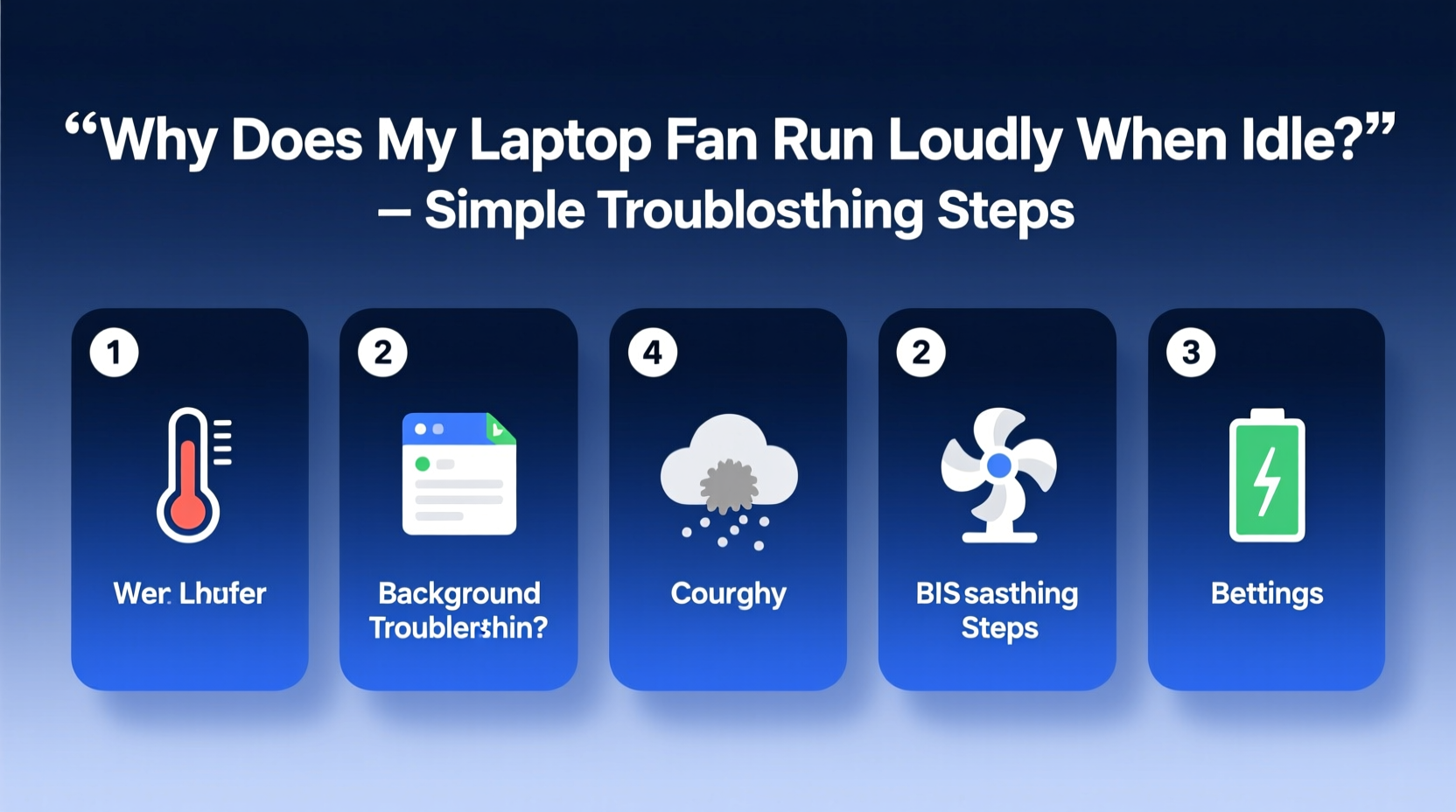
Fans respond to heat. When the CPU, GPU, or other components get warm—even slightly—the cooling system ramps up. While some background activity is expected, persistent high-speed fan operation when doing nothing suggests inefficient thermal management. The root causes typically fall into one of these categories:
- Dust buildup in vents and heatsinks: Over time, dust clogs airflow paths, reducing cooling efficiency.
- Background processes consuming CPU resources: Hidden apps or services may be overworking the processor.
- Outdated or faulty drivers: Graphics and chipset drivers influence power and thermal behavior.
- Power settings misconfigured: High-performance modes keep CPU clocks elevated unnecessarily.
- Failing thermal paste or hardware wear: On older laptops, degraded thermal interface materials reduce heat transfer.
- Malware or cryptocurrency miners: Malicious software can silently max out CPU usage.
Before jumping to conclusions about hardware failure, rule out software and environmental factors first. Most cases stem from preventable or correctable conditions.
Step-by-Step Troubleshooting Guide
Follow this structured approach to diagnose and resolve fan noise systematically. Each step builds on the previous one, ensuring no stone is left unturned.
- Check CPU and GPU usage via Task Manager (Windows) or Activity Monitor (Mac)
Press Ctrl+Shift+Esc (Windows) or open Activity Monitor from Applications > Utilities (Mac). Look for processes using more than 10–15% CPU while idle. Sort by CPU usage and investigate unfamiliar entries. - Update operating system and drivers
Outdated firmware can lead to poor thermal regulation. On Windows, go to Settings > Update & Security > Check for Updates. For macOS, visit System Preferences > Software Update. Also update graphics drivers through your manufacturer’s support site (e.g., Intel, NVIDIA, AMD). - Reset power plan settings
Navigate to Control Panel > Hardware and Sound > Power Options (Windows), or System Settings > Battery (Mac). Switch to “Balanced” or “Power Saver” mode. Avoid “High Performance,” which forces higher clock speeds regardless of workload. - Clean air vents with compressed air
Use a can of compressed air to blow dust from intake and exhaust vents. Do this in short bursts, holding the nozzle at a 45-degree angle. Never use a vacuum cleaner—it generates static electricity that could damage internal circuits. - Monitor internal temperatures
Download free tools like HWMonitor (Windows), Core Temp, or iStat Menus (Mac) to check real-time CPU and GPU temps. Anything above 70°C at idle indicates abnormal heat generation. - Scan for malware
Run a full system scan using Windows Defender, Malwarebytes, or another trusted antivirus tool. Some crypto-mining scripts operate stealthily but consume significant CPU cycles. - Adjust startup programs
Too many apps launching at boot can overload the system early. In Task Manager (Startup tab), disable non-essential items like cloud sync tools, chat clients, or updater utilities.
Real Example: Resolving Fan Noise on a 3-Year-Old Dell XPS
A freelance writer noticed her Dell XPS 13 began making loud fan noises after being idle for just minutes. She wasn’t running any major applications—only a browser with five tabs and email open. Using Task Manager, she discovered a process named “RuntimeBroker.exe” was consistently using 38% CPU.
After researching, she learned this Windows service manages app permissions but can become resource-heavy if corrupted. She reset the Windows Store cache (wsreset.exe), disabled unnecessary background apps in Settings > Privacy > Background Apps, and updated her BIOS from Dell’s support portal. Within two days, fan noise dropped significantly, and idle temperatures fell from 78°C to 54°C.
This case highlights how seemingly minor software glitches can create major thermal ripple effects.
Do’s and Don’ts: Laptop Cooling Best Practices
| Do | Don't |
|---|---|
| Use your laptop on hard, flat surfaces (e.g., desk or table) | Place it on soft materials like beds, couches, or pillows |
| Elevate the back slightly for better airflow | Block intake vents located on sides or bottom |
| Reboot weekly to clear system clutter | Leave it running continuously for weeks without shutdown |
| Install only necessary startup programs | Allow every application to run at startup |
| Use third-party cooling pads if frequently used on laps | Rely solely on cooling pads to fix deep-seated thermal issues |
“Over 60% of overheating-related fan issues stem from poor ventilation habits or neglected maintenance. Simple user behaviors make a dramatic difference.” — Dr. Rajiv Mehta, Thermal Systems Engineer at HP Labs
Tips for Long-Term Fan Health and Quiet Operation
Sustained quiet performance requires proactive care. Incorporate these habits into your routine to prevent future problems:
- Perform monthly hardware checks: Blow out dust from vents every 4–6 weeks, especially if used in dusty or pet-friendly homes.
- Optimize display brightness: Lower screen brightness reduces GPU load and overall power draw, decreasing heat output.
- Uninstall unused software: Bloatware often includes background daemons that run silently and generate heat.
- Enable automatic driver updates: Tools like Snappy Driver Installer (open-source) or manufacturer utilities help maintain optimal hardware communication.
- Consider repasting thermal compound (advanced): For laptops older than three years, reapplying high-quality thermal paste between the CPU and heatsink can improve heat dissipation by up to 15°C.
Note: Repasting is not recommended for beginners. It voids warranties and risks damaging components if done improperly. Seek professional service unless experienced.
Quick Diagnostic Checklist
Use this checklist whenever you notice unusual fan behavior. Tick off each item as you complete it:
- ✅ Reboot the laptop to clear temporary processes
- ✅ Open Task Manager / Activity Monitor and sort by CPU usage
- ✅ Identify and end suspicious or high-usage background tasks
- ✅ Update OS, BIOS, and graphics drivers
- ✅ Clean exterior vents with compressed air
- ✅ Switch to a balanced or power-saving plan
- ✅ Disable unnecessary startup programs
- ✅ Run a full antivirus and anti-malware scan
- ✅ Monitor internal temperatures with diagnostic software
- ✅ Evaluate physical placement and surface type
If all steps are completed and the fan remains loud, consider deeper hardware inspection. Persistent high idle temperatures may indicate failing sensors, damaged fans, or motherboard-level issues requiring technician intervention.
Frequently Asked Questions
Is it harmful to have a loud laptop fan all the time?
Yes. Constant high-speed operation accelerates fan wear, increases risk of mechanical failure, and indicates sustained high temperatures that degrade internal components over time—especially batteries and solder joints. Prolonged heat exposure shortens the lifespan of your laptop.
Can I turn off the fan manually to stop the noise?
No. Fans are critical for preventing thermal throttling and hardware damage. Disabling them—even temporarily—risks permanent component failure due to overheating. Instead, address the root cause of the excess heat.
Why does my fan spin up randomly even when I’m not doing anything?
This often occurs when scheduled system tasks run—such as Windows Update, disk indexing, or cloud backup syncs. These processes briefly spike CPU usage. If spikes are frequent or prolonged, adjust their scheduling or limit bandwidth in settings.
Conclusion: Take Control of Your Laptop’s Performance
A noisy laptop fan during idle periods isn’t something you should ignore or accept as normal. It’s a warning sign—one that often points to fixable software, configuration, or maintenance issues. By understanding what triggers excessive cooling demands and applying systematic troubleshooting, you can restore quiet operation, improve efficiency, and extend your device’s usable life.
Start today: reboot your machine, check CPU usage, clean the vents, and optimize your power settings. Small actions yield immediate results. Don’t wait until overheating leads to crashes or hardware damage. Your laptop deserves consistent care—and you deserve a quieter, cooler computing experience.




 浙公网安备
33010002000092号
浙公网安备
33010002000092号 浙B2-20120091-4
Comments
No comments yet. Why don't you start the discussion?