
Laptop fans are designed to keep internal components cool during operation. When they start running loudly or constantly, it’s often a sign that something is off—either with usage patterns, environmental conditions, or hardware health. Before jumping to conclusions and assuming the fan needs replacement, consider that most loud fan issues stem from preventable causes. In many cases, a few straightforward adjustments can restore quiet operation and improve performance without opening your wallet for repairs.
A noisy fan doesn’t always mean failure. More often than not, it's a symptom of overheating caused by dust buildup, software strain, poor ventilation, or outdated power settings. Addressing these root causes not only reduces noise but also extends the lifespan of your laptop and prevents long-term damage to critical components like the CPU and GPU.
Understanding Why Laptop Fans Get Loud
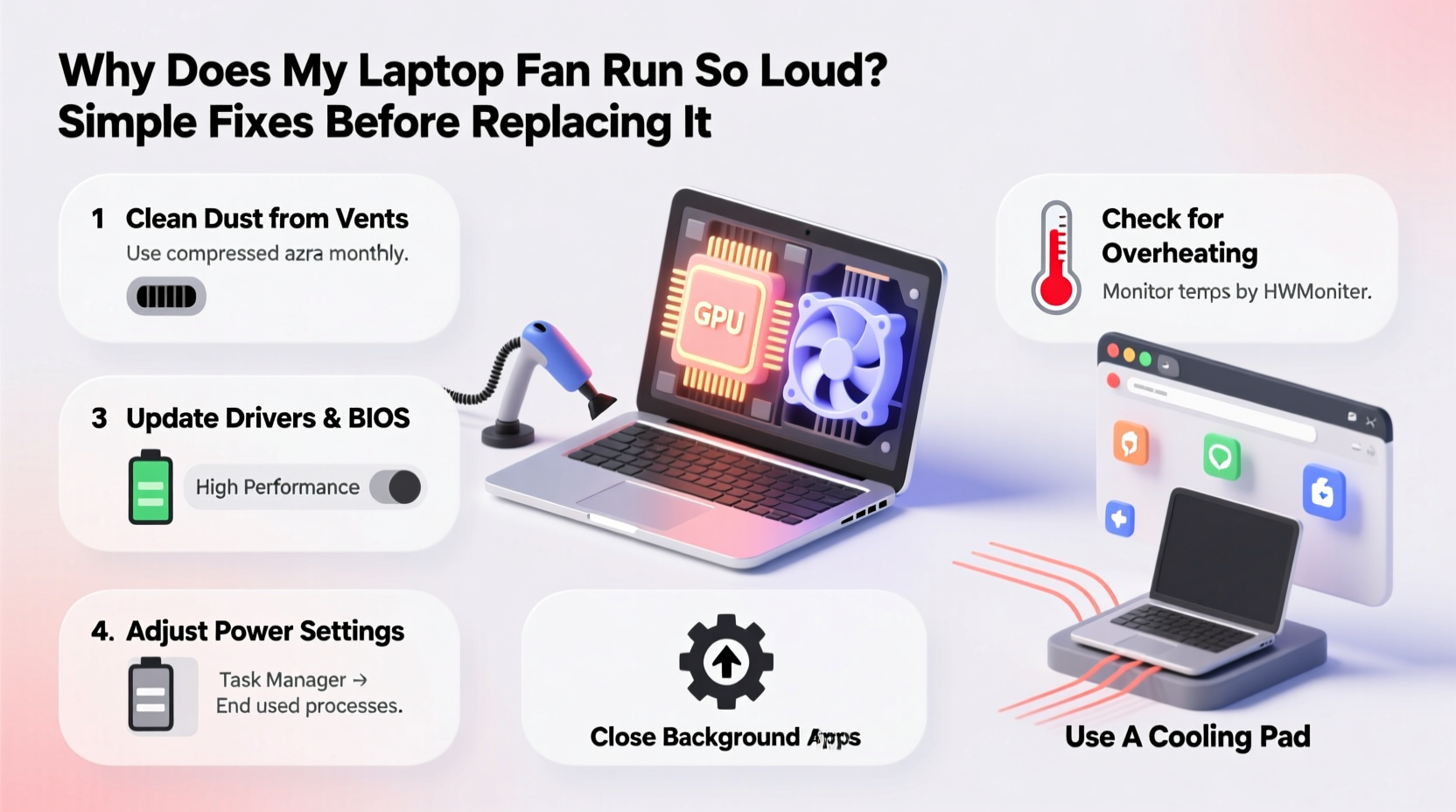
Laptop cooling systems rely on small fans to pull air through heat sinks and expel hot air generated by the processor, graphics card, and other components. Under normal conditions, fans operate quietly in the background. However, when temperatures rise due to increased workload or restricted airflow, the system responds by spinning the fans faster—resulting in noticeable noise.
Several factors contribute to excessive fan activity:
- Dust accumulation inside vents and around the fan blades restricts airflow.
- High CPU/GPU usage from demanding applications or background processes generates more heat.
- Poor ventilation occurs when laptops are used on soft surfaces like beds or couches.
- Outdated BIOS or drivers may lead to inefficient thermal management.
- Failing thermal paste reduces heat transfer efficiency between the processor and heatsink.
While some wear is inevitable over time, especially in machines older than three years, most early-stage fan noise problems are fixable with basic maintenance and smart usage habits.
Step-by-Step Guide to Diagnose and Reduce Fan Noise
Follow this logical sequence to identify and resolve the cause of your loud laptop fan. Start with non-invasive checks before moving to physical cleaning or advanced settings.
- Check Task Manager (Windows) or Activity Monitor (Mac)
Open your system’s resource monitor to see which programs are using the most CPU. Close unnecessary applications, especially web browsers with multiple tabs or background updaters. - Ensure proper placement
Place your laptop on a flat, hard surface. Avoid carpets, cushions, or uneven desks. Consider using a laptop cooling pad if you frequently work in warm environments. - Clean exterior vents
Use compressed air to blow out dust from the side and rear vents. Hold the can upright and use short bursts to avoid moisture buildup. - Update operating system and drivers
Install the latest updates for your OS, BIOS, and graphics drivers. Manufacturers often release firmware improvements that optimize fan control algorithms. - Adjust power settings
Switch to “Balanced” or “Power Saver” mode in Windows, or reduce display brightness and processor performance limits in macOS Energy Saver preferences. - Monitor internal temperatures
Use tools like HWMonitor (Windows), Core Temp, or iStat Menus (Mac) to check real-time CPU and GPU temps. Idle temperatures should stay below 50°C; under load, under 85°C is acceptable. - Perform deep internal cleaning (if comfortable)
For persistent issues, open the back panel (after powering off and disconnecting the battery) and gently clean the fan and heat sink with compressed air and a soft brush.
This methodical approach helps isolate whether the issue is software-related, environmental, or requires hardware attention.
Common Mistakes That Make Fan Noise Worse
Many users unknowingly exacerbate their laptop’s overheating problem. Recognizing these habits can prevent further strain on the cooling system.
| Mistake | Why It’s Harmful | Better Alternative |
|---|---|---|
| Using laptop on a bed or sofa | Blocks bottom intake vents, reducing airflow by up to 70% | Use a tray, book, or dedicated laptop desk |
| Ignoring software updates | Older drivers may mismanage thermal throttling | Enable automatic updates or manually check monthly |
| Running too many browser tabs/apps | Increases CPU load and heat generation | Close unused apps; use tab suspender extensions |
| Blowing into vents or using wet cloths | Moisture can corrode internal components | Use dry, canned compressed air only |
| Leaving laptop in direct sunlight or hot cars | Elevates base temperature before even turning it on | Store in shaded, cool areas; allow cooling before use |
Mini Case Study: Sarah’s Overheating Work Laptop
Sarah, a freelance graphic designer, noticed her three-year-old laptop becoming increasingly loud during video editing sessions. The fan would ramp up within minutes of startup, even when she wasn’t rendering files. Initially, she assumed the fan was failing and looked up replacement costs—nearly $120 at her local repair shop.
Instead of proceeding, she ran a quick diagnostic: she opened Task Manager and found Chrome using 85% CPU despite having only five tabs open. One tab was running an unoptimized animation-heavy website. After closing it, CPU usage dropped to 18%, and fan noise decreased significantly.
She then cleaned the side vents with compressed air and adjusted her power plan to “Balanced.” Finally, she began using a cooling pad during long design sessions. These steps eliminated constant fan noise, saving her both money and downtime. Her laptop now runs cooler and quieter, proving that simple interventions often solve what seems like a hardware failure.
Expert Insight: What Technicians See Most Often
According to Mark Rivera, senior technician at TechCare Pro Services, dust buildup and software overload are the top two culprits behind loud laptop fans.
“Over 60% of ‘broken fan’ cases we see turn out to be clogged air pathways or rogue background processes. I’ve had customers bring in laptops thinking they need a $100 repair, only to leave after a 10-minute cleaning and driver update. Regular maintenance goes a long way.” — Mark Rivera, Senior Repair Technician
Rivera emphasizes that modern laptops have intelligent fan controls—they only spin fast when necessary. If your fan is constantly roaring, the machine is either working too hard or struggling to cool itself efficiently.
Essential Checklist: Fix a Loud Laptop Fan in Under 30 Minutes
Use this actionable checklist to quickly address fan noise. Complete all steps in under half an hour without needing special tools.
- ✅ Close all unused programs and browser tabs
- ✅ Open Task Manager / Activity Monitor and end high-CPU processes
- ✅ Place laptop on a hard, flat surface away from walls or fabric
- ✅ Blow out dust from external vents using compressed air
- ✅ Lower screen brightness and disable keyboard backlighting (if applicable)
- ✅ Switch to Power Saver or Balanced power mode
- ✅ Check for and install pending OS or driver updates
- ✅ Restart the laptop and observe fan behavior at idle
If the fan remains loud after completing this list, proceed to deeper inspection—such as internal cleaning or thermal paste reapplication—but only if you're experienced with hardware handling.
Frequently Asked Questions
Is it safe to use my laptop if the fan is loud?
Yes, in most cases. A loud fan is a protective response to heat—not necessarily a sign of imminent failure. However, prolonged high temperatures can degrade internal components over time. Investigate the cause promptly to avoid long-term damage.
Can I disable the fan to stop the noise?
No. Disabling the fan—even temporarily—is extremely risky. Without active cooling, processors can overheat within seconds, triggering automatic shutdowns or permanent hardware damage. Always let the cooling system function as designed.
How often should I clean my laptop’s fan?
For average home or office use, cleaning every 6–12 months is sufficient. In dusty environments or households with pets, every 3–4 months is recommended. Users who travel frequently or work outdoors should inspect vents quarterly.
When Replacement Might Be Necessary
Despite best efforts, some situations do require fan replacement. Signs include:
- Grinding, clicking, or rattling noises (indicating bearing failure)
- Fan not spinning at all, even when CPU is under heavy load
- Overheating warnings or frequent shutdowns despite clean internals
- Visible wobble or looseness in the fan motor
If diagnostics confirm the fan itself is faulty, replacement becomes unavoidable. However, this should be a last resort after exhausting all software, environmental, and maintenance fixes.
Note: On newer ultrabooks and MacBooks, fans are often integrated into complex assemblies. Replacing them may require specialized tools and void warranties. Consult a certified technician unless you’re confident in your abilities.
Conclusion: Take Control Before You Replace
A loud laptop fan is rarely a death sentence for your device. More often, it’s a call to action—a signal that your laptop needs attention, not surgery. By understanding the causes of excess noise and applying practical solutions, you can restore quiet operation, improve performance, and extend your machine’s usable life.
The fixes outlined here—from managing software loads to ensuring proper airflow—are accessible to anyone, regardless of technical skill. Most take less than an hour and cost nothing. Don’t rush to replace parts when optimization might be all you need.




 浙公网安备
33010002000092号
浙公网安备
33010002000092号 浙B2-20120091-4
Comments
No comments yet. Why don't you start the discussion?