
Laptops today are built for performance, but that power often comes with a trade-off: noise. If you've ever been working in a quiet room only to be interrupted by what sounds like a miniature jet taking off from your desk, you're not alone. A loud laptop fan can be alarming—especially if it wasn’t always this noisy. While some level of fan activity is normal during intensive tasks, a constant roar or sudden spike in noise may signal deeper issues.
Understanding why your laptop fan behaves this way—and knowing when it’s time to take action—is essential for maintaining both device longevity and user comfort. This article breaks down the common causes of excessive fan noise, explains when it’s a warning sign, and provides practical solutions to keep your machine running cool and quiet.
What Triggers Fan Activity in Laptops?
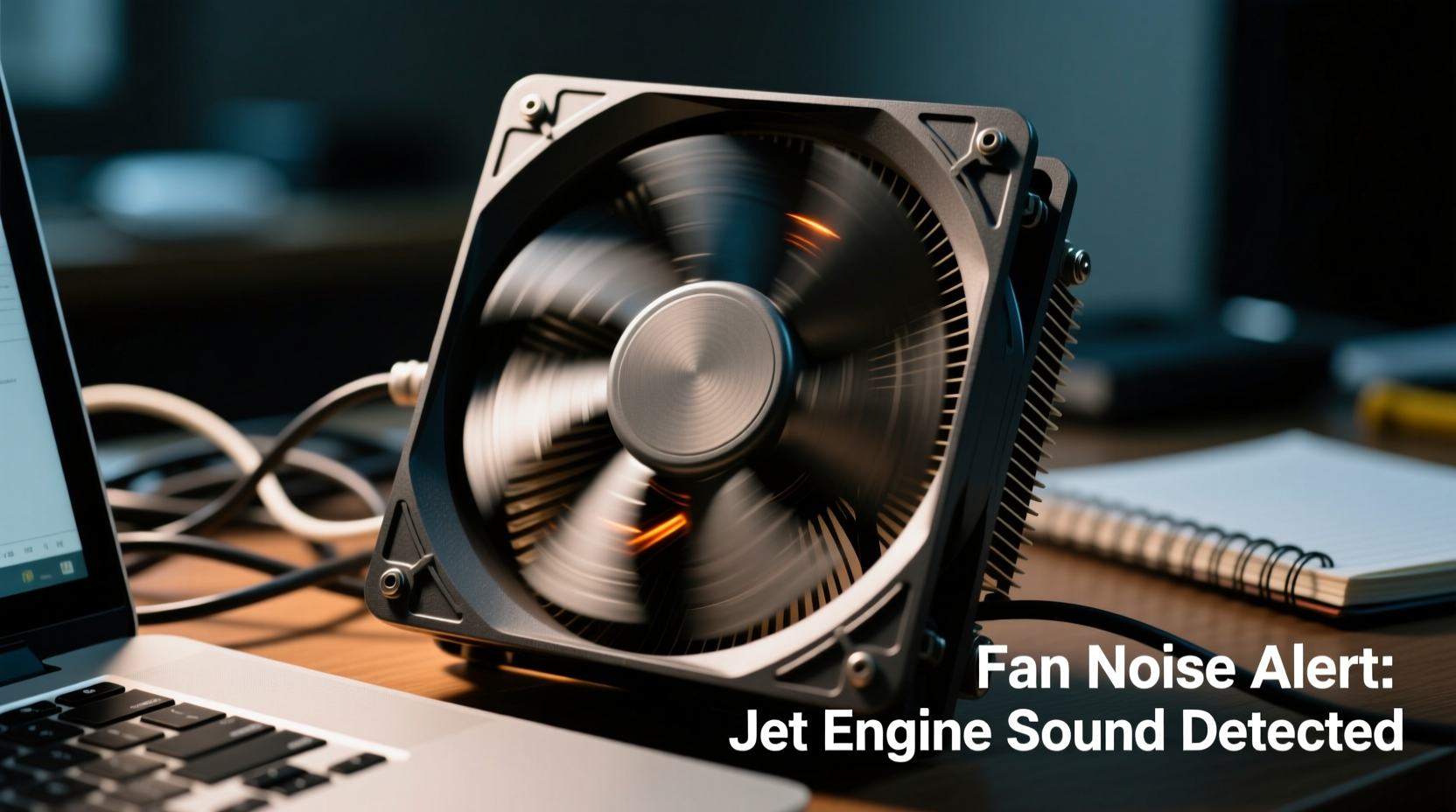
Your laptop’s cooling system is designed to prevent overheating. The central processing unit (CPU), graphics processing unit (GPU), and other components generate heat during operation. When temperatures rise, sensors trigger the fan to spin faster and dissipate excess heat through vents. This is standard behavior and usually nothing to worry about.
Fan speed adjusts dynamically based on workload. For example:
- Browsing or word processing: Minimal CPU use; fans typically run quietly or remain off.
- Gaming or video editing: High resource demand; fans ramp up to manage increased thermal output.
- Background processes: Updates, antivirus scans, or malware can cause unexpected spikes in usage and temperature.
However, if your fan runs at full speed even during light tasks—or emits unusual noises like grinding or rattling—it may indicate an underlying problem beyond typical thermal regulation.
Common Causes of Jet-Engine-Level Fan Noise
Several factors can push your laptop’s cooling system into overdrive. Some are easily fixable; others require professional attention. Here’s a breakdown of the most frequent culprits:
Dust and Debris Buildup
Over time, dust accumulates inside the fan and heatsink, especially near air intake vents. This buildup restricts airflow, forcing the fan to work harder to maintain safe operating temperatures. It’s one of the leading causes of chronic fan noise in older laptops.
Thermal Paste Degradation
Thermal paste sits between the CPU/GPU and the heatsink, helping transfer heat efficiently. Over time—typically after 2–4 years—it dries out or cracks, reducing its effectiveness. As a result, components run hotter than they should, prompting the fan to compensate with higher speeds.
Heavy Software Load
Applications like games, virtual machines, video renderers, or poorly optimized software can max out your processor. Even background programs such as browser tabs with autoplay videos or hidden cryptocurrency miners can create sustained high loads, keeping the fan spinning aggressively.
Poor Ventilation
Using your laptop on soft surfaces like beds, couches, or pillows blocks the bottom air intakes. Without proper airflow, heat builds up rapidly. Even slight obstructions can reduce cooling efficiency significantly.
Aging Hardware
As internal components age, their efficiency drops. Older batteries may generate more heat, and worn-out fans might struggle to move air effectively—even at maximum RPM. Mechanical wear can also lead to vibrations or imbalanced blades, contributing to louder operation.
Firmware or Driver Issues
Sometimes, incorrect BIOS settings or outdated drivers mismanage thermal thresholds or fan curves. This can cause fans to either underperform (risking overheating) or overreact (causing unnecessary noise).
“Loud fan noise isn't just annoying—it’s often the first symptom of a larger thermal issue. Ignoring it can shorten your laptop’s lifespan by up to 40%.” — Dr. Alan Zhou, Electronics Reliability Engineer
When Should You Worry?
Not all loud fan activity requires immediate intervention. Context matters. Consider these signs when evaluating whether your situation needs urgent attention:
| Scenario | Normal? | Action Needed? |
|---|---|---|
| Fan spins loudly while gaming or rendering video | Yes | No – expected behavior under load |
| Fan remains loud after closing all apps | No | Yes – investigate background processes |
| Fan cycles on/off rapidly every few seconds | Rarely | Yes – could indicate sensor or control issue |
| Unusual grinding, clicking, or rattling sounds | No | Yes – potential hardware failure |
| Laptop shuts down unexpectedly during use | No | Yes – likely overheating protection trigger |
| Bottom or keyboard area feels excessively hot | Possibly | Monitor temps; clean or service if above 90°C |
If your laptop exhibits multiple red flags—such as persistent noise, poor performance, shutdowns, or physical damage symptoms—you should act promptly. Delaying maintenance increases the risk of permanent component degradation.
Step-by-Step Guide to Diagnose and Fix Fan Noise
Follow this structured approach to identify and resolve the root cause of excessive fan noise:
- Check Current System Load
Open Task Manager (Windows) or Activity Monitor (Mac). Look for processes consuming more than 50% CPU consistently. End unnecessary tasks or uninstall suspicious software. - Monitor Internal Temperatures
Use tools like HWMonitor (Windows), Core Temp, or iStat Menus (Mac) to view real-time CPU and GPU temperatures. Idle temps should stay below 50°C; under load, under 85°C is acceptable. Anything above 95°C indicates a serious cooling issue. - Inspect Air Vents
Turn off the laptop and examine intake and exhaust grills. Use a flashlight to see if dust has clogged the fins. Gently clean with compressed air, blowing outward from the inside if possible. - Evaluate Usage Environment
Ensure the laptop rests on a hard, flat surface. Avoid fabric-covered areas. Consider using a cooling pad with independent fans for prolonged heavy workloads. - Update Firmware and Drivers
Visit your manufacturer’s support site and download the latest BIOS, chipset, and fan control drivers. These updates often include improved thermal management algorithms. - Test Fan Behavior in BIOS/UEFI
Restart and enter BIOS (usually by pressing F2, F12, or Del during boot). Observe fan noise here. If it's still loud without any OS load, the issue is hardware-related. - Consider Internal Cleaning or Repaste
For advanced users: disassemble the laptop (after checking warranty status), remove the heatsink, clean dust thoroughly, and reapply high-quality thermal paste (e.g., Arctic MX-4 or Noctua NT-H2). - Seek Professional Repair
If you’re uncomfortable opening the device or suspect fan motor failure, consult a certified technician. Replacing a fan module typically costs $50–$120, depending on model availability.
Mini Case Study: Sarah’s Overheating Work Laptop
Sarah, a freelance video editor, began noticing her three-year-old laptop sounded like a drone during exports. Initially, she dismissed it as normal under load. But soon, the fan stayed loud even when idle, and the machine occasionally froze.
She followed basic troubleshooting: checked Task Manager (found no rogue processes), cleaned vents with canned air (minimal improvement), and monitored temperatures using HWMonitor. Readings showed CPU idling at 78°C—far too high.
After researching, she discovered her model was known for poor thermal design. She opened the back panel, removed accumulated dust from the heatsink, and reapplied thermal paste. Post-repair, idle temps dropped to 45°C, and fan noise returned to near-silent levels during regular use.
This case illustrates how seemingly inevitable wear can be reversed with informed maintenance—extending the usable life of a critical tool.
Preventive Checklist for Long-Term Quiet Operation
To avoid recurring fan issues, follow this routine checklist every 3–6 months:
- ✅ Clean external vents with compressed air
- ✅ Check CPU temperature under load
- ✅ Update operating system and firmware
- ✅ Uninstall unused or resource-heavy applications
- ✅ Avoid using laptop on soft surfaces
- ✅ Store in a cool, dry place when not in use
- ✅ Perform full shutdowns weekly (not just sleep mode)
- ✅ Backup data and evaluate hardware health annually
Regular upkeep prevents small problems from escalating into costly repairs.
Frequently Asked Questions
Is it bad if my laptop fan runs constantly?
Not necessarily. If your laptop is performing demanding tasks, continuous fan operation is normal. However, constant high-speed spinning during light use suggests inadequate cooling due to dust, aging paste, or software issues. Investigate further if accompanied by heat or lag.
Can a loud fan damage my laptop?
The fan itself doesn’t cause direct damage, but its behavior reflects thermal stress. Prolonged overheating degrades solder joints, reduces battery capacity, and shortens the lifespan of semiconductors. Address the cause—not just the symptom.
Will closing background apps reduce fan noise?
Often, yes. Many apps run silently in the background—cloud sync tools, auto-updaters, browser extensions—consuming CPU cycles. Closing them reduces heat generation and allows the fan to slow down. Use startup managers to disable non-essential launch programs.
Conclusion: Listen to Your Machine
Your laptop communicates through performance, responsiveness, and yes—even sound. A fan sounding like a jet engine isn’t something to ignore. While occasional bursts are part of normal operation, persistent or worsening noise demands attention. By understanding the triggers, monitoring system health, and applying timely fixes, you can restore quiet functionality and protect your investment.
Don’t wait for thermal throttling or shutdowns to take action. Proactive care keeps your device efficient, reliable, and comfortable to use—whether you're working, creating, or relaxing. Start with simple cleaning and observation, then escalate as needed. Most importantly, treat the noise not as a nuisance, but as valuable feedback from your machine.




 浙公网安备
33010002000092号
浙公网安备
33010002000092号 浙B2-20120091-4
Comments
No comments yet. Why don't you start the discussion?