
If your laptop suddenly sounds like it’s preparing for takeoff every time you open a browser or check email, you’re not alone. A fan roaring at full speed during basic tasks is more than just annoying—it’s a sign that something is off. While some noise is normal under heavy load, excessive fan activity during light usage indicates underlying issues ranging from dust buildup to software inefficiencies. Left unaddressed, this can lead to reduced performance, shorter hardware lifespan, and even permanent damage.
The good news? Most causes are fixable with practical, often free solutions. Whether you're using a work machine, student device, or personal laptop, understanding the root causes and applying targeted fixes can restore quiet operation and extend your device’s life.
Why Your Laptop Fan Spins Out of Control
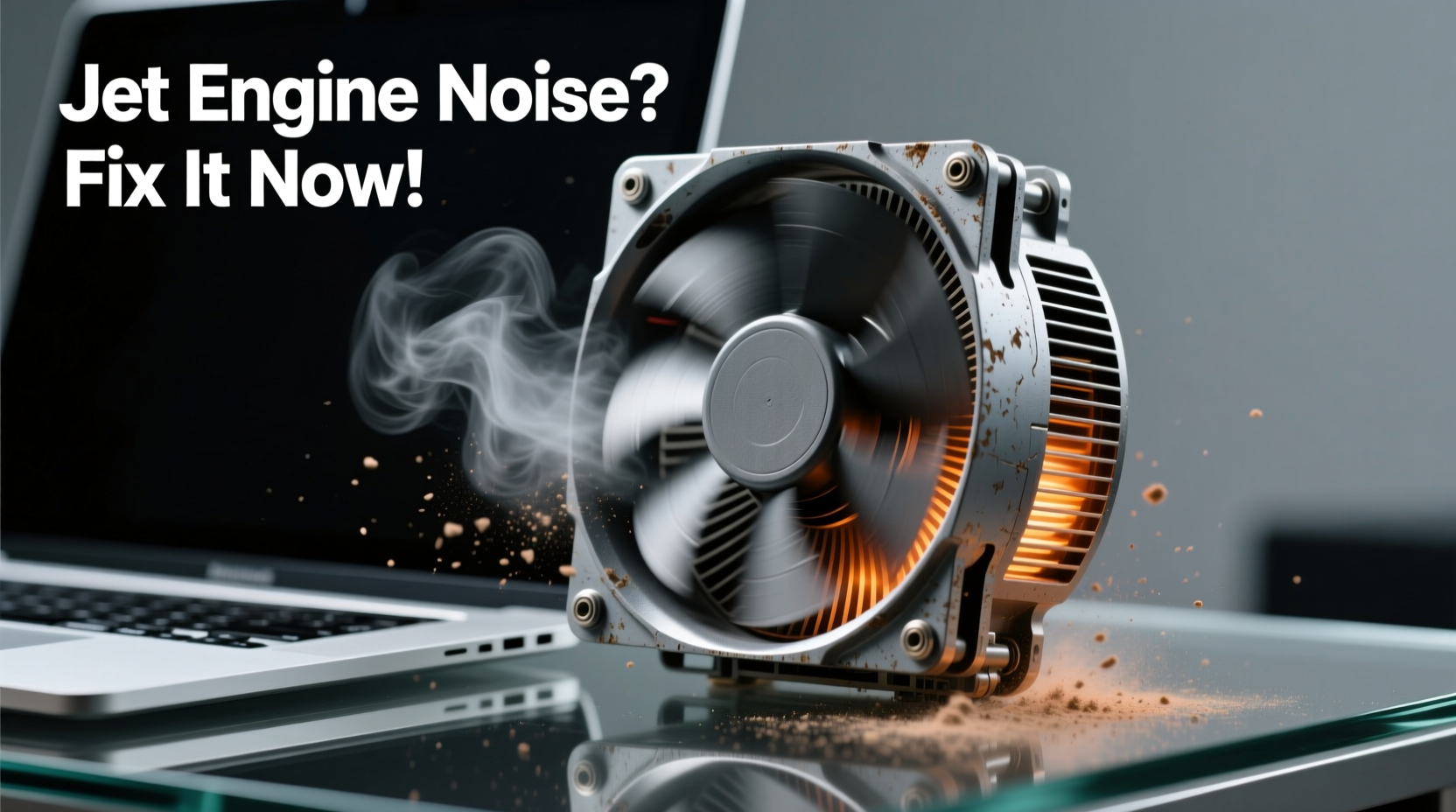
Laptop fans exist to regulate internal temperature. When components like the CPU or GPU heat up, thermal sensors trigger the fan to increase speed and dissipate heat. Under normal conditions, this process is barely noticeable. But when the fan runs at maximum RPM during idle or low-intensity tasks, it usually points to one or more of the following:
- Overheating due to blocked airflow – Dust-clogged vents restrict cooling efficiency.
- Poor thermal paste conductivity – Dried or improperly applied paste reduces heat transfer.
- Background processes consuming resources – Malware, bloatware, or misbehaving apps can spike CPU usage.
- Faulty fan control settings – BIOS or OS power plans may force aggressive cooling.
- Aging hardware – Fans degrade over time, becoming noisier and less effective.
Identifying which factor applies to your situation is the first step toward resolution.
Step-by-Step Guide to Diagnose and Fix the Noise
Before opening up your laptop or reinstalling software, follow this structured diagnostic process to pinpoint the issue without unnecessary risk.
- Check CPU and GPU usage – Open Task Manager (Windows) or Activity Monitor (Mac). Look for processes using more than 20–30% CPU during idle. End suspicious tasks.
- Monitor internal temperatures – Use a tool like HWInfo or Open Hardware Monitor. Temperatures above 85°C under light load indicate a cooling problem.
- Inspect physical ventilation – Shine a flashlight into air vents. If they’re packed with dust, cleaning is likely needed.
- Test fan behavior in BIOS/UEFI – Restart and enter BIOS. Observe if the fan still runs loudly without the OS loading. If yes, the issue is hardware-related.
- Update firmware and drivers – Outdated BIOS or graphics drivers can cause improper thermal management.
This sequence helps isolate whether the problem stems from software, configuration, or hardware—each requiring different solutions.
Common Fixes That Actually Work
Once you’ve identified the likely cause, apply these proven fixes based on real-world troubleshooting experience.
Clean Dust from Vents and Internal Components
Dust accumulation is the most common culprit behind excessive fan noise. Over months, dust coats heatsinks and clogs airflow channels, forcing fans to work harder.
To clean safely:
- Power down and unplug the laptop.
- Use compressed air to blow out vents. Hold cans upright to avoid moisture spray.
- For deeper cleaning, remove the back panel (if comfortable) and gently clean heatsinks with a soft brush.
Many users report immediate noise reduction after cleaning—even on laptops used daily for two years without maintenance.
Replace Degraded Thermal Paste
Thermal paste degrades over time, especially in lower-end models where manufacturers use lower-quality compounds. As it dries, it loses its ability to transfer heat from the CPU/GPU to the heatsink.
Reapplying high-quality thermal paste (e.g., Arctic MX-4 or Noctua NT-H1) can reduce temperatures by 10–15°C, significantly lowering fan speeds.
“Replacing dried thermal paste is one of the most cost-effective upgrades for an aging laptop. It’s like giving your machine a second wind.” — David Lin, Senior Hardware Technician at TechCare Labs
Optimize Power and Cooling Settings
Some laptops default to “performance” mode, keeping fans active even when unnecessary. Adjusting power plans can reduce both noise and energy consumption.
On Windows:
- Go to Control Panel > Hardware and Sound > Power Options.
- Select “Balanced” or customize a plan to limit processor state to 70–80% when on battery.
- In advanced settings, set “System Cooling Policy” to “Passive” for lighter fan response.
On macOS:
- Use Terminal to install
smcFanControl(third-party tool). - Manually adjust minimum fan speed to prevent erratic spikes.
Do’s and Don’ts of Laptop Fan Management
| Do’s | Don’ts |
|---|---|
| Use compressed air every 3–6 months for vent cleaning | Blow into vents with your mouth—moisture can damage components |
| Place laptop on hard, flat surfaces for optimal airflow | Use laptops on beds, couches, or blankets that block intake vents |
| Update BIOS and chipset drivers regularly | Ignore firmware updates that include thermal management improvements |
| Reapply thermal paste every 2–3 years on heavily used machines | Use too much thermal paste—pea-sized amount is sufficient |
| Monitor background processes weekly | Install unknown software that runs at startup and consumes CPU |
Real-World Example: Sarah’s Overheating Work Laptop
Sarah, a freelance graphic designer, noticed her three-year-old laptop became unbearably loud during video calls and document editing. Despite having only Chrome and Zoom open, the fan would ramp up within minutes.
She followed basic diagnostics:
- Task Manager showed Chrome using 60% CPU despite minimal tabs.
- HWMonitor revealed CPU temps hitting 92°C at idle.
- Vents were visibly dusty, especially near the hinge area.
Her solution:
- Cleaned vents with compressed air.
- Disabled unnecessary Chrome extensions (some were mining scripts).
- Updated her BIOS to the latest version, which included improved fan curves.
- Reapplied thermal paste after confirming degradation.
Result: CPU temperatures dropped to 65°C at idle, and fan noise decreased by over 70%. The laptop now handles daily tasks quietly and efficiently.
Preventive Maintenance Checklist
To avoid recurring issues, adopt these habits as part of your routine:
- ✅ Clean air vents every 3–6 months
- ✅ Run malware scans monthly using trusted antivirus tools
- ✅ Update operating system and drivers quarterly
- ✅ Check CPU temperature weekly during idle
- ✅ Replace thermal paste every 2–3 years (or sooner if used intensively)
- ✅ Avoid running multiple resource-heavy apps simultaneously unless necessary
- ✅ Use a laptop cooling pad if working in warm environments
Consistent care prevents sudden failures and maintains peak performance over time.
Frequently Asked Questions
Is it safe to use compressed air on my laptop?
Yes, when used correctly. Hold the can upright and use short bursts to avoid moisture discharge. Never insert objects into vents, as this can damage fan blades or internal wiring.
Can a noisy fan damage my laptop?
Not directly, but persistent high speeds often indicate overheating, which can degrade components over time. Prolonged exposure to temperatures above 90°C may shorten the lifespan of the CPU, GPU, or battery.
Should I replace the fan if it’s loud?
Only if it’s physically damaged or failing. More often, noise results from dust, poor thermal contact, or software issues. Replacing a functioning fan is rarely necessary and can void warranties.
Conclusion: Silence Is Achievable—and Worth It
A laptop sounding like a jet engine during simple tasks isn’t normal, nor is it inevitable. With methodical troubleshooting and regular maintenance, most noise issues can be resolved without costly repairs. The key is addressing root causes—not just symptoms. From clearing dust to optimizing software behavior, each step brings your device closer to silent, efficient operation.




 浙公网安备
33010002000092号
浙公网安备
33010002000092号 浙B2-20120091-4
Comments
No comments yet. Why don't you start the discussion?