
If your laptop suddenly sounds like it's preparing for takeoff, you're not alone. Many users experience the alarming roar of an overworked fan, mistaking it for hardware failure. While excessive noise can be concerning, in most cases, the issue isn’t a broken fan—it’s a symptom of preventable conditions. Before you consider replacing internal components or upgrading devices, there are several practical, low-cost steps you can take to restore quiet operation and improve performance.
Laptop fans are designed to regulate temperature by expelling hot air generated during processing tasks. When they run louder than usual, it typically means they’re working harder than necessary. This could stem from dust buildup, software inefficiencies, thermal paste degradation, or poor ventilation. Addressing these root causes early can prevent long-term damage, reduce wear on internal parts, and extend your laptop’s usable lifespan.
Understanding Why Laptop Fans Get Noisy
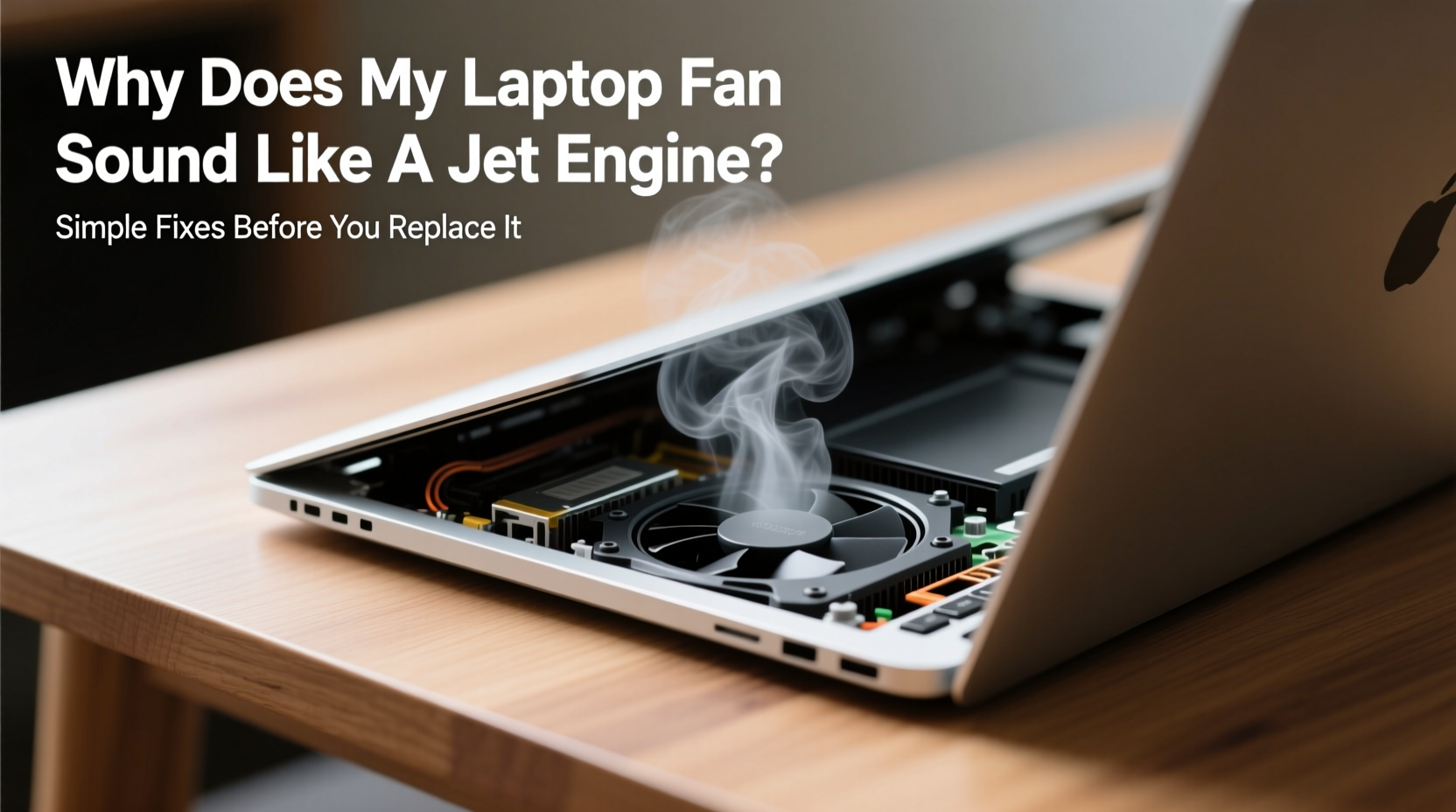
The primary function of a laptop fan is heat dissipation. Components like the CPU and GPU generate heat when performing computations. If that heat isn’t efficiently managed, temperatures rise, triggering the fan to spin faster—and louder—to compensate. Several factors contribute to this cycle:
- Dust accumulation: Over time, dust clogs air vents and heatsinks, reducing airflow efficiency.
- Poor ventilation: Using a laptop on soft surfaces like beds or couches blocks intake vents.
- Background processes: Resource-heavy applications or malware can cause sustained high CPU usage.
- Aging thermal paste: The compound between the processor and heatsink dries out, reducing heat transfer.
- Outdated firmware or drivers: Inefficient power management can lead to unnecessary fan activation.
Before jumping to conclusions about hardware failure, rule out these common but fixable issues. Most users find relief with basic maintenance rather than costly replacements.
Step-by-Step Guide to Diagnose and Fix Fan Noise
Noise doesn’t always mean malfunction. Follow this logical sequence to identify and resolve the underlying cause without opening your laptop unnecessarily.
- Check CPU and GPU usage
Open Task Manager (Windows) or Activity Monitor (Mac). Look for processes consuming more than 70–80% CPU consistently. End unnecessary tasks. Malware scans should also be performed if usage remains high without apparent reason. - Inspect physical ventilation
Examine the side and bottom vents. Are they obstructed? Use a flashlight to peer inside. Dust buildup often appears as dark fuzz near intake grills. Clean gently with a soft brush or vacuum nozzle. - Evaluate your usage environment
Is the laptop on a flat, hard surface? Soft materials block airflow. Invest in a cooling pad or even a simple book stand to elevate the rear for better exhaust clearance. - Monitor internal temperatures
Use tools like HWMonitor (Windows), Core Temp, or iStat Menus (Mac) to check real-time temps. Idle CPU should stay below 50°C; under load, under 85°C is acceptable. Anything higher suggests cooling inefficiency. - Update system software
Ensure BIOS, chipset drivers, and OS are up to date. Manufacturers often release updates improving thermal management logic.
After completing these checks, observe whether fan noise decreases during normal use. If yes, the problem was likely environmental or software-related. If not, proceed to deeper interventions.
Deep Cleaning: Removing Dust Buildup Safely
One of the leading causes of loud fans is dust accumulation inside the heatsink and fan assembly. Unlike external vents, internal components require careful access. While some manufacturers void warranties upon opening, many allow user-accessible panels for RAM and storage—often sharing the same compartment as the fan.
Here’s how to clean internally without damaging components:
- Power off and unplug the laptop. Remove the battery if possible.
- Use a small Phillips screwdriver to open the back panel. Refer to your model’s service manual online for guidance.
- Locate the fan and copper heatsink fins. Use compressed air in short bursts at a 45-degree angle to dislodge dust.
- For stubborn grime, lightly dampen a cotton swab with isopropyl alcohol (90%+) and wipe heatsink fins carefully.
- Avoid touching circuits directly. Let all parts dry completely before reassembly.
This process can dramatically reduce fan speed requirements by restoring proper heat exchange. Users commonly report quieter operation and cooler surface temperatures within minutes of reassembly.
“Over 60% of overheating laptops we see in repair shops simply need a thorough cleaning. It’s astonishing how much performance returns after removing a year’s worth of dust.” — David Lin, Senior Technician at TechCare Pro
Do’s and Don’ts of Laptop Cooling Maintenance
| Do | Don't |
|---|---|
| Use compressed air every 3–6 months for preventive care | Blow into vents with your mouth—moisture damages electronics |
| Place laptop on hard, flat surfaces | Use on beds, pillows, or laps without a barrier |
| Install reputable antivirus and ad-blockers to reduce background strain | Run multiple antivirus programs simultaneously—they conflict and spike CPU |
| Reapply thermal paste every 2–3 years on frequently used machines | Apply too much thermal paste—it creates insulation instead of conduction |
| Adjust power settings to “Balanced” or “Power Saver” when not gaming or editing | Leave maximum performance mode enabled indefinitely |
Following best practices significantly reduces stress on cooling systems. Even minor adjustments, such as disabling startup bloatware, can lower baseline temperatures and delay aggressive fan engagement.
Real Example: Sarah’s Overheating Work Laptop
Sarah, a freelance graphic designer, noticed her three-year-old laptop becoming increasingly loud during video rendering. Initially, she assumed the fan was failing and budgeted for a new machine. Instead, she tried diagnostics first.
Using Task Manager, she found Chrome was running 15 background tabs and two cryptocurrency miners via a malicious extension. After removal, CPU usage dropped from 95% idle to 28%. She then cleaned the side vents with compressed air and placed the laptop on a cooling tray. Internal temps fell from 92°C to 67°C under load. The fan noise reduced by nearly 70%, and she avoided spending $800 on a replacement.
Sarah now schedules monthly cleanings and uses uBlock Origin to prevent hidden scripts. Her laptop continues to perform reliably—a testament to proactive maintenance over premature replacement.
When Thermal Paste Replacement Makes Sense
Thermal paste degrades over time, especially in laptops subjected to frequent heating and cooling cycles. As it dries, microscopic gaps form between the CPU/GPU and the heatsink, reducing heat transfer efficiency. The system compensates by ramping up the fan.
Reapplying thermal paste is a moderate-difficulty task but offers substantial benefits:
- Reduces operating temperatures by 10–20°C
- Extends component longevity
- Lowers fan speeds and acoustic output
Choose a high-quality paste like Arctic MX-4 or Noctua NT-H1. Apply a pea-sized dot centered on the processor—spreading is automatic under pressure. Avoid silver-based compounds unless experienced, as they risk electrical shorts.
Note: This step is most effective when combined with heatsink cleaning. Replacing paste on a dusty heatsink yields minimal gains. Always let the paste settle for 24 hours before heavy use for optimal curing.
Frequently Asked Questions
Is a loud fan a sign my laptop is about to die?
Not necessarily. A noisy fan usually indicates overheating due to dust, poor ventilation, or software load—not imminent hardware failure. However, prolonged overheating can shorten the lifespan of internal components, so timely intervention matters.
Can I disable the fan to stop the noise?
No. Disabling the fan risks severe overheating, throttling, or permanent damage to the CPU and motherboard. The noise is a warning mechanism—silencing it removes protection, not the problem.
How often should I clean my laptop fan?
For average use, clean every 6 months. In dusty environments or with pets, every 3–4 months is advisable. Light users may stretch to once a year, but annual inspection is recommended regardless.
Essential Checklist: Silence Your Laptop Fan in 7 Steps
- ✅ Check Task Manager/Activity Monitor for abnormal CPU usage
- ✅ Close unnecessary programs and browser tabs
- ✅ Run a full antivirus scan to rule out crypto-mining malware
- ✅ Clean external vents with a soft brush or vacuum
- ✅ Use compressed air to remove internal dust (with proper precautions)
- ✅ Place laptop on a hard, elevated surface or cooling pad
- ✅ Update BIOS, drivers, and OS for optimized thermal management
Complete this checklist before considering professional repairs or part replacements. Most issues resolve at step one or two.
Conclusion: Act Early, Save Time and Money
A jet-engine-like laptop fan is rarely a death sentence—it’s a call to action. Simple habits like regular cleaning, smart placement, and monitoring system resources can restore quiet operation and boost performance. You don’t need technical expertise to make meaningful improvements; just awareness and consistency.
Before you schedule a repair or shop for a new device, invest an hour in diagnostics and maintenance. The results might surprise you. Thousands of users extend their laptop lives by years simply by treating cooling systems with care. Take control today: inspect, clean, optimize, and enjoy a quieter, cooler computing experience.




 浙公网安备
33010002000092号
浙公网安备
33010002000092号 浙B2-20120091-4
Comments
No comments yet. Why don't you start the discussion?