
If your laptop suddenly sounds like it’s preparing for takeoff, you’re not alone. Many users experience this jarring increase in fan noise—especially during routine tasks like browsing or watching videos. While some level of fan activity is normal, a consistently loud, jet-engine-like roar usually signals an underlying issue. The good news: most causes are fixable without expensive repairs or technical expertise. From dust buildup to software overload, understanding the root causes empowers you to restore quiet operation and extend your device’s lifespan.
Why Laptop Fans Get So Loud
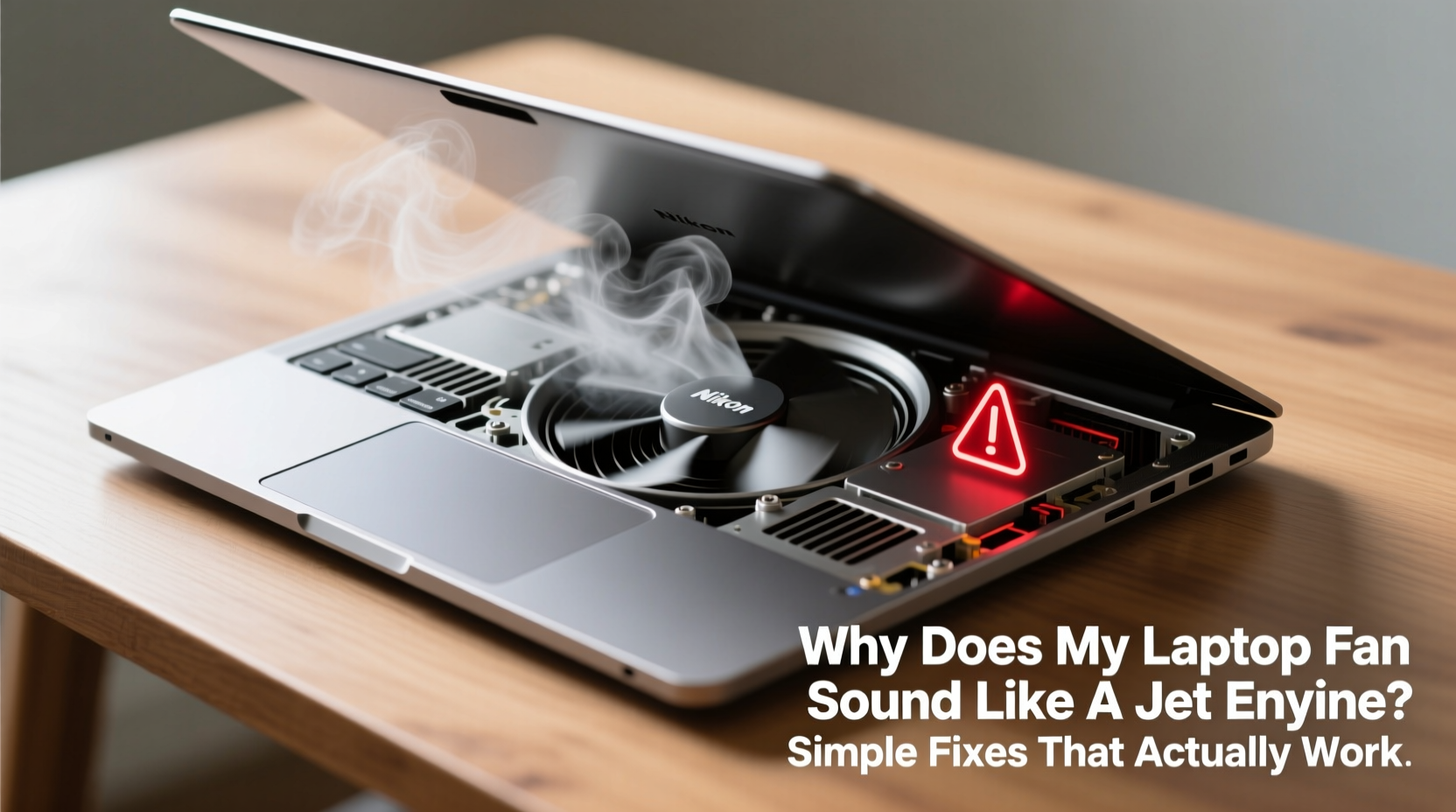
Laptop fans exist to regulate internal temperature. When components like the CPU or GPU heat up during use, the cooling system activates to prevent overheating. However, excessive noise typically means the fan is working harder than necessary. This overexertion can stem from several sources:
- Dust accumulation: Over time, dust clogs air vents and heatsinks, reducing airflow and forcing the fan to spin faster.
- High CPU/GPU usage: Background processes, malware, or resource-heavy applications generate heat, triggering aggressive cooling.
- Poor ventilation: Using your laptop on soft surfaces like beds or couches blocks intake vents.
- Failing thermal paste: On older laptops, dried-out thermal paste reduces heat transfer efficiency, causing higher temperatures.
- Aging hardware: Fans wear out over time, becoming noisier even under light loads.
Ignoring persistent fan noise risks long-term damage. Excessive heat degrades battery life, slows performance, and may lead to hardware failure. Addressing the problem early preserves both comfort and functionality.
Step-by-Step Guide to Quieter Operation
Follow this practical sequence to diagnose and resolve the cause of your noisy fan. Most fixes require only basic tools and minimal technical knowledge.
- Check current system load
Open Task Manager (Windows) or Activity Monitor (Mac). Look for processes consuming high CPU or GPU resources. End any unnecessary tasks. - Clean air vents and fans
Power off the laptop. Use compressed air to blow dust from side vents and cooling grills. Hold the can upright and use short bursts to avoid moisture buildup. - Elevate the laptop
Place it on a stand or even a small book to improve airflow underneath. Even a 1–2 cm gap makes a difference. - Update software and drivers
Outdated BIOS or graphics drivers can cause inefficient power management. Visit your manufacturer’s support site for updates. - Adjust power settings
Switch from “High Performance” to “Balanced” or “Power Saver” mode to reduce thermal output. - Monitor internal temperatures
Use tools like HWMonitor (Windows) or iStat Menus (Mac) to check if CPU temps exceed 85°C under load. - Consider internal cleaning (advanced)
If noise persists, open the back panel (if comfortable) and clean the fan blades and heatsink with a soft brush and compressed air.
This process often resolves 80% of fan noise issues. For older devices, deeper maintenance may be required—but start with these accessible steps first.
Do’s and Don’ts: Maintaining Optimal Cooling
| Do’s | Don’ts |
|---|---|
| Use your laptop on hard, flat surfaces | Place it on soft materials like beds or sofas |
| Clean vents every 3–6 months | Ignore visible dust buildup in cooling ports |
| Close unused browser tabs and apps | Run multiple video streams or games simultaneously without monitoring heat |
| Enable automatic OS updates | Disable fan alerts or thermal protection features |
| Invest in a cooling pad for prolonged use | Block exhaust vents with walls or objects |
Real Example: Sarah’s Streaming Fix
Sarah, a freelance video editor, noticed her three-year-old laptop began making aircraft-level noise during client calls and rendering tasks. Initially, she assumed it was failing and budgeted for a replacement. Instead, she decided to troubleshoot.
First, she checked Task Manager and found her web browser was using 70% CPU due to 20+ open tabs, including two live streaming dashboards. Closing unused tabs reduced CPU load to 25%. She then cleaned the side vents with compressed air—revealing a thick layer of lint. After repositioning her laptop onto a wooden desk (previously used on a cushioned chair), fan noise dropped dramatically. A BIOS update further stabilized thermal management.
The result? Her laptop now runs quietly under moderate load, extending its useful life by at least another 18 months—all for less than $20 and under two hours of effort.
“Over 60% of ‘noisy laptop’ service calls we see are resolved with basic cleaning and usage adjustments. Users often overlook simple environmental factors.” — Raj Patel, Senior Technician at TechCare Solutions
When Hardware Repair Might Be Needed
If basic fixes don’t help, deeper issues could be at play. Consider these signs:
- Fan spins loudly even when the laptop is idle
- System frequently shuts down due to overheating
- You hear grinding or clicking noises (indicating bearing wear)
- Temperature readings stay high despite low usage
In such cases, professional servicing may be necessary. Technicians can replace worn fans, reapply thermal paste, or upgrade heatsinks. For laptops over four years old, weigh repair costs against upgrading. However, many mid-range models benefit significantly from a $30–$50 fan replacement, restoring near-new performance.
Preventive Maintenance Checklist
Stay ahead of fan problems with regular care. Print or bookmark this checklist for quarterly review:
- ✅ Clean external vents with compressed air
- ✅ Verify no background apps are hogging CPU
- ✅ Update operating system and drivers
- ✅ Check battery health (degraded batteries generate excess heat)
- ✅ Reassess laptop placement and surface stability
- ✅ Monitor average CPU temperature during typical use
- ✅ Remove temporary files and clear browser cache
Setting calendar reminders every three months ensures consistent upkeep. Preventive habits reduce strain on internal components and maintain optimal airflow over time.
Frequently Asked Questions
Is it safe to use my laptop if the fan is loud?
Occasional loud fan noise during heavy tasks (like gaming or video editing) is normal. However, constant jet-engine levels—even at idle—suggest overheating risk. Prolonged exposure to high temperatures can damage the motherboard, battery, or storage drive. It’s best to address the cause promptly rather than continue using it unchecked.
Can I disable the fan to stop the noise?
No. The fan is essential for preventing critical overheating. Disabling it—even temporarily—can cause permanent hardware damage within minutes. Instead, focus on reducing the conditions that trigger high fan speeds, such as dust, poor ventilation, or software bloat.
How long should a laptop fan last?
Most laptop fans are rated for 30,000 to 50,000 hours of operation—roughly 3.5 to 5.7 years of continuous use. In real-world conditions, they often last 5–7 years depending on usage intensity and environment. Regular cleaning and proper ventilation extend their functional life significantly.
Conclusion: Silence Starts with Smart Habits
A roaring laptop fan doesn’t have to be the new normal. With a few simple, proactive measures, you can reclaim quiet computing and protect your investment. Most fixes are inexpensive, quick, and entirely within reach of non-technical users. Whether it’s clearing dust, managing software load, or improving your workspace setup, small changes yield dramatic results.
Don’t wait until performance tanks or shutdowns begin. Apply these solutions today to keep your laptop cool, quiet, and reliable for years to come. Your ears—and your device—will thank you.




 浙公网安备
33010002000092号
浙公网安备
33010002000092号 浙B2-20120091-4
Comments
No comments yet. Why don't you start the discussion?