
A sudden surge in laptop fan noise can be startling—especially when you're working in silence or watching a video. The whirring escalates from a soft hum to what sounds like a miniature jet engine. While this might trigger concerns about hardware failure, the truth is that most causes are manageable without professional help. Overheating, dust buildup, software strain, and power settings are common culprits. Understanding the root causes and knowing how to respond empowers you to maintain performance, extend your device’s lifespan, and avoid unnecessary service visits.
What Triggers Sudden Fan Noise?
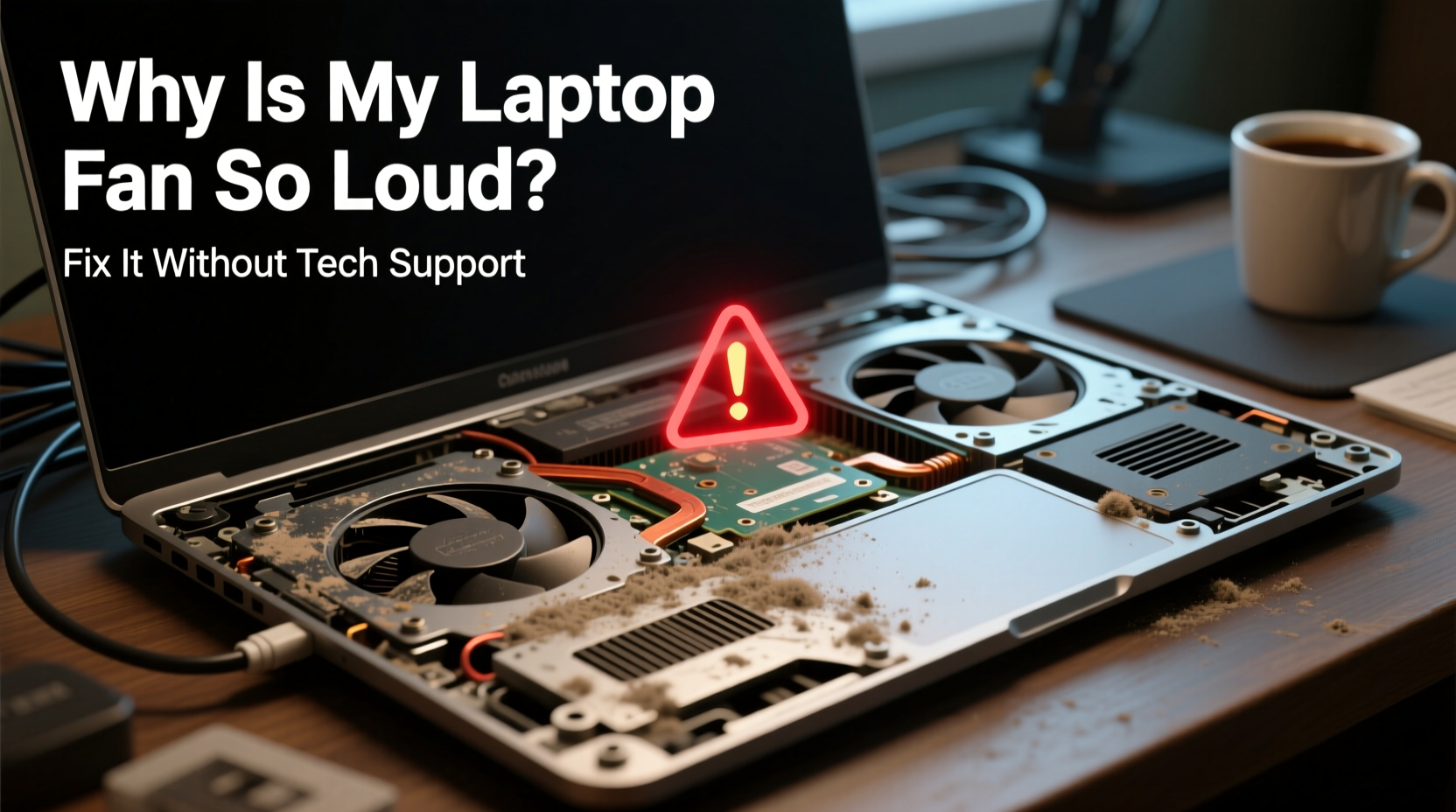
Laptop fans exist to regulate internal temperature. When components like the CPU or GPU heat up, the system automatically increases fan speed to dissipate excess heat. A temporary spike during intensive tasks—like video editing or gaming—is normal. But if the fan runs loudly for extended periods, even during light use, something is off.
The most frequent triggers include:
- Dust accumulation blocking air vents and reducing airflow.
- Background processes consuming excessive CPU resources.
- Poor ventilation due to using the laptop on soft surfaces like beds or couches.
- Outdated or misconfigured power settings forcing high-performance mode unnecessarily.
- Failing thermal paste between the processor and heatsink (more common in older devices).
While some issues require disassembly, many can be diagnosed and resolved with basic troubleshooting.
Step-by-Step Guide to Diagnose and Reduce Fan Noise
Before opening the laptop or installing tools, follow a systematic approach to identify and resolve the issue safely.
- Check current CPU usage
Open Task Manager (Ctrl+Shift+Esc on Windows, Activity Monitor on macOS) and sort processes by CPU. Look for any app using more than 50% consistently. End suspicious or unknown tasks. - Inspect physical ventilation
Examine the side and bottom vents. If they’re clogged with dust, use compressed air to gently blow it out. Hold fans still with a toothpick to prevent overspinning. - Adjust power settings
Switch from “High Performance” to “Balanced” or “Power Saver” mode. This reduces CPU load and heat generation. - Update software and drivers
Ensure your OS, BIOS, and graphics drivers are current. Manufacturers often release thermal management improvements. - Monitor internal temperatures
Use free tools like HWMonitor (Windows) or iStat Menus (macOS) to check real-time CPU/GPU temps. Idle should stay below 50°C; under load, under 85°C is acceptable.
If temperatures remain high despite low usage, deeper cleaning or configuration may be needed.
Common Software Causes and Fixes
Many loud fan episodes stem not from hardware but from runaway software processes. Malware, bloated applications, or automatic updates can silently max out your CPU.
For example, a browser with dozens of open tabs—especially those playing videos or running scripts—can push CPU usage to 90%. Similarly, Adobe Creative Cloud, OneDrive, or Steam background syncs may spike activity after waking from sleep.
How to Identify Resource-Hungry Apps
On Windows:
- Press Ctrl+Shift+Esc to open Task Manager.
- Click the “CPU” column to sort by highest usage.
- Right-click any process over 70% and select “End task” if not essential.
- Go to Startup tab and disable unnecessary programs launching at boot.
On macOS:
- Open Activity Monitor from Applications > Utilities.
- Sort by % CPU and force quit problematic apps.
- Review Login Items in System Settings > General > Login Items.
Regularly auditing startup items prevents background overload.
| Cause | Symptom | Solution |
|---|---|---|
| Too many browser tabs | High CPU, fan spins up during browsing | Use tab suspender extensions or close unused tabs |
| Malware or crypto-mining script | Fan loud even when idle | Run antivirus scan (e.g., Malwarebytes) |
| Outdated graphics driver | Overheating during simple visuals | Update via manufacturer website |
| Aggressive backup sync | Spikes every few hours | Schedule syncs during non-use times |
Hardware Maintenance You Can Do at Home
Even with perfect software, dust buildup inside the laptop can insulate heat and force fans to run constantly. Most laptops accumulate dust within 1–2 years, especially in dry or pet-friendly environments.
You don’t need to open the case to clean effectively. Use short bursts of compressed air into intake and exhaust vents while the laptop is powered off. Tilt it slightly so debris falls out rather than deeper in.
If you're comfortable with basic disassembly:
- Power off and unplug the laptop. Remove the battery if possible.
- Use a Phillips screwdriver to remove the back panel (check online guides specific to your model).
- Blow out dust from the fan blades and heatsink fins with compressed air.
- Inspect the fan for wobbling or grinding—signs of wear.
- Reassemble carefully, ensuring all screws are secured.
Note: Opening your device may void warranty if under coverage. Proceed only if out of warranty or confident in your skills.
For older laptops (3+ years), degraded thermal paste may be the issue. Reapplying high-quality paste (like Arctic MX-4) improves heat transfer and can drop CPU temps by 10–15°C. However, this requires full disassembly and is best attempted after research.
“Most fan noise complaints we see in diagnostics trace back to poor airflow or unchecked background processes—not failing hardware.” — Rajiv Mehta, Senior Technician at PC Health Labs
Mini Case Study: The Overworked Student Laptop
Emily, a university student, noticed her three-year-old laptop suddenly became noisy during lectures. The fan would ramp up even when she was just taking notes in Word. She assumed it needed repair, but instead followed a few basic steps.
First, she opened Task Manager and found her antivirus was scanning continuously. After updating the software, the scan stopped. Next, she used compressed air on the side vents—pulling out visible clumps of lint. Finally, she changed her power plan to “Balanced” and disabled startup apps like Spotify and Discord.
Result: Fan noise dropped by 70%. CPU temps fell from 82°C at idle to 49°C. No technician visit required.
This scenario is common. Often, multiple small issues compound into one noticeable symptom.
Preventive Checklist for Long-Term Quiet Operation
To avoid recurring fan problems, adopt these habits:
- ✅ Clean vents every 3–4 months with compressed air
- ✅ Avoid using the laptop on soft surfaces
- ✅ Update operating system and drivers monthly
- ✅ Limit startup programs to essentials
- ✅ Monitor CPU usage weekly if prone to slowdowns
- ✅ Use a laptop cooling pad in hot environments
- ✅ Shut down (not just sleep) occasionally to clear memory
Consistent maintenance prevents heat-related wear and tear on both fans and internal components.
Frequently Asked Questions
Is it bad if my laptop fan runs loudly all the time?
Constant high-speed operation can shorten the fan’s lifespan and indicate inefficient cooling. Prolonged high temperatures may also degrade battery health and reduce overall system stability. It’s not an emergency, but it should be addressed to prevent long-term damage.
Can I disable the fan to stop the noise?
No. The fan is critical for preventing overheating. Disabling it—even temporarily—risks thermal throttling, automatic shutdowns, or permanent hardware damage. Instead, address the root cause of the heat buildup.
How do I know if the fan is broken?
If the laptop shuts down unexpectedly under light use, feels excessively hot on the bottom, and shows high temps in monitoring tools—but the fan isn’t spinning—then it may be faulty. A clicking or grinding sound also suggests mechanical failure. In such cases, professional repair is recommended.
Conclusion: Take Control Without Calling Support
A loud laptop fan doesn’t automatically mean disaster. More often than not, it’s a signal that your device needs attention—whether through software optimization, environmental adjustment, or simple cleaning. By understanding the relationship between heat, performance, and airflow, you gain the ability to troubleshoot confidently and independently.
Start with the easiest fixes: check Task Manager, clean the vents, adjust power settings. Then build habits that sustain performance over time. With minimal effort, you can restore quiet operation and extend your laptop’s functional life by years.




 浙公网安备
33010002000092号
浙公网安备
33010002000092号 浙B2-20120091-4
Comments
No comments yet. Why don't you start the discussion?