
Laptops are designed to handle everyday tasks with quiet efficiency—web browsing, document editing, streaming videos. So when your fan kicks into overdrive during something as simple as checking email, it’s more than just annoying; it’s a signal. A loud fan under light workloads often indicates deeper issues that, if ignored, can shorten your device’s lifespan, degrade performance, or even lead to hardware failure.
The sudden onset of fan noise isn’t random. It reflects changes in internal conditions—temperature spikes, software strain, dust buildup, or power mismanagement. The good news? Most causes are fixable without costly repairs. With the right diagnostic approach and maintenance habits, you can restore quiet operation and extend your laptop’s usability.
What Triggers Sudden Fan Noise During Basic Tasks?
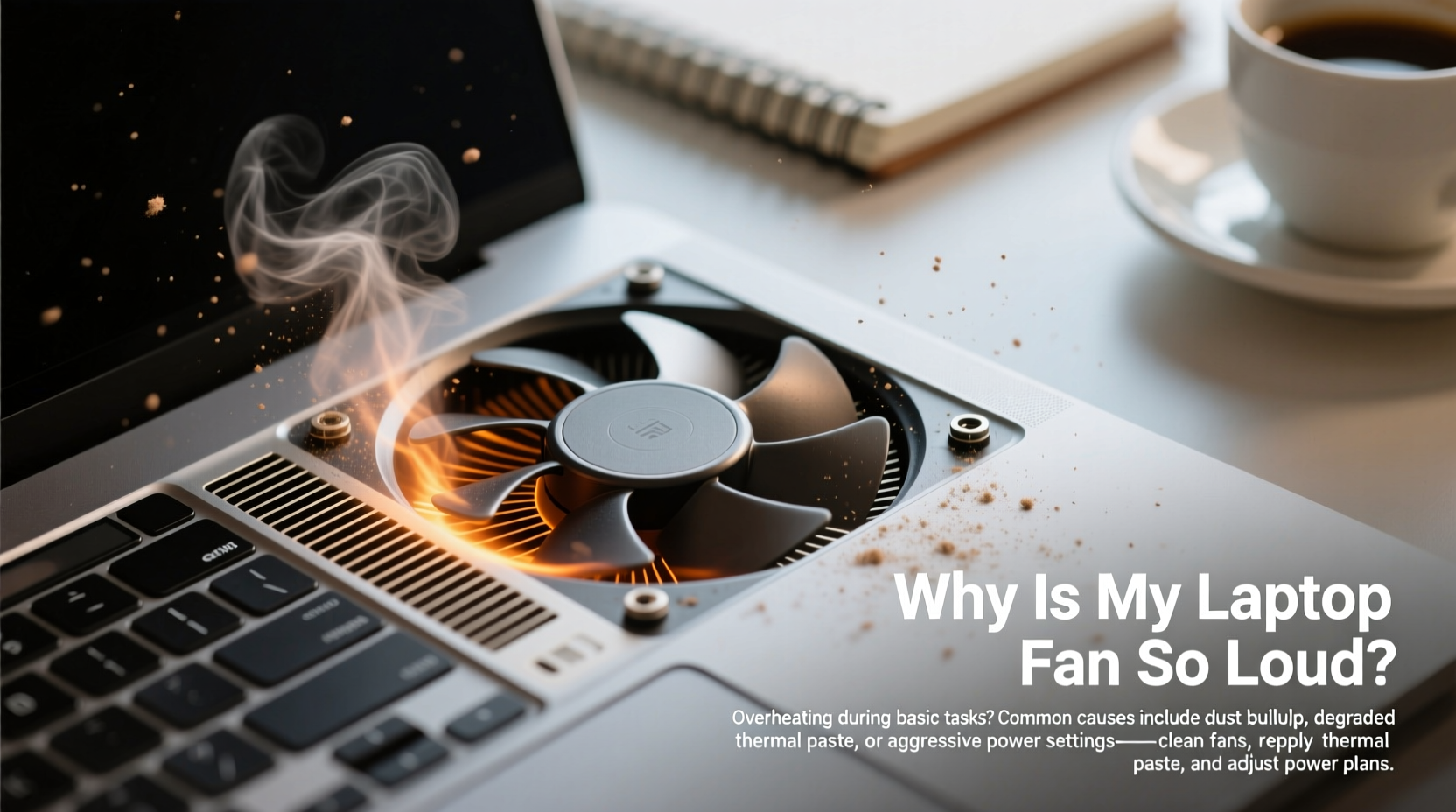
Modern laptops use thermal sensors to monitor internal temperature. When components like the CPU or GPU heat up, the system increases fan speed to prevent overheating. While some fan activity is normal, excessive noise during low-demand activities suggests inefficiencies or failures in heat regulation.
Several factors can cause this behavior:
- Dust accumulation: Over time, dust clogs air vents and heatsinks, reducing airflow and insulation efficiency.
- Background processes: Hidden applications or malware may be consuming CPU resources without your knowledge.
- Power plan settings: Aggressive performance modes keep the CPU running at high speeds, generating excess heat.
- Failing thermal paste: The compound between the processor and heatsink degrades, reducing heat transfer.
- Poor ventilation: Using the laptop on soft surfaces like beds or couches blocks intake vents.
- Aging hardware: Older fans may become unbalanced or noisy due to wear and tear.
Unlike desktops, laptops have limited space for cooling systems. This makes them especially vulnerable to thermal throttling and fan strain when any part of the cooling chain fails.
Step-by-Step Guide to Diagnose and Reduce Fan Noise
Before disassembling your laptop or buying new equipment, follow this systematic troubleshooting process. Many fixes require no tools and take less than 30 minutes.
- Check CPU and GPU usage
Open Task Manager (Windows) or Activity Monitor (Mac). Sort processes by CPU usage. Look for apps consuming more than 20–30% without user input. Common culprits include browser tabs with autoplay video, update services, or cryptocurrency miners. - Update operating system and drivers
Outdated firmware or graphics drivers can cause inefficient power management. Check for updates through Windows Update or your manufacturer’s support site (e.g., Dell SupportAssist, Lenovo Vantage). - Adjust power settings
On Windows: Go to Control Panel > Power Options. Switch from “High Performance” to “Balanced.” On Mac: System Settings > Battery > ensure “Automatic” graphics switching is enabled. - Clean exterior vents
Use compressed air to blow dust out of side and rear vents. Hold fans still with a toothpick to avoid overspinning them, which can damage bearings. - Scan for malware
Run a full system scan using Windows Defender or Malwarebytes. Some malware runs hidden mining scripts that max out CPU usage. - Reset thermal paste (advanced)
If your laptop is over two years old and frequently overheats, consider reapplying thermal paste. This requires opening the back panel and accessing the CPU/GPU. Only recommended if you’re comfortable with hardware repair. - Monitor internal temperatures
Use tools like HWMonitor (Windows), Core Temp, or iStat Menus (Mac) to track real-time temps. Idle CPU should stay below 50°C. Anything above 70°C under light load indicates a problem.
Do’s and Don’ts of Laptop Cooling Maintenance
| Do | Don't |
|---|---|
| Use a laptop cooling pad with independent fans | Place the laptop on blankets, pillows, or laps for extended periods |
| Clean vents every 3–6 months | Use vacuum cleaners directly on vents (can generate static) |
| Keep software updated regularly | Ignore persistent high CPU usage from unknown processes |
| Reapply thermal paste every 2–3 years | Over-tighten screws during reassembly (can warp heatsink) |
| Enable automatic fan control via BIOS or utility software | Run intensive programs while charging on battery |
Real Example: How One User Fixed Persistent Fan Noise
Mark, a freelance writer using a 4-year-old HP Pavilion, noticed his fan roaring whenever he opened multiple Chrome tabs—even with no video playing. He assumed the laptop was failing and considered replacement. Instead, he ran Task Manager and discovered a single tab from a news site spiking CPU usage to 85%. After closing it, fan noise dropped immediately.
Skeptical, he installed uBlock Origin and monitored background activity. Within days, he caught another script attempting to mine cryptocurrency through a compromised ad network. With ad-blocking active and regular cleanup routines, his laptop now runs silently again—extending its life by at least another year.
This case highlights a critical point: software issues often mimic hardware failure. Simple interventions can yield dramatic improvements.
Expert Insight: What Engineers Say About Fan Behavior
“Many users assume fan noise means their laptop is dying. But in over 60% of cases we see at repair centers, the issue is either dust blockage or runaway background processes. Physical cleaning and digital hygiene solve most problems before they escalate.” — David Lin, Senior Hardware Technician at TechCare Labs
“Thermal paste begins to dry out after 18–24 months of regular use. If your laptop runs hotter than it used to—even after cleaning—it’s likely time for repasting. It’s a small investment that can double cooling efficiency.” — Priya Mehta, Electronics Thermal Design Specialist
Comprehensive Checklist to Quiet Your Laptop Fan
- ✅ Check Task Manager/Activity Monitor for abnormal CPU/GPU usage
- ✅ Close unnecessary browser tabs and background apps
- ✅ Install ad-blocker to prevent resource-heavy ads
- ✅ Run antivirus and anti-malware scans
- ✅ Update OS, drivers, and BIOS
- ✅ Clean air vents with compressed air (every 3–6 months)
- ✅ Replace worn-out thermal paste (if experienced with hardware)
- ✅ Switch to Balanced or Power Saver power plan
- ✅ Use laptop on hard, flat surfaces only
- ✅ Invest in a passive cooling pad or stand
- ✅ Monitor internal temperatures with free software
- ✅ Back up data and consider professional servicing if noise persists
Frequently Asked Questions
Is it harmful if my laptop fan is always loud?
Consistently high fan speed under light loads can indicate overheating, which stresses internal components. Prolonged exposure to high temperatures reduces the lifespan of the battery, CPU, and storage drive. While not immediately dangerous, it should be addressed promptly to prevent long-term damage.
Can I disable the fan to stop the noise?
No. Disabling the fan—even temporarily—risks severe overheating and potential hardware failure. Fans are safety-critical components. If noise is unbearable, address the root cause rather than disabling protection mechanisms.
How do I know if my fan needs replacing?
If you’ve cleaned the vents, updated software, and repasted the CPU, but the fan remains excessively loud or makes grinding noises, the motor or bearings may be failing. A rhythmic clicking or buzzing sound often indicates physical wear. In such cases, professional replacement is recommended.
When to Seek Professional Help
Most fan issues can be resolved at home. However, certain signs warrant professional attention:
- Grinding, rattling, or screeching noises from the fan unit
- Overheating shutdowns despite clean internals
- Visible warping or damage to heatsink fins
- Repeated thermal throttling under low workloads
Authorized service centers can replace fans, upgrade thermal solutions, or perform deep diagnostics. For older laptops, weigh repair costs against the value of upgrading. Sometimes, investing in a newer, more efficient model is more cost-effective in the long run.
Conclusion: Silence Is Achievable—and Essential
A loud laptop fan during basic tasks isn’t something to ignore. It’s an early warning system telling you that something is off—whether it’s a sneaky app, a layer of dust, or aging hardware. By taking proactive steps, you can restore quiet performance, protect your investment, and avoid premature obsolescence.
Start today: open your task manager, clean those vents, adjust your power settings. Small actions now prevent bigger problems later. Your laptop doesn’t need to sound like a jet engine to check email. With informed care, it can run cool, quiet, and efficiently for years to come.




 浙公网安备
33010002000092号
浙公网安备
33010002000092号 浙B2-20120091-4
Comments
No comments yet. Why don't you start the discussion?