
Laptop freezes are more than just a minor annoyance—they disrupt work, corrupt files, and erode confidence in your device. If your screen locks up without warning, programs stop responding, or the cursor won’t move, you're not alone. Millions of users face this issue every year, often unaware of the underlying causes. The good news? Most freezing problems stem from predictable, fixable issues. Whether your laptop is three months old or five years in service, understanding the root causes and applying targeted solutions can restore smooth performance.
Common Causes of Random Laptop Freezing
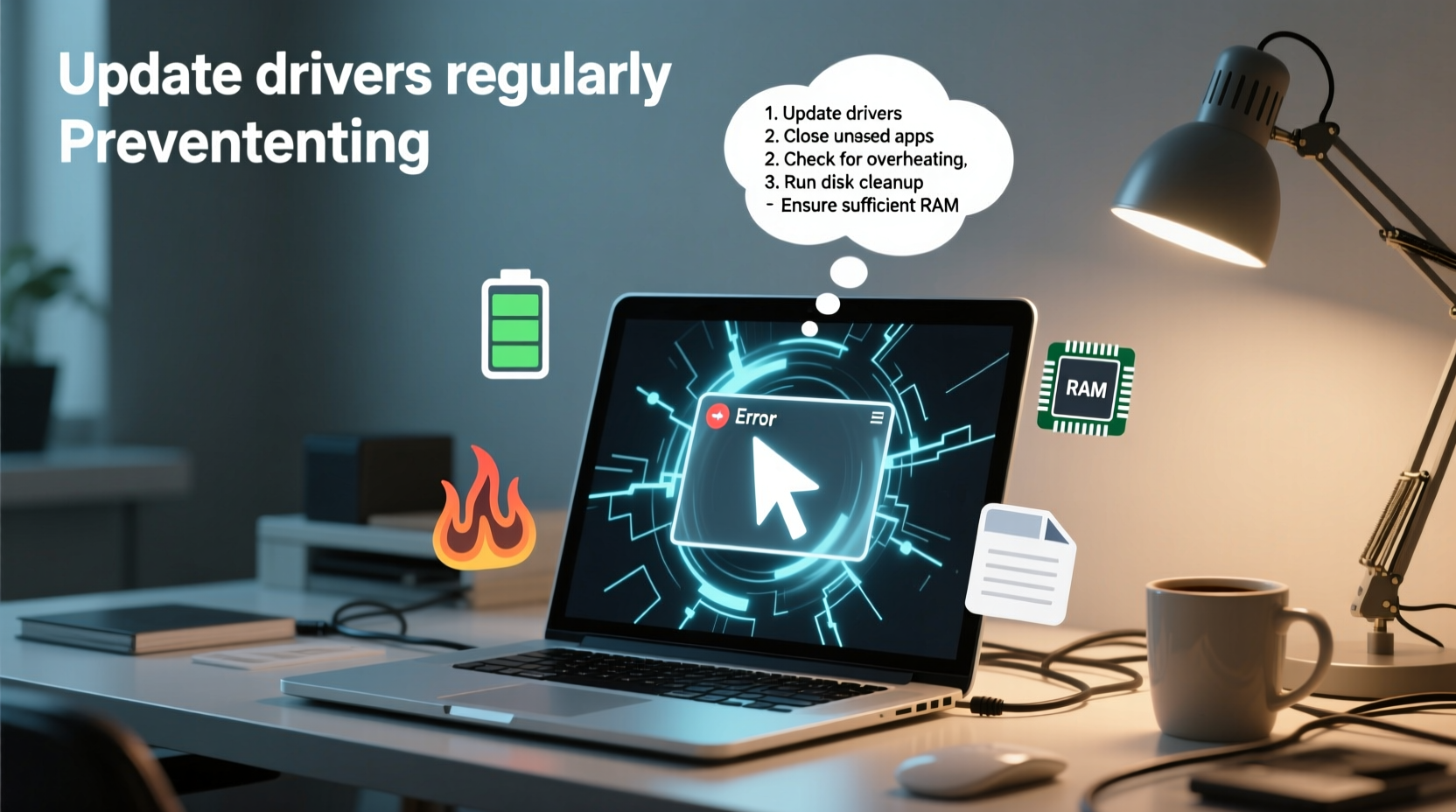
Laptop freezes rarely happen without reason. While they may seem unpredictable, most are tied to hardware limitations, software conflicts, or environmental factors. Identifying the cause is the first step toward resolution.
- Insufficient RAM: When too many applications run simultaneously, available memory depletes, causing the system to stall.
- Overheating: Dust buildup, blocked vents, or degraded thermal paste can cause CPUs and GPUs to overheat, triggering protective shutdowns or freezes.
- Outdated or Corrupted Drivers: Graphics, chipset, or network drivers that are outdated or improperly installed can lead to system instability.
- Hard Drive Failure: Mechanical hard drives (HDDs) with bad sectors or SSDs nearing end-of-life can cause read/write delays, leading to system lockups.
- Malware Infections: Malicious software consumes resources and interferes with system processes, often silently.
- Software Conflicts: Recently installed programs or background services may clash with existing software or OS components.
- Power Settings: Aggressive power-saving modes can throttle CPU performance or suspend critical processes unexpectedly.
Step-by-Step Guide to Diagnose and Fix Freezing Issues
Resolving random freezes requires methodical troubleshooting. Jumping to conclusions—like reinstalling Windows immediately—can waste time. Follow these steps in order to isolate and resolve the problem efficiently.
- Check for Overheating
Use tools like HWMonitor or Core Temp to monitor CPU and GPU temperatures. Idle temps should stay below 50°C; under load, below 85°C. If readings exceed this, clean internal dust, ensure proper ventilation, or consider reapplying thermal paste. - Update Your Operating System and Drivers
Outdated system software is a common culprit. On Windows, go to Settings > Update & Security > Windows Update. For drivers, use Device Manager or visit your laptop manufacturer’s support site for certified updates. - Scan for Malware
Run a full system scan using Windows Defender or a trusted third-party antivirus. Some malware operates stealthily, consuming resources without visible symptoms. - Analyze Startup Programs
Too many apps launching at boot can overwhelm system resources. Press Ctrl+Shift+Esc to open Task Manager, go to the Startup tab, and disable non-essential programs. - Test Your RAM and Storage
Use Windows Memory Diagnostic (search in Start menu) to check for faulty RAM. For storage, run CHKDSK (Command Prompt as admin:chkdsk C: /f /r) on HDDs or use manufacturer tools for SSD health (e.g., Samsung Magician). - Adjust Power Settings
Switch to “High Performance” mode in Control Panel > Power Options. Avoid aggressive sleep or hibernation settings that may interfere with background tasks. - Perform a Clean Boot
A clean boot starts Windows with minimal drivers and startup programs. Type \"msconfig\" in the Run dialog, go to Services, check \"Hide all Microsoft services,\" then click \"Disable all.\" Restart and observe if freezing stops. If so, re-enable services one by one to identify the offender.
Prevention Checklist: Keep Your Laptop Running Smoothly
Prevention is far more effective than repair. Incorporate these habits into your routine to minimize the risk of future freezes.
- ✅ Restart your laptop weekly to clear memory leaks and refresh system processes.
- ✅ Keep at least 15% of your drive free for virtual memory and temp files.
- ✅ Install OS and driver updates promptly.
- ✅ Avoid placing laptops on soft surfaces like beds or couches that block airflow.
- ✅ Use a cooling pad if you frequently run demanding applications.
- ✅ Uninstall unused programs to reduce background activity.
- ✅ Schedule monthly disk cleanup and malware scans.
Real-World Example: Sarah’s Work-from-Home Struggles
Sarah, a freelance graphic designer, began experiencing frequent freezes while editing high-resolution images. Her 4-year-old laptop would lock up mid-project, sometimes forcing a hard reset. Initially, she assumed her software was at fault. After ruling out Adobe app bugs, she followed diagnostic steps: monitoring temperature revealed CPU spikes above 95°C during renders. Upon inspection, the fan was clogged with dust, and the bottom vent was blocked by a fabric mat. She cleaned the internals with compressed air, elevated the laptop for airflow, and applied new thermal paste. The freezes stopped entirely. Sarah now cleans her laptop every three months and uses a stand with active cooling—simple actions that saved her hundreds in potential repair costs.
Expert Insight: What Technicians See Most Often
Field technicians encounter freezing issues daily. Their insights reveal patterns invisible to average users.
“Over 60% of freezing cases we see are due to overheating or RAM issues. Users often overlook dust buildup until it’s too late. Regular maintenance isn’t optional—it’s essential.” — James Lin, Senior IT Support Specialist, TechCare Solutions
“Many freezes trace back to driver conflicts after Windows updates. Always check for updated drivers from the manufacturer right after a major OS patch.” — Dr. Alicia Nguyen, Hardware Engineer
Do’s and Don’ts: Best Practices Table
| Do’s | Don’ts |
|---|---|
| Keep your laptop on a hard, flat surface for optimal airflow. | Don’t use your laptop on a bed, pillow, or blanket that blocks vents. |
| Install software only from trusted sources to avoid hidden bloatware. | Don’t download “free” utilities or cracked software that may contain malware. |
| Back up important data regularly using cloud or external drives. | Don’t wait until a freeze corrupts your files to start backing up. |
| Upgrade to an SSD if still using an HDD—performance gains are dramatic. | Don’t ignore slow boot times or file access delays; they’re early warnings. |
| Use Task Manager to monitor resource usage under load. | Don’t run too many browser tabs and apps simultaneously on low-RAM systems. |
Frequently Asked Questions
Can a virus really make my laptop freeze?
Yes. Some malware runs endless background loops, encrypts files silently, or hijacks system resources. These activities max out CPU or disk usage, causing the system to become unresponsive. Signs include sudden slowdowns, unexpected pop-ups, or high disk usage when idle. A full antivirus scan is essential if freezing coincides with suspicious behavior.
Is it worth repairing an old laptop that keeps freezing?
It depends on the cause. If the issue is a failing HDD, upgrading to an SSD can breathe new life into a 7-year-old machine for under $50. Similarly, adding more RAM (if supported) is cost-effective. However, if the motherboard or CPU is failing, replacement may be more economical. Evaluate repair cost versus performance needs before deciding.
Why does my laptop freeze only when I plug in a USB device?
This often points to a power delivery or driver issue. Faulty USB devices can draw excessive current, destabilizing the system. Try different USB ports and devices. Update USB and chipset drivers. In some cases, BIOS updates address known compatibility bugs with peripherals.
Conclusion: Take Control Before the Next Freeze
Random laptop freezes are not inevitable. They are symptoms of deeper issues—many of which are preventable with awareness and routine care. From cleaning dust to managing startup programs, the solutions are within reach of every user. You don’t need advanced technical skills to maintain a stable, responsive system. What you do need is consistency. Apply the steps outlined here, adopt preventive habits, and your laptop will reward you with reliability and longevity. Technology should empower you, not frustrate you. Take action today—before the next freeze disrupts your workflow or costs you valuable data.




 浙公网安备
33010002000092号
浙公网安备
33010002000092号 浙B2-20120091-4
Comments
No comments yet. Why don't you start the discussion?