
Opening several browser tabs at once has become second nature in our multitasking digital lives—research, shopping, messaging, streaming music—all running simultaneously. But when your laptop starts to lag, stutter, or completely freeze under this load, productivity grinds to a halt. This isn’t just frustrating; it can signal deeper issues with your system’s health and efficiency.
The root causes vary: insufficient RAM, outdated hardware, bloated browsers, or background processes consuming resources. The good news is that most of these problems are fixable with the right knowledge and tools. Understanding why your laptop freezes—and how to prevent it—can transform a sluggish machine into a responsive, reliable workhorse.
Why Multiple Tabs Trigger Laptop Freezes
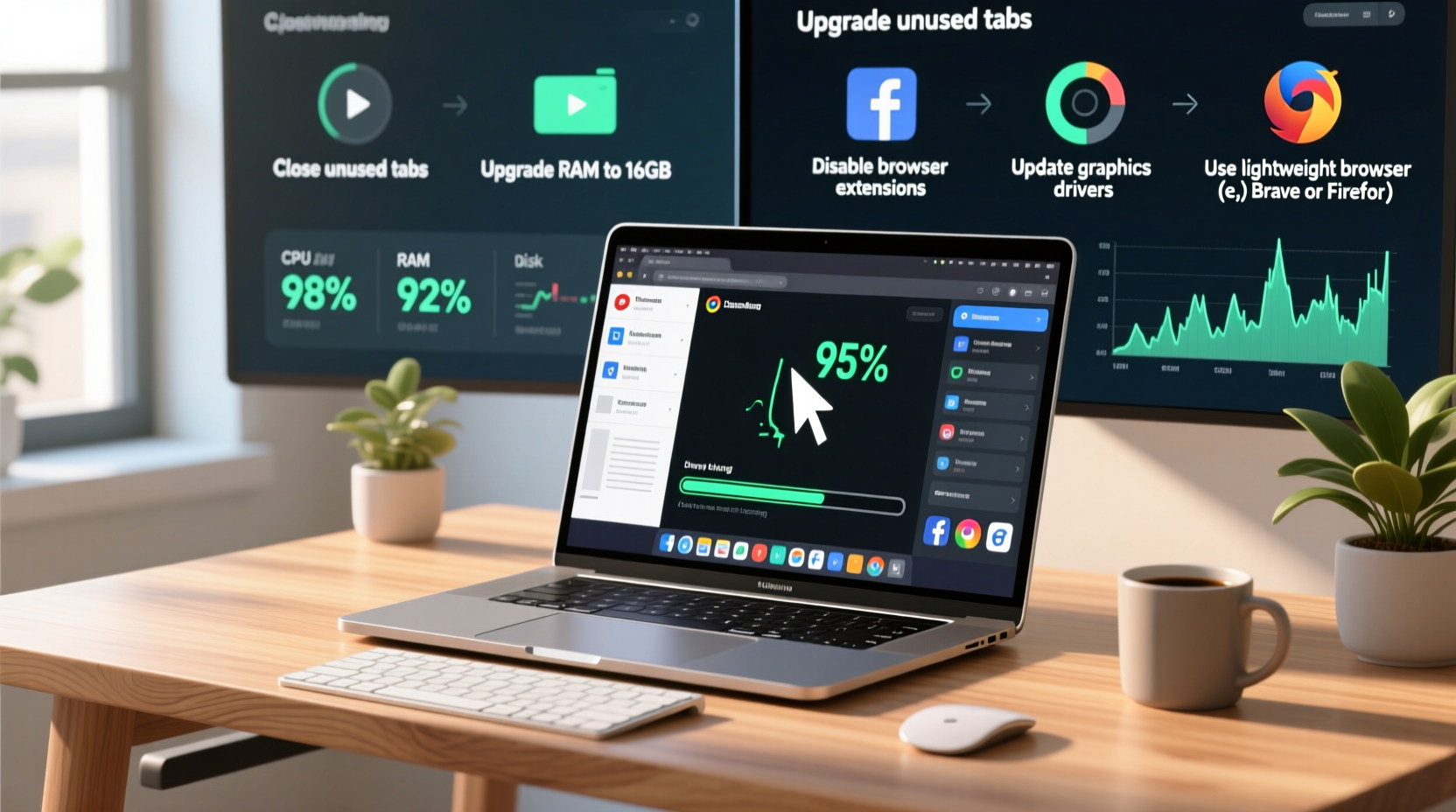
Each open tab in your browser runs as a separate process or thread, often loading scripts, images, videos, and tracking codes. Modern websites are complex applications, not simple static pages. A single tab on a media-rich site like YouTube, Facebook, or a news portal can use over 500MB of RAM. Open ten such tabs, and you're potentially using 5GB or more—well beyond what older or budget laptops can handle smoothly.
Your laptop's central processing unit (CPU), random access memory (RAM), and storage all play critical roles. When RAM fills up, your system begins using virtual memory (a portion of your hard drive or SSD) as overflow space—a much slower alternative. This leads to delays, unresponsiveness, and eventually freezing.
“Modern web browsing is essentially running multiple mini-applications at once. If your hardware can’t keep up, performance will degrade rapidly.” — Dr. Alan Reyes, Systems Performance Analyst at TechInsight Labs
Beyond hardware limitations, software inefficiencies compound the issue. Browser extensions, autoplaying media, and poorly coded websites increase CPU and memory usage. Background apps—like antivirus scanners, cloud sync tools, or automatic updates—further strain limited resources.
Key Hardware Factors That Impact Multitab Performance
Not all laptops are built equally. What works smoothly on a high-end workstation may cripple a five-year-old ultrabook. Below are the primary hardware components affecting your ability to run multiple tabs without freezing:
- RAM (Memory): The most critical factor. 4GB is minimal for basic use; 8GB is recommended for multitasking; 16GB or more is ideal for heavy browsing, design work, or development.
- CPU (Processor): Multi-core processors handle parallel tasks better. Older dual-core CPUs struggle with modern browser demands.
- Storage Type: SSDs drastically improve system responsiveness compared to traditional HDDs, especially during memory swapping.
- Thermal Design: Overheating triggers thermal throttling, reducing CPU speed and causing lag or freezes.
How to Check Your System Specifications
To evaluate your current setup:
- Windows: Press Win + Pause to open System settings. Look for \"Device specifications\" showing installed RAM and processor.
- Mac: Click the Apple menu > About This Mac. View memory, processor, and storage details.
- Linux: Use the command
lshw -short | grep -i memory\\|processorin terminal.
If your laptop has less than 8GB RAM or uses an HDD instead of an SSD, upgrading should be a top priority for preventing freezes.
Software and Browser Optimization Strategies
Even with modest hardware, smart software practices can dramatically improve stability. Browsers today are among the most resource-intensive applications, but they also offer powerful tools to manage performance.
Use Tab Suspension Extensions
Extensions like The Great Suspender (or its open-source successor, Suspension) automatically unload inactive tabs, freeing up memory while preserving session state. When you click on a suspended tab, it reloads instantly.
Limit Extensions and Plugins
Every browser extension runs in the background and consumes memory. Disable or remove those you don’t actively use. Common offenders include ad blockers with large filter lists, password managers with auto-fill monitoring, and social media notifiers.
Enable Hardware Acceleration (Carefully)
This setting offloads graphics rendering to your GPU, improving performance. However, on older or integrated GPUs, it can cause instability. To toggle:
- Chrome: Settings > Advanced > System > \"Use hardware acceleration when available\"
- Firefox: Options > General > Performance > \"Use recommended performance settings\" (uncheck to customize)
Test both states to see which delivers smoother results.
Switch to a Lightweight Browser
If Chrome feels too heavy, consider alternatives designed for efficiency:
| Browser | RAM Efficiency | Best For | Drawbacks |
|---|---|---|---|
| Mozilla Firefox | High (with tweaks) | Privacy, customization | Can be heavy with many add-ons |
| Microsoft Edge (Chromium) | Good | Windows integration, battery saver | Slightly less privacy-focused |
| Brave | Excellent | Speed, built-in ad blocking | Less mainstream support |
| Opera | Very Good | All-in-one features (VPN, ad blocker) | Uses more background services |
Step-by-Step Guide to Prevent Laptop Freezing
Follow this actionable sequence to diagnose and resolve freezing issues related to multiple tabs:
- Monitor Resource Usage: Open Task Manager (Ctrl+Shift+Esc) and sort by Memory or CPU. Identify which processes are consuming the most resources.
- Close Unnecessary Background Apps: Shut down unused programs like Slack, Spotify, or Dropbox if they’re not essential.
- Restart Your Browser Daily: Accumulated cache and script errors degrade performance over time. A fresh start helps.
- Clear Cache and Cookies Monthly: Go to browser settings and clear browsing data. This reduces clutter and potential conflicts.
- Update Your OS and Browser: Security patches and performance improvements are regularly released.
- Upgrade Hardware If Possible: Add more RAM or replace an HDD with an SSD. Even 8GB RAM doubles the multitasking headroom on most systems.
- Use Sleep Mode Instead of Hibernation: Avoid deep hibernation cycles that slow wake-up times and stress disk I/O.
“Many users don’t realize that simply restarting their browser every few hours can prevent 70% of freezing incidents caused by memory leaks.” — Lisa Tran, Senior Support Engineer at WebOptimize Inc.
Real-World Example: Fixing a Frozen Work Laptop
Sarah, a freelance researcher, relied on her 2017 Dell Inspiron with 4GB RAM for managing client projects. She routinely opened 15–20 tabs across Google Docs, research papers, email, and reference sites. Within minutes, her system would freeze, forcing hard reboots.
After consulting a technician, she discovered her RAM was maxed out at 98% usage, and her HDD was nearly full. The solution?
- Upgraded RAM from 4GB to 12GB (max supported).
- Replaced the old 500GB HDD with a 512GB SSD.
- Switched from Chrome to Brave browser.
- Installed a tab suspender extension.
Result: Her laptop now handles 30+ tabs without freezing. Boot time dropped from 2 minutes to under 15 seconds. “It feels like a new machine,” she said. “I didn’t think upgrading an old laptop could make such a difference.”
Essential Checklist for Smoother Browsing
Use this checklist monthly to maintain optimal performance:
- ✅ Check available RAM and disk space
- ✅ Update operating system and browser
- ✅ Remove unused browser extensions
- ✅ Clear cache, cookies, and browsing history
- ✅ Restart your laptop at least once a week
- ✅ Close unused background applications
- ✅ Monitor CPU temperature (use tools like HWMonitor or Core Temp)
- ✅ Consider hardware upgrades if below 8GB RAM or using HDD
Frequently Asked Questions
Can having too many tabs open damage my laptop?
No, opening many tabs won’t physically damage your laptop. However, sustained high CPU or memory usage can lead to excessive heat, which over time may reduce component lifespan. Proper ventilation and occasional reboots mitigate this risk.
Is it better to have many tabs open or use multiple browser windows?
From a performance standpoint, it makes little difference. Both consume similar system resources. However, organizing tasks into separate windows can improve focus and make it easier to manage workspaces.
Does incognito mode prevent freezing?
Incognito mode disables extensions and doesn’t save history or cookies, which can reduce memory usage slightly. While it won’t eliminate freezing on weak hardware, it often provides a temporary performance boost due to cleaner execution.
Conclusion: Take Control of Your Laptop’s Performance
A laptop freezing under multiple tabs is a common but solvable problem. Whether the cause is aging hardware, inefficient software, or unchecked browser habits, targeted actions can restore smooth operation. From upgrading RAM and switching to efficient browsers, to adopting disciplined tab management, every step contributes to a more stable experience.
You don’t need the latest flagship laptop to browse effectively—just smarter habits and informed choices. Start with one change today: close unused tabs, upgrade your browser, or check your system specs. Small adjustments compound into significant gains in speed, reliability, and user satisfaction.




 浙公网安备
33010002000092号
浙公网安备
33010002000092号 浙B2-20120091-4
Comments
No comments yet. Why don't you start the discussion?