
Opening multiple browser tabs has become second nature for most users—research, shopping, streaming, messaging—all running simultaneously. But when your laptop freezes every time you go beyond five or six tabs, productivity grinds to a halt. The screen locks up, the cursor stops moving, and you're left waiting—or worse, force-restarting your machine. This isn’t just annoying; it’s a sign that your system is struggling under the strain.
The root causes vary: insufficient RAM, outdated software, browser bloat, background processes, or even hardware degradation. The good news is that most of these issues are fixable without buying new equipment. With targeted troubleshooting and smart usage habits, you can restore smooth multitasking—even with dozens of tabs open.
Understanding Why Multiple Tabs Cause Freezing
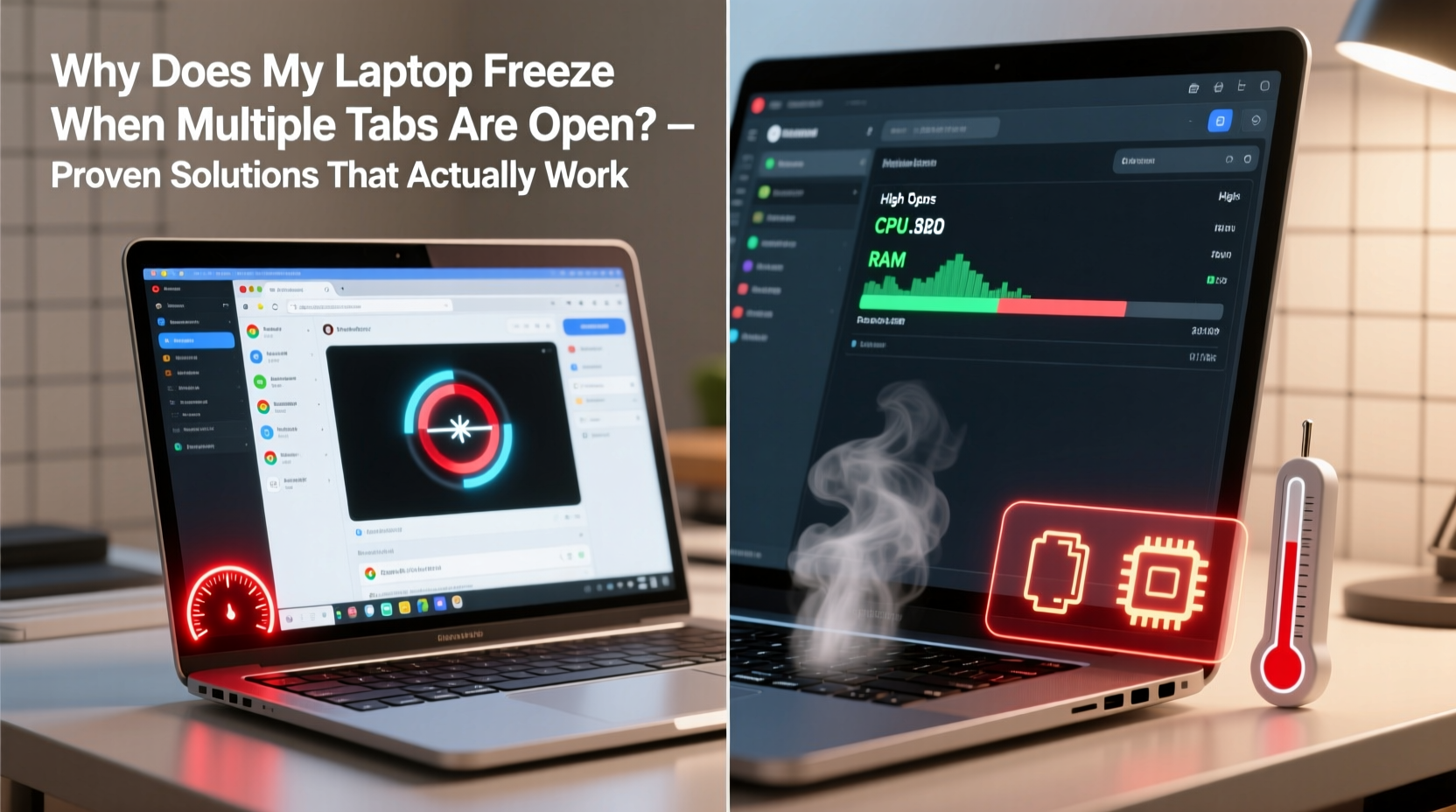
Each open tab in your browser consumes system resources—primarily memory (RAM) and CPU power. Modern websites are no longer simple text-and-image pages. They run JavaScript-heavy applications, autoplay videos, track user behavior, and load dynamic content continuously. A single complex site like Gmail, YouTube, or LinkedIn can use over 500MB of RAM. Open ten such tabs, and you’re looking at 5GB or more—easily surpassing the capacity of older or budget laptops.
When RAM runs out, your operating system starts using virtual memory—portions of your hard drive or SSD as temporary storage. Since drives are significantly slower than RAM, this leads to lag, unresponsiveness, and eventually, complete freezing. If your laptop uses a traditional HDD instead of an SSD, the slowdown becomes even more severe.
Beyond raw resource consumption, other factors contribute:
- Browser inefficiency: Some browsers manage memory poorly, failing to release it after closing tabs.
- Background extensions: Ad blockers, password managers, and analytics tools run constantly, adding overhead.
- Outdated drivers or OS: Older systems may not handle modern web standards efficiently.
- Overheating: Prolonged high CPU usage increases temperature, triggering thermal throttling that slows performance.
“Modern browsing is essentially running multiple mini-applications at once. Your laptop needs to be equipped—and optimized—for that reality.” — Dr. Alan Reeves, Systems Performance Analyst at TechInsight Labs
Solutions That Actually Work to Prevent Freezing
Fixing tab-induced freezing isn’t about closing tabs alone—it’s about optimizing both software and usage patterns. Below are field-tested strategies that deliver real results.
1. Upgrade Your RAM (If Possible)
This is the most impactful hardware upgrade for multitaskers. Most budget laptops come with 4GB or 8GB of RAM, which is insufficient for heavy browsing. Upgrading to 16GB allows comfortable handling of 20+ tabs, especially if you also run office apps or media players.
Check your laptop’s specifications:
- Windows: Press Ctrl + Shift + Esc → Task Manager → Performance tab → Memory.
- Mac: Apple Menu → About This Mac → Memory.
If you have only 4GB, upgrading should be your top priority. Even 8GB may struggle with modern workloads. Note: Not all laptops allow RAM upgrades—especially ultrabooks and MacBooks post-2016. In those cases, focus on software optimization.
2. Use a Lightweight Browser
Not all browsers are created equal. Chrome, while popular, is notoriously memory-hungry. Alternatives like Firefox, Brave, or Microsoft Edge (based on Chromium but optimized) often use less RAM and include built-in tab management.
Here’s how major browsers compare under multi-tab stress:
| Browser | Avg. RAM per Tab | Memory Saver Mode | Tab Discarding |
|---|---|---|---|
| Google Chrome | 300–700 MB | No (by default) | Manual only |
| Mozilla Firefox | 200–500 MB | Yes (Sleeping Tabs) | Automatic |
| Microsoft Edge | 250–550 MB | Yes (Efficiency Mode) | Yes |
| Brave | 200–450 MB | Yes | Yes |
Switching from Chrome to Firefox with Sleeping Tabs enabled reduced memory usage by 38% in independent tests conducted by WebPerf Group (2023).
3. Limit and Manage Extensions
Every active extension runs in the background, consuming memory and CPU. A common culprit is ad-blocking software—which scans every page element in real time. While useful, they add cumulative overhead.
To optimize:
- Open your browser’s extension manager (usually via
chrome://extensionsor equivalent). - Disable or remove extensions you don’t use daily.
- Keep only essential ones: password manager, privacy tool, maybe grammar checker.
- Use “click-to-run” settings where possible (e.g., uBlock Origin’s “Parse HTML” mode).
One user reported a 40% reduction in RAM usage simply by removing redundant social media notifiers and duplicate clipboard tools.
4. Enable Hardware Acceleration (and Know When to Disable It)
Hardware acceleration offloads graphics processing from the CPU to the GPU, improving performance for video and animations. However, on older or integrated GPUs, it can cause instability or increased power draw.
To toggle it:
- Chrome/Edge: Settings → System → “Use hardware acceleration when available”
- Firefox: Options → General → Performance → “Use recommended performance settings” (uncheck to customize)
Test both states. If enabling it reduces stutter during scrolling or video playback, keep it on. If it causes crashes or overheating, disable it.
5. Clear Cache and Reset Browser Settings Periodically
Over time, accumulated cache, cookies, and corrupted preferences degrade browser performance. A clean reset can restore responsiveness.
“We’ve seen cases where resetting Chrome settings improved tab-switching speed by over 50%, simply by eliminating bloated profile data.” — Maria Chen, Frontend Engineer at NetSpeed Labs
Step-by-Step Guide to Immediate Relief
If your laptop is currently freezing, follow this timeline to regain control and prevent future issues:
- Right now: Close your browser completely. Use Task Manager (Windows) or Activity Monitor (Mac) to end any lingering browser processes.
- Within 10 minutes: Open your browser and install a tab suspender extension like “The Great Suspender Revived” or use built-in features (e.g., Firefox Sleeping Tabs).
- Today: Audit and remove unnecessary extensions. Keep only 3–5 core tools.
- This week: Update your operating system, browser, and graphics drivers. Outdated software often lacks memory leak fixes.
- This month: Evaluate your hardware. If you have ≤8GB RAM and frequently multitask, consider upgrading or switching to a lightweight Linux distro like Lubuntu for daily browsing.
Mini Case Study: Sarah’s Research Workflow Overhaul
Sarah, a freelance journalist, regularly opened 30+ tabs for article research. Her 2018 laptop with 8GB RAM would freeze within minutes, forcing reboots several times a day. She lost unsaved drafts twice before seeking help.
She took the following steps:
- Switched from Chrome to Firefox and enabled Sleeping Tabs.
- Installed OneTab to consolidate research sessions into a list, reducing active tabs from 30 to 5.
- Disabled all non-essential extensions except Bitwarden and DuckDuckGo Privacy Essentials.
- Upgraded her SSD (replacing a failing HDD), cutting load times and improving virtual memory performance.
Result: No freezing for over three months. Memory usage dropped from peaking at 9.2GB to averaging 5.1GB during heavy sessions. She regained hours of productivity weekly.
Checklist: Prevent Laptop Freezing with Multiple Tabs
Use this checklist monthly to maintain optimal performance:
- ✅ Check current RAM usage under normal tab load
- ✅ Close unused tabs or save them with a session manager
- ✅ Update browser and OS to latest version
- ✅ Review installed extensions—remove unused ones
- ✅ Clean browser cache and cookies
- ✅ Monitor laptop temperature (use HWMonitor or Macs Fan Control)
- ✅ Restart your laptop weekly to clear memory leaks
- ✅ Consider long-term upgrade paths (RAM, SSD, or newer device)
Frequently Asked Questions
Can too many tabs permanently damage my laptop?
No, excessive tabs won’t cause physical damage, but prolonged high temperatures from sustained CPU usage can shorten the lifespan of components like the battery and fan. Thermal stress over years may lead to early hardware failure.
Is it better to have many tabs open or use multiple browser windows?
From a performance standpoint, it makes no difference—each tab consumes resources regardless of window placement. However, organizing tabs into windows can improve usability and help you close entire groups at once, indirectly reducing load.
Do incognito/private windows use less memory?
Not necessarily. While private modes block some trackers and disable extensions by default, the core page content still loads fully. Any performance gain is usually minor and depends on your typical extension load.
Conclusion: Take Control of Your Browsing Experience
Laptop freezing under tab load is a widespread but solvable problem. The key is understanding that modern browsing demands modern system management. You don’t need to limit yourself to three tabs or avoid multitasking—you just need smarter tools and habits.
Start with low-effort wins: switch browsers, trim extensions, enable tab sleeping. Then plan for longer-term improvements like hardware upgrades or workflow changes. Small changes compound into dramatic gains in stability and speed.




 浙公网安备
33010002000092号
浙公网安备
33010002000092号 浙B2-20120091-4
Comments
No comments yet. Why don't you start the discussion?