
Laptops heating up during charging is a common experience, but it often triggers concern: Is this normal? Could it be damaging the device? And most importantly, is the battery at fault? The truth is that heat generation during charging is expected to some degree, but excessive or sustained high temperatures may signal underlying issues—battery-related or otherwise. Understanding the science behind heat production, the role of the battery, and how other components contribute can help users distinguish between safe operation and potential hazards.
Modern laptops are powerful yet compact, packing energy-intensive components into tight spaces. When charging, multiple systems—including the battery, power management circuits, CPU, and GPU—interact in ways that generate heat. While a warm chassis isn’t inherently dangerous, persistent overheating can degrade battery life, throttle performance, and even shorten the lifespan of internal components.
The Science Behind Heat Generation During Charging
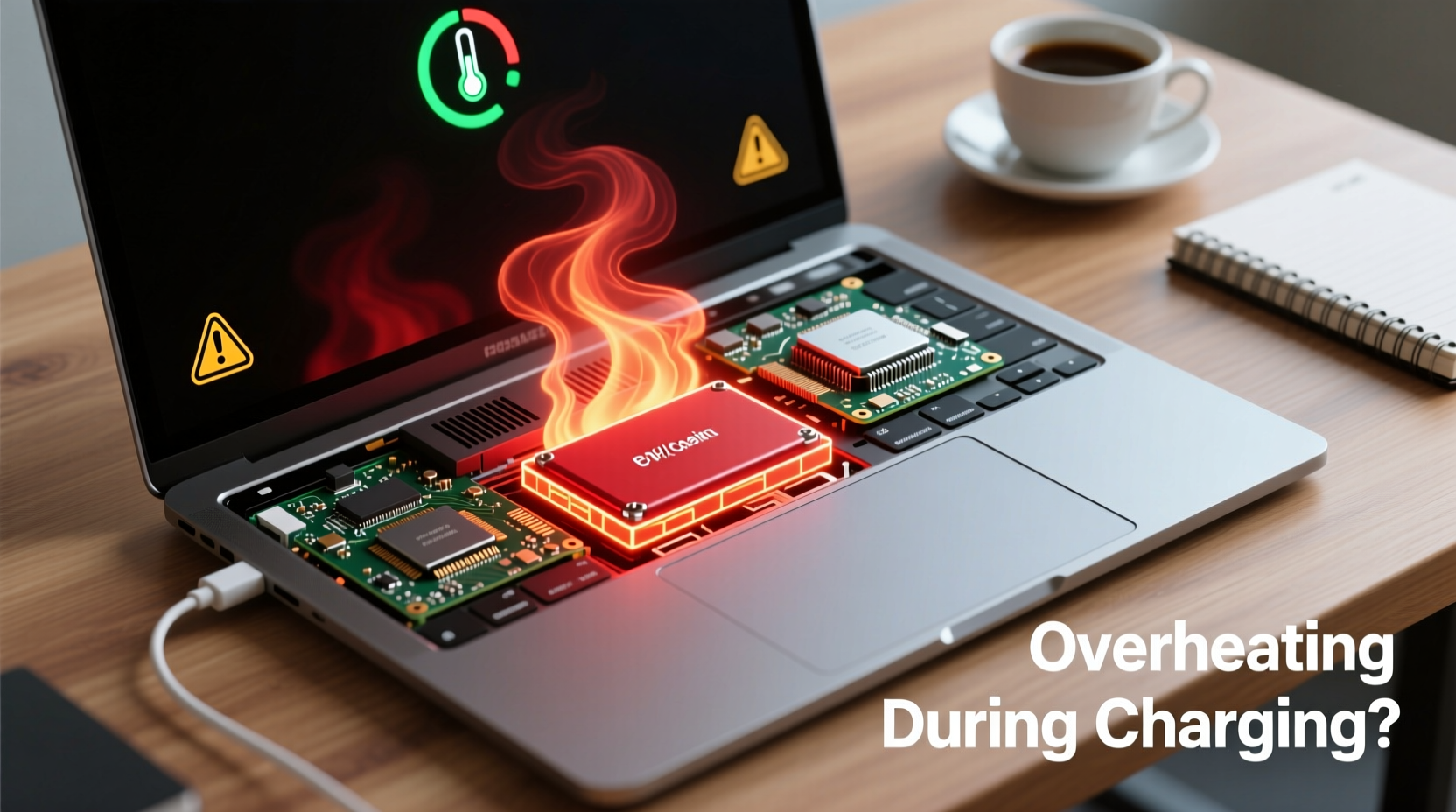
When a laptop charges, electrical energy from the charger is converted into chemical energy stored in the battery. This process isn't 100% efficient. A portion of the energy is lost as heat due to resistance in the charging circuit, battery cells, and internal wiring. This phenomenon is known as Joule heating or resistive heating, and it’s unavoidable in any electronic system.
Besides the battery itself, the laptop’s power management system plays a crucial role. The charging circuit regulates voltage and current to prevent overcharging and ensure stability. These circuits, especially if operating under high load or using fast-charging technology, can become significant heat sources. Additionally, if the laptop is in use while charging—running apps, browsing, or performing background tasks—the CPU and GPU continue to draw power, compounding heat output.
Environmental factors also influence temperature. Charging in a poorly ventilated area, on a soft surface like a bed or couch, or in a hot room can inhibit heat dissipation, leading to higher surface and internal temperatures.
Is Battery Degradation Causing Excessive Heat?
A degraded or aging battery can indeed contribute to increased heat during charging. As lithium-ion batteries age, their internal resistance increases. Higher resistance means more energy is lost as heat during both charging and discharging cycles. A battery that once charged efficiently may now run noticeably hotter, take longer to reach full capacity, or trigger thermal throttling.
Symptoms of a deteriorating battery include:
- Swelling or physical deformation of the battery pack
- Rapid loss of charge even after full recharge
- Frequent unexpected shutdowns despite showing remaining battery
- Charging pauses or slows down intermittently
- Consistently high surface temperature near the battery area
If your laptop feels unusually hot around the center or bottom—where most batteries are located—it may indicate that the battery is struggling. In extreme cases, a failing battery can create a safety hazard. Swollen batteries have been known to damage laptop casings, disconnect internal connectors, or, in rare instances, pose fire risks.
“Battery health directly impacts thermal performance. A cell with elevated internal resistance will heat up faster and more intensely during charging.” — Dr. Alan Zhou, Electrical Engineer & Battery Systems Researcher
Other Common Causes of Overheating During Charging
While the battery is a prime suspect, it’s not always the root cause. Several other components and behaviors contribute to heat buildup:
Power Adapter and Charging Speed
Using a non-original or incompatible charger—especially one with higher wattage or incorrect voltage—can force the laptop’s power system to work harder, generating excess heat. Fast-charging laptops, in particular, push more current into the battery in less time, which naturally increases thermal output. However, prolonged fast charging without adequate cooling can accelerate wear.
CPU and GPU Load
Many users charge their laptops while actively using them. If you're editing videos, gaming, or running virtual machines while plugged in, the processor and graphics card are under heavy load. These components produce substantial heat independently, and when combined with charging activity, the cumulative effect can overwhelm the cooling system.
Dust and Ventilation Blockages
Dust accumulation inside fans, heat sinks, and air vents restricts airflow. Even a thin layer of dust can insulate heat-generating parts, causing temperatures to rise faster and stay elevated longer. Laptops used in dusty environments or on soft surfaces are especially prone to this issue.
Background Processes and Software Issues
Malware, misbehaving applications, or outdated drivers can cause the CPU to run at high utilization even when the system appears idle. This “phantom load” increases power consumption and heat, particularly when charging adds additional thermal stress.
Ambient Temperature
Charging a laptop in a hot environment—such as direct sunlight, a car on a summer day, or a poorly ventilated room—reduces the efficiency of heat dissipation. Electronics perform best in ambient temperatures between 20°C and 25°C (68°F–77°F). Outside this range, thermal regulation becomes less effective.
Do’s and Don’ts: Managing Heat During Charging
| Do | Don’t |
|---|---|
| Charge on a hard, flat surface with open ventilation | Place the laptop on beds, pillows, or carpets while charging |
| Use the manufacturer-recommended charger | Use third-party chargers with unknown specifications |
| Keep vents clean with regular maintenance | Block air intake with hands or objects during use |
| Close unnecessary apps while charging under load | Run intensive software (e.g., games, renderers) during charging |
| Monitor battery health through built-in tools | Ignore signs of swelling, popping sounds, or burning smells |
Step-by-Step Guide to Diagnose and Reduce Charging Heat
If your laptop consistently gets too hot when charging, follow this structured approach to identify and resolve the issue:
- Check Surface Temperature and Location
Feel where the heat is concentrated. If it’s near the battery zone (usually center-bottom), the battery or power circuit may be involved. If heat comes from the keyboard or fan exhaust, the CPU/GPU is likely the source. - Inspect the Charger
Ensure you’re using the original or certified replacement. Verify the output (volts and amps) matches the laptop’s requirements. Avoid using phone chargers or USB-C PD chargers not rated for your device. - Monitor System Activity
Open Task Manager (Windows) or Activity Monitor (macOS) to check CPU and memory usage. Look for processes consuming excessive resources. End suspicious or unnecessary tasks. - Assess Battery Health
- On Windows: Open Command Prompt and typepowercfg /batteryreport. This generates a detailed report showing design capacity vs. full charge capacity.
- On macOS: Hold Option, click the battery icon, and select \"Condition.\" If it says \"Service Recommended\" or \"Replace Soon,\" the battery may need attention. - Clean Internal Components
If comfortable, power off the laptop, unplug it, and use compressed air to blow out dust from vents and fans. For deeper cleaning, consider professional servicing—especially if under warranty. - Update Firmware and Drivers
Visit the manufacturer’s website to install the latest BIOS, chipset, and power management updates. These often include thermal regulation improvements. - Test Charging Without Use
Shut down the laptop and charge it for an hour. If it still becomes excessively hot, the issue is likely related to the battery or charging circuit. If it stays cool, active usage was contributing significantly. - Seek Professional Diagnosis
If heat persists despite troubleshooting, consult an authorized service center. They can test battery impedance, fan performance, and thermal paste integrity.
Real-World Example: A Case of Misdiagnosed Overheating
Jamie, a freelance graphic designer, noticed her MacBook Pro becoming uncomfortably hot near the hinge when charging. She assumed the battery was failing and considered costly replacement. Instead, she ran a battery report and found the health was still at 87% of original capacity—within acceptable range. She then monitored activity and discovered a background rendering app was silently maxing out the CPU. After closing the app, the heat dropped significantly—even while charging. A simple software fix saved her hundreds of dollars and unnecessary downtime.
This case illustrates how symptoms resembling battery failure can stem from software or usage patterns. Jumping to conclusions without diagnostics can lead to wasted time and money.
Frequently Asked Questions
Is it normal for a laptop to get warm when charging?
Yes, mild warmth is normal due to energy conversion inefficiencies and component operation. However, if the laptop is too hot to touch comfortably, emits unusual odors, or causes performance throttling, it may indicate a problem requiring attention.
Can a bad battery make my laptop overheat?
Yes. A failing battery with increased internal resistance generates more heat during charging. Physical signs like swelling, reduced runtime, or inconsistent charging behavior support this diagnosis. Replacing a degraded battery often resolves excessive heating.
Does fast charging damage my laptop over time?
Fast charging accelerates wear on both the battery and power systems due to higher current and heat. While convenient, frequent use of fast charging—especially under load—can shorten battery lifespan. It’s best used when necessary, not as a default charging method.
Conclusion: Stay Cool, Stay Safe
Heat during charging is a natural byproduct of energy transfer, but it shouldn’t be ignored. While not every warm laptop signals a battery issue, consistent overheating demands investigation. By understanding the interplay between battery health, system load, environmental factors, and hardware condition, users can make informed decisions to protect their devices.
Regular maintenance, smart usage habits, and timely diagnostics go a long way in preserving performance and safety. If in doubt, don’t wait for failure—get your laptop checked before minor heat issues escalate into major repairs.




 浙公网安备
33010002000092号
浙公网安备
33010002000092号 浙B2-20120091-4
Comments
No comments yet. Why don't you start the discussion?