
Laptop keyboards are essential for daily productivity, communication, and entertainment. When keys start producing random characters without being pressed, or when letters appear out of nowhere, the experience becomes frustrating and disruptive. This issue is more common than many users realize, especially in devices that have been in use for months or years. The root causes range from physical debris to software glitches, and addressing them requires both diagnostic insight and proper maintenance techniques. Understanding why this happens—and knowing how to clean your keyboard effectively—can restore functionality and extend your device’s lifespan.
Common Causes of Random Letter Input
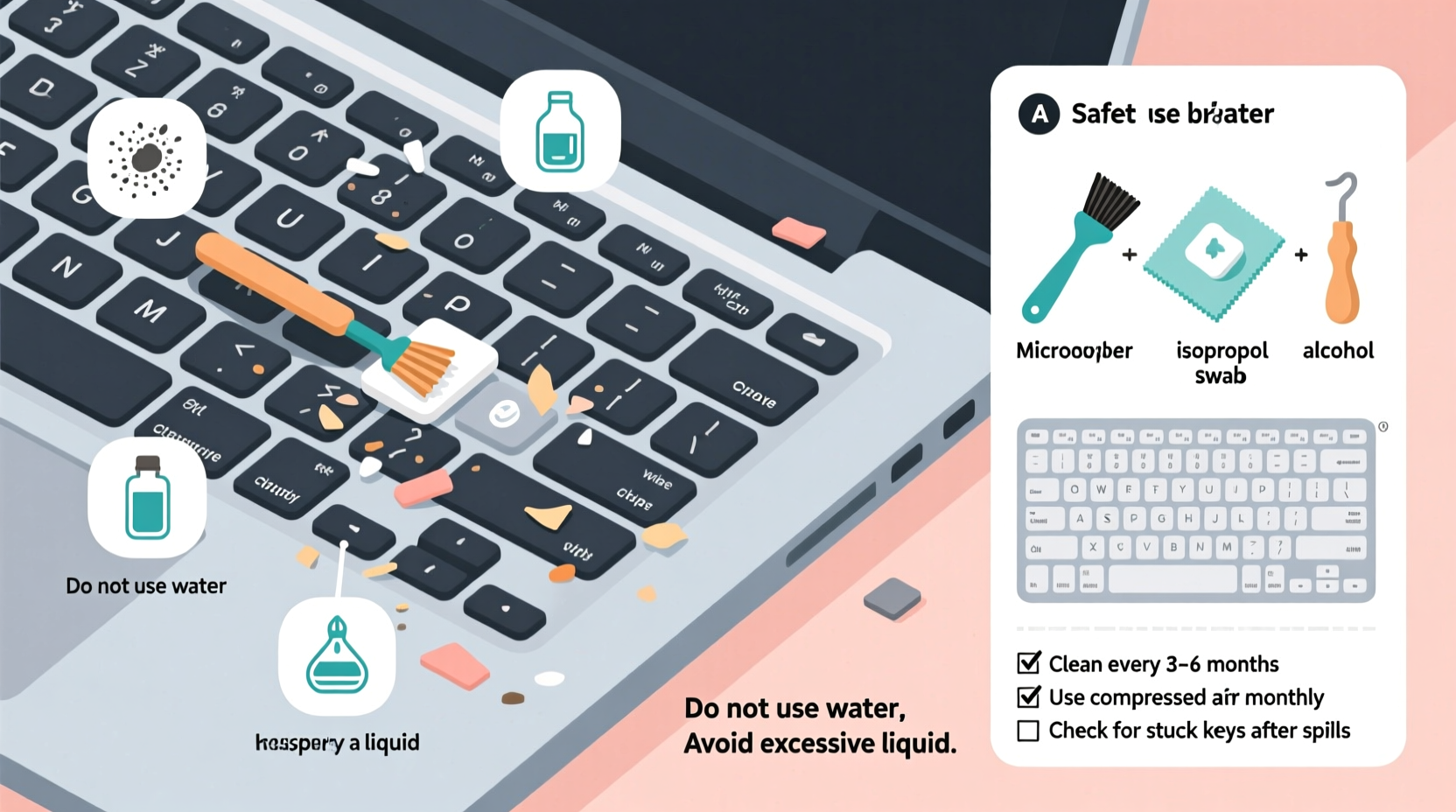
A laptop keyboard typing random letters isn’t always a sign of hardware failure. Often, the problem stems from preventable or correctable issues. Identifying the underlying cause is the first step toward resolution.
- Dirt and debris buildup: Crumbs, dust, pet hair, and skin flakes can accumulate under keys, causing electrical shorts or key presses to register incorrectly.
- Liquid spills: Even minor moisture exposure can corrode circuits or trigger phantom keystrokes if residue remains on the membrane layer.
- Stuck or faulty keys: A physically stuck key may send continuous input signals, which the system interprets as repeated or random characters.
- Software conflicts: Outdated drivers, malware, or conflicting applications can simulate keyboard input errors.
- Keyboard driver malfunction: Corrupted or incompatible drivers may misinterpret input signals.
- Firmware bugs: Some laptops, particularly certain models from major brands, have experienced firmware-related keyboard issues after updates.
- External peripherals: Connected Bluetooth keyboards, USB devices, or remote desktop tools might interfere with input detection.
Step-by-Step Guide to Safely Clean Your Laptop Keyboard
Cleaning your laptop keyboard properly involves more than just wiping the surface. Done incorrectly, it can lead to damage or short circuits. Follow this detailed procedure to remove debris safely and restore reliable performance.
- Power down and unplug: Shut down your laptop completely and disconnect the power adapter. If possible, remove the battery (on older models) to eliminate electrical risk.
- Tilt the laptop at a 75-degree angle: Hold it so the screen is upright and the keyboard faces slightly downward. This prevents debris from falling deeper into the chassis.
- Use compressed air: Spray short bursts between and around each key, focusing on crevices where lint accumulates. Move in a left-to-right pattern, then reverse direction to avoid missing spots.
- Clean the keycaps: Dampen a microfiber cloth with isopropyl alcohol (70% concentration). Gently wipe each keycap in circular motions. Avoid saturating the cloth—excess liquid can seep underneath.
- Target stubborn grime: For sticky residue or visible particles, use a cotton swab lightly moistened with alcohol. Carefully work around the base of affected keys.
- Remove keys (if necessary): On some laptops, individual keys can be removed using a plastic pry tool. Only attempt this if you're confident; improper removal can break the scissor mechanism. Place keys in order on a labeled tray.
- Deep clean beneath keys: With keys removed, use a dry brush or additional compressed air to clear dust from the exposed membrane. Wipe carefully with a swab dipped in alcohol, then let dry for 10–15 minutes.
- Reassemble and test: Reattach keys firmly until they click into place. Power on the laptop and open a text editor to verify normal function.
“Physical contamination accounts for over 60% of reported keyboard malfunctions in consumer laptops.” — Dr. Alan Zhou, Hardware Diagnostics Engineer at TechInspect Labs
Do’s and Don’ts of Keyboard Maintenance
| Do’s | Don’ts |
|---|---|
| Use isopropyl alcohol (70%) for disinfecting surfaces | Never pour liquids directly onto the keyboard |
| Clean your keyboard every 4–6 weeks with regular use | Avoid using household cleaners like Windex or bleach |
| Use compressed air regularly to prevent buildup | Don’t use metal tools to pry off keys |
| Wash hands before use to reduce oil transfer | Never shake your laptop vigorously to dislodge debris |
| Store in a low-dust environment when not in use | Don’t eat or drink near the laptop |
Real-World Example: Resolving a Persistent Typing Glitch
Sarah, a freelance writer based in Portland, began noticing her Dell XPS 13 was inserting random 'e' characters while she typed. At first, she assumed it was a software bug and reinstalled her operating system. The issue returned within days. After ruling out malware and driver problems through Device Manager diagnostics, she inspected the keyboard closely. Under magnification, she found fine granules of cookie crumbs lodged beneath the 'E' key. Using compressed air and a cotton swab with alcohol, she cleaned the area thoroughly. She also removed the keycap to access the rubber dome underneath, where most of the debris had settled. After reassembly, the phantom typing stopped entirely. Sarah now cleans her keyboard monthly and avoids snacking at her desk—a simple habit change that prevented recurrence.
Software Troubleshooting Checklist
If cleaning doesn’t resolve the issue, software may be to blame. Run through this checklist to eliminate non-hardware causes:
- ✅ Update keyboard drivers via Device Manager (Windows) or System Settings (macOS)
- ✅ Scan for malware using trusted antivirus software
- ✅ Disable any third-party keyboard utilities or macro programs
- ✅ Check for OS updates that include firmware patches
- ✅ Boot into Safe Mode and test the keyboard—if the problem stops, a background app is interfering
- ✅ Try an external keyboard to isolate the issue
- ✅ Reset NVRAM/PRAM (Mac) or clear CMOS (PC) if firmware issues are suspected
“Many users jump straight to hardware repair when the real issue lies in outdated firmware or conflicting accessibility settings.” — Lena Patel, Senior Support Analyst at NotebookCare Solutions
When to Seek Professional Repair
While most keyboard issues can be resolved with basic cleaning and troubleshooting, some situations require expert intervention. Consider professional service if:
- The keyboard continues to produce random inputs after thorough cleaning.
- Multiple keys fail simultaneously, suggesting circuit board damage.
- You notice discoloration, warping, or a burning smell—indicative of electrical damage.
- Liquid was spilled recently and the laptop wasn’t powered down immediately.
- You’re uncomfortable removing keys or working inside the device.
In such cases, technicians can perform deep diagnostics, replace the keyboard assembly, or repair damaged traces on the flex cable. Most manufacturers offer keyboard replacements for $80–$150, depending on model availability. Third-party repair shops often provide lower-cost options with comparable quality.
Frequently Asked Questions
Can eating near my laptop really cause keyboard issues?
Yes. Food particles—especially salty or sugary snacks—can attract moisture and degrade conductive layers over time. Even tiny fragments can wedge under keys and create false contact points, leading to erratic behavior. It’s best to keep meals away from your workspace.
Is it safe to use tape to lift debris from under keys?
Absolutely—this is a widely used technique among field technicians. Use a small piece of packing tape or masking tape, folded sticky-side out into a narrow strip. Gently press it between keys to pick up lint and dust. Avoid duct tape, as it can leave residue.
Why does my keyboard act up only sometimes?
Intermittent issues often point to partial debris blockage or marginal electrical contact. Temperature changes, slight shifts in laptop position, or humidity fluctuations can affect conductivity. This inconsistency makes diagnosis harder but reinforces the need for deep cleaning.
Preventive Habits for Long-Term Keyboard Health
Maintaining a responsive, reliable keyboard doesn’t require intensive effort—just consistent care. Incorporate these habits into your routine:
- Wipe the keyboard weekly with a dry microfiber cloth.
- Use compressed air every two weeks, especially if you work in a dusty environment.
- Avoid placing objects on the keyboard when closing the lid.
- Keep drinks well away from the laptop.
- Consider using a silicone keyboard cover if you travel frequently or share spaces with pets or children.
Final Thoughts: Take Control of Your Device’s Performance
A laptop keyboard that types random letters is not something you should ignore. Left unchecked, minor debris buildup can evolve into permanent damage, requiring costly repairs or replacement. More importantly, constant typing errors disrupt focus, reduce efficiency, and increase frustration. By understanding the causes—from crumb-clogged switches to outdated drivers—you gain the power to diagnose and fix issues early. Regular cleaning, mindful usage habits, and timely software updates form the foundation of reliable performance. Whether you're a student, remote worker, or casual user, your laptop deserves consistent care. Start today: power down, grab a can of air, and give your keyboard the attention it needs. You’ll notice the difference in every keystroke.




 浙公网安备
33010002000092号
浙公网安备
33010002000092号 浙B2-20120091-4
Comments
No comments yet. Why don't you start the discussion?