
If your laptop keyboard is suddenly typing random letters without input, it can be frustrating, disruptive, and even alarming. You might see strings of gibberish appear in documents, browsers, or login fields—sometimes even when the laptop lid is closed. While this issue may seem like a sign of irreversible hardware failure or malware, the reality is often more nuanced. In most cases, the problem stems from a combination of physical, software, or system-level factors that can be diagnosed and resolved with methodical troubleshooting.
Understanding the root cause is essential before attempting repairs. Random keystrokes aren’t just an inconvenience—they can lead to data corruption, accidental file deletion, or compromised security if passwords are entered incorrectly due to interference. This guide explores the most common reasons behind uncontrolled typing, provides actionable diagnostic steps, and offers long-term prevention strategies.
Common Causes of Unintended Keyboard Input
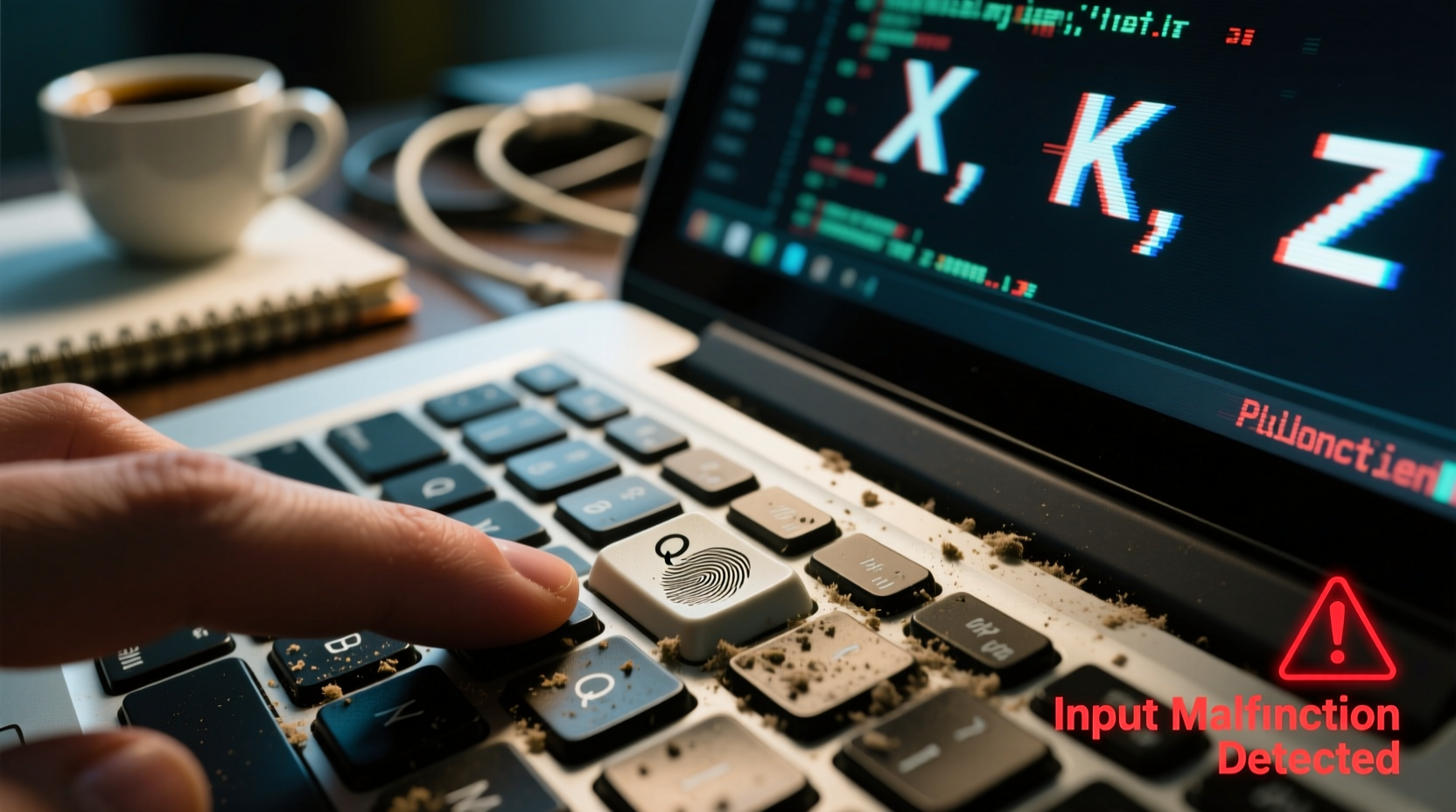
The phenomenon of a laptop keyboard typing on its own rarely has a single explanation. Instead, multiple overlapping issues can trigger erratic behavior. Identifying which category your situation falls into will streamline the solution process.
- Physical damage or debris: Dust, crumbs, or liquid spills can interfere with key mechanisms, causing keys to stick or register false inputs.
- Stuck keys: A physically depressed key (even slightly) may send continuous signals to the operating system.
- Faulty keyboard drivers: Outdated, corrupted, or incompatible drivers can misinterpret input signals.
- Malware or background processes: Certain malicious programs simulate keystrokes to manipulate systems or spread infection.
- External device interference: Connected USB keyboards, mice, or Bluetooth devices may malfunction and mimic keyboard activity.
- Hardware failure: Internal circuitry issues, such as shorted traces or failing flex cables, can cause phantom inputs.
- Software conflicts: Accessibility features, macros, or third-party automation tools may activate unintentionally.
Step-by-Step Diagnosis and Fixes
Resolving unintended typing requires a structured approach. Jumping straight to hardware replacement or OS reinstallation often wastes time when simpler solutions exist. Follow this sequence to isolate and correct the issue efficiently.
- Disconnect all external devices – Unplug USB keyboards, mice, hubs, and any connected accessories. Restart the laptop and monitor for rogue input.
- Check for stuck or dirty keys – Visually inspect the keyboard. Press each key gently to ensure none are physically jammed. Use compressed air to clear debris under the keys.
- Boot into Safe Mode – This loads Windows or macOS with minimal drivers and startup programs. If the keyboard behaves normally here, the cause is likely software-related.
- Update or reinstall keyboard drivers – Access Device Manager (Windows) or System Information (macOS), locate the keyboard hardware, and update or roll back drivers.
- Scan for malware – Run a full system scan using trusted antivirus software. Some keyloggers and trojans simulate keystrokes to execute commands.
- Disable accessibility and automation tools – Turn off Sticky Keys, Filter Keys, and any macro software temporarily to rule out interference.
- Test with an external keyboard – Connect a known-good USB or Bluetooth keyboard. If the issue stops, the built-in keyboard is likely defective.
- Reset BIOS/UEFI settings – Corrupted firmware settings can affect hardware behavior. Reset to default values through the BIOS menu.
Real Example: The Case of the Phantom Keystrokes
A freelance writer reported that her laptop would randomly type “w” repeatedly while she worked, often deleting paragraphs mid-sentence. She assumed malware was responsible and ran multiple scans with no results. After disconnecting her wireless mouse receiver, the issue stopped immediately. Investigation revealed that the mouse’s left button had developed a mechanical fault, sending constant click-and-drag signals interpreted by the system as repeated keystrokes due to a background text selection macro. Replacing the mouse resolved the issue entirely.
This case illustrates how peripheral devices—not the keyboard itself—can create the illusion of autonomous typing. Always eliminate external factors before concluding internal failure.
Do’s and Don’ts: Managing Keyboard Issues
| Do | Don't |
|---|---|
| Use compressed air to clean under keys every 2–3 months | Spill liquids near the keyboard or eat over the laptop |
| Keep drivers updated via official manufacturer sources | Ignore recurring glitches—early intervention prevents escalation |
| Back up data regularly in case hardware failure requires replacement | Use harsh chemicals or wet cloths to clean the keyboard surface |
| Test in Safe Mode before assuming hardware damage | Disassemble the keyboard unless experienced—risk of permanent damage |
Expert Insight: What Technicians See Most Often
“Over 60% of ‘typing by itself’ cases we see in repair shops turn out to be either sticky keys from debris or interference from a malfunctioning USB device. Only about 15% require actual keyboard replacement.” — Rajiv Mehta, Senior Laptop Technician at TechCare Pro
This insight underscores a critical point: perceived hardware failure is frequently misdiagnosed. Environmental and peripheral factors play a larger role than most users assume. Regular maintenance and awareness of connected devices can prevent unnecessary service visits.
When Hardware Replacement Is Necessary
If all software and external checks fail, the internal keyboard may be damaged. Signs indicating a need for professional repair include:
- Keys registering input when not pressed, even after cleaning
- Random characters appearing across different operating systems (e.g., during BIOS boot or live USB sessions)
- Visible damage to the keyboard bezel or hinge area near the top row of keys
- Typing occurs with the laptop powered off (suggesting electrical leakage or short circuit)
In modern laptops, especially ultrabooks and MacBooks, the keyboard is often integrated into the palm rest assembly. Replacement isn’t user-serviceable and typically requires specialized tools and expertise. Attempting DIY removal risks damaging the display cable or motherboard. Consult the manufacturer or an authorized technician for assessment.
Preventive Maintenance Checklist
To avoid future keyboard malfunctions, adopt these routine practices:
- ✅ Clean the keyboard monthly using compressed air and a soft, dry brush
- ✅ Avoid placing objects on the keyboard when closing the lid (e.g., pens, papers)
- ✅ Keep drinks away from the workspace
- ✅ Update your OS and drivers regularly
- ✅ Disable unused accessibility features like Sticky Keys
- ✅ Monitor system performance and scan for malware quarterly
- ✅ Use a protective silicone cover only if it doesn’t trap heat or moisture
Frequently Asked Questions
Can a virus make my keyboard type on its own?
Yes, certain types of malware—particularly keyloggers or remote access trojans—can simulate keystrokes to execute commands, install software, or navigate menus without user input. If you suspect malware, run a full system scan with updated antivirus software and consider using offline scanning tools like Windows Defender Offline.
Why does my laptop type letters when it’s turned off?
If keys appear to register when the laptop is powered down, the issue may involve residual power in the system or a hardware short. However, true input cannot occur without some level of system activity. More likely, the laptop is in sleep mode or waking unexpectedly due to peripheral signals (like a faulty mouse). Check power settings and disable \"Allow wake timers\" in Windows or \"Wake for Wi-Fi access\" on macOS.
Is it safe to use keyboard cleaner sprays?
Liquid cleaners should never be sprayed directly onto a laptop keyboard. Moisture can seep beneath the keys and corrode circuits. Instead, lightly dampen a microfiber cloth with isopropyl alcohol (70%) and wipe the surface. For deep cleaning, use electronics-safe compressed air cans held upright to avoid propellant discharge.
Conclusion: Take Control of Your Keyboard’s Behavior
Random typing on a laptop keyboard is rarely a mystery once you understand the possible triggers. From simple debris buildup to sneaky peripheral faults, most causes are fixable without technical expertise. By following a logical diagnostic path—starting with external devices, moving through software checks, and finally assessing hardware—you can save time, money, and frustration.
Don’t accept erratic behavior as inevitable. With regular care and proactive troubleshooting, your laptop keyboard can remain responsive and reliable for years. Address small issues early, maintain a clean workspace, and stay vigilant about system updates and security.




 浙公网安备
33010002000092号
浙公网安备
33010002000092号 浙B2-20120091-4
Comments
No comments yet. Why don't you start the discussion?