
Laptops are designed for mobility and efficiency, but many users notice a troubling pattern: their device runs smoothly on battery but starts to overheat as soon as it's plugged in. This isn't just uncomfortable—it can lead to performance throttling, hardware degradation, or even permanent damage. Understanding the root causes of this behavior and knowing how to respond is essential for maintaining both productivity and device longevity.
The issue often stems from a combination of increased power draw, aggressive performance settings, and inadequate thermal management. Unlike desktop computers, laptops have limited space for cooling components, making them more vulnerable to heat buildup under sustained load. When you plug in your laptop, it may automatically switch to high-performance mode, increasing CPU and GPU usage beyond what the cooling system was designed to handle continuously.
Why Plugging In Triggers Overheating
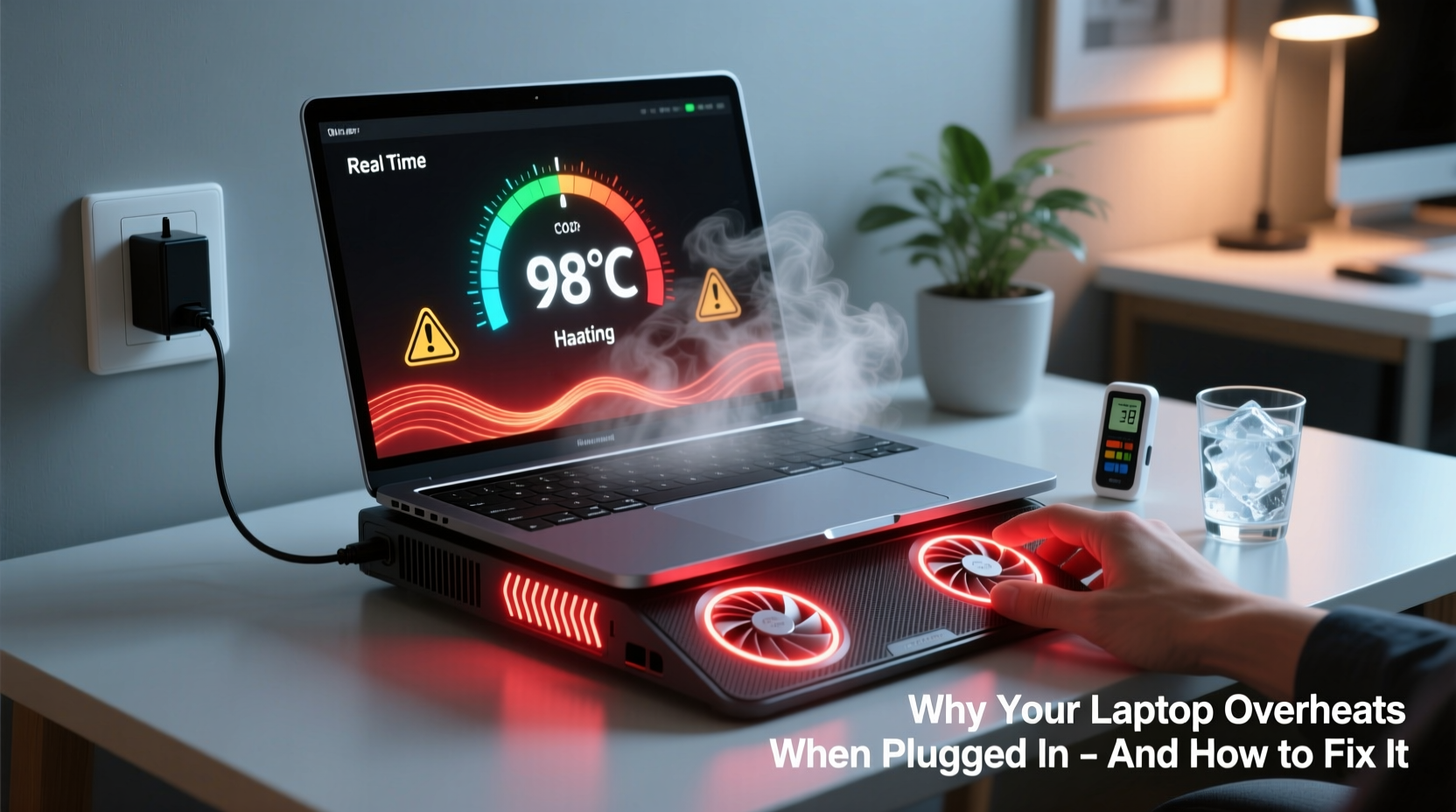
When a laptop is connected to a power source, several behind-the-scenes changes occur that directly impact thermal output:
- Higher Performance Mode: Most operating systems default to a \"balanced\" or \"high-performance\" power plan when plugged in. This allows the processor to run at higher clock speeds, which increases heat generation.
- Charging Heat + System Heat: The act of charging itself generates heat, especially in older batteries or lower-quality chargers. When combined with active computing tasks, the cumulative effect raises internal temperatures significantly.
- Fan Behavior Delays: Some laptops delay fan ramp-up until temperatures reach a certain threshold. By then, heat has already built up in critical components like the CPU and GPU.
- Degraded Thermal Paste: Over time, the thermal paste between the processor and heatsink dries out, reducing its ability to transfer heat efficiently—especially noticeable under sustained load.
This convergence explains why many users report their laptop feeling fine on battery but uncomfortably hot within minutes of being plugged in, particularly during multitasking, video streaming, or software updates.
Step-by-Step Guide to Cool Down an Overheating Laptop
If your laptop is running hot while charging, follow this structured approach to diagnose and resolve the issue:
- Check Power Settings: Navigate to your system’s power options (Windows: Control Panel > Power Options; macOS: System Settings > Battery). Switch from “High Performance” to “Balanced” or “Power Saver” mode to reduce CPU strain.
- Monitor Temperature: Use tools like HWMonitor (Windows), Core Temp, or iStat Menus (macOS) to track real-time CPU/GPU temperatures. Anything above 90°C under load is concerning.
- Clean Air Vents: Turn off the laptop and use compressed air to blow dust from intake and exhaust vents. Accumulated dust acts as insulation, trapping heat inside.
- Elevate the Laptop: Place it on a hard, flat surface. Use a stand or even a simple book to improve airflow underneath. Never block the bottom vents.
- Use a Cooling Pad: Invest in a USB-powered cooling pad with one or more fans. These provide additional airflow directly to the chassis base.
- Limit Background Processes: Open Task Manager (Ctrl+Shift+Esc) and close unnecessary applications consuming CPU or disk resources.
- Update Software and Drivers: Outdated BIOS, chipset drivers, or firmware can cause inefficient power management. Check your manufacturer’s website for updates.
- Reapply Thermal Paste (Advanced): If your laptop is over two years old and frequently overheats, consider having a technician reapply high-quality thermal paste.
Implementing these steps can reduce surface temperature by 10–20°C, restoring stability and comfort during use.
Do’s and Don’ts of Laptop Thermal Management
| Do’s | Don’ts |
|---|---|
| Use your laptop on hard, flat surfaces | Place it on beds, pillows, or laps without support |
| Clean vents every 3–6 months | Ignore dust buildup near fans |
| Adjust power settings to limit CPU boost | Leave high-performance mode enabled indefinitely |
| Use a cooling pad during extended sessions | Rely solely on internal fans under heavy load |
| Shut down occasionally to allow cooling | Keep the laptop running 24/7 without breaks |
Real Example: A Student’s Overheating Dilemma
Jamal, a university student, noticed his laptop would freeze during online lectures only when plugged in. On battery, it ran smoothly for hours. After some investigation, he discovered the issue wasn’t the charger—but his power plan. His laptop defaulted to “Best Performance” when connected, causing the CPU to max out even during basic web browsing. He also found that his dorm desk placement blocked the rear exhaust vent.
By switching to “Balanced” mode, elevating the laptop with a stand, and cleaning the side vents with compressed air, Jamal reduced CPU temperatures from 98°C to a stable 72°C. His lectures now stream without interruption, and the device no longer shuts down unexpectedly.
This case highlights how seemingly minor environmental and configuration factors can combine into serious thermal issues—especially when charging enables full system capability.
“Many users don’t realize that plugging in a laptop removes energy constraints, allowing components to push harder than intended for prolonged periods. Without proper cooling, heat becomes inevitable.” — Dr. Lena Torres, Hardware Systems Engineer at TechReliability Labs
Preventive Checklist for Long-Term Cooling
To avoid recurring overheating, integrate these habits into your routine:
- ✅ Regularly clean air intakes and exhaust ports (every 3–6 months)
- ✅ Use a laptop cooling pad during intensive tasks (gaming, video editing)
- ✅ Adjust power settings to cap maximum processor state at 90% when plugged in
- ✅ Keep the room well-ventilated; avoid using the laptop in hot environments
- ✅ Monitor background apps and disable startup programs that aren’t essential
- ✅ Replace degraded batteries—swollen or aged batteries generate excess heat
- ✅ Consider undervolting (advanced users) to reduce CPU voltage and heat output without sacrificing performance
One often-overlooked factor is ambient temperature. A laptop in a 30°C (86°F) room will struggle more than one in a 22°C (72°F) environment. Simple environmental control can make a meaningful difference.
Frequently Asked Questions
Is it normal for my laptop to get warm when charging?
Yes, mild warmth is normal, especially around the charger port and bottom panel. However, excessive heat—where the device feels too hot to touch or triggers thermal throttling—is not normal and indicates a problem with ventilation, settings, or hardware condition.
Can a faulty charger cause overheating?
Absolutely. A non-OEM or damaged charger may deliver inconsistent voltage, forcing the laptop’s power circuitry to work harder and generate more heat. Always use the manufacturer-recommended adapter and inspect cables for fraying or bending.
Should I turn off my laptop while charging?
It’s not necessary, but shutting down allows the system to cool completely and reduces stress on components. If you must use it while charging, ensure it’s on a hard surface with good airflow and avoid resource-heavy tasks.
Conclusion: Take Control of Your Laptop’s Temperature
Laptop overheating when plugged in is a common but solvable issue. It typically results from the interplay between aggressive power management, poor ventilation, and accumulated wear. By understanding the triggers and taking proactive steps—adjusting settings, improving airflow, and maintaining hardware—you can restore safe operating temperatures and extend your device’s lifespan.
Heat is one of the most insidious threats to electronics. Unlike sudden crashes or broken screens, thermal damage accumulates silently over time, degrading solder joints, reducing battery capacity, and shortening component life. Addressing overheating now isn’t just about comfort—it’s about protecting your investment.




 浙公网安备
33010002000092号
浙公网安备
33010002000092号 浙B2-20120091-4
Comments
No comments yet. Why don't you start the discussion?