
Streaming YouTube videos seems like a simple task, but many users report their laptops heating up significantly—even reaching fan speeds that sound like jet engines—during extended viewing sessions. This isn't just uncomfortable; it can lead to reduced performance, system instability, and long-term hardware wear. The root cause? Thermal throttling triggered by excessive heat buildup. Understanding why this happens—and how to stop it—is essential for preserving both comfort and device longevity.
Modern laptops are designed to handle multimedia tasks efficiently, yet factors such as poor ventilation, outdated software, background processes, and hardware limitations can turn casual video streaming into a thermal stress test. This article breaks down the technical reasons behind laptop overheating during YouTube playback, explains what thermal throttling is, and provides actionable steps to keep your system cool and performing at its best.
Why Watching YouTube Triggers Overheating
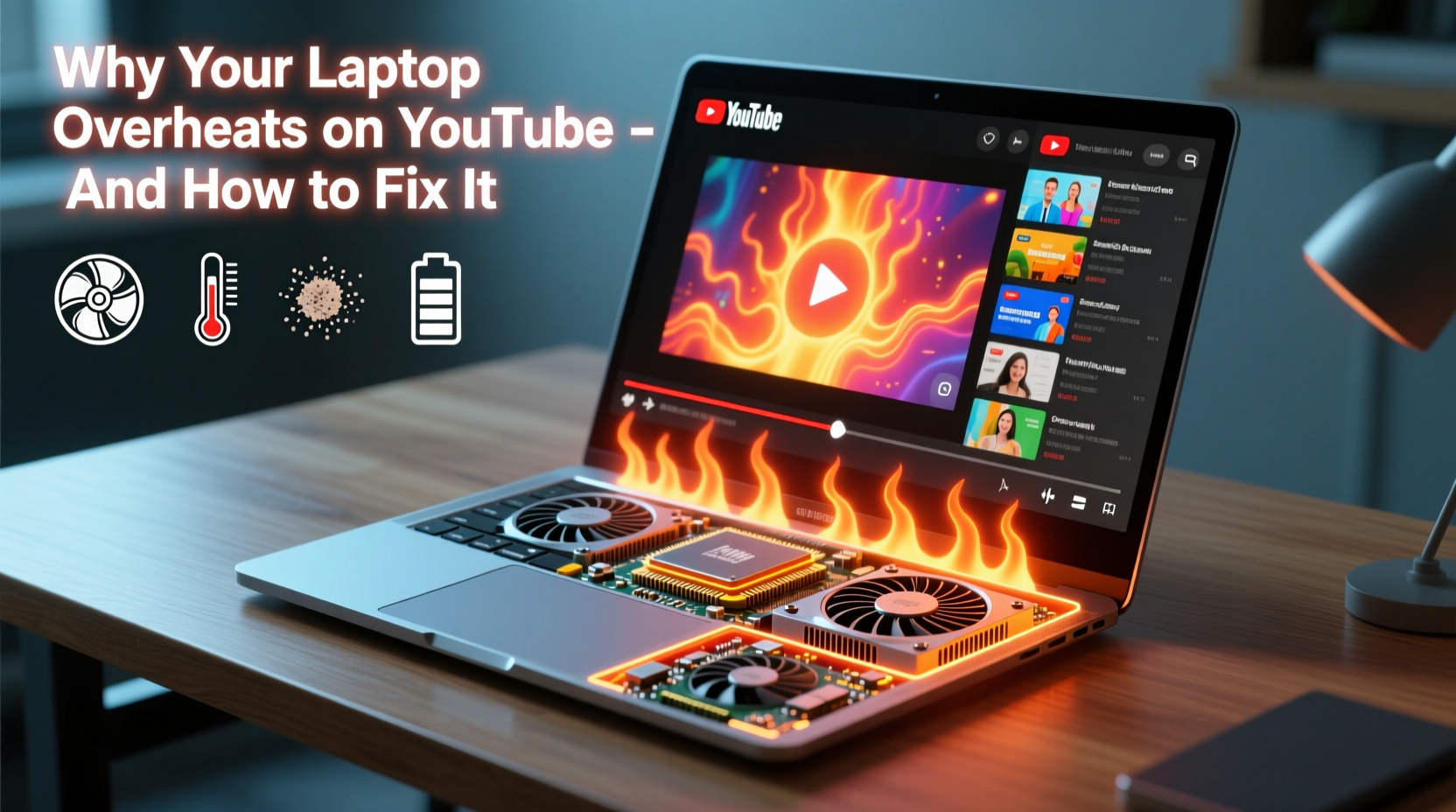
At first glance, watching a YouTube video might seem less demanding than gaming or video editing. However, high-resolution content (especially 1080p, 4K, or HDR), hardware acceleration settings, browser inefficiencies, and background resource usage can place substantial load on your CPU and GPU.
When you play a video in a browser like Chrome or Edge, multiple components come into play: the browser engine decodes compressed video streams (often H.264 or VP9), renders frames, manages audio synchronization, and handles ads and scripts from other tabs. Even with hardware decoding enabled, inefficient implementations can shift extra work back to the CPU, increasing power draw and heat output.
Additionally, many browsers lack fine-grained control over media optimization. For example, autoplay features, embedded ads, and background JavaScript loops continue consuming resources even when not visible. A single YouTube tab can sometimes use more CPU than lightweight games or office applications—especially if the laptop has limited cooling capacity.
What Is Thermal Throttling and Why It Matters
Thermal throttling is a built-in safety mechanism used by modern processors to prevent damage from overheating. When the CPU or GPU temperature exceeds safe thresholds—typically between 90°C and 105°C depending on the model—the processor automatically reduces its clock speed to generate less heat.
This results in noticeable performance drops: videos may stutter, page loads slow down, and multitasking becomes sluggish. While throttling protects your hardware, frequent or prolonged activation shortens component lifespan and degrades user experience.
“Repeated exposure to high temperatures accelerates electron migration in silicon, leading to permanent degradation of transistors.” — Dr. Alan Zhou, Semiconductor Reliability Engineer
Over time, consistent thermal cycling weakens solder joints and diminishes thermal paste effectiveness, making future cooling less efficient. In extreme cases, sustained overheating can cause system shutdowns, data loss, or irreversible hardware failure.
Common Causes of Excessive Heat During YouTube Playback
Several interrelated factors contribute to overheating while streaming YouTube. Identifying these allows targeted solutions rather than guesswork.
- Inadequate ventilation: Using a laptop on soft surfaces like beds or couches blocks intake vents, restricting airflow.
- Dust accumulation: Dust clogs fans and heatsinks, reducing heat dissipation efficiency over time.
- Ambient temperature: High room temperatures reduce the cooling gradient, making heat removal harder.
- Background processes: Antivirus scans, updates, cloud sync tools, and other apps consume CPU cycles alongside YouTube.
- Outdated drivers/firmware: Poorly optimized graphics drivers fail to leverage hardware decoding effectively.
- Browser bloat: Chrome-heavy extensions and ad-laden websites increase CPU load unnecessarily.
- High screen brightness: Brighter displays require more power, contributing to overall heat generation.
Real-World Example: Sarah’s Streaming Struggles
Sarah, a college student, frequently watches lecture recordings and tutorials on her three-year-old ultrabook. She noticed that after 20 minutes of YouTube playback, the bottom of her laptop became too hot to touch, and audio would occasionally skip. Her fan ran constantly at high RPM, disrupting focus.
Upon inspection, she discovered her laptop was running Chrome with 15 open tabs, including social media and email. She also had an outdated version of her Intel graphics driver and used the laptop on her bed, blocking the rear vent. After switching to a hard surface, closing unused tabs, updating her drivers, and lowering screen brightness, her CPU temperature dropped from 92°C to 74°C during playback—eliminating throttling and restoring smooth operation.
Step-by-Step Guide to Prevent Overheating and Throttling
Follow this systematic approach to diagnose and resolve overheating issues related to YouTube streaming:
- Evaluate your physical setup: Place the laptop on a hard, flat surface. Avoid carpets, blankets, or pillows that obstruct airflow.
- Use a laptop cooling pad: These provide additional airflow and elevate the device slightly for improved ventilation.
- Monitor temperatures: Install tools like HWMonitor, Core Temp, or Open Hardware Monitor to track real-time CPU/GPU temps during YouTube playback.
- Update your system: Ensure your OS, browser, graphics drivers, and firmware are current. Outdated GPU drivers often disable hardware video decoding.
- Optimize browser settings: In Chrome, go to Settings > System and disable “Use hardware acceleration when available,” then re-enable it to reset the feature. Alternatively, try using Firefox with AV1/VP9 decoding enabled.
- Limit background activity: Close unnecessary programs and disable startup apps via Task Manager (Windows) or Activity Monitor (macOS).
- Clean internal components: If comfortable, open the bottom panel and gently clean dust from fans and heatsinks using compressed air. Do this every 6–12 months.
- Adjust video quality: Manually set YouTube resolution to 720p instead of auto or higher. Higher resolutions demand more processing power.
- Reduce screen brightness: Lowering brightness by 20–30% significantly reduces power consumption and heat output.
- Check power plan settings: On Windows, select \"Balanced\" or \"Power Saver\" mode instead of \"High Performance,\" which keeps CPU clocks elevated unnecessarily.
Do’s and Don’ts: Laptop Cooling Best Practices
| Do | Don’t |
|---|---|
| Use your laptop on a hard, flat surface | Place it on soft furniture like beds or sofas |
| Keep vents clear and unobstructed | Block intake/exhaust ports with hands or objects |
| Update graphics drivers regularly | Ignore driver update notifications |
| Close unused browser tabs and apps | Run multiple heavy applications simultaneously |
| Clean internal dust every 6–12 months | Wait until fan noise becomes unbearable |
| Use lightweight browsers for video-only tasks | Rely solely on Chrome with dozens of extensions |
Advanced Prevention: Hardware and Software Tweaks
For users seeking deeper control, several advanced strategies can further mitigate overheating risks.
Repaste CPU/GPU (Intermediate)
After 2–3 years of use, factory-applied thermal paste dries out, reducing heat transfer efficiency. Replacing it with high-quality paste (e.g., Arctic MX-4, Thermal Grizzly Kryonaut) improves cooling by 5–10°C under load. This requires partial disassembly and should only be attempted if you're experienced or willing to follow detailed guides.
Undervolting (Advanced)
Undervolting reduces the voltage supplied to the CPU without affecting performance, lowering heat output and power consumption. Tools like ThrottleStop (Windows) or Intel XTU allow safe undervolting on supported processors. Note: Modern systems with aggressive boosting may limit gains, but even a 5°C reduction helps delay throttling onset.
Switch to Native Video Players
Instead of relying on browser-based playback, download videos legally (where permitted) using trusted tools and play them locally with VLC or MPV. These players offer superior codec support and lower overhead compared to browsers.
Enable Efficient Codecs
Ensure your system supports hardware decoding for common web codecs:
- VP9: Used widely on YouTube, especially for HD/4K content.
- AV1: Next-gen codec offering better compression and lower CPU usage (supported on newer Intel, AMD, and Apple chips).
- H.264: Older but universally supported standard.
If your hardware doesn’t decode these efficiently, the CPU handles decoding instead—spiking temperatures. Check your GPU specs and enable hardware acceleration accordingly.
Frequently Asked Questions
Can watching YouTube damage my laptop?
Occasional heating won't cause immediate harm, but chronic overheating due to blocked vents, dust buildup, or poor thermal management can degrade internal components over time. Persistent thermal throttling stresses the CPU and may shorten the lifespan of your device.
Is it safe to use my laptop on my lap while watching videos?
Only if you’re using a lap desk or cooling pad. Direct contact with fabric or skin traps heat and restricts airflow. Even brief sessions on soft surfaces can raise internal temperatures beyond safe limits, triggering early throttling.
Does playing YouTube in fullscreen make overheating worse?
Not directly, but fullscreen playback disables some browser optimizations and increases screen brightness automatically on some sites. Additionally, full-screen mode may force higher refresh rates or disable power-saving features, indirectly contributing to heat buildup.
Final Checklist: Keep Your Laptop Cool While Streaming
Before settling in for a long YouTube session, run through this quick checklist:
- ✅ Laptop placed on a hard, level surface
- ✅ Vents are clean and unobstructed
- ✅ Screen brightness set to 60% or lower
- ✅ Unused browser tabs and apps closed
- ✅ Browser hardware acceleration enabled and functional
- ✅ System and drivers updated
- ✅ Room temperature is moderate (below 25°C / 77°F)
- ✅ Consider using a cooling pad for extended sessions
Conclusion: Take Control of Your Laptop’s Temperature
Overheating during YouTube playback isn’t inevitable—it’s a signal that your system is working harder than necessary. By addressing environmental, software, and hardware factors, you can maintain stable temperatures, avoid disruptive thermal throttling, and extend your laptop’s usable life. Small changes, like switching browsers, cleaning vents, or adjusting power settings, yield significant improvements in comfort and performance.
Don’t wait until your fan roars or the chassis burns your fingertips. Proactive maintenance today prevents costly repairs tomorrow. Start applying these strategies now and enjoy smooth, cool, uninterrupted streaming for years to come.




 浙公网安备
33010002000092号
浙公网安备
33010002000092号 浙B2-20120091-4
Comments
No comments yet. Why don't you start the discussion?