
Laptop screen flickering is a frustrating issue that can disrupt productivity, strain your eyes, and raise concerns about hardware failure. What makes it especially puzzling is when the flickering occurs only when the laptop is running on battery power and stops immediately upon plugging in the charger. This specific behavior points not to a random glitch, but to a systematic response triggered by the shift between power sources. Understanding the root causes—ranging from power management settings to aging hardware—is essential for resolving the problem efficiently.
The phenomenon of screen flicker exclusively on battery isn't as rare as one might think. It often stems from subtle interactions between software configurations, power delivery systems, and display hardware. While some users may dismiss it as a minor annoyance, persistent flickering can indicate deeper issues that, if left unaddressed, may lead to permanent display damage or reduced system lifespan.
Understanding Power Source Behavior in Laptops
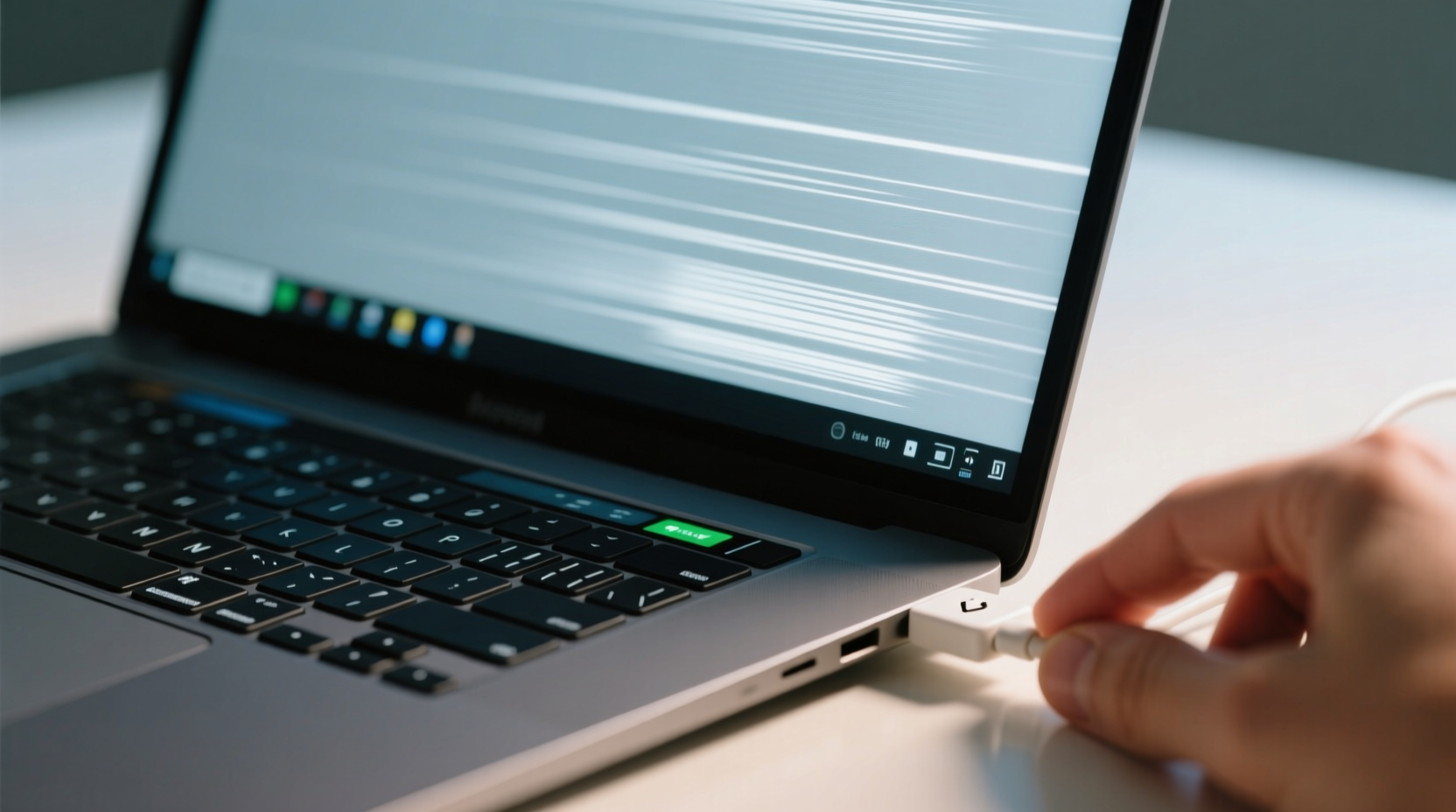
Laptops are designed to dynamically adjust performance and energy consumption based on whether they’re connected to AC power or running on battery. When plugged in, most laptops operate at full capacity, allowing components like the CPU, GPU, and display to run at higher performance levels. On battery, however, the system defaults to power-saving modes to extend runtime. These adjustments include reducing screen brightness, lowering processor speed, and throttling graphics output.
The display backlight—the component responsible for illuminating the LCD panel—is particularly sensitive to these transitions. Backlight modulation, especially in pulse-width modulation (PWM)-based screens, can cause visible flickering when power delivery fluctuates. On battery, voltage regulation differs slightly from AC mode due to lower input stability and power-saving logic, which may trigger inconsistent backlight cycling.
Common Causes of Battery-Only Screen Flickering
The selective nature of this issue—only occurring off mains power—narrows down the possible culprits significantly. Below are the most frequent underlying causes:
1. Aggressive Power Management Settings
Modern operating systems, particularly Windows, apply different power plans depending on the power source. The “Balanced” or “Power Saver” plan used on battery may include display optimizations that inadvertently cause flickering. Features such as adaptive brightness, display timeout, or GPU switching can interfere with consistent screen output.
2. Outdated or Corrupted Graphics Drivers
Graphics drivers manage communication between the operating system and the display hardware. A driver that doesn’t properly handle the transition between AC and DC power states may fail to maintain stable refresh rates or backlight control during battery operation.
3. Failing Battery or Inconsistent Voltage Output
As batteries age, their ability to deliver steady voltage diminishes. A degraded battery may produce power fluctuations that affect sensitive components like the display inverter or integrated backlight circuitry. Even if the laptop remains functional, these micro-fluctuations can manifest as screen flicker.
4. Hardware-Level Power Regulation Issues
The internal power delivery system includes voltage regulators and DC-DC converters that condition battery power before sending it to the display. If these components are failing or poorly calibrated, they may introduce electrical noise or ripple that becomes noticeable only under battery load.
5. PWM-Based Backlight at Low Brightness
Many laptop displays use PWM dimming to control brightness. At lower brightness levels, the backlight rapidly turns on and off. On battery, combined with power-saving behaviors, this flicker can become more pronounced due to timing mismatches in power delivery cycles.
“Voltage instability from an aging battery can directly impact display performance, especially in thin-and-light laptops where power margins are already tight.” — Dr. Alan Zhou, Electrical Systems Engineer, Mobile Computing Group
Step-by-Step Diagnosis and Resolution
Resolving battery-only screen flicker requires a methodical approach. Start with software fixes before moving to hardware assessments.
- Switch to High-Performance Power Plan
Go to Control Panel > Hardware and Sound > Power Options. Select “High Performance” or create a custom plan. Set both \"On Battery\" and \"Plugged In\" schemes to identical display and sleep settings. - Disable Adaptive Brightness
Navigate to Power Options > Change Plan Settings > Change Advanced Power Settings. Expand Display > Enable Adaptive Brightness and set both \"On Battery\" and \"Plugged In\" to \"Off.\" - Update Graphics Drivers
Visit your laptop manufacturer’s support site or use Device Manager to update Intel, AMD, or NVIDIA drivers. Avoid third-party updater tools, which may install incompatible versions. - Check for BIOS/UEFI Updates
Manufacturers often release firmware updates that improve power delivery logic and display compatibility. Check your model’s support page and follow update instructions carefully. - Test with External Monitor
Connect your laptop to an external display via HDMI. If the flicker persists only on the built-in screen, the issue is localized to the internal display or its power circuitry. - Inspect Battery Health
On Windows, open Command Prompt as admin and run:powercfg /batteryreport. Open the generated report and check “Design Capacity” vs. “Full Charge Capacity.” A significant drop (e.g., below 70%) indicates battery degradation. - Adjust Screen Brightness
Increase brightness to 80–100%. If flickering stops, the issue is likely related to PWM dimming at low levels. Consider using software like Iris Mini to simulate DC dimming.
Tips and Best Practices to Prevent Recurrence
Once the immediate issue is resolved, adopt preventive habits to avoid future flickering:
- Keep your operating system and drivers updated regularly.
- Avoid letting your battery drain completely on a regular basis; aim to keep charge between 20% and 80%.
- Use OEM chargers and cables to ensure clean, stable power input.
- Periodically recalibrate your battery by fully charging it to 100%, then discharging to 5% before recharging.
- Disable unnecessary visual effects in System Properties > Performance Settings.
Real-World Example: Resolving Flicker on a Dell XPS 13
Sarah, a freelance graphic designer, began noticing her Dell XPS 13 screen flickering whenever she worked remotely without her charger. The issue didn’t occur in her office, leading her to initially assume it was environmental lighting. After ruling out glare and trying multiple locations, she realized the flicker coincided precisely with battery use.
She followed the diagnostic steps: first checking power settings, where she found that “Adaptive Brightness” was enabled only for battery mode. Disabling it had no effect. She then updated her Intel Iris Xe graphics driver from Dell’s support portal. Still, the flicker persisted.
Running powercfg /batteryreport, she discovered her battery’s full charge capacity had dropped to 62% of its original design capacity. Despite still holding a charge for several hours, the voltage instability was enough to disrupt the display subsystem. After replacing the battery, the flickering ceased entirely.
This case illustrates how even a partially degraded battery—one that still functions adequately for daily use—can introduce subtle electrical anomalies affecting sensitive components like the display.
Do’s and Don’ts: Quick Reference Table
| Do’s | Don’ts |
|---|---|
| Set consistent power plans for battery and AC | Ignore battery health reports |
| Update BIOS and graphics drivers regularly | Use third-party driver updaters |
| Test with an external monitor to isolate the issue | Assume flicker is “normal” on battery |
| Replace aging batteries proactively | Continue using a swollen or degraded battery |
| Adjust brightness to reduce PWM effects | Over-tighten display bezel screws during inspection |
Frequently Asked Questions
Can a bad charger cause screen flickering only on battery?
No, a faulty charger typically affects the laptop when plugged in. However, if the charger fails to properly charge the battery over time, the resulting weak battery could cause flickering when unplugged. So while the charger isn’t the direct cause, it may contribute indirectly through poor battery conditioning.
Is screen flicker a sign of impending hardware failure?
It can be. While flickering due to software settings is common and easily fixed, persistent flicker linked to battery usage—especially after driver and setting corrections—may indicate a failing display cable, backlight inverter (in older models), or battery. If the issue worsens or spreads to AC power, seek professional diagnostics.
Does turning off HDR or Night Light help with flickering?
Possibly. High Dynamic Range (HDR) and blue light filters like Night Light alter display color processing and backlight behavior. In some cases, these features interact poorly with power-saving modes. Try disabling them temporarily to see if flicker improves.
Final Recommendations and Next Steps
Laptop screen flicker that appears only when unplugged is rarely random—it’s a signal from your system indicating a mismatch between power delivery and display requirements. Most cases are resolvable through software adjustments or timely hardware maintenance. Ignoring the symptom may lead to increased eye strain, reduced usability, or eventual hardware failure.
Start by standardizing your power settings, updating drivers, and assessing battery health. If the issue persists, consider professional servicing, especially if your laptop is under warranty. For older models, replacing the battery may be the most cost-effective long-term solution.
Technology should adapt to your lifestyle, not hinder it. By understanding the interplay between power sources and display systems, you regain control over your device’s performance—whether you're at your desk or working on the go.




 浙公网安备
33010002000092号
浙公网安备
33010002000092号 浙B2-20120091-4
Comments
No comments yet. Why don't you start the discussion?