
Laptops are essential tools for work, study, and entertainment, but nothing disrupts productivity like a device that powers off without warning. Random shutdowns can stem from various causes—software glitches, power issues, failing hardware—but one of the most common and preventable culprits is overheating. When internal temperatures rise beyond safe thresholds, your laptop’s built-in thermal protection triggers an automatic shutdown to prevent permanent damage.
Understanding the connection between unexpected shutdowns and heat buildup is crucial for diagnosing the problem and protecting your investment. This article explores how overheating leads to sudden power loss, identifies key warning signs, and provides actionable solutions to keep your system cool and stable under load.
How Overheating Triggers Automatic Shutdowns
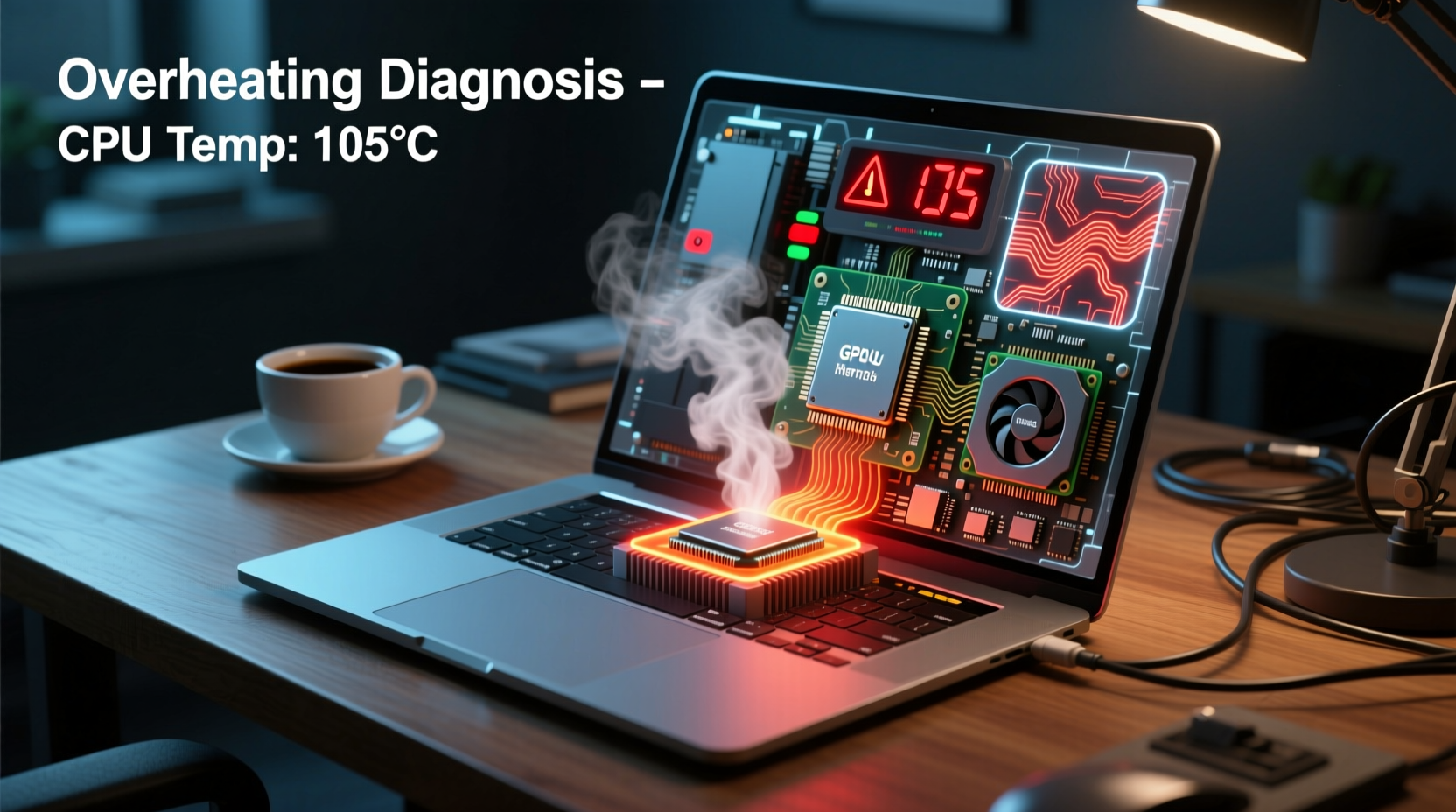
Modern laptops contain multiple sensors that monitor temperature in real time. The CPU and GPU generate significant heat during intensive tasks like video editing, gaming, or multitasking with dozens of browser tabs. When cooling systems fail to dissipate this heat efficiently, component temperatures can exceed manufacturer-defined limits—often around 90–100°C for processors.
To protect sensitive electronics, the BIOS (Basic Input/Output System) activates thermal throttling first, reducing performance to lower heat output. If temperatures continue to climb, the system initiates an emergency shutdown. Unlike a crash caused by software errors, these shutdowns occur abruptly—no warning messages, no blue screen—and often happen only under load.
“Thermal shutdowns are a safety feature, not a flaw. But frequent activation means your cooling system isn’t keeping up.” — Dr. Alan Reeves, Hardware Engineer at TechReliability Labs
This behavior distinguishes overheating-related shutdowns from other issues such as battery failure or operating system crashes. If your laptop shuts down while running processor-heavy applications but remains stable during light use, heat is likely the primary factor.
Common Causes of Laptop Overheating
While all laptops produce heat, persistent overheating usually results from preventable conditions or gradual degradation. Identifying the root cause helps determine whether you can fix it yourself or need professional service.
Dust Accumulation in Vents and Fans
Dust acts as insulation inside your laptop, trapping heat around critical components. Over months or years, fans and heatsinks become clogged, drastically reducing airflow. Even small amounts of debris can impair fan rotation or block intake grills located on the bottom or sides.
Failing or Slow-Cycling Cooling Fan
If the cooling fan runs intermittently, makes grinding noises, or doesn’t spin at all, it cannot regulate temperature effectively. Some fans degrade due to bearing wear; others may suffer from loose connections or firmware issues.
Dried or Degraded Thermal Paste
Thermal paste transfers heat from the CPU/GPU to the metal heatsink. Over time—typically 2–4 years—it dries out, cracks, or separates, creating air gaps that reduce heat conduction. Without efficient transfer, processors overheat even if fans are working.
Poor Ventilation During Use
Using a laptop on soft surfaces like beds, couches, or blankets blocks air intake vents. These surfaces restrict airflow and trap heat underneath, causing rapid temperature spikes. Similarly, enclosing the device in tight spaces (e.g., closed laptop bags while running) increases ambient heat exposure.
Ambient Temperature and Environmental Factors
Operating a laptop in hot environments—such as direct sunlight, poorly ventilated rooms, or vehicles—reduces the efficiency of passive and active cooling. High room temperatures mean the cooling system starts at a disadvantage before any workload begins.
Resource-Intensive Background Processes
Malware, outdated drivers, or bloated software can cause constant high CPU usage, generating excess heat even when you're not actively using demanding programs. A single misbehaving process can push your processor to 100% utilization indefinitely.
Diagnostic Checklist: Is Your Laptop Overheating?
Before disassembling your device or purchasing new equipment, perform these checks to confirm overheating as the source of random shutdowns.
- Monitor Internal Temperatures: Use free tools like HWMonitor, Core Temp, or Open Hardware Monitor to track CPU and GPU temps in real time. <
- Check Fan Operation: Listen for unusual sounds (clicking, grinding) or periods of silence during high load. You can also feel for warm air being expelled from exhaust vents.
- Inspect Airflow Paths: Turn off the laptop and examine intake and exhaust vents for visible dust buildup. Use compressed air to gently clean accessible areas.
- Test Under Different Conditions: Run a stress test (e.g., Prime95 or FurMark) while the laptop is elevated on a hard surface. Repeat the test on a bed or cushion to observe differences in thermal behavior.
- Review Recent Software Changes: Uninstall recently added programs, scan for malware, and ensure Windows or macOS updates are current.
- Observe Shutdown Patterns: Note whether shutdowns happen during specific activities (gaming, streaming, etc.) or after consistent durations of use.
Step-by-Step Guide to Prevent and Fix Overheating Issues
Once you've confirmed overheating is contributing to random shutdowns, take the following steps to restore normal operation.
Step 1: Clean the Exterior and Vents
Power down the laptop completely. Use a microfiber cloth to wipe exterior surfaces. With compressed air, spray short bursts into intake and exhaust vents at a 45-degree angle to dislodge dust without forcing debris deeper.
Step 2: Elevate the Laptop for Better Airflow
Place the laptop on a hard, flat surface. Consider using a laptop stand or a simple book to raise the back edge slightly. This improves natural convection and prevents bottom-mounted intakes from being blocked.
Step 3: Update Power and BIOS Settings
Access your system’s BIOS/UEFI settings and check for updated firmware versions from the manufacturer. Some updates improve thermal management algorithms. In Windows, switch to “Balanced” or “Power Saver” mode to limit peak CPU usage unless needed.
Step 4: Scan for Malware and Background Processes
Run a full antivirus scan. Open Task Manager (Ctrl+Shift+Esc) and sort processes by CPU usage. Investigate any unknown application consuming more than 20% CPU consistently. End the task and research the process online to determine legitimacy.
Step 5: Repaste CPU/GPU (Advanced)
If temperatures remain high after cleaning and software fixes, internal repasting may be necessary. This requires opening the laptop chassis, removing the heatsink, wiping off old thermal compound, and applying a pea-sized amount of high-quality replacement paste (e.g., Arctic MX-4 or Noctua NT-H1). Only attempt this if you’re comfortable with hardware repair or consult a technician.
Step 6: Replace Faulty Cooling Components
If the fan is damaged or non-functional, replacement is required. Most manufacturers sell spare parts directly, or you can order compatible units through authorized vendors. Always disconnect the battery before replacing internal components.
Do’s and Don’ts of Laptop Thermal Management
| Do | Don't |
|---|---|
| Use your laptop on hard, flat surfaces | Place it on beds, pillows, or laps without a barrier |
| Clean vents every 3–6 months | Use vacuum cleaners near ports (static risk) |
| Invest in a quality laptop cooling pad | Rely solely on cooling pads instead of fixing root causes |
| Keep ambient room temperature below 27°C (80°F) | Leave the laptop in a parked car on sunny days |
| Monitor temperatures regularly under load | Ignore persistent fan noise or sudden shutdowns |
Real-World Example: A Student’s Gaming Laptop Crisis
Jamal, a university student and casual gamer, noticed his three-year-old laptop shutting down during gameplay sessions. At first, he assumed it was a software bug and reinstalled Windows twice. The problem persisted. After reading about thermal shutdowns, he downloaded HWMonitor and ran a game while tracking temperatures. Within 15 minutes, his CPU hit 98°C, followed by an abrupt power-off.
He cleaned the side vents with compressed air but saw little improvement. He then purchased a laptop stand with built-in fans, which helped marginally. Finally, he opened the bottom panel and found thick layers of dust coating the fan and heatsink. After thorough cleaning and applying fresh thermal paste, idle temperatures dropped from 65°C to 42°C, and gaming sessions lasted hours without incident.
His experience highlights how layered issues—dust accumulation, degraded paste, and poor ventilation—can combine to create recurring problems that seem mysterious at first glance.
Frequently Asked Questions
Can a dead battery cause random shutdowns unrelated to heat?
Yes. A failing battery may report incorrect charge levels or cut power unexpectedly, especially when unplugged. However, battery-related shutdowns typically occur regardless of CPU load and are often preceded by low-battery warnings. Overheating shutdowns happen mainly during intensive use and don’t correlate with remaining charge.
Is it safe to keep using a laptop that shuts down from overheating?
No. Repeated thermal stress degrades electronic components over time. CPUs and GPUs subjected to frequent overheating may suffer reduced lifespan, permanent performance loss (due to degraded silicon), or complete failure. Address the issue promptly to avoid costly repairs.
Will upgrading RAM or SSD reduce overheating?
Not directly. However, faster storage reduces disk thrashing and system bottlenecks, allowing tasks to complete quicker and lowering overall system load. More RAM reduces reliance on virtual memory (page file), which decreases hard drive activity and indirect heat generation. While not a cooling solution, better components contribute to lower sustained workloads.
Conclusion: Take Control Before Damage Sets In
Random laptop shutdowns are more than just inconvenient—they’re early warnings of underlying health issues. Overheating is a leading cause, but one that’s often within your control to fix. By monitoring temperatures, maintaining clean airflow, and addressing hardware wear proactively, you can extend your laptop’s functional life by years.
Don’t wait for permanent damage to act. Start with simple steps like cleaning vents and adjusting usage habits. If problems persist, consider internal maintenance or professional servicing. Your laptop’s stability—and your peace of mind—depends on recognizing the signs and responding decisively.




 浙公网安备
33010002000092号
浙公网安备
33010002000092号 浙B2-20120091-4
Comments
No comments yet. Why don't you start the discussion?