
Laptops shutting down without warning can be more than just inconvenient—they can lead to lost work, corrupted files, and long-term damage if left unaddressed. While occasional crashes may seem like minor glitches, frequent random shutdowns are a red flag. The root cause could lie in either hardware or software, and distinguishing between the two is essential for an effective fix. Understanding the symptoms, diagnostic methods, and repair strategies empowers users to restore stability and extend their device’s lifespan.
Understanding the Core Causes of Random Shutdowns
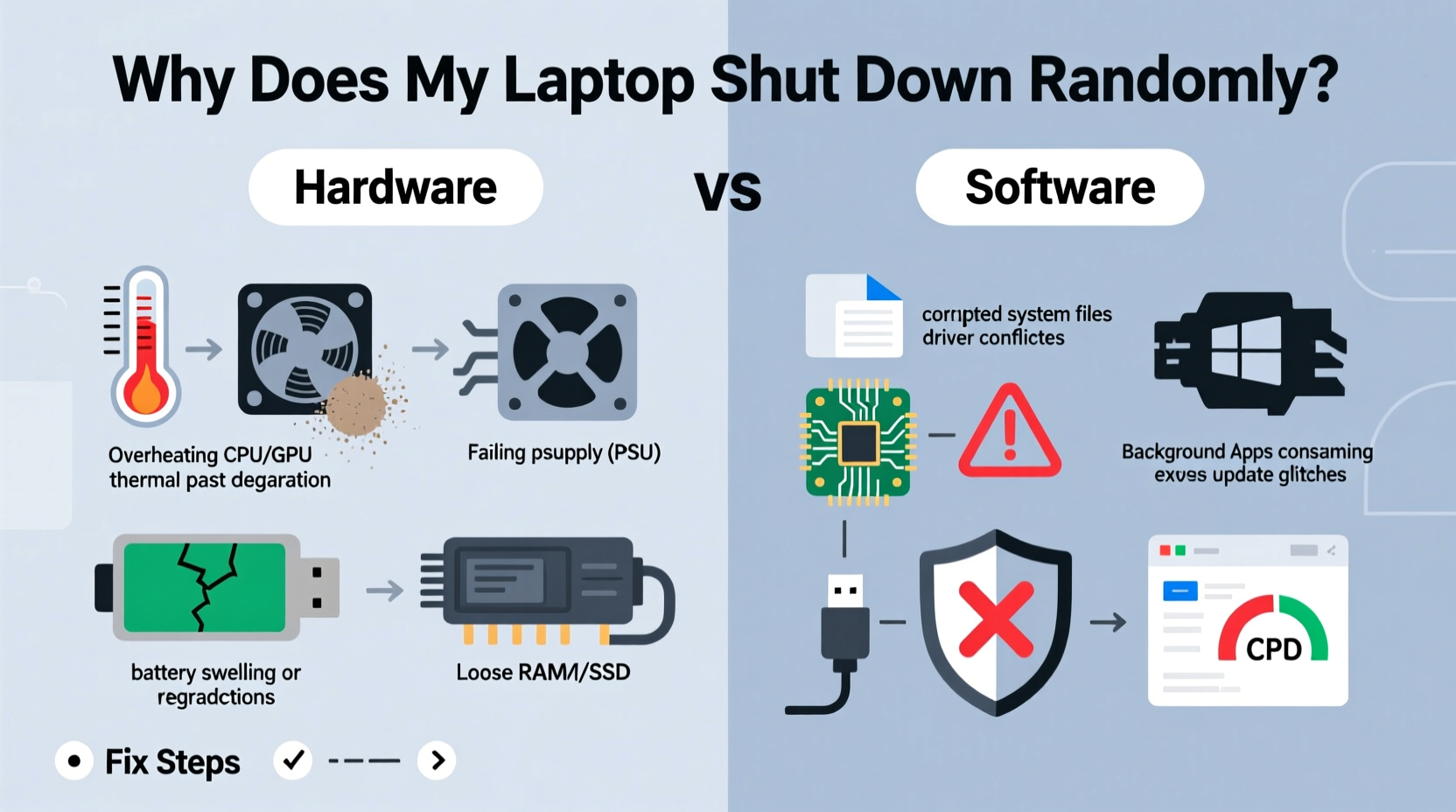
Random shutdowns occur when a laptop abruptly powers off without user input. Unlike sleep mode or hibernation, these shutdowns often happen during active use and may prevent normal restarts for several seconds or minutes. The underlying triggers fall into two broad categories: hardware failures and software conflicts.
Hardware-related causes typically involve physical components degrading or malfunctioning. These include overheating due to dust-clogged fans, failing power supplies, defective batteries, or damaged motherboards. Because hardware issues are often progressive, they tend to worsen over time unless repaired.
Software-related causes, on the other hand, stem from operating system errors, driver incompatibilities, malware infections, or misconfigured power settings. These issues may appear suddenly after updates or new software installations and can sometimes be resolved without replacing any parts.
The key to fixing the problem lies in identifying which category your issue belongs to—this requires careful observation and systematic testing.
Differentiating Hardware vs. Software Triggers
Before attempting repairs, determine whether the source is hardware or software. Misdiagnosis can lead to wasted time and money. Below are key indicators that help distinguish between the two:
| Indicator | Hardware Sign | Software Sign |
|---|---|---|
| Shutdown Timing | During high-performance tasks (gaming, rendering) | At random intervals, even when idle |
| Temperature | Laptop feels hot; fan runs loudly before shutdown | No noticeable heat increase |
| Restart Behavior | Won’t turn on immediately; needs cooling period | Restarts normally after a few seconds |
| Error Messages | Few or none; sudden black screen | Blue Screen of Death (BSOD), crash logs |
| Battery Status | Swollen battery, inconsistent charging | Charges normally but shuts down at 20–30% |
If your laptop consistently overheats and shuts down under load, thermal throttling due to hardware failure is likely. Conversely, if crashes happen unpredictably across different applications and leave behind error codes, software corruption is probable.
“Over 60% of random shutdown cases we see in service centers are heat-related. Dust buildup and degraded thermal paste are silent killers.” — David Lin, Senior Technician at TechCare Repair Labs
Step-by-Step Diagnostic Process
To accurately diagnose the cause, follow this structured approach:
- Monitor system temperature. Use tools like HWMonitor, Core Temp, or SpeedFan to check CPU and GPU temperatures. Sustained readings above 90°C indicate overheating.
- Inspect physical condition. Look for signs of a swollen battery, loose power jack, or unusual noises from the fan. A grinding sound suggests bearing failure.
- Review Event Viewer logs. On Windows, open Event Viewer and navigate to Windows Logs > System. Look for critical errors labeled “Kernel-Power” or “BugCheck” around the time of shutdowns.
- Boot into Safe Mode. Restart and enter Safe Mode. If the laptop remains stable, the issue is likely software-driven (e.g., drivers or startup programs). <5> Run hardware diagnostics. Many manufacturers (Dell, HP, Lenovo) offer built-in diagnostics. Access them by pressing F12, F2, or Esc during boot.
- Test with minimal configuration. Disconnect peripherals, remove external drives, and run the laptop on AC power only. This eliminates interference from faulty accessories.
This process helps isolate variables and builds a clearer picture of the root cause.
Common Hardware Fixes and When to Apply Them
Once you’ve ruled out software as the primary culprit, focus on hardware components. Here are the most frequent hardware-related issues and how to resolve them:
- Overheating due to dust accumulation: Open the back panel (if accessible) and clean internal fans and heatsinks with compressed air. Do this every 6–12 months depending on environment.
- Degraded thermal paste: After prolonged use, thermal paste between the CPU and heatsink dries out. Reapplying high-quality paste improves heat transfer significantly.
- Failing battery: If the laptop shuts down below 30% charge despite showing full battery health, the cell may be defective. Replace the battery with a manufacturer-approved unit.
- Power adapter issues: Test with a known-good charger. Inconsistent voltage delivery can cause sudden power loss.
- Motherboard or RAM faults: Intermittent shorts or memory errors can trigger shutdowns. These require professional diagnosis and repair.
Mini Case Study: Resolving Chronic Overheating
A freelance graphic designer using a three-year-old Dell XPS 15 noticed her laptop shutting down during Adobe Premiere renders. Initially suspecting software, she reinstalled Windows—only for the problem to return within days. Upon checking temperatures, she found CPU spikes reaching 98°C. She opened the chassis and discovered a thick layer of dust clogging the fan and heatsink. After cleaning and reapplying thermal paste, temperatures dropped to 78°C under load, and shutdowns ceased entirely. This case highlights how physical maintenance can resolve seemingly complex issues.
Software Solutions and System Optimization
If diagnostics point to software, several targeted fixes can restore stability:
- Update or roll back drivers: Outdated graphics or chipset drivers often cause instability. Use Device Manager or the manufacturer’s website to update. If crashes started after an update, roll back to a previous version.
- Scan for malware: Run a full system scan using Windows Defender or a trusted third-party antivirus. Malware can overload system resources and force shutdowns.
- Adjust power settings: Go to Control Panel > Power Options and select “High performance” or customize the plan to prevent the system from turning off during intensive tasks.
- Disable fast startup: This feature can interfere with proper shutdown sequences. Disable it via Power Options > Choose what the power buttons do > Change settings currently unavailable > Uncheck “Turn on fast startup.”
- Perform a clean boot: Use MSConfig to disable non-Microsoft services and startup items. If the problem stops, re-enable items one by one to identify the culprit.
In some cases, a complete OS reinstall may be necessary if system files are deeply corrupted. Always back up data before proceeding.
Expert Quote on Software Stability
“Driver conflicts and background bloatware are among the top hidden causes of random shutdowns. A lean system with verified drivers runs cooler and more reliably.” — Dr. Anita Patel, Systems Engineer at WinReliability Labs
Troubleshooting Checklist
Use this checklist to methodically address random shutdowns:
- ✅ Check laptop temperature during use
- ✅ Listen for abnormal fan noise
- ✅ Inspect battery for swelling or leakage
- ✅ Test with a different power adapter
- ✅ Clean internal dust using compressed air
- ✅ Update BIOS and all drivers
- ✅ Run Windows Memory Diagnostic for RAM errors
- ✅ Scan for viruses and unwanted programs
- ✅ Review Event Viewer for critical errors
- ✅ Boot into Safe Mode and test stability
- ✅ Reset or reinstall the operating system if needed
Completing each item ensures no stone is left unturned.
Frequently Asked Questions
Can a virus make my laptop shut down randomly?
Yes. Some malware strains consume excessive CPU or GPU resources, leading to overheating and forced shutdowns. Others tamper with system processes or power management settings. Regular scans and updated antivirus software reduce this risk.
Why does my laptop shut down at 30% battery?
This usually indicates battery calibration issues or cell degradation. The battery meter shows 30%, but actual voltage drops too low to sustain operation. Try recalibrating the battery: fully charge it, use it until it shuts down, then charge uninterrupted to 100%. If the issue persists, replace the battery.
Is it safe to keep my laptop plugged in all the time?
Modern laptops manage charging well, but keeping them at 100% charge constantly can degrade battery longevity over time. For optimal battery health, aim to keep charge levels between 20% and 80% when possible. Some models offer battery conservation modes in their utilities.
Conclusion: Take Action Before It’s Too Late
Random laptop shutdowns are not something to ignore. Whether caused by a dusty fan, failing battery, outdated driver, or malware infection, each issue grows worse over time. Addressing the problem early prevents data loss, extends your device’s usable life, and saves money on premature replacements. Start with simple checks—clean the vents, monitor temperatures, review event logs—and progress to deeper diagnostics as needed. Most importantly, don’t assume the worst; many shutdowns are fixable with basic maintenance and smart troubleshooting.




 浙公网安备
33010002000092号
浙公网安备
33010002000092号 浙B2-20120091-4
Comments
No comments yet. Why don't you start the discussion?