
Laptops shutting down unexpectedly during intensive tasks—like gaming, video editing, or rendering—is a frustrating and common issue. While it might seem like a software glitch or battery problem, the real culprit is often thermal throttling triggered by overheating. Modern laptops are designed with built-in safety mechanisms that force a shutdown when internal temperatures exceed safe thresholds, preventing permanent hardware damage. Understanding why this happens and how to fix it can save your device from premature failure and restore reliable performance.
Why Laptops Overheat Under Heavy Load
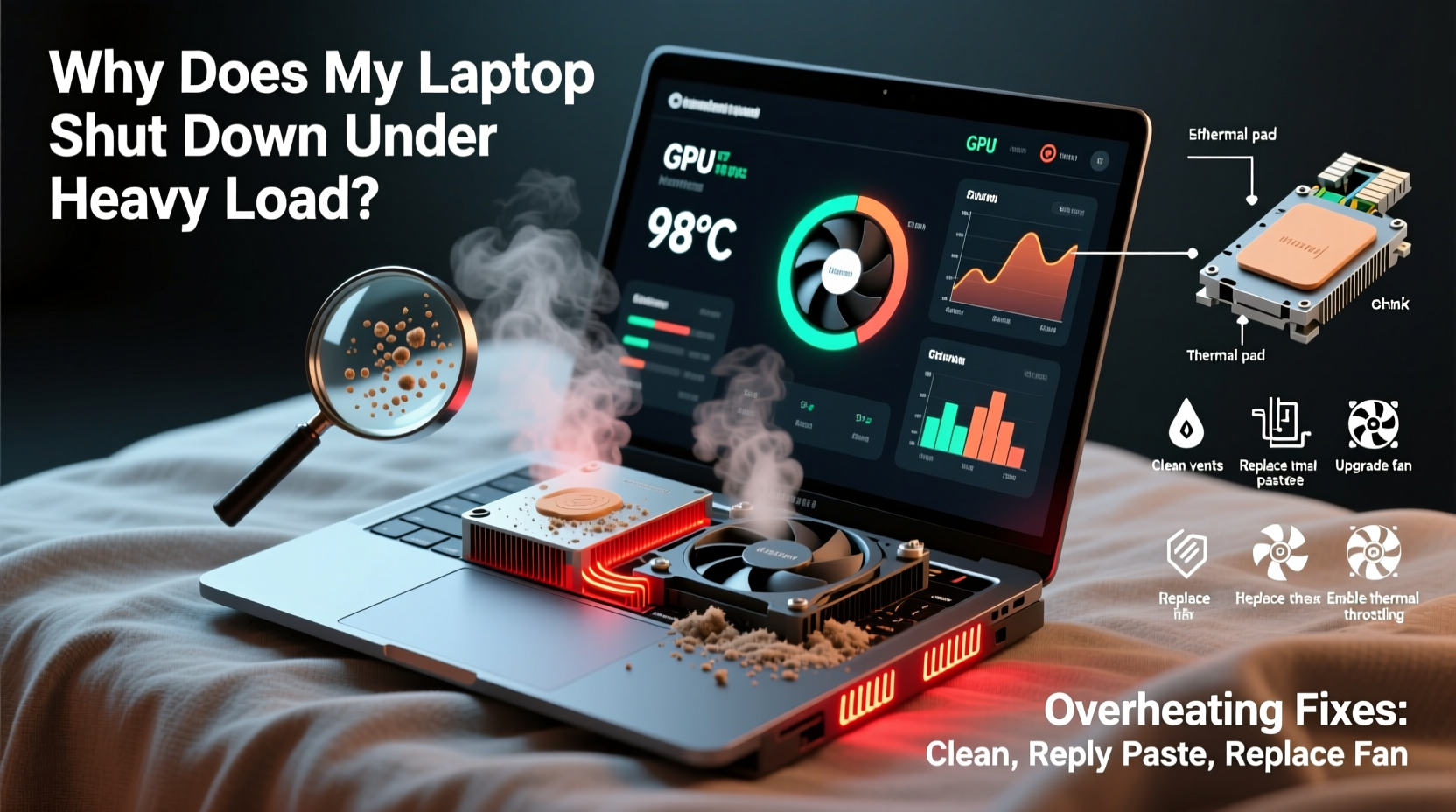
When you run CPU- or GPU-intensive applications, your laptop’s processor and graphics card work harder, consuming more power and generating more heat. Under normal conditions, cooling systems—fans, heat sinks, and thermal paste—dissipate this heat efficiently. However, several factors can disrupt this balance:
- Dust accumulation: Dust clogs air vents and fans, reducing airflow and insulation efficiency.
- Degraded thermal paste: Over time, thermal paste between the CPU/GPU and heat sink dries out, reducing heat transfer.
- Poor ventilation: Using a laptop on soft surfaces like beds or couches blocks intake vents.
- Ambient temperature: High room temperatures reduce cooling efficiency.
- Outdated BIOS or firmware: Some systems lack updated thermal management protocols.
When heat isn’t properly dissipated, component temperatures rise rapidly. Once they hit critical levels (typically 95–105°C for most CPUs), the system triggers an emergency shutdown to protect itself.
Step-by-Step Guide to Diagnose Overheating Issues
Before attempting repairs, confirm that overheating is the root cause. Follow this diagnostic process:
- Monitor temperatures: Use tools like HWMonitor, Core Temp, or Open Hardware Monitor to track CPU and GPU temps in real time.
- Reproduce the issue: Run a stress test using Prime95 (CPU) or FurMark (GPU) while monitoring temperatures.
- Check fan behavior: Listen for unusual noises or complete silence during high load. Use SpeedFan to verify fan RPMs.
- Inspect physical condition: Look at vents for dust buildup and ensure the laptop isn’t placed on obstructive surfaces.
- Review Event Viewer (Windows): Check for “Kernel-Power Event ID 41” errors, which may indicate forced shutdowns due to thermal events.
If temperatures exceed 90°C within minutes of heavy use and correlate with shutdowns, overheating is likely the cause.
Proven Fixes to Prevent Overheating Shutdowns
Once diagnosed, implement these solutions in order of complexity and effectiveness.
1. Clean Internal Components
Dust is the number one enemy of laptop cooling. Even small amounts can insulate heat sinks and reduce fan efficiency.
“Over 60% of overheating cases I’ve seen in repair shops were directly caused by neglected dust buildup.” — David Lin, Senior Laptop Technician, TechCare Pro
To clean safely:
- Power off and unplug the laptop.
- Remove the back panel (consult manufacturer guides).
- Use compressed air to blow dust from fans, heat sinks, and vents.
- Avoid touching components with metal tools.
2. Replace Thermal Paste
Thermal paste degrades after 2–3 years, losing its ability to conduct heat. Reapplying fresh paste can drop CPU temps by 10–15°C.
Steps:
- Disassemble to access CPU and GPU.
- Carefully remove old paste with isopropyl alcohol and lint-free cloth.
- Apply a pea-sized amount of high-quality thermal paste (e.g., Arctic MX-4, Noctua NT-H1).
- Reassemble and test.
Note: This requires technical skill. If uncomfortable, seek professional help.
3. Improve Airflow and Usage Habits
Even a perfectly clean laptop can overheat if airflow is blocked.
| Do | Don't |
|---|---|
| Use on hard, flat surfaces (desk, table) | Use on beds, pillows, or laps |
| Elevate the rear slightly for better vent clearance | Block side or bottom vents |
| Use a laptop cooling pad with active fans | Rely solely on passive cooling in hot rooms |
4. Optimize Power and Performance Settings
Adjusting system settings can reduce heat generation without drastically impacting usability.
- Set power plan to “Balanced” instead of “High Performance.”
- Limit maximum processor state to 90% in advanced power settings.
- Reduce screen brightness—LCDs generate significant heat.
- Close background apps consuming CPU cycles.
5. Update Firmware and Drivers
Manufacturers release BIOS updates that improve thermal management and fan control algorithms.
Check your laptop maker’s support site (e.g., Dell, HP, Lenovo) and install the latest BIOS, chipset, and GPU drivers. These updates often include:
- Better fan curve calibration
- Improved CPU throttling logic
- Fixes for thermal sensor inaccuracies
Mini Case Study: Resolving a Gaming Laptop's Sudden Shutdowns
Mark, a freelance video editor, experienced frequent shutdowns while rendering 4K timelines on his 3-year-old gaming laptop. Initially suspecting software issues, he reinstalled Windows with no improvement. After monitoring temps, he found his CPU hitting 102°C within five minutes of starting Adobe Premiere Pro.
He followed these steps:
- Used compressed air to clean vents—minimal improvement.
- Updated BIOS and GPU drivers—temps dropped slightly to 98°C.
- Replaced dried thermal paste with Arctic MX-4.
- Began using a cooling pad during long sessions.
Result: CPU temperatures stabilized at 78–82°C under load, and shutdowns ceased entirely. The laptop now handles 4K exports reliably, extending its usable life by years.
Checklist: Prevent Laptop Overheating Now
Use this actionable checklist to maintain optimal thermal performance:
- ✅ Monitor CPU/GPU temperatures weekly during heavy tasks
- ✅ Clean dust from vents and fans every 6–12 months
- ✅ Replace thermal paste every 2–3 years (or after 1,500+ hours of heavy use)
- ✅ Avoid using laptop on soft or uneven surfaces
- ✅ Install BIOS and driver updates regularly
- ✅ Use a cooling pad for extended high-load sessions
- ✅ Adjust power settings to limit max processor state to 90%
- ✅ Keep ambient room temperature below 25°C (77°F) if possible
Frequently Asked Questions
Can overheating permanently damage my laptop?
Yes. Prolonged exposure to high temperatures degrades solder joints, reduces battery lifespan, and can cause microfractures in the CPU or GPU. Repeated thermal cycling accelerates wear and increases the risk of permanent failure.
Is it safe to use third-party cooling pads?
Most are safe and effective. Choose models with adjustable fan speeds and USB-powered operation. Avoid overly loud or poorly built units that may vibrate excessively. Ensure the pad doesn’t block intake vents located on the laptop’s underside.
Does undervolting help reduce heat?
Yes. Undervolting reduces the voltage supplied to the CPU or GPU, lowering heat output without sacrificing performance. Tools like Intel XTU (for Intel CPUs) or Ryzen Controller (for AMD) allow safe undervolting. However, incorrect settings can cause instability—proceed with caution and test thoroughly.
Conclusion: Take Control of Your Laptop’s Longevity
Random shutdowns under load aren’t just inconvenient—they’re symptoms of deeper thermal issues that, if ignored, can lead to irreversible hardware damage. The good news is that most overheating problems are preventable and fixable with routine maintenance and smart usage habits. From cleaning dust to replacing thermal paste and optimizing settings, each step contributes to a cooler, more stable system.
Your laptop is a significant investment. By understanding the causes of overheating and applying these practical fixes, you extend its performance life and avoid costly replacements. Don’t wait for the next crash—take action today to keep your machine running smoothly, even under pressure.




 浙公网安备
33010002000092号
浙公网安备
33010002000092号 浙B2-20120091-4
Comments
No comments yet. Why don't you start the discussion?