
Laptops are essential tools for work, study, and personal use—but nothing disrupts productivity like an unexplained shutdown. One moment you're in the middle of a project, and the next, your screen goes black with no warning. While it's tempting to assume hardware failure or a virus, many sudden shutdowns stem from preventable issues that users can address at home.
Understanding the root causes behind unexpected shutdowns empowers you to take control before escalating to professional help. From overheating and power problems to software glitches and failing components, this guide breaks down the most common culprits—and more importantly, what you can do about them.
Common Causes of Unexpected Laptop Shutdowns
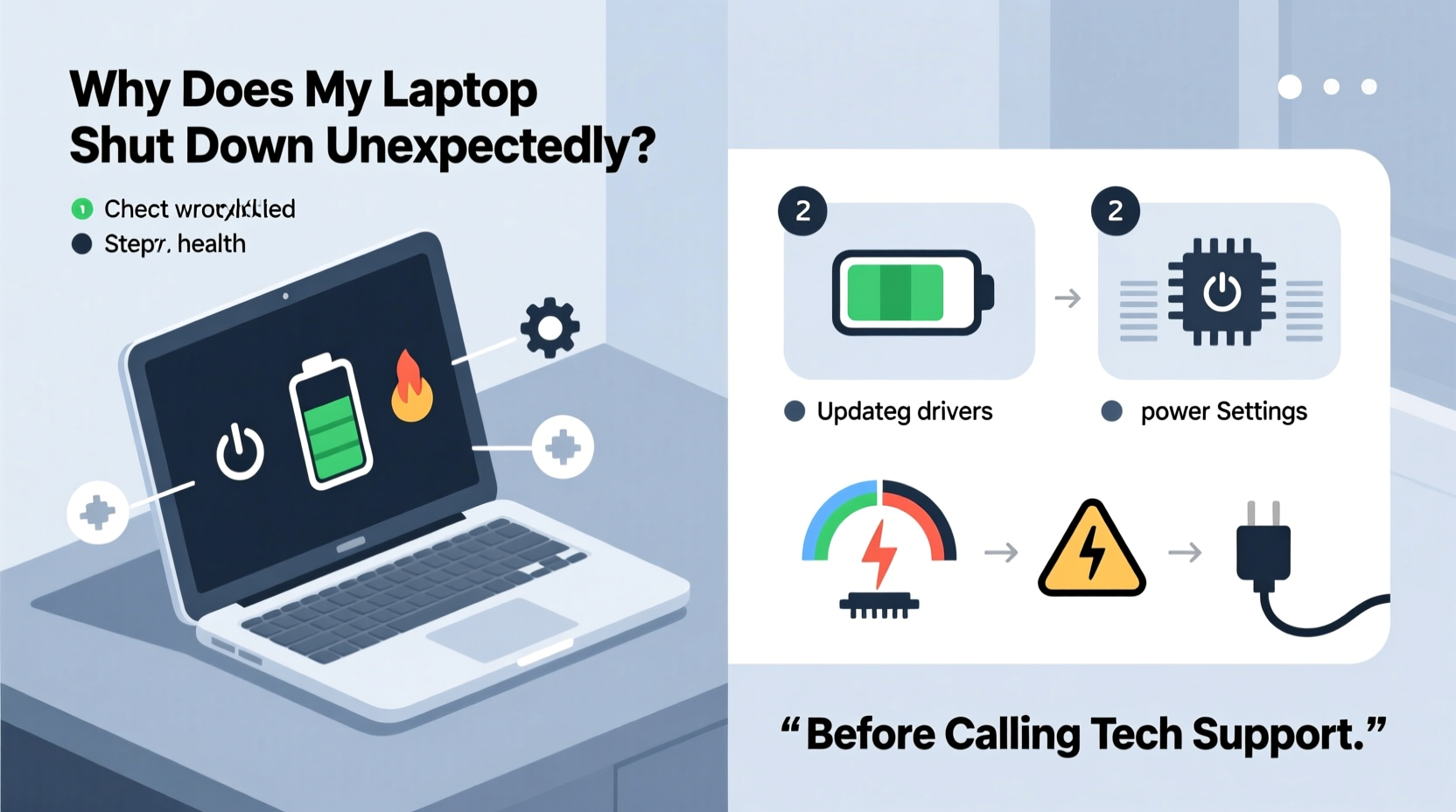
Sudden shutdowns rarely happen without reason. Most often, they’re triggered by one of several underlying conditions. Identifying which category your issue falls into is the first step toward resolution.
- Overheating: When internal temperatures exceed safe thresholds, laptops automatically shut down to protect critical components.
- Power supply issues: Faulty chargers, degraded batteries, or unstable voltage can interrupt power delivery.
- Software conflicts: Malfunctioning drivers, corrupted system files, or rogue background processes may cause instability.
- Failing hardware: Aging components such as RAM, SSDs, or motherboards can lead to crashes.
- Firmware or BIOS bugs: Outdated firmware may not manage system resources properly under load.
Before assuming the worst, consider how frequently the shutdown occurs, whether it happens during specific tasks (like gaming or video editing), and if there are warning signs such as fan noise, sluggish performance, or error messages.
Step-by-Step Troubleshooting Guide
Before reaching out to technical support, follow these practical steps in order. Many issues resolve with basic maintenance or configuration changes.
- Check for overheating signs: Feel the bottom and sides of the laptop. If it’s excessively hot, especially near vents, overheating is likely. Shut down immediately and let it cool.
- Clean air vents and fans: Use compressed air to blow dust from intake and exhaust grills. Avoid using vacuum cleaners, which can generate static.
- Test with charger only: Remove the battery (if removable) and run the laptop solely on AC power. If shutdowns stop, the battery may be failing.
- Inspect the charging cable and port: Look for frayed wires, bent pins, or loose connections. Wiggle the plug gently—if the power flickers, replace the adapter.
- Boot into Safe Mode: Restart and press F8 or Shift+F8 (varies by model) to enter Safe Mode. If the system remains stable, a third-party app or driver is likely responsible.
- Update operating system and drivers: Install pending updates for Windows/macOS and check manufacturer websites for BIOS and chipset updates.
- Run built-in diagnostics: Most brands (Dell, HP, Lenovo) offer hardware tests accessible via function keys during startup (e.g., F12 for Dell diagnostics).
Real Example: The Overheated Workhorse
Sarah, a freelance graphic designer, noticed her laptop shutting down every 20 minutes during long design sessions. She initially suspected malware but found no threats after scanning. Upon inspection, she realized the fan was unusually loud and the device felt scorching. Using compressed air, she cleared years of dust buildup from the side vents. After cleaning, the laptop ran smoothly for hours without a single shutdown—proving that simple physical maintenance solved what seemed like a complex issue.
“Over 60% of unexpected shutdowns we see in field service are due to thermal throttling or blockages in airflow.” — James Lin, Senior Field Technician, TechCare Solutions
Do’s and Don’ts: Quick Reference Table
| Action | Do | Don't |
|---|---|---|
| Cleaning vents | Use canned air at short bursts, holding fan blades still | Blow with mouth or use high-pressure tools that spin fans too fast |
| Battery testing | Remove battery and operate on AC power to isolate faults | Continue using a swollen or leaking battery |
| Software troubleshooting | Uninstall recent apps, update drivers, scan for corruption | Download third-party \"system fix\" utilities from unknown sites |
| Temperature monitoring | Use tools like HWMonitor (Windows) or iStat Menus (Mac) | Ignore sustained CPU temps above 90°C (194°F) |
| Firmware updates | Follow manufacturer instructions precisely | Interrupt BIOS updates or apply incorrect versions |
Essential Checklist Before Contacting Support
Use this checklist to systematically rule out common issues. Complete each item before concluding that professional repair is necessary.
- ✅ Clean all ventilation ports with compressed air
- ✅ Confirm the laptop isn’t placed on soft surfaces (beds, couches)
- ✅ Test operation with battery removed (AC power only)
- ✅ Inspect charger for damage and ensure correct wattage
- ✅ Boot into Safe Mode and observe stability
- ✅ Run OS updates and install latest drivers
- ✅ Check for BIOS/firmware updates from manufacturer
- ✅ Monitor internal temperatures using diagnostic software
- ✅ Perform a clean boot (disable non-essential startup programs)
- ✅ Backup data immediately if shutdowns persist
Frequently Asked Questions
Why does my laptop shut down even when fully charged?
A full charge display doesn’t guarantee battery health. The battery might report 100% due to calibration errors but fail under load, causing sudden drops in power. Try running the laptop without the battery (on AC only). If shutdowns stop, the battery needs replacement.
Can a virus make my laptop shut down unexpectedly?
While rare, certain types of malware can overload system resources or interfere with power management settings, leading to instability. However, true virus-induced shutdowns are uncommon. More likely, the symptoms mimic hardware issues. Always run a trusted antivirus scan, but prioritize checking heat and power sources first.
Is it safe to keep using a laptop that shuts down randomly?
No. Continued use can worsen existing damage—especially from overheating, which can degrade the CPU, GPU, or solder joints over time. Persistent shutdowns risk permanent hardware failure and data loss. Stop using the device until the cause is identified or seek professional diagnosis.
When to Seek Professional Help
After exhausting the steps above, some scenarios require expert intervention:
- The laptop shuts down within minutes of powering on, even after cooling.
- You notice visible damage—bulging battery, burnt smell, or discolored casing near components.
- Diagnostics reveal hardware failures (e.g., “RAM test failed” or “CPU thermal error”).
- BIOS updates don’t resolve persistent shutdowns, and Safe Mode offers no stability.
In these cases, technicians can perform deeper diagnostics, including reseating internal components, testing with known-good parts, or inspecting for motherboard-level issues. Some modern laptops have non-removable batteries or sealed designs, making user repairs impractical or risky.
“Many customers come in thinking their laptop is dead, only to find it was clogged with pet hair and dust. Regular maintenance saves hundreds in unnecessary repairs.” — Maria Tran, Owner, Urban Fix Electronics Repair
Prevent Future Shutdowns with Proactive Care
Once you’ve resolved the immediate issue, adopt habits that reduce future risks:
- Elevate your laptop: Use a stand or tray to improve airflow underneath.
- Avoid extreme environments: Never leave your laptop in direct sunlight or freezing cars.
- Schedule quarterly cleanings: Blow out dust every 3–4 months, especially if used in dusty or pet-friendly spaces.
- Monitor performance trends: Install lightweight system monitors to track temperature and usage patterns.
- Replace aging batteries: Lithium-ion batteries typically last 2–4 years. Replace them proactively if capacity drops below 60%.
Think of your laptop like a car: regular tune-ups prevent major breakdowns. Simple actions today extend its lifespan and reliability far beyond expectations.
Conclusion
Unexpected laptop shutdowns are frustrating, but they’re rarely a death sentence. In most cases, the cause lies in something manageable—overheating, a faulty charger, or outdated software—rather than catastrophic hardware failure. By methodically checking ventilation, power systems, and software stability, you can resolve many issues on your own.
Don’t rush to call tech support at the first sign of trouble. Arm yourself with knowledge, use the checklist provided, and give these solutions a fair trial. You’ll save time, money, and the stress of unnecessary service visits. And if the problem persists despite your efforts, at least you’ll be able to describe the issue clearly and provide a troubleshooting history—making professional help faster and more effective.




 浙公网安备
33010002000092号
浙公网安备
33010002000092号 浙B2-20120091-4
Comments
No comments yet. Why don't you start the discussion?