
It’s a familiar frustration: you're working on a demanding task—rendering a video, playing a high-end game, or compiling code—and suddenly, your laptop powers off without warning. No error message, no blue screen. Just silence. You restart it, only for the same thing to happen minutes later under heavy use. This behavior is rarely random. More often than not, it's a symptom of thermal throttling gone too far—so far that the system triggers an emergency shutdown to protect its hardware.
Understanding why this happens requires diving into the relationship between performance, heat generation, and thermal protection mechanisms built into modern laptops. While thermal throttling is designed to be a safeguard, when cooling fails or dust accumulates, it can escalate from performance dips to full system shutdowns. This article explains the science behind thermal throttling, identifies common causes of unexpected shutdowns, and provides actionable steps to diagnose and fix the issue before permanent damage occurs.
How Heat Affects Laptop Performance
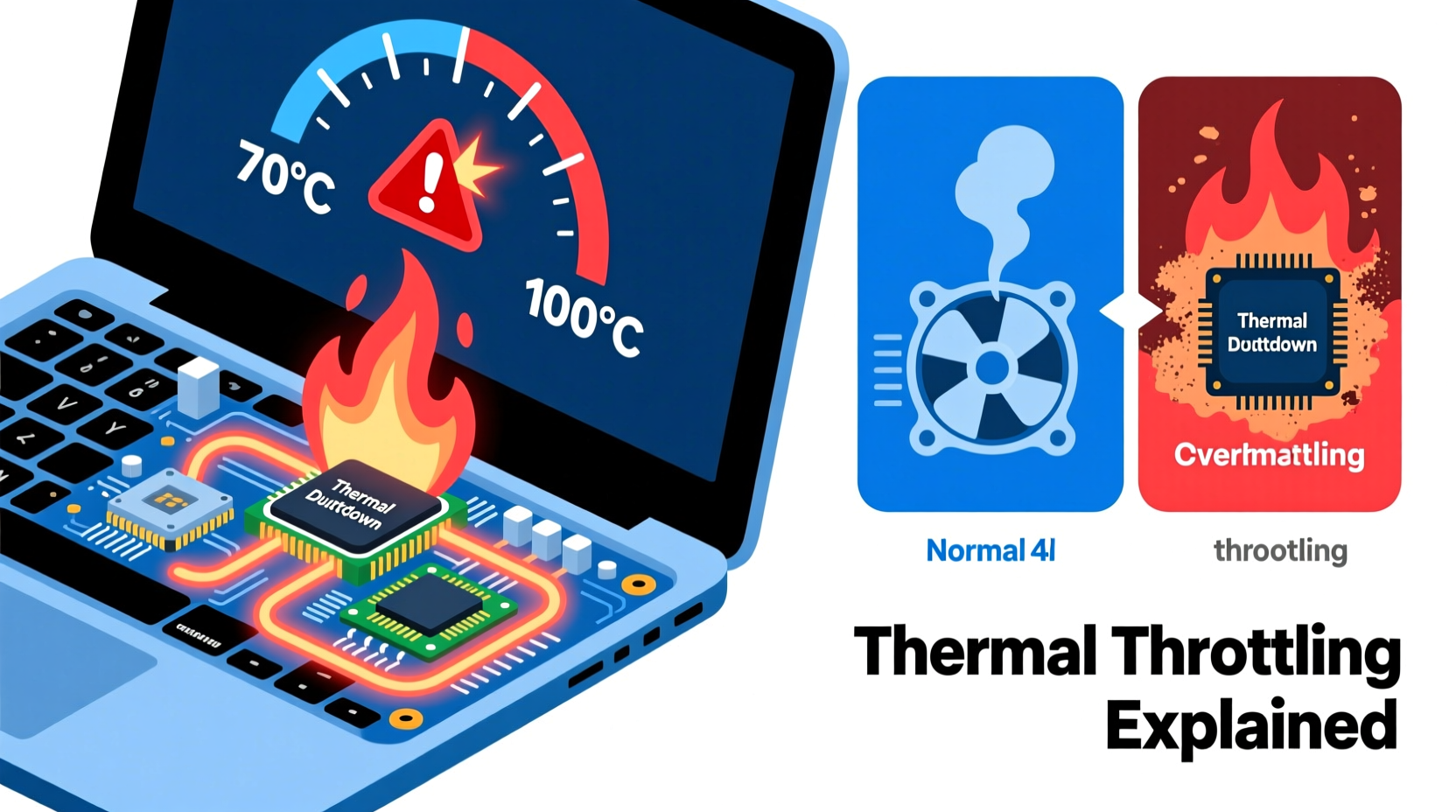
Laptops generate heat primarily through two components: the CPU (central processing unit) and the GPU (graphics processing unit). When these chips operate at high capacity—such as during gaming, 3D modeling, or multitasking with many browser tabs—they consume more power and produce significant heat. Without proper dissipation, temperatures can quickly exceed safe operating thresholds.
Modern processors are engineered with built-in thermal sensors and safety protocols. Once a certain temperature is reached (typically between 90°C and 105°C, depending on the model), the system initiates thermal throttling. This means the processor reduces its clock speed to lower power consumption and, in turn, reduce heat output. The goal is to stabilize temperatures without interrupting operation.
However, if cooling is inadequate—due to blocked vents, degraded thermal paste, or fan failure—throttling may not be enough. In such cases, the internal temperature continues to rise until the laptop hits its critical shutdown threshold, usually around 105–110°C. At this point, the BIOS or firmware forces an immediate shutdown to prevent silicon degradation, solder melting, or permanent circuit damage.
What Is Thermal Throttling and Why It Matters
Thermal throttling is not a flaw—it’s a feature. It allows laptops to maintain functionality under variable workloads while staying within thermal design power (TDP) limits. Think of it as a car engine reducing RPM when overheating. But unlike a car, where you might notice sluggish acceleration, throttling on a laptop can be subtle: slower rendering times, stuttering gameplay, or lag in applications.
The process works dynamically. As CPU/GPU usage increases, so does temperature. Once the thermal limit is approached, the processor automatically scales back performance. For example, a CPU rated at 4.5 GHz might drop to 3.0 GHz or lower. This reduction helps cool the chip, ideally bringing temperatures back into a safe range.
Problems arise when throttling becomes constant or ineffective. Continuous throttling degrades user experience, and if heat isn’t properly managed, it leads to shutdowns. According to Intel’s documentation, sustained operation above 100°C can significantly shorten processor lifespan—even if shutdowns prevent immediate failure.
“Thermal throttling is essential for reliability, but repeated high-temperature cycles accelerate wear on both silicon and packaging materials.” — Dr. Lin Zhao, Senior Hardware Engineer at a leading semiconductor lab
Common Causes of Overheating and Shutdowns
While thermal throttling is normal, frequent or severe overheating points to underlying issues. Below are the most common culprits behind unexpected shutdowns under load:
- Dust accumulation: Dust clogs air vents and heatsinks, acting as insulation that traps heat inside the chassis.
- Failing or slow fans: Fans degrade over time. If one stops spinning or runs below optimal speed, airflow drops dramatically.
- Dried-out or poor-quality thermal paste: The paste between the CPU/GPU and heatsink degrades after 2–4 years, reducing heat transfer efficiency.
- Blocked ventilation: Using a laptop on soft surfaces like beds or couches blocks intake vents located on the bottom.
- High ambient temperature: Operating in hot environments (e.g., direct sunlight, poorly ventilated rooms) reduces cooling headroom.
- Overclocking or undervolting instability: Pushing components beyond factory settings increases heat output without always improving cooling.
- Background processes consuming resources: Malware, crypto miners, or runaway apps can spike CPU usage unnoticed.
Each factor alone might not cause a shutdown, but combined, they create a perfect storm for thermal emergencies.
Step-by-Step Guide to Diagnose and Fix Thermal Shutdowns
Follow this structured approach to identify and resolve the root cause of unexpected shutdowns:
- Monitor temperatures under load: Use software like HWInfo or Core Temp. Run a stress test (e.g., Prime95 for CPU, FurMark for GPU) and observe peak temperatures. Sustained readings above 95°C indicate a problem.
- Inspect physical condition: Power off the laptop and examine air vents. Use compressed air to blow out dust. Do not use vacuum cleaners, which can generate static.
- Check fan operation: During boot-up or under load, listen for fan noise. If fans aren’t spinning or sound irregular, they may need replacement.
- Evaluate usage environment: Ensure the laptop is on a hard, flat surface. Consider using a cooling pad with additional fans.
- Update BIOS and drivers: Manufacturers sometimes release firmware updates that improve thermal management algorithms.
- Reapply thermal paste: For advanced users, opening the laptop and replacing old thermal paste with high-quality compound (e.g., Arctic MX-4, Noctua NT-H2) can reduce temps by 5–15°C.
- Scan for malware: Run a full system scan using trusted antivirus software to rule out hidden processes consuming CPU.
- Adjust power settings: In Windows, set the power plan to “Balanced” instead of “High Performance” to reduce unnecessary thermal load.
Real-World Example: A Gamer’s Unexpected Shutdowns
Consider Mark, a college student who uses his mid-range gaming laptop for both coursework and playing AAA titles. Over several weeks, he noticed that his laptop would shut down within 20 minutes of launching games like Cyberpunk 2077. He initially assumed it was a software crash or driver issue. After reinstalling Windows and updating drivers with no improvement, he decided to investigate further.
Using HWMonitor, he discovered CPU temperatures reaching 103°C during gameplay, followed by immediate shutdowns. Upon opening the bottom panel, he found the heatsink coated in thick dust, and one fan barely spinning due to debris jamming the blades. After cleaning the internals, reapplying thermal paste, and replacing the faulty fan, his temperatures dropped to a stable 82°C under the same load. The shutdowns stopped completely.
Mark’s case illustrates how multiple minor issues—dust, fan wear, degraded paste—can combine to trigger system failures. What seemed like a catastrophic fault turned out to be a manageable maintenance problem.
Do’s and Don’ts: Managing Laptop Thermals
| Do | Don't |
|---|---|
| Use your laptop on hard, flat surfaces | Place it on beds, sofas, or your lap without support |
| Clean vents every 3–6 months | Ignore visible dust buildup or fan noise changes |
| Use reputable thermal paste during repasting | Apply too much or too little thermal paste |
| Monitor temperatures regularly under load | Assume shutdowns are always software-related |
| Upgrade to a cooling pad for extended sessions | Block rear exhaust vents with walls or objects |
When to Seek Professional Help
While many thermal issues can be resolved at home, some situations require expert intervention:
- You’re uncomfortable disassembling your laptop.
- The motherboard or heatsink is soldered, making access difficult.
- Fans are integrated into complex assemblies requiring specialized tools.
- After attempted fixes, temperatures remain critically high.
In such cases, visiting an authorized service center ensures repairs are done safely and under warranty conditions. Attempting DIY fixes on sealed or proprietary designs (like many ultrabooks) can void warranties or cause further damage.
Frequently Asked Questions
Can thermal throttling damage my laptop over time?
Thermal throttling itself doesn’t cause damage—it prevents it. However, repeatedly running at high temperatures (even with throttling) accelerates wear on components like capacitors, batteries, and solder joints. Long-term exposure above 90°C can reduce the lifespan of your device.
Is it normal for my laptop to get hot during gaming?
Some heat is expected—especially near the keyboard and vents—but surface temperatures should remain within safe touch limits (around 45–50°C). Internal CPU/GPU temps above 95°C under load are not normal and indicate cooling problems.
Will undervolting stop my laptop from shutting down?
Undervolting—reducing voltage supplied to the CPU—can lower temperatures and reduce throttling, but it won’t fix underlying cooling issues. It’s best used as a complementary technique after addressing hardware limitations like dust or fan health.
Action Plan: Prevent Shutdowns Before They Happen
Preventing unexpected shutdowns starts with proactive maintenance and awareness. Establish a routine: clean your laptop every few months, monitor temperatures quarterly, and pay attention to changes in fan behavior. Use diagnostic tools not just when problems arise, but as part of regular digital hygiene.
If you rely on your laptop for work, study, or creative projects, treating it as a precision instrument—not just a disposable gadget—can extend its usable life by years. Simple actions like elevating the rear for better airflow or disabling background startup apps can make a measurable difference.
“Most thermal failures we see in repair shops are preventable. Regular cleaning and awareness go much further than people realize.” — Carlos Mendez, Owner of TechFix Pro Repair Services




 浙公网安备
33010002000092号
浙公网安备
33010002000092号 浙B2-20120091-4
Comments
No comments yet. Why don't you start the discussion?