
It’s a familiar frustration: your laptop runs smoothly one day, then after an update—Windows, macOS, or even third-party software—it suddenly feels sluggish. Apps take longer to open, the system stutters during simple tasks, and boot times stretch from seconds to minutes. While updates are designed to improve security, stability, and features, they often come with hidden costs. One of the most common culprits behind post-update slowdowns is software bloat—a gradual accumulation of unnecessary programs, background processes, and system changes that degrade performance over time.
This isn’t just user perception. Studies from Microsoft and independent tech analysts have shown that major operating system updates frequently increase resource usage by 10–25%, especially on older hardware. The problem isn't always the update itself but what it enables or installs alongside it. Understanding how and why this happens empowers users to diagnose issues early and maintain optimal performance without resorting to expensive upgrades or replacements.
The Hidden Cost of Progress: What Is Software Bloat?
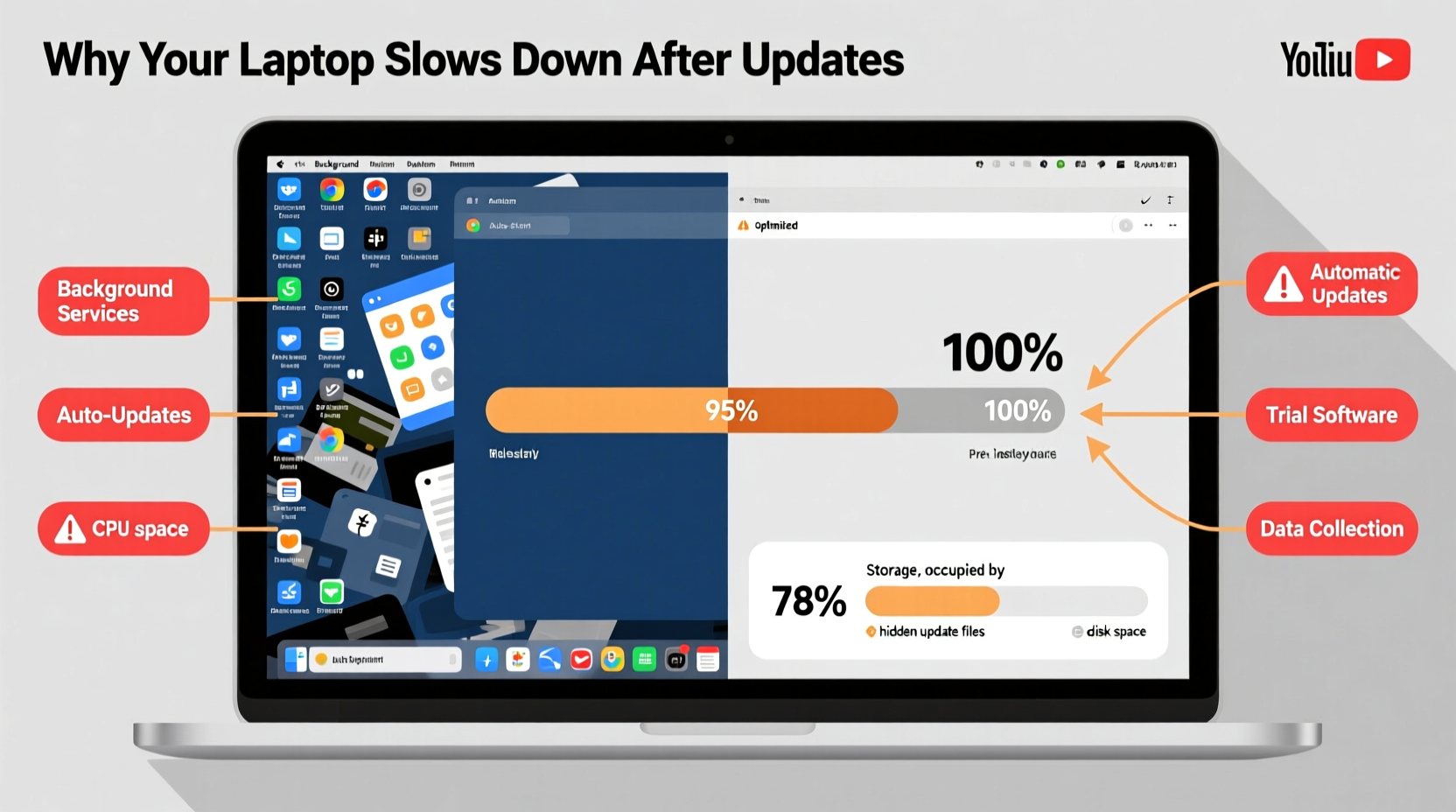
Software bloat refers to the phenomenon where applications or operating systems become increasingly resource-heavy over time, consuming more CPU, RAM, disk space, and power than necessary. This occurs as developers add new features, integrate cloud services, include telemetry tools, or bundle third-party software—all in the name of functionality, convenience, or monetization.
When an OS update rolls out, it often includes:
- New visual effects (animations, transparency layers)
- Background services for syncing, diagnostics, or advertising
- Bundled apps (“bloatware”) like trial software or promotional tools
- Increased memory footprint due to updated frameworks or drivers
While these additions may enhance user experience for some, they place heavier demands on system resources—especially on machines that were already operating near capacity before the update.
“Every major OS release adds layers of abstraction and services that weren’t needed five years ago. On modern hardware, it's manageable. On aging devices, it becomes a performance tax.” — Dr. Alan Reyes, Systems Performance Analyst at TechInsight Labs
How Updates Introduce or Amplify Bloat
Operating system updates don’t merely patch vulnerabilities—they reshape the underlying environment. Here’s how they contribute to software bloat and performance degradation:
1. Automatic Installation of Unwanted Programs
Manufacturers and OS vendors often partner with third parties to pre-install software. After an update, these programs may be reinstalled or activated even if previously uninstalled. Examples include:
- Trial versions of antivirus suites
- Cloud storage clients (OneDrive, Dropbox, iCloud)
- Media players, toolbars, or shopping assistants
These run silently in the background, consuming RAM and CPU cycles without delivering value to many users.
2. Increased Background Services and Telemetry
Modern operating systems collect extensive usage data for analytics, diagnostics, and personalization. Post-update, new telemetry modules may activate, running persistent background tasks. For example:
- Windows sends diagnostic data to Microsoft servers
- macOS uses “insights” collection for predictive features
- Linux desktop environments now include online search integrations
Even when set to minimal reporting, these services still occupy system resources and can interfere with real-time responsiveness.
3. Outdated Drivers Masked by New System Layers
An update might replace core system components while leaving older, inefficient drivers in place. The mismatch between new OS architecture and legacy hardware support can create bottlenecks. For instance, a graphics driver not optimized for Windows 11’s new UI framework may cause lag during window transitions or video playback.
Real-World Impact: A Case Study
Consider Sarah, a freelance graphic designer using a 2018 HP laptop with 8GB RAM and a dual-core i5 processor. Her machine handled daily design work efficiently until she installed the Windows 11 22H2 update. Within days, she noticed:
- Boot time increased from 28 seconds to over 90
- Photoshop took nearly 45 seconds longer to launch
- System froze briefly when switching between browser tabs
Using Task Manager, she discovered several unexpected processes running at startup:
McAfee Security Scan– Reinstalled after update despite prior removalHP Support Assistant– Auto-start enabled, consuming 15% CPU intermittentlyOneDrive Sync Engine– Running full sync on 50GB of files unnecessarily
By disabling non-essential startup items and uninstalling redundant software, Sarah restored her boot time to under 40 seconds and regained smooth multitasking performance—all without hardware changes.
Identifying and Removing Bloat: A Step-by-Step Guide
If your laptop slowed down after an update, follow this structured approach to identify and eliminate sources of bloat:
- Assess Performance Baseline
Open your system monitor (Task Manager on Windows, Activity Monitor on macOS). Note average CPU, memory, and disk usage during idle and typical use. - Review Startup Programs
Navigate to Startup tab (Windows) or Login Items (macOS). Disable all non-essential entries such as updaters, chat apps, or vendor utilities. - Uninstall Unused or Redundant Software
Go to Settings > Apps > Installed apps. Sort by size or install date. Remove anything added automatically post-update that you don’t use. - Check for Hidden Bloatware
Use PowerShell (Windows):
Get-AppxPackage *bloat* | Remove-AppxPackage
Replace “bloat” with keywords like “McAfee,” “CandyCrush,” or “Xbox.” - Adjust Visual Effects
In System Properties (Windows), choose “Adjust for best performance” under Performance Options. On macOS, disable transparency and animations in Accessibility settings. - Clean Temporary Files and Cache
Run Disk Cleanup (Windows) or clear system caches via Terminal:
sudo rm -rf /private/var/log/*.log(macOS)
Or use trusted tools like BleachBit (cross-platform). - Monitor Resource Usage Over Time
Recheck system metrics after 24–48 hours. If improvements are marginal, consider a clean OS reinstall.
Do’s and Don’ts of Managing Post-Update Bloat
| Do | Don’t |
|---|---|
| Regularly review startup programs | Ignore unknown processes in Task Manager |
| Disable auto-launch for non-critical apps | Install multiple optimization tools claiming to “speed up” your PC |
| Update only essential drivers manually | Delete system files through manual browsing |
| Use built-in tools like Storage Sense (Windows) or Optimize Storage (macOS) | Accept all default options during updates—customize when possible |
| Create a restore point before major updates | Delay security patches to avoid potential slowdowns |
Prevention Checklist: Avoid Future Slowdowns
Maintaining peak performance requires proactive habits. Use this checklist regularly—especially after updates:
- ✅ Create a system restore point before installing major updates
- ✅ Review and customize update settings (e.g., pause feature updates temporarily)
- ✅ Audit installed programs monthly for unused or suspicious entries
- ✅ Limit background app refresh in OS settings
- ✅ Schedule regular disk cleanup and defragmentation (for HDDs)
- ✅ Disable visual effects if using older hardware
- ✅ Use lightweight alternatives to resource-heavy default apps (e.g., Firefox instead of Edge, LibreOffice instead of Office)
Frequently Asked Questions
Can I reverse an update that made my laptop slow?
Yes, within a limited timeframe. On Windows, go to Settings > Update & Security > Recovery > Go back to the previous version. This option is typically available for 10 days after a major update. On macOS, rollback is more complex and usually requires reinstalling an older OS version from a backup via Time Machine.
Is software bloat permanent?
No. While updates add components, most bloat can be removed or disabled. Persistent slowdowns often stem from compounding factors—simultaneous bloat, insufficient RAM, or failing hardware. Addressing each layer restores performance in most cases.
Should I stop updating my laptop to avoid slowdowns?
No. Security updates are critical. The risks of unpatched vulnerabilities far outweigh temporary performance hits. Instead, manage updates strategically: install security patches promptly, delay feature updates until stable, and perform maintenance afterward.
Take Control of Your Device’s Performance
Your laptop doesn’t have to slow down every time it updates. Software bloat is predictable, measurable, and manageable. By understanding how updates introduce inefficiencies and taking deliberate steps to remove them, you reclaim control over your machine’s speed and longevity.
Start today: open your task manager, review what’s running, and eliminate the invisible drains sapping your performance. Small actions—disabling one unnecessary startup app, clearing cached data, or adjusting visual settings—add up to significant gains. With consistent care, even older laptops can remain responsive and productive for years beyond their expected lifespan.




 浙公网安备
33010002000092号
浙公网安备
33010002000092号 浙B2-20120091-4
Comments
No comments yet. Why don't you start the discussion?