
Laptops rarely stay fast forever. Even the most powerful machines can feel sluggish after months—or years—of use. If your once-zippy device now takes ages to boot up, struggles with simple tasks, or freezes during everyday browsing, you're not alone. The good news is that most slowdowns aren’t permanent. They stem from predictable causes, many of which are easy to diagnose and resolve without technical expertise.
Understanding why laptops degrade in performance helps you take targeted action. From background processes eating up resources to outdated hardware struggling with modern software demands, the culprits vary—but so do the solutions. With the right approach, you can often restore near-new responsiveness in under an hour.
The Hidden Causes Behind Laptop Slowdowns
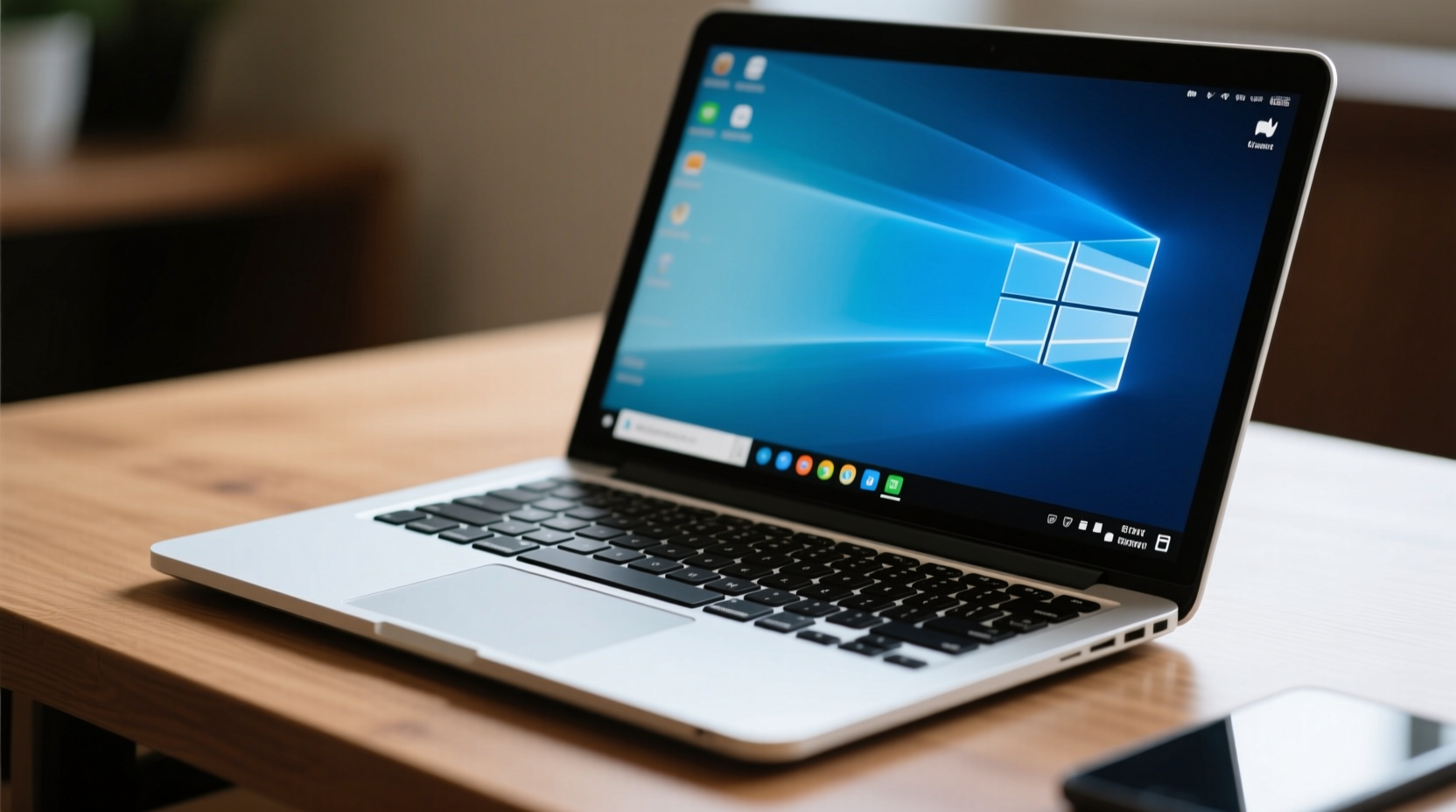
Performance decline isn’t random. It’s typically the result of layered inefficiencies that accumulate over time. Here are the most common reasons your laptop feels slower than it used to:
- Bloatware and startup programs: Many apps install themselves to launch at startup, consuming memory and CPU before you even begin working.
- Fragmented or full storage: When your hard drive is nearly full or data is scattered across sectors (especially on HDDs), access times increase significantly.
- Aging hardware: Older RAM, spinning hard drives, and outdated processors struggle with today’s multitasking demands.
- Background processes and malware: Hidden applications, browser tabs, or malicious software can silently consume system resources.
- Outdated drivers and OS: Missing updates can cause compatibility issues, inefficient power management, and poor hardware utilization.
- Thermal throttling: Dust buildup and degraded thermal paste reduce cooling efficiency, forcing the CPU to slow down to avoid overheating.
Each factor contributes incrementally. Alone, they might not cripple performance. But together, they create a noticeable drag on speed and usability.
Immediate Fixes to Speed Up Your Laptop Fast
You don’t need to buy new hardware or reinstall your operating system immediately. Try these quick interventions first—they often deliver dramatic improvements within minutes.
- Close unnecessary programs and browser tabs. Each open application uses memory. A single browser with 20+ tabs can consume several gigabytes of RAM.
- Disable startup programs. On Windows, press
Ctrl + Shift + Esc, go to the Startup tab, and disable non-essential apps like Spotify, Skype, or OneDrive if you don’t need them at boot. - Clear temporary files. Use Disk Cleanup (search for it in the Start menu) to remove cached files, logs, and old downloads that clutter your drive.
- Check Task Manager for resource hogs. Sort by CPU, Memory, or Disk usage to identify which process is slowing things down. End tasks cautiously—avoid system-critical processes.
- Reboot after updates. Pending updates often run background services that consume resources until a restart clears them.
These steps address surface-level issues but won’t solve deeper problems. For lasting improvement, more thorough measures are needed.
Step-by-Step Guide to Deep System Optimization
To restore long-term performance, follow this structured plan. Allow 30–60 minutes depending on your system’s condition.
Step 1: Free Up Disk Space
Navigate to Settings > System > Storage (Windows) or About This Mac > Storage (macOS). Delete large, unused files such as old videos, duplicate downloads, or forgotten backups. Aim to keep at least 15–20% of your drive free for optimal performance.
Step 2: Upgrade to SSD (If Using HDD)
If your laptop still uses a traditional hard disk drive (HDD), upgrading to a solid-state drive (SSD) is the single most impactful upgrade. Boot times drop from minutes to seconds, and file access becomes nearly instantaneous.
Step 3: Increase RAM (If Possible)
Most laptops support RAM upgrades. Check your model’s specifications. 8GB is the current baseline for smooth operation; 16GB ensures future-proofing. More RAM allows smoother multitasking and reduces reliance on slow virtual memory.
Step 4: Run a Full Malware Scan
Use Windows Security or a trusted third-party antivirus (like Malwarebytes) to perform a deep scan. Some malware disguises itself as legitimate processes and runs silently in the background, draining CPU and network resources.
Step 5: Update Drivers and Operating System
Visit your laptop manufacturer’s support website, enter your model number, and download the latest drivers for Wi-Fi, graphics, chipset, and audio. Also ensure your OS is fully updated—patches often include performance optimizations.
Step 6: Clean Internals (Physically)
Dust clogs fans and heatsinks, reducing cooling efficiency. Open the back panel (if comfortable) or take it to a technician. Use compressed air to blow out dust. Consider reapplying thermal paste every 2–3 years for better heat transfer.
Do’s and Don’ts of Laptop Maintenance
| Do’s | Don’ts |
|---|---|
| Regularly restart your laptop to clear memory leaks | Leave dozens of browser tabs open indefinitely |
| Use cloud storage or external drives to offload large files | Install pirated software or untrusted utilities |
| Keep at least 15% of your drive free | Run heavy programs while charging on low battery |
| Update software and drivers monthly | Ignore overheating signs like fan noise or shutdowns |
| Use a cooling pad for extended work sessions | Place your laptop on soft surfaces like beds or couches |
“Most laptop slowdowns are preventable with regular maintenance. Just like a car, your device needs tune-ups—not just when it breaks.” — Dr. Alan Reyes, Senior Systems Engineer at TechFlow Labs
Real-World Example: Reviving a 5-Year-Old Work Laptop
Sarah, a freelance graphic designer, relied on a 2019 Dell Inspiron for her projects. Over time, her laptop took over three minutes to boot, froze during Photoshop sessions, and frequently overheated. She considered buying a new machine—until she followed a systematic cleanup.
First, she disabled all non-essential startup apps, cutting boot time in half. Then, using Disk Cleanup and manual deletion, she freed up 45GB of space. A full antivirus scan revealed a hidden cryptocurrency miner running in the background—a remnant of a compromised plugin. After removal, CPU usage dropped from 90% idle to 12%.
Still unsatisfied, Sarah upgraded her 1TB HDD to a 512GB SSD and added 8GB of RAM (bringing total to 16GB). The transformation was immediate: boot time reduced to 18 seconds, Photoshop launched in under five, and rendering became fluid. Total cost: $120. A new equivalent laptop would have cost $800.
This case illustrates how combining software fixes with strategic hardware upgrades can dramatically extend a laptop’s useful life.
Essential Maintenance Checklist
Use this checklist monthly to keep your laptop running smoothly:
- ✅ Reboot the system to clear memory and refresh processes
- ✅ Review and disable unnecessary startup programs
- ✅ Delete temporary files, cache, and old downloads
- ✅ Check for and install OS and driver updates
- ✅ Run a full antivirus scan
- ✅ Physically clean vents and fans (every 3–6 months)
- ✅ Backup critical data to external or cloud storage
- ✅ Monitor storage—keep at least 15% free
Frequently Asked Questions
Can clearing cache really make my laptop faster?
Yes—especially for browsers and applications that store large amounts of temporary data. While individual files are small, they accumulate into hundreds of thousands of fragments over time. Clearing them reduces disk load and improves responsiveness.
Is it worth upgrading an old laptop, or should I just buy a new one?
It depends on the age and condition. If your laptop is under five years old and has upgradeable components (RAM, SSD), investing $100–150 in parts often extends its life by 2–3 years. For older models or soldered components, replacement may be more cost-effective.
Why does my laptop slow down when it gets hot?
Modern CPUs and GPUs automatically reduce clock speeds when temperatures exceed safe limits—a process called thermal throttling. This prevents hardware damage but results in lag and stuttering. Regular cleaning and proper ventilation prevent excessive heat buildup.
Conclusion: Take Control of Your Laptop’s Performance
Your laptop doesn’t have to get slower with age. Most performance issues stem from manageable factors: cluttered storage, bloated software, outdated drivers, or dust-clogged internals. By applying consistent maintenance and targeted upgrades, you can restore speed, improve reliability, and delay the need for costly replacements.
Start today. Spend 30 minutes cleaning up your system, disabling startup junk, and checking for updates. If needed, invest in an SSD or extra RAM. These actions compound over time, giving you a faster, more responsive machine for years to come.




 浙公网安备
33010002000092号
浙公网安备
33010002000092号 浙B2-20120091-4
Comments
No comments yet. Why don't you start the discussion?