
Laptops are essential tools for work, study, and entertainment, but few things are more frustrating than a sudden drop in performance—especially when it happens during critical tasks. One of the most common culprits behind sluggish operation is heat. When your laptop runs hot, it doesn’t just feel uncomfortable; it actively reduces its own speed to protect internal components. Understanding this behavior and knowing how to manage it can dramatically improve your computing experience.
Modern laptops pack powerful processors into compact frames, creating a constant battle between performance and thermal management. As temperatures rise, so does the risk of hardware damage. To prevent this, manufacturers build in safety mechanisms that throttle CPU and GPU speeds when thermal limits are approached. While this protects the machine, it results in noticeable lag, stuttering applications, and extended processing times. The good news? Most overheating issues are preventable with proper care and maintenance.
How Heat Affects Laptop Performance
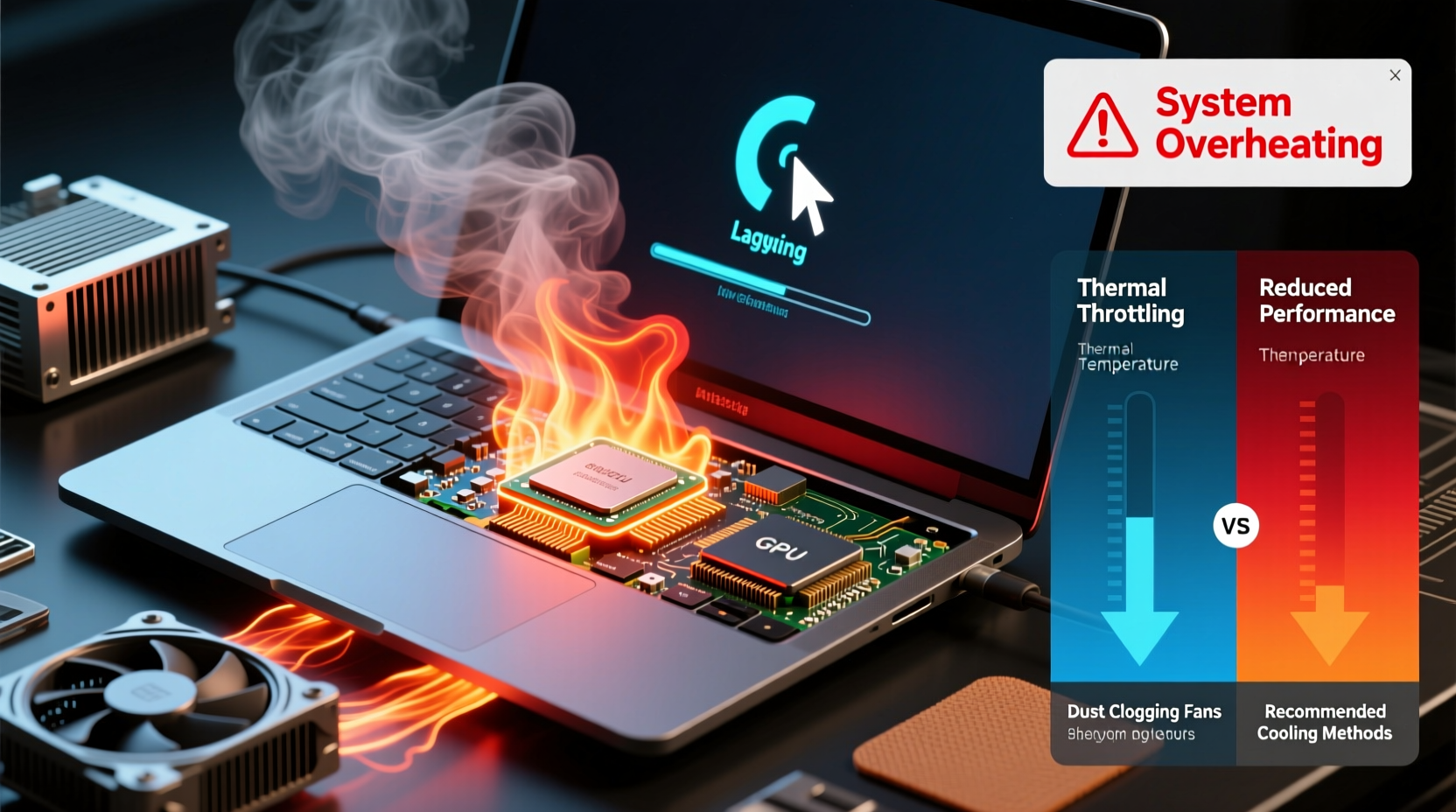
The relationship between temperature and performance is governed by a principle known as thermal throttling. When a laptop’s central processing unit (CPU) or graphics processing unit (GPU) exceeds safe operating temperatures—typically above 90–100°C—the system automatically reduces clock speeds to generate less heat. This process, called dynamic frequency scaling, is designed to prevent permanent damage such as solder degradation, delamination, or transistor failure.
Thermal throttling isn’t always obvious. You might not see an alert, but you’ll notice symptoms like:
- Sluggish application response
- Video playback stuttering
- Longer file rendering or export times
- Frequent fan noise even during light tasks
- Unexpected shutdowns under load
This throttling occurs because silicon-based electronics become less efficient at higher temperatures. Electrons move unpredictably, increasing error rates and power leakage. To maintain stability, the processor must operate at lower frequencies, which directly impacts real-world performance.
“Every 10°C increase in operating temperature can halve the lifespan of electronic components.” — Dr. Alan Park, Senior Hardware Engineer at TechReliability Labs
Common Causes of Laptop Overheating
While some heat generation is normal, excessive temperatures usually stem from avoidable factors. Identifying the root cause is the first step toward effective cooling.
Airflow Blockage
Laptops rely on precise airflow through intake vents and exhaust ports. Placing a laptop on soft surfaces like beds, pillows, or couches blocks the bottom intake vents, starving the cooling system of fresh air. This forces fans to work harder while delivering diminishing returns.
Dust Accumulation
Over time, dust clogs heatsinks and fan blades, acting as insulation that traps heat inside the chassis. Even a thin layer of grime can raise internal temperatures by 10–15°C. This is especially problematic in environments with pets, carpets, or high airborne particulates.
Aging Thermal Paste
Between the CPU/GPU and the heatsink lies a thin layer of thermal paste, which improves heat transfer. Over 2–4 years, this compound dries out and cracks, significantly reducing its effectiveness. An older laptop may run hotter even if all other conditions remain unchanged.
Background Processes and Software Load
Resource-heavy applications—such as video editors, games, or virtual machines—push processors to their limits. Poorly optimized software or malware can also cause sustained high CPU usage, generating excess heat without user awareness.
Inadequate Ventilation Design
Some ultra-thin laptops sacrifice cooling efficiency for portability. Limited space means smaller heatsinks, slower fans, and reduced airflow. These models are more prone to throttling under sustained loads, regardless of external conditions.
Effective Cooling Strategies
Maintaining optimal operating temperatures requires both immediate fixes and long-term habits. Implementing these strategies can reduce internal temperatures by 10–20°C, restoring peak performance.
Use a Laptop Cooling Pad
Cooling pads provide additional airflow from below, supplementing the laptop’s built-in fans. Models with adjustable fan speeds and elevated designs offer the best results. Choose one with USB-powered fans to avoid needing extra outlets.
Elevate the Laptop
Simply raising the back edge of your laptop by 1–2 cm improves natural convection. Hot air rises more freely, and intake vents get better access to cooler ambient air. A small stand or folded notebook works in a pinch.
Control Ambient Temperature
Keep your workspace below 25°C (77°F). Avoid direct sunlight, radiators, or enclosed spaces like car interiors. In hot climates, use air conditioning or fans to keep room temperature stable.
Limit Background Applications
Close unused programs, browser tabs, and startup services. Use Task Manager (Windows) or Activity Monitor (macOS) to identify processes consuming CPU resources unnecessarily.
Adjust Power Settings
Switch to “Balanced” or “Power Saver” mode when maximum performance isn’t needed. Lowering maximum processor state to 90% can significantly reduce heat output with minimal impact on everyday tasks.
| Cooling Method | Effectiveness | Cost | Best For |
|---|---|---|---|
| Cooling Pad | High | $20–$50 | Gaming, video editing |
| Laptop Stand | Moderate | $10–$30 | General productivity |
| Thermal Paste Replacement | Very High | $10 + labor | Aged laptops (2+ years) |
| Compressed Air Cleaning | High | $10–$15 | Dusty environments |
| Undervolting | Very High | Free | Advanced users |
Step-by-Step Guide to Deep Clean and Cool Your Laptop
If your laptop consistently runs hot, follow this comprehensive maintenance routine every 6–12 months—or sooner if you notice performance drops.
- Shut down and unplug: Turn off the laptop and disconnect the charger. If possible, remove the battery to eliminate electrical risk.
- Prepare your workspace: Work on a clean, static-free surface with good lighting. Gather tools: Phillips screwdriver, compressed air can, microfiber cloth, cotton swabs, and isopropyl alcohol (optional).
- Open the back panel: Remove screws securing the bottom case. Refer to your model’s service manual for disassembly instructions. Some laptops have sealed designs—proceed only if comfortable.
- Blow out dust: Use short bursts of compressed air on fans, heatsinks, and vents. Hold fans in place with a toothpick to prevent overspinning. Repeat until no more debris emerges.
- Clean fan blades: Dampen a cotton swab with isopropyl alcohol and gently wipe each blade. Let dry completely before reassembly.
- Replace thermal paste (optional): If the laptop is over two years old, remove the heatsink and apply a pea-sized drop of high-quality thermal paste (e.g., Arctic MX-4) on the CPU and GPU.
- Reassemble and test: Secure the back panel, reconnect power, and boot up. Monitor temperatures using tools like HWMonitor (Windows) or Macs Fan Control (macOS).
Real-World Example: Recovering a Gaming Laptop’s Performance
Mark, a freelance video editor, relied on his three-year-old gaming laptop for rendering 4K timelines. Over time, exports slowed from 15 minutes to over 40, despite no software changes. The fans ran constantly, and the bottom casing became too hot to touch.
Using HWMonitor, he discovered CPU temperatures hitting 98°C during renders—well into throttling range. He followed the cleaning steps above, removing a thick layer of dust from the heatsink. After reapplying thermal paste, idle temps dropped from 60°C to 42°C, and render loads stabilized at 78°C. Export times returned to 16 minutes, effectively restoring original performance.
Mark now cleans his laptop twice a year and uses a cooling pad during long sessions. His machine feels faster, quieter, and more reliable—proving that simple maintenance can extend useful life by years.
Preventive Maintenance Checklist
Stay ahead of overheating with this monthly and annual checklist:
- Monthly: Wipe vents with a dry brush or cloth
- Quarterly: Check fan noise levels and airflow
- Biannually: Use compressed air to clean internals
- Annually: Evaluate thermal paste condition
- Ongoing: Monitor background processes and update software
- Always: Use on hard, flat surfaces with adequate ventilation
Frequently Asked Questions
Can I use a desktop fan to cool my laptop?
Yes, directing a household fan toward your laptop helps lower ambient temperature and improves heat dissipation. While less targeted than a cooling pad, it’s a low-cost way to enhance airflow in warm rooms.
Is it safe to undervolt my CPU?
Undervolting—reducing voltage supplied to the CPU—can lower temperatures and power consumption without sacrificing performance. It’s generally safe if done gradually using trusted tools like ThrottleStop (Intel) or Ryzen Controller (AMD). However, incorrect settings may cause instability, so proceed with caution and test thoroughly.
Why does my laptop overheat even when idle?
Overheating at idle often indicates software issues. Malware, rogue background processes, or driver conflicts can cause sustained CPU usage. Scan for viruses, disable unnecessary startup programs, and check task manager for abnormal activity. If hardware is faulty, professional diagnosis may be needed.
Take Control of Your Laptop’s Temperature Today
Your laptop’s speed and longevity depend heavily on how well it manages heat. By understanding the link between temperature and performance, you gain the power to prevent slowdowns before they happen. Simple actions—like keeping vents clear, cleaning regularly, and optimizing usage habits—can make a dramatic difference.
Don’t wait for warning signs. Proactive cooling extends your device’s usable life, maintains responsiveness, and prevents costly repairs. Whether you’re a student, professional, or creative, a cooler laptop is a faster, more reliable one.




 浙公网安备
33010002000092号
浙公网安备
33010002000092号 浙B2-20120091-4
Comments
No comments yet. Why don't you start the discussion?