
Projectors are powerful tools for home theaters, classrooms, and business presentations. But nothing undermines their impact faster than a blurry image. A soft, indistinct picture can make text unreadable, details disappear, and immersion impossible. While it may seem like a technical flaw, most blurriness stems from user-adjustable factors—many of which are easy to fix once you understand the root causes.
Blurry projection isn’t always about hardware failure. More often, it’s the result of incorrect setup, environmental interference, or overlooked maintenance. This guide breaks down the common reasons behind fuzzy images, walks through precise solutions, and provides actionable steps to achieve consistently sharp focus—no matter your projector model.
Understanding How Projector Focus Works
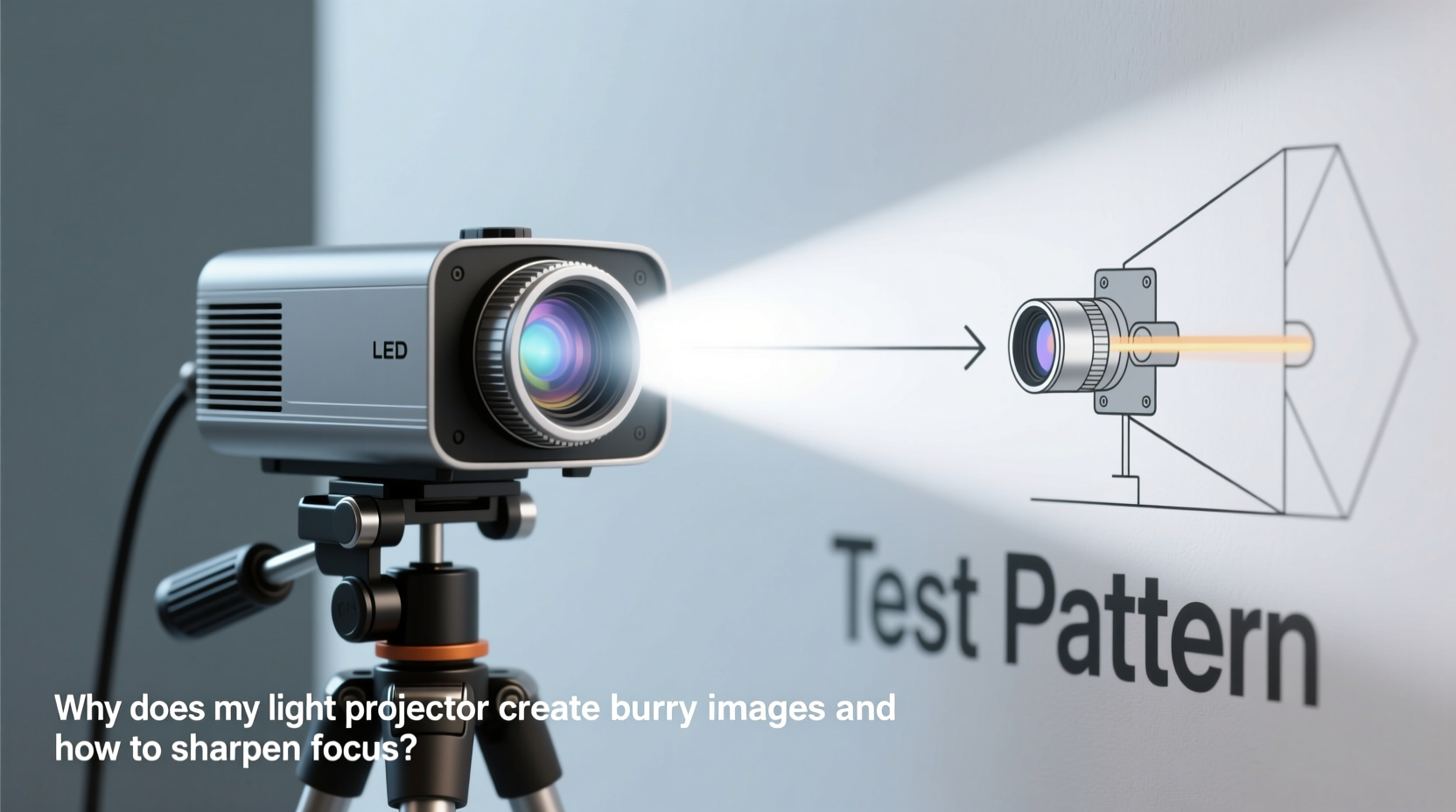
A projector forms an image by passing light through a lens system that magnifies and projects digital content onto a surface. The clarity of that image depends on the alignment between the lens, internal optics, and screen distance. When any part of this chain is misaligned or obstructed, the result is a loss of sharpness.
The lens focuses by adjusting the position of internal glass elements. Turning the focus ring changes the convergence point of light rays so they meet precisely on the screen plane. If the focal point lands too early or too late, the image appears blurred. This principle is similar to how a camera lens works: adjust it correctly, and everything snaps into place.
However, unlike cameras, projectors operate in variable environments. Distance to screen, ambient lighting, and even air temperature can influence optical performance. Understanding these dynamics helps diagnose whether the blur is mechanical, environmental, or user-induced.
Common Causes of Blurry Projector Images
Before attempting fixes, identify what’s causing the blur. Some issues require simple adjustments; others may indicate deeper problems. Here are the most frequent culprits:
- Misaligned focus ring: The most common cause. Even slight bumps during transport can throw off focus.
- Incorrect throw distance: Projecting too close or too far from the screen exceeds the lens’s optimal range.
- Dirty or smudged lens: Dust, fingerprints, or condensation scatter light and degrade image quality.
- Poor source resolution: Low-resolution input (e.g., 480p video) stretched to HD size will always look soft.
- Screen surface issues: Textured walls, uneven paint, or reflective surfaces distort focus perception.
- Lens distortion or damage: Scratches, internal fogging, or decentered lenses impair optical integrity.
- Keystone correction overuse: Digital keystone adjusts pixels rather than optics, reducing sharpness.
- Heat buildup: Overheating causes internal components to expand, potentially shifting focus over time.
“Over 70% of reported ‘blurry projector’ cases we see are resolved with basic lens cleaning and proper throw alignment.” — Marcus Lin, AV Technician at ProVision Displays
Step-by-Step Guide to Sharpen Projector Focus
Follow this systematic process to restore crisp, clear projection. Perform each step in order for best results.
- Power on and stabilize the projector
Let it run for 3–5 minutes. Heat affects lens positioning, especially in budget models. - Display a high-contrast test pattern
Use a grid, text-heavy slide, or online projector calibration tool. Avoid dark or low-detail content. - Adjust throw distance
Consult your manual for optimal projection distance. For example, a 1.5x zoom lens might perform best between 8–12 feet for a 100-inch screen. - Clean the lens gently
Use a microfiber cloth and lens cleaning solution. Wipe in circular motions from center outward. Never use paper towels or household cleaners. - Minimize digital keystone
Reset keystone to zero. Physically reposition the projector level with the screen center instead. - Manual focus adjustment
Turn the focus ring slowly—both clockwise and counterclockwise. Stop where text edges appear sharpest. Use both eyes; squint slightly to detect fine detail. - Check source quality
Ensure your input (HDMI, streaming device, laptop) outputs at native projector resolution. Avoid upscaling low-bitrate videos. - Verify screen alignment
Make sure the projector faces the screen squarely. Even a 5-degree angle can soften one side of the image. - Reduce ambient light
Bright rooms wash out contrast, making images appear softer than they are. Dim lights or use blackout curtains. - Inspect for physical damage
Look for scratches, haze inside the lens, or wobbling focus rings. Internal damage may require professional service.
When to Use Manual vs. Motorized Focus
If your projector has motorized focus, use it for fine-tuning after initial manual alignment. Motorized systems offer precision but can drift if not calibrated. Always let the motor complete its movement before judging sharpness.
Tips and Best Practices for Long-Term Clarity
Maintaining focus isn’t a one-time task. Environmental shifts and usage patterns affect image quality over time. Incorporate these habits into your routine.
Optimal Placement Guidelines
- Position the projector perpendicular to the screen center.
- Elevate it on a stable surface—avoid carpeted or vibrating tables.
- Keep at least 2 feet of clearance around vents to prevent overheating.
- Aim for a screen height where the lens aligns with the middle third of the display.
Environmental Factors That Impact Focus
Temperature and humidity play subtle but real roles. Sudden cold-to-warm transitions (like bringing a projector indoors) can cause lens fogging. High humidity may encourage mold inside the lens housing over time. Store your projector in a dry, climate-stable location with silica gel packs if possible.
Do’s and Don’ts: Projector Focus Maintenance
| Do | Don’t |
|---|---|
| Clean the lens monthly with proper tools | Use alcohol or ammonia-based cleaners |
| Allow warm-up time before focusing | Adjust focus while the projector is cooling down |
| Use native resolution sources | Stretch 480p content to fill a 4K screen |
| Recheck alignment after moving the unit | Rely solely on digital zoom or keystone |
| Store in a protective case when not in use | Leave the projector exposed to dust or sunlight |
Real Example: Fixing a Home Theater Setup
Consider Sarah, who recently installed a projector in her basement living room. She complained of persistent blurriness despite multiple attempts to refocus. Her screen was a painted wall, and she used maximum vertical keystone to align the image.
After inspection, three issues were found: first, the lens had visible fingerprints; second, she was projecting from 6 feet away—below the recommended minimum; third, she was using a compressed YouTube video as her test source.
The fix was straightforward: she cleaned the lens, moved the projector back to 9 feet, disabled keystone by mounting it lower, and played a 1080p Blu-ray sample. The image immediately improved. A final focus tweak delivered razor-sharp text and defined facial features. No hardware replacement was needed—just correct setup practices.
FAQ: Common Questions About Projector Focus
Can a damaged HDMI cable cause blurry images?
No. A faulty HDMI cable typically causes signal dropouts, flickering, or no image at all—not blurriness. However, a poor connection might force the projector to fall back to a lower resolution, which could appear softer. Always rule out cabling issues by testing with a known-good cable.
Why does my projector lose focus over time?
This often happens due to vibration, temperature shifts, or accidental bumps. Cheaper focus mechanisms may not hold position tightly. If your projector consistently defocuses, consider securing it permanently or investing in a model with locking focus rings.
Is autofocus better than manual focus?
Autofocus is convenient but not always superior. It relies on sensors that can be fooled by low-contrast scenes or ambient light. High-end models deliver reliable results, but many users still prefer manual control for precision. Use autofocus as a starting point, then fine-tune manually.
Checklist: Achieving Sharp Projector Focus
Use this checklist each time you set up or notice blurriness:
- ✅ Power on and allow 3–5 minute warm-up
- ✅ Display a high-resolution test image with fine lines or text
- ✅ Clean the lens with microfiber cloth
- ✅ Position projector at correct throw distance
- ✅ Align projector perpendicular to screen center
- ✅ Reset keystone and zoom to zero (adjust physically instead)
- ✅ Rotate focus ring slowly until sharpest point is found
- ✅ Confirm source is sending native resolution signal
- ✅ Reduce ambient light for better perceived sharpness
- ✅ Recheck focus after 15 minutes of operation
Conclusion: Crisp Images Start with Smart Habits
Blurry projector images are rarely a sign of broken equipment. More often, they reflect small oversights in setup, maintenance, or environment. By understanding how focus works and applying consistent best practices, you can transform a fuzzy display into a crystal-clear visual experience.
Focus isn’t just a one-time adjustment—it’s an ongoing process. Regular cleaning, proper placement, and attention to source quality ensure long-term performance. Whether you’re running a presentation, teaching a class, or enjoying movie night, a sharp image makes all the difference.




 浙公网安备
33010002000092号
浙公网安备
33010002000092号 浙B2-20120091-4
Comments
No comments yet. Why don't you start the discussion?