
It’s a familiar frustration: you return home after a storm or unexpected power cut, only to find your outdoor lights are no longer turning on at dusk. Your indoor lighting schedule is off. The culprit? Your light timer has reset itself. This common issue affects millions of households relying on mechanical or digital timers for security, energy efficiency, and convenience. Understanding why this happens—and how to stop it—is essential for maintaining reliable automation in your home.
The root cause lies in how most basic light timers operate. When the electricity cuts out, even briefly, many models lose their programmed settings because they lack a secondary power source to maintain memory. Without that backup, the internal clock reverts to default—often 12:00 AM blinking endlessly until manually reset. But not all timers behave this way, and not all resets are inevitable. With the right knowledge and equipment choices, you can eliminate this problem entirely.
How Light Timers Work and Why They Reset
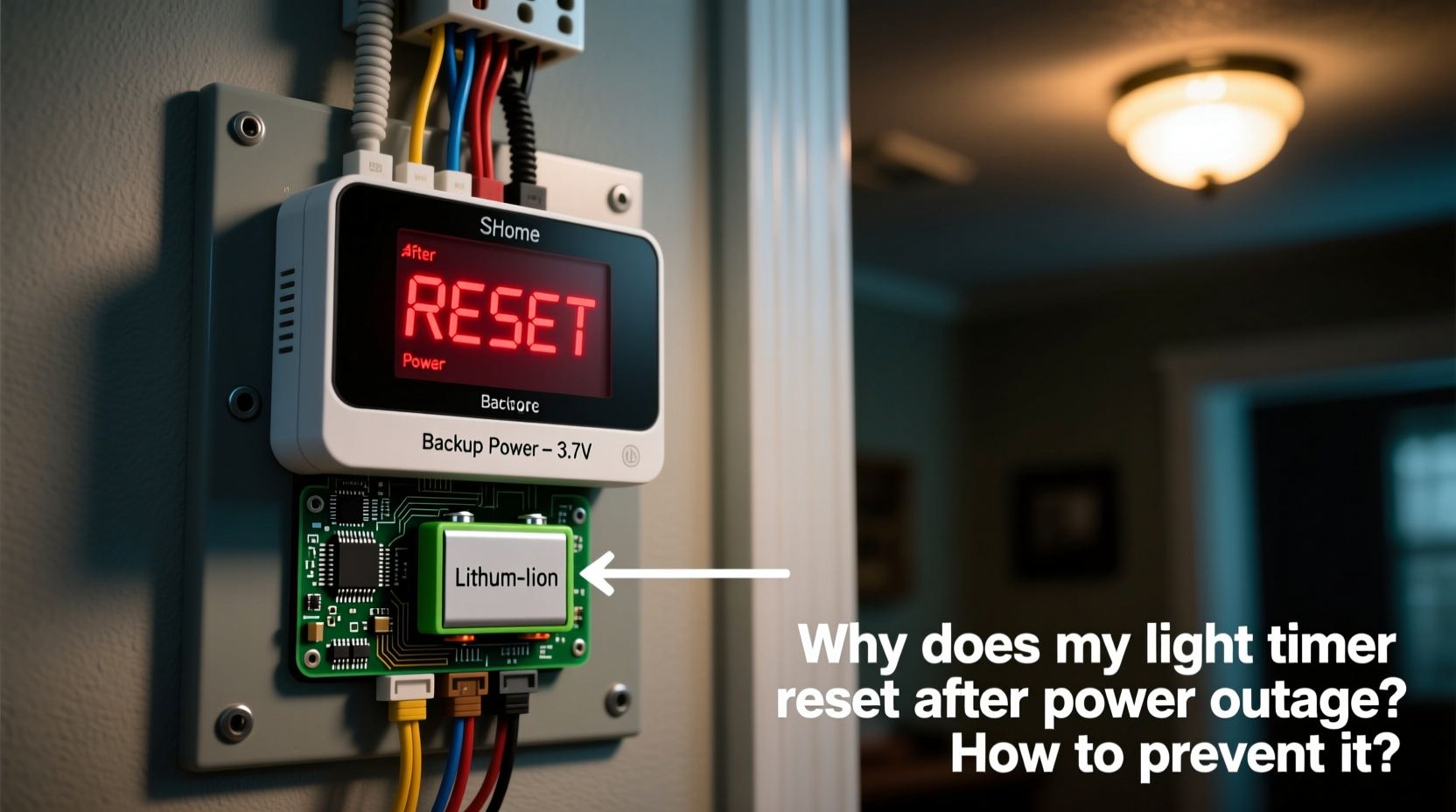
At its core, a light timer is a switch that controls when electrical current flows to a connected device—typically a lamp, porch light, or landscape fixture. There are two primary types: mechanical (analog) and digital (electronic). Both rely on accurate timekeeping to execute schedules, but their behavior during a power outage differs significantly.
Mechanical timers use a rotating dial driven by a small motor synchronized with the AC frequency of household electricity (60 Hz in North America). These do not have internal clocks or memory. Once power is lost, the motor stops, and the timer halts mid-cycle. When power returns, it resumes from wherever it stopped—meaning lights may turn on at odd times or not at all. Worse, these models often require manual reprogramming of on/off cycles after every outage.
Digital timers, on the other hand, contain microprocessors and electronic clocks. While more advanced, many still reset if they don’t have a backup power source. Most budget-friendly digital models draw power directly from the wall outlet and store programming in volatile memory. No power means no memory retention. Even a few seconds of interruption can wipe clean days of carefully set routines.
“Timers without non-volatile memory or battery support are essentially blind when the grid flickers—even momentarily.” — David Lin, Electrical Systems Engineer, Smart Home Institute
Preventing Timer Resets: Key Solutions
The good news is that preventing timer resets isn’t complicated—it just requires selecting the right hardware and understanding how power stability impacts automation. The central principle is ensuring continuous timekeeping during outages. Here are the most effective methods:
1. Use Timers with Built-in Battery Backup
The simplest fix is upgrading to a digital timer equipped with a battery-powered clock. These units typically use a small coin-cell battery (like a CR2032) to keep the internal clock running during blackouts. When power returns, the timer knows the correct time and continues executing the original schedule without user intervention.
2. Install Timers with Non-Volatile Memory
Some higher-end digital timers use flash memory or EEPROM (Electrically Erasable Programmable Read-Only Memory), which retains programming even without power. These don’t necessarily need a battery to remember settings—just to keep the clock accurate. If both memory and clock are preserved, the device resumes seamlessly.
3. Power the Timer via an Uninterruptible Power Supply (UPS)
For critical applications—such as security lighting or holiday displays—you can plug the entire timer into a small UPS. A UPS provides temporary battery power during outages, keeping the timer powered continuously. While overkill for a single lamp, this approach works well for whole-home automation hubs or multi-timer setups.
4. Upgrade to Smart Timers or Wi-Fi Enabled Devices
Smart plugs and smart light switches with scheduling features rarely suffer from reset issues because they sync time via the internet. Even if local power drops, once the device reconnects to Wi-Fi, it pulls the exact time from network servers. Many also allow remote access, so you can adjust schedules from your phone regardless of what happened during the outage.
Comparison: Timer Types and Outage Resilience
| Timer Type | Battery Backup? | Memory Retention? | Clock Accuracy After Outage | Recommended for Outage-Prone Areas? |
|---|---|---|---|---|
| Mechanical (Analog) | No | No | Poor – stops completely | No |
| Basic Digital (No Battery) | No | No (volatile memory) | Resets to 12:00 | No |
| Digital with Battery | Yes (CR2032) | Yes (non-volatile) | Accurate | Yes |
| Smart Plug / Wi-Fi Timer | N/A (cloud-synced) | Yes (cloud + local) | Auto-corrects via internet | Highly Recommended |
| Timer on UPS | Yes (via external battery) | Yes | Unaffected | Yes, for high-priority uses |
Step-by-Step Guide: How to Choose and Set Up a Reliable Timer
If you're tired of resetting your lights after every storm, follow this practical sequence to upgrade your system:
- Assess your needs: Determine whether you’re controlling indoor lamps, outdoor floodlights, or seasonal decorations. Consider how critical timing accuracy is for each application.
- Check your current timer: Examine the model number and search online for specifications. Does it mention battery backup or memory retention? If not, plan to replace it.
- Select a replacement: Choose a timer with either built-in battery support or smart capabilities. For outdoor use, ensure it's rated for damp or wet locations.
- Install the new timer: Turn off power at the breaker before replacing any hardwired unit. For plug-in models, simply insert into the outlet and connect your device.
- Program the schedule: Set your desired on/off times. For smart timers, download the companion app and sync with your home network.
- Test during low power: Simulate a brief outage by unplugging the timer for 30 seconds. Reconnect and verify that settings remain intact and the clock is accurate.
- Maintain regularly: Replace backup batteries every 2–3 years, even if the device seems to work. Dust vents and check connections annually.
Real Example: Preventing Resets in a Storm-Prone Area
Consider the case of Maria R., a homeowner in central Florida where thunderstorms frequently knock out power. She used a basic digital timer to control her front porch light, programmed to turn on at sunset and off at midnight. After every storm, she’d come home to a dark entryway—her timer had reset to 12:00 AM, leaving lights off.
Frustrated, she upgraded to a Wi-Fi smart plug with scheduling and geofencing features. Now, even if power drops for hours, the device reconnects automatically when service resumes. It retrieves the precise time from the cloud and resumes her lighting routine. Better yet, she can monitor and adjust settings remotely through her smartphone—no more manual resets.
Within one month, the peace of mind paid for the cost of the new device. Her home remained well-lit during evening hours, improving both safety and curb appeal.
Essential Checklist: Avoiding Future Timer Resets
- ☐ Identify all timers in your home that control lighting or appliances
- ☐ Verify whether each model retains time and settings during outages
- ☐ Replace any non-backup models with battery-equipped or smart alternatives
- ☐ Test existing timers by simulating a short power loss
- ☐ Label upgraded devices for easy identification
- ☐ Schedule annual maintenance to replace backup batteries
- ☐ Consider a UPS for mission-critical timers (e.g., security or medical equipment)
FAQ: Common Questions About Timer Resets
Do all digital timers reset after a power outage?
No—not all digital timers reset. Only those without battery backup or non-volatile memory will lose their settings. Higher-quality models retain both time and programming even during extended outages. Always check product specifications before purchasing.
Can I add a battery to a timer that doesn’t have one?
In most cases, no. Internal circuitry in standard plug-in timers isn't designed to accept external or aftermarket batteries. Attempting modifications can create electrical hazards or void warranties. The safer solution is to replace the unit with a battery-backed model.
Why does my smart timer sometimes show the wrong time?
If your smart timer loses internet connectivity, it may temporarily display incorrect time until it reconnects. Ensure your Wi-Fi signal is strong near the device, and confirm that automatic time zone syncing is enabled in the app settings.
Conclusion: Take Control of Your Lighting Schedule
A light timer that resets after every power outage isn’t just inconvenient—it undermines the very purpose of automation: reliability. Whether you're managing outdoor security, creating the illusion of occupancy while traveling, or simply streamlining daily routines, consistent performance matters.
The fix doesn’t require rewiring your home or investing in complex systems. By choosing timers with battery backup, non-volatile memory, or smart connectivity, you gain resilience against unpredictable outages. Small upgrades today can save time, enhance safety, and provide lasting peace of mind.




 浙公网安备
33010002000092号
浙公网安备
33010002000092号 浙B2-20120091-4
Comments
No comments yet. Why don't you start the discussion?