
Sitting for extended periods has become an unavoidable part of modern life—whether at a desk, in front of a screen, or during long commutes. While convenient, this sedentary behavior often leads to persistent lower back pain. Millions report discomfort after just a few hours in a chair, yet many dismiss it as normal. It’s not. Prolonged sitting places unnatural stress on the lumbar spine, weakens core muscles, and disrupts spinal alignment. The good news: most of this pain is preventable with smart ergonomic adjustments and mindful habits.
This article explores the biomechanics behind lower back pain from sitting, identifies common workplace mistakes, and provides science-backed solutions you can implement today. Whether you work from home or in an office, these strategies will help you sit smarter, move better, and reduce or eliminate lower back strain.
The Science Behind Sitting-Induced Lower Back Pain
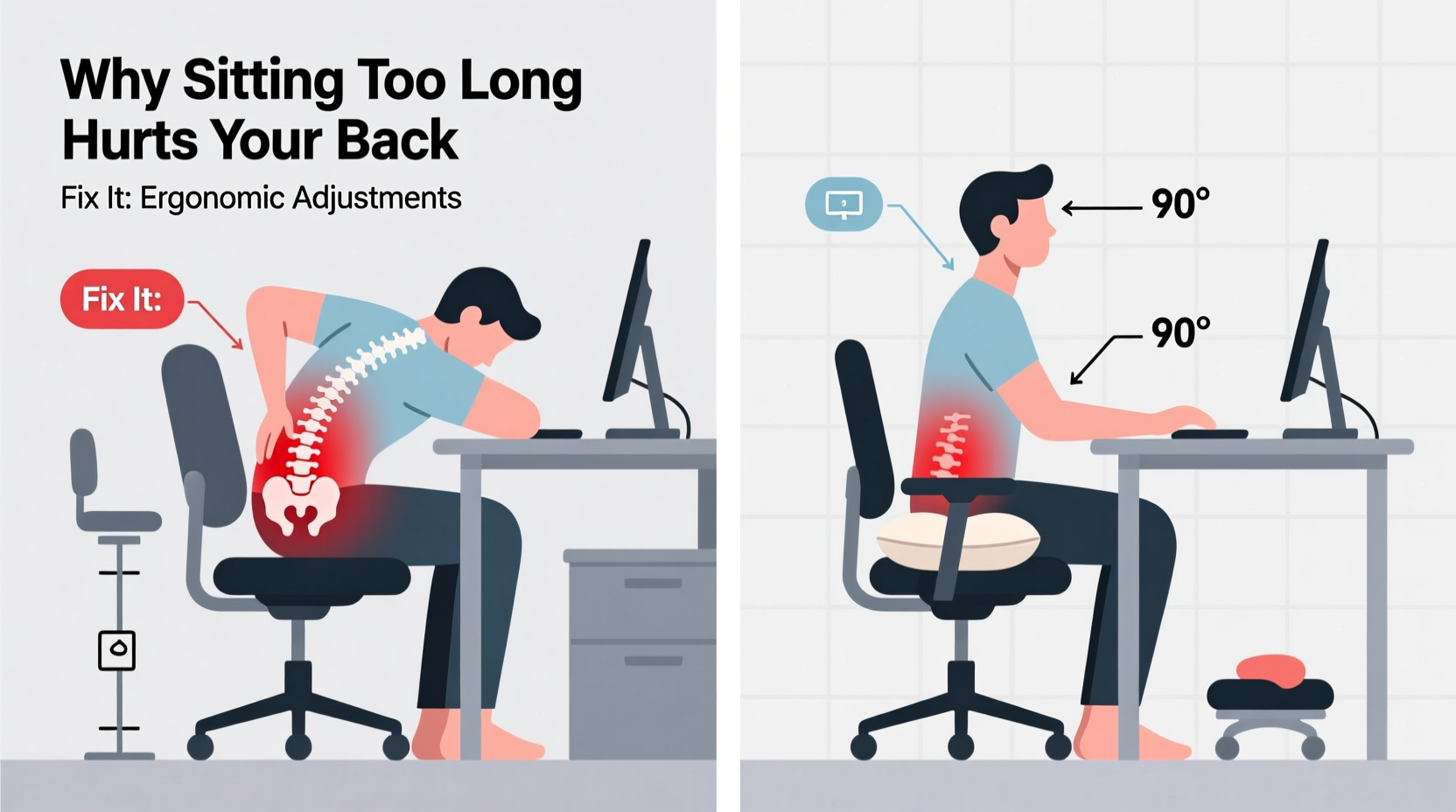
When standing, the spine naturally maintains its S-shaped curvature, distributing weight evenly across vertebrae and discs. Sitting, especially in poor posture, flattens the lumbar curve, shifting pressure onto the posterior ligaments and intervertebral discs. Over time, this sustained compression can irritate nerves, inflame soft tissues, and contribute to disc degeneration.
Dr. Laura Chen, a physical therapist specializing in workplace ergonomics, explains:
“Sitting increases intradiscal pressure by up to 40% compared to standing. When combined with slouching or forward head posture, the load on the lower back becomes unsustainable over time.” — Dr. Laura Chen, DPT, MS
The gluteal and core muscles also deactivate during prolonged sitting, reducing their ability to support the pelvis. This muscle inhibition, known as “gluteal amnesia,” forces the lower back muscles to compensate, leading to fatigue and chronic tension.
Additionally, tight hip flexors from sitting pull the pelvis into anterior tilt, exaggerating the lumbar curve and increasing shearing forces on the spine. This imbalance often manifests as dull, aching pain just above the belt line—especially noticeable after long meetings or focused work sessions.
Common Ergonomic Mistakes That Worsen Back Pain
Even with an adjustable chair, many people unknowingly create harmful setups. These errors compound over time, turning minor discomfort into chronic issues.
- Chair too high or too low: Feet not flat on the floor increase pressure on the sciatic nerve and destabilize the pelvis.
- Lack of lumbar support: Without support for the natural inward curve of the lower back, the spine collapses into a C-shape.
- Screen at improper height: Looking down strains the neck and upper back, which indirectly affects lower back alignment.
- Leaning forward to reach the keyboard: This shifts the center of gravity forward, forcing the lower back to work harder to maintain balance.
- No movement breaks: Static postures reduce blood flow to spinal tissues, accelerating disc dehydration and stiffness.
Ergonomic Fixes for Immediate Relief and Long-Term Health
Correcting your workspace isn’t about buying expensive gear—it’s about aligning your body with its natural mechanics. Here are actionable fixes based on clinical guidelines from occupational health experts.
1. Optimize Chair Setup
Your chair should support neutral spinal alignment. Follow these steps:
- Adjust seat height so feet rest flat on the floor (or on a footrest), knees bent at 90 degrees.
- Set the seat depth so 2–4 inches remain between the back of your knees and the front edge of the seat.
- Engage the lumbar support to fill the inward curve of your lower back. If your chair lacks support, use a rolled towel or cushion.
- Tilt the seat pan slightly forward (5–10 degrees) if possible, to encourage pelvic stability.
2. Position Your Monitor Correctly
A misaligned screen causes subtle postural drift that impacts the entire spine. Aim for:
- Top of the monitor at or slightly below eye level.
- Distance of 20–30 inches from your eyes.
- Centered directly in front of you to avoid twisting the spine.
If using a laptop, pair it with an external keyboard and raise the screen with a stand or books.
3. Align Keyboard and Mouse
Reaching or craning creates cumulative strain. Ideal setup:
- Keyboard and mouse close enough that elbows stay at 90 degrees.
- Wrists straight, not bent upward or sideways.
- Mouse within easy reach—no stretching across the desk.
Workplace Ergonomics Checklist
Use this checklist daily to ensure your workspace supports spinal health:
- ✅ Feet flat on floor or footrest
- ✅ Knees level with or slightly below hips
- ✅ Lower back fully supported
- ✅ Shoulders relaxed, not hunched
- ✅ Elbows close to body at 90°
- ✅ Wrists neutral while typing
- ✅ Top of screen at eye level
- ✅ No neck bending or head tilting
- ✅ Taking movement breaks every 30–60 minutes
- ✅ Standing or walking for at least 5 minutes per hour
Real-Life Example: Sarah’s Transformation
Sarah, a 34-year-old data analyst, began experiencing sharp lower back pain after transitioning to full-time remote work. She worked from her dining table with a kitchen chair and no monitor stand. After six months, the pain became constant, radiating into her hips.
She consulted an ergonomic specialist who assessed her setup. Key issues included:
- Laptop screen 12 inches below eye level
- No lumbar support
- Feet dangling due to high chair
- Typing with wrists bent upward
The fix was simple but effective:
- Bought an affordable mesh-back ergonomic chair with adjustable lumbar support.
- Used a wooden crate as a monitor riser and added a Bluetooth keyboard.
- Placed a small footrest under her feet.
- Started hourly stretch routines using a free app reminder.
Within three weeks, Sarah reported a 70% reduction in pain. By week six, she was pain-free during work hours. Her case illustrates how small, targeted changes yield significant results.
Do’s and Don’ts of Sitting Ergonomics
| Do’s | Don’ts |
|---|---|
| Use a chair with adjustable lumbar support | Slouch or sit on the edge of the seat |
| Keep feet flat and knees at 90° | Cross legs or tuck feet under the chair |
| Position monitor at eye level | Bend neck downward to view screen |
| Take microbreaks every 30–60 minutes | Work for hours without moving |
| Stretch hamstrings and hip flexors daily | Ignore early signs of stiffness or soreness |
Step-by-Step Guide to Building a Back-Friendly Workstation
Follow this sequence to create an ergonomic environment in under an hour:
- Assess your current setup: Sit in your chair and note any discomfort, awkward reaches, or misalignments.
- Adjust chair height: Raise or lower until thighs are parallel to the floor and feet rest flat.
- Set lumbar support: Position it to match the natural inward curve of your lower back.
- Raise your screen: Use books, boxes, or a stand to bring the top of the monitor to eye level.
- Place input devices: Center keyboard and mouse so elbows stay close and wrists neutral.
- Add a footrest if needed: Especially important if your feet don’t reach the floor comfortably.
- Test and refine: Sit for 10 minutes and adjust until posture feels balanced and effortless.
- Schedule movement breaks: Use a timer or app to prompt standing, stretching, or walking every 30–60 minutes.
Consistency matters more than perfection. Even 80% adherence to these principles significantly reduces back strain.
Frequently Asked Questions
How long should I sit before taking a break?
Research suggests changing position or standing every 30 minutes. For optimal spinal health, aim to stand or walk for 2–5 minutes each hour. Short breaks improve circulation, reduce disc pressure, and reset muscle tone.
Can a standing desk eliminate lower back pain?
Standing desks help but aren’t a cure-all. Prolonged standing can cause other issues like leg fatigue or increased lower back load if posture is poor. The best approach is dynamic—alternate between sitting and standing every 30–60 minutes using a sit-stand desk or improvised setup.
Is a lumbar cushion worth buying?
Yes, especially if your chair lacks built-in support. Look for a firm, contoured cushion that fits the natural curve of your lower back. Avoid overly soft pillows that compress and lose shape. A well-designed lumbar roll can reduce disc pressure by up to 25%, according to a 2020 study in the Journal of Occupational Rehabilitation.
Conclusion: Take Control of Your Spinal Health Today
Lower back pain from prolonged sitting isn’t inevitable—it’s a signal that your body needs better support and movement. By adjusting your chair, aligning your screen, and incorporating regular motion, you can transform a painful routine into a sustainable, healthy one. The key is consistency: small corrections repeated daily lead to lasting change.
You don’t need a full office overhaul to make progress. Start with one adjustment today—raise your screen, add lumbar support, or set a movement reminder. Each step brings you closer to a pain-free workday. Your spine supports you every hour of every day; return the favor with intentional care.




 浙公网安备
33010002000092号
浙公网安备
33010002000092号 浙B2-20120091-4
Comments
No comments yet. Why don't you start the discussion?