
Microphone echo—when you or others hear a delayed repetition of voices during a call—is one of the most disruptive audio issues in remote communication. Whether you're on a Zoom meeting, a Discord chat, or a phone call via Teams, an echoing mic can make conversations frustrating and unprofessional. The root causes are often simple but misunderstood. Fixing them doesn’t require expensive gear—just a clear understanding of how sound travels through your devices and environment.
Echo occurs when your microphone picks up sound output from your speakers and retransmits it back into the call loop. This feedback cycle creates that familiar “ghost voice” effect. While it may seem like a hardware flaw, the truth is that echo usually stems from a combination of audio settings, room acoustics, and device configuration. The good news? Most echo problems can be diagnosed and resolved quickly with the right approach.
How Microphone Echo Happens: The Science Behind the Sound Loop
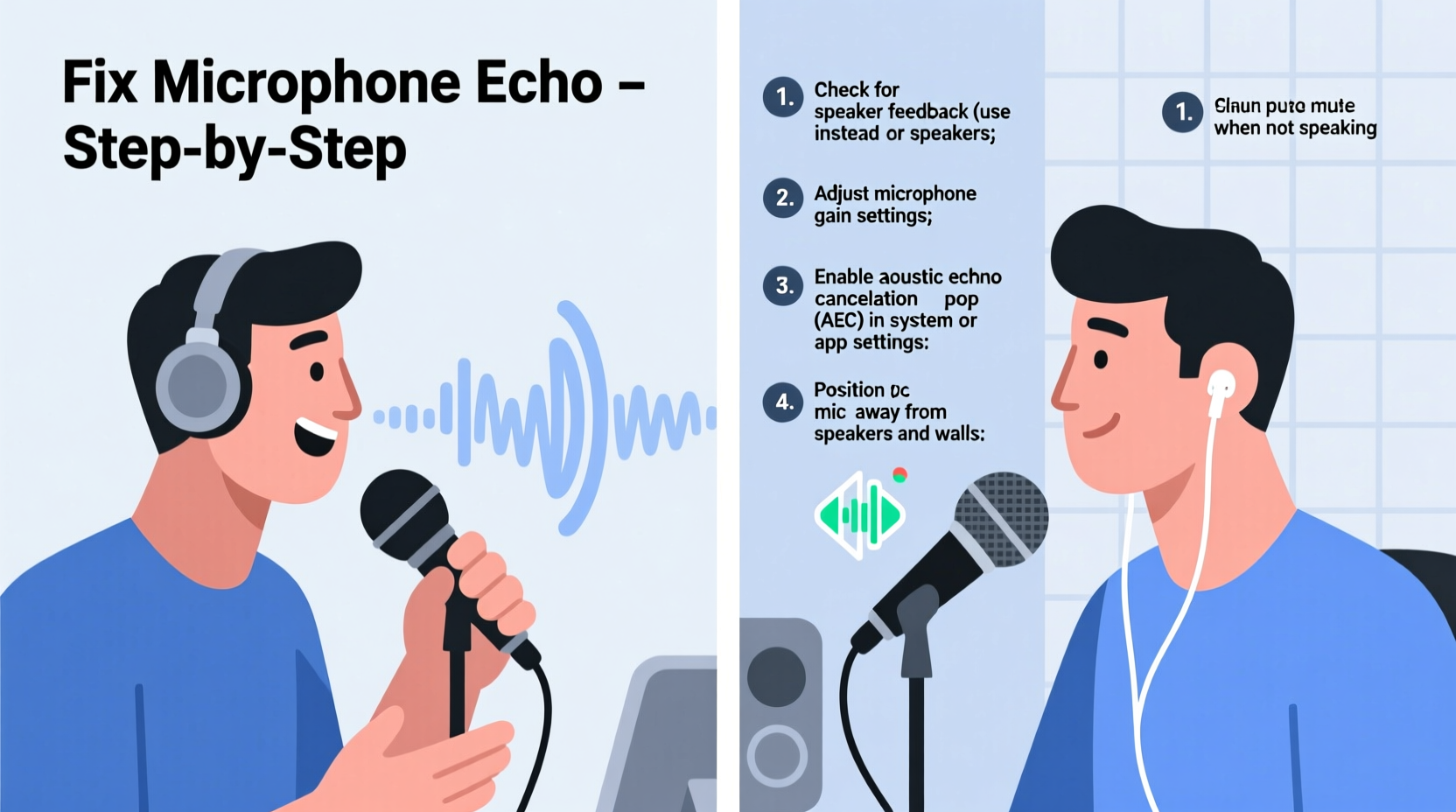
At its core, microphone echo is a feedback loop. Here’s how it works: Your computer or phone plays audio (someone speaking) through your speakers. That sound travels through the air and is picked up again by your microphone. The mic sends that sound back into the call, where it’s played once more through everyone’s speakers—including yours. If conditions allow this loop to continue, each repetition adds delay and distortion, creating what we perceive as echo.
This phenomenon is more common than you might think, especially in environments with hard surfaces (like bare walls or glass tables) that reflect sound. It also worsens when speaker volume is high or when using built-in laptop speakers and mics simultaneously—common setups for casual video calls.
Modern communication platforms use echo cancellation algorithms to suppress this effect automatically. However, these tools aren't foolproof. They can fail if the echo is too strong, if multiple devices are active in one room, or if outdated drivers interfere with processing.
“Even advanced software echo cancellation struggles when physical audio leakage is excessive. The best solution starts with controlling the acoustic environment.” — Dr. Lena Torres, Audio Signal Processing Engineer at VoIP Labs
Common Causes of Microphone Echo
Before applying fixes, identify what’s causing the echo. Below are the most frequent culprits:
- Speaker-to-mic feedback: Using external or laptop speakers while your mic is active allows sound to loop back into the system.
- Poor room acoustics: Rooms with minimal soft furnishings amplify reflections, increasing the chance your mic will pick up playback audio.
- Duplication of audio sources: Having multiple mics or headsets connected (e.g., headphones and a webcam mic) can confuse audio routing and cause overlapping inputs.
- Outdated or incorrect audio drivers: Drivers govern how your OS handles input/output. Bugs or missing updates can disable echo suppression features.
- Third-party apps interfering: Some applications (like OBS, Skype, or music players) may override default audio settings and bypass echo cancellation.
- Hardware limitations: Built-in laptop mics and low-end webcams often lack noise isolation and directional pickup, making them prone to capturing ambient sound.
Step-by-Step Guide to Eliminate Microphone Echo
Follow this systematic process to diagnose and resolve echo issues across devices and platforms.
- Switch to Headphones
The single most effective fix: Use wired or Bluetooth headphones instead of speakers. This physically prevents sound from leaking into your mic. Even basic earbuds eliminate 90% of echo cases. - Enable Built-In Echo Cancellation
Most operating systems include real-time echo suppression:- Windows: Go to Settings > System > Sound > Input > Device Properties > Additional Device Properties. Under the \"Enhancements\" tab, enable \"Acoustic Echo Cancellation.\"
- macOS: While macOS doesn’t expose echo cancellation directly, apps like Zoom and Teams activate it automatically when available hardware supports it.
- Linux (PulseAudio): Install
pulseaudio-module-echo-canceland configure it viapavucontrol.
- Adjust Speaker Volume
Lower your speaker output to the minimum comfortable level. High volume increases sound bleed into the mic. Aim for just enough to hear clearly without straining. - Use a Directional Microphone
Replace omnidirectional mics (which capture sound from all directions) with cardioid-pattern mics that focus on sounds directly in front. USB studio mics like the Audio-Technica AT2020 or Shure MV7 excel here. - Optimize Room Acoustics
Reduce reflections by adding soft materials:- Place a rug on hardwood floors.
- Add curtains over windows.
- Use bookshelves or foam panels behind your desk to break up flat wall surfaces.
- Update Audio Drivers
Outdated drivers disable critical echo suppression features. Visit your motherboard or laptop manufacturer’s website to download the latest Realtek, Intel, or AMD audio drivers. - Disable Unused Audio Devices
In Windows: Right-click the speaker icon > Sounds > Recording tab. Disable any inactive mics (e.g., webcam mic when using headphones).
On Mac: Use Audio MIDI Setup (in Applications > Utilities) to hide unused inputs. - Test Within Your App
Platforms like Zoom, Google Meet, and Microsoft Teams offer audio test features. Run these before meetings to confirm echo is gone.
Do’s and Don’ts: Quick Reference Table
| Do’s | Don’ts |
|---|---|
| Use headphones during calls | Play audio out loud near an open mic |
| Keep speaker volume moderate | Run multiple mic-enabled devices in one room |
| Enable OS-level echo cancellation | Ignore driver update notifications |
| Choose directional microphones | Use old or damaged cables that cause interference |
| Add soft furnishings to reduce reflections | Stand close to reflective surfaces like mirrors or glass |
Mini Case Study: Resolving Echo in a Home Office Setup
Sarah, a project manager based in Austin, began experiencing persistent echo during her daily stand-up calls. Her team complained of hearing their own voices seconds after speaking. She used her MacBook Pro with built-in speakers and mic, working from a small office with wooden floors and minimal decor.
After testing several solutions, she discovered that turning off her external monitor’s speakers (which were also playing audio) reduced the echo significantly. She then switched to wireless headphones and adjusted her Zoom audio settings to prioritize the headset mic. Finally, she placed a fabric-covered folding screen behind her chair to absorb rear-wall reflections.
The result? No reported echo within two days. Her colleagues noted clearer audio, and Sarah felt more confident leading virtual meetings. The total cost: $0, aside from time spent adjusting settings.
Tips for Specific Devices and Platforms
Different setups demand tailored approaches. Here’s how to handle echo in common scenarios:
Zoom, Teams, and Google Meet
- In Zoom: Go to Settings > Audio > check “Automatically adjust microphone volume” and enable “Suppress background noise” at Medium or High.
- In Microsoft Teams: Navigate to Settings > Devices > select your mic and test input levels. Ensure only one mic is active.
- In Google Meet: Click the three dots during a call > Settings > Audio. Choose headphones as both input and output.
Gaming and Voice Chat Apps (Discord, TeamSpeak)
- In Discord: User Settings > Voice & Video > enable “Echo Cancellation,” “Noise Suppression,” and “Automatic Gain Control.”
- Set input mode to “Push to Talk” instead of “Voice Activity” to minimize unintended pickup.
- Avoid using game audio through speakers while chatting—route everything to headphones.
Smart Speakers and Conference Devices
If you’re using smart displays (like Amazon Echo Show) or conference phones (like Jabra Speak), ensure they’re not placed too close to other audio devices. These units have powerful speakers and sensitive mics, which can easily create echo loops when clustered together. Position them centrally but away from reflective corners.
FAQ: Common Questions About Microphone Echo
Can software alone fix microphone echo?
Yes, to an extent. Modern apps use digital signal processing (DSP) to cancel echo in real time. However, software cannot fully compensate for loud speaker output or poor room acoustics. A hybrid approach—using both software settings and physical adjustments—is most effective.
Why does echo happen even with headphones?
If you’re hearing echo while wearing headphones, the issue likely isn’t yours. Someone else on the call is using speakers, and their mic is picking up your voice through their output. Politely ask participants to switch to headphones or lower their volume.
Does internet speed affect echo?
Not directly. Slow internet causes lag or choppy audio, not echo. However, high latency can make existing echo more noticeable because delays between transmission and playback become more pronounced.
Final Checklist: Eliminate Echo in 5 Minutes
For immediate relief, follow this quick checklist:
- ✅ Plug in headphones or earbuds.
- ✅ Mute all secondary microphones in your system settings.
- ✅ Lower speaker volume if still using external output.
- ✅ Open your calling app and verify the correct mic and speaker are selected.
- ✅ Enable noise suppression and echo cancellation in the app settings.
This five-minute routine resolves the vast majority of echo complaints. Perform it before every important call to stay professional and avoid distractions.
Conclusion: Take Control of Your Audio Experience
Microphone echo isn’t inevitable—it’s manageable. With a few strategic changes to your setup and settings, you can communicate clearly and confidently in any virtual environment. The key is understanding that echo is rarely about faulty equipment; it’s about how sound moves between devices and spaces.
Start today by switching to headphones and reviewing your audio preferences. Share these tips with your team to elevate the quality of every meeting. Small adjustments lead to big improvements in clarity, professionalism, and collaboration.




 浙公网安备
33010002000092号
浙公网安备
33010002000092号 浙B2-20120091-4
Comments
No comments yet. Why don't you start the discussion?