
If you've ever noticed your computer screen flickering when working under fluorescent lighting—especially in offices, classrooms, or industrial environments—you're not alone. This subtle but persistent issue can lead to eye strain, headaches, reduced concentration, and long-term visual fatigue. While the flicker might seem minor, its effects are anything but. Understanding the root causes is the first step toward eliminating it. The phenomenon stems from a combination of electrical interference, light frequency overlap, and display technology limitations. More importantly, effective solutions exist that go beyond simply \"getting used to it.\"
The Science Behind Monitor Flicker Under Fluorescent Lights
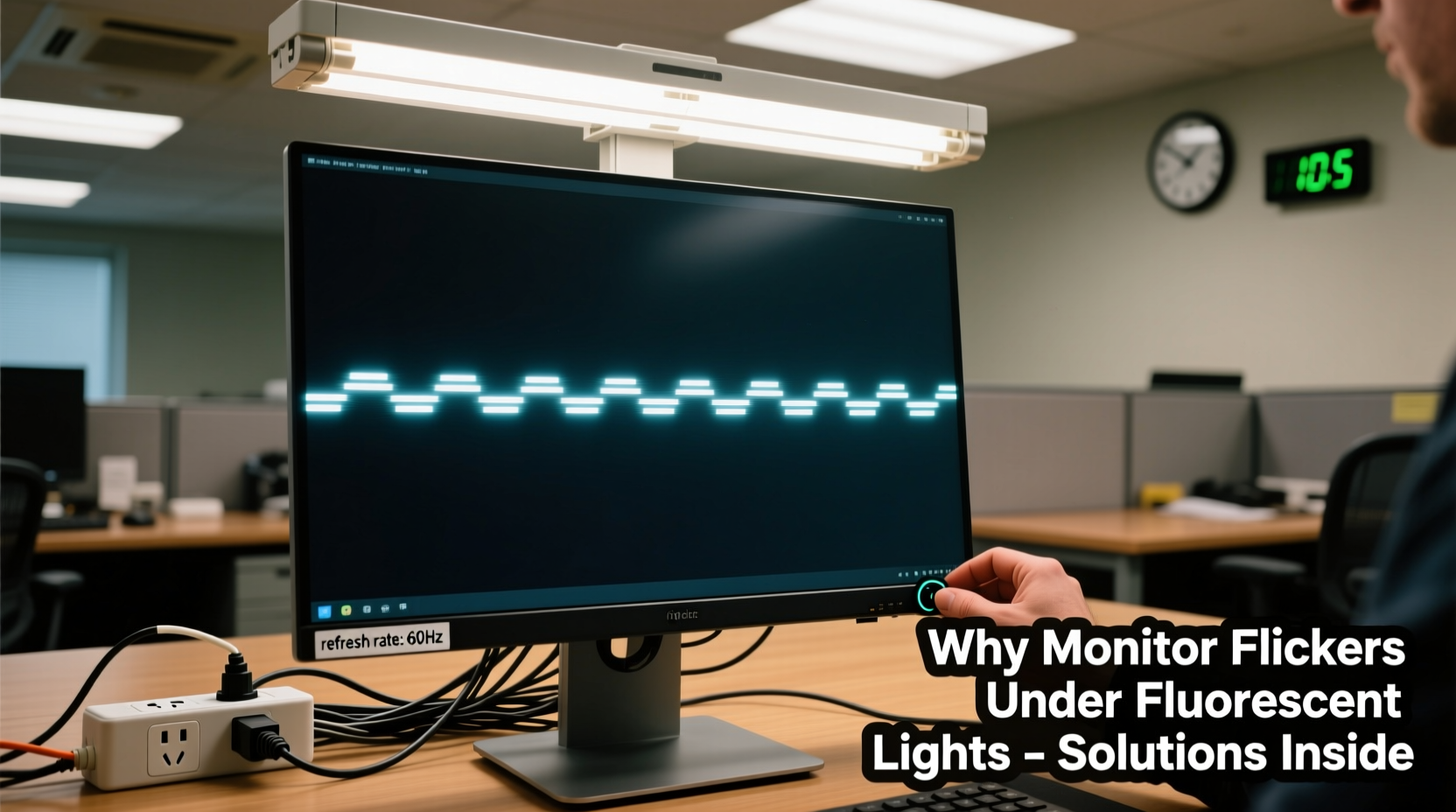
Fluorescent lights operate by passing an electric current through mercury vapor, which emits ultraviolet light. This UV light then excites phosphors coating the inside of the bulb, producing visible light. However, traditional magnetic ballast-driven fluorescent tubes don't emit steady light—they flicker rapidly, typically at twice the frequency of the mains power supply (100 Hz or 120 Hz depending on whether you're on 50 Hz or 60 Hz systems).
Modern LED-backlit monitors also flicker, though usually imperceptibly. Many use pulse-width modulation (PWM) to control brightness. At lower brightness levels, PWM cycles the backlight on and off rapidly. When this internal flicker frequency aligns—or nearly aligns—with the flicker frequency of overhead fluorescent lights, a stroboscopic effect known as *beating* occurs. This creates visible pulsing or shimmering on the screen.
Additionally, electromagnetic interference (EMI) from older fluorescent fixtures can disrupt signal transmission between your graphics card and monitor, especially if using analog cables like VGA. Even digital connections such as HDMI or DisplayPort aren’t immune if shielding is poor or nearby EMI is strong.
“Flicker isn’t just a visual annoyance—it’s a neurological stressor. When ambient light and screen refresh rates interact unpredictably, the brain works harder to stabilize perception.” — Dr. Lena Torres, Neuro-Ophthalmologist, Vision Health Institute
Common Causes of Monitor Flickering in Fluorescent-Lit Environments
- Frequency resonance: When the monitor’s refresh rate or backlight modulation syncs with the flicker rate of fluorescent lights, creating a beat pattern.
- Poor-quality power supply: Voltage fluctuations caused by aging fluorescent ballasts can affect monitor stability.
- Analog signal degradation: VGA cables are highly susceptible to electromagnetic interference from nearby fluorescent fixtures.
- Low brightness settings: Using PWM dimming at low brightness increases susceptibility to external light interference.
- Aging or faulty fluorescent tubes: As bulbs degrade, their flicker becomes more pronounced and irregular.
- Shared electrical circuits: Monitors and lights operating on the same circuit may experience cross-interference during voltage spikes.
Step-by-Step Guide to Eliminate Monitor Flicker
Resolving monitor flicker under fluorescent lighting requires both environmental adjustments and technical optimizations. Follow this sequence to systematically identify and fix the issue:
- Switch off fluorescent lights temporarily. Use natural light or a desk lamp to determine if the flicker disappears. This confirms environmental influence.
- Upgrade your video cable. Replace VGA with a shielded HDMI, DisplayPort, or DVI-D cable. Digital signals resist EMI better than analog.
- Increase monitor brightness. Raising brightness reduces reliance on PWM, minimizing perceptible flicker. Aim for 70–80% in typical office lighting.
- Adjust refresh rate. Go to Display Settings > Advanced > Monitor and set the highest available refresh rate (e.g., 75 Hz or 120 Hz). Higher rates reduce visibility of interference patterns.
- Enable 'flicker-free' or 'low blue light' mode. Many modern monitors include DC dimming modes that eliminate PWM entirely.
- Install LED retrofit tubes. Replace old T12 or T8 fluorescents with high-frequency electronic ballast LEDs or direct-wire LED tubes that operate above 20,000 Hz—far beyond human perception.
- Use a line conditioner or UPS. These devices regulate voltage and filter electrical noise that may destabilize sensitive electronics.
Do’s and Don’ts: Managing Monitor Flicker
| Do | Don’t |
|---|---|
| Use digital video connections (HDMI, DP) | Use unshielded VGA cables near fluorescent lights |
| Set refresh rate to 75 Hz or higher | Run your monitor at 60 Hz under bright artificial light |
| Replace flickering fluorescent tubes promptly | Ignore buzzing or strobing lights—they’re warning signs |
| Use monitors with certified flicker-free backlights | Assume all “LED” monitors are flicker-free (many still use PWM) |
| Position monitor perpendicular to light sources | Place screen parallel to rows of fluorescent fixtures |
Real-World Example: Resolving Flicker in a Corporate Office
A mid-sized accounting firm in Chicago reported widespread employee complaints of eye strain and difficulty focusing during afternoon hours. IT staff initially suspected outdated monitors, replacing several units without improvement. A workplace ergonomics consultant was brought in and quickly identified the issue: the office used legacy T8 fluorescent fixtures with magnetic ballasts operating at 120 Hz, while most monitors were running at 60 Hz with PWM dimming at 30% brightness.
The solution involved three phases:
- All VGA cables were replaced with DisplayPort connections.
- Monitor brightness was standardized at 75%, and refresh rates set to 75 Hz where supported.
- The facility upgraded to high-frequency LED tubes with electronic drivers (operating at 40 kHz), eliminating perceptible flicker in ambient lighting.
Within two weeks, reported eye discomfort dropped by 80%. Productivity metrics showed a measurable increase in sustained focus during late-day work sessions. The total cost was less than $3,000—far below the projected turnover and healthcare costs associated with chronic visual fatigue.
Choosing the Right Equipment to Prevent Future Issues
When setting up a workspace under fluorescent lighting—or any artificial lighting—equipment choices make a significant difference. Not all monitors are created equal when it comes to flicker resistance.
Look for displays labeled with:
- “Flicker-Free” certification (often from TÜV Rheinland or similar bodies)
- DC dimming technology, which adjusts brightness via voltage rather than rapid pulsing
- High native refresh rates (90 Hz or 120 Hz), which minimize perceptual lag and interference
- MAT (Micro-Anti Glare) panels that reduce light reflection without distorting image quality
Similarly, lighting upgrades should prioritize high-frequency operation. Modern LED troffers with 0–10V dimming or DALI controls offer flicker-free illumination compatible with digital workspaces. Avoid cheap LED retrofits that mimic the behavior of old fluorescents.
“The ideal office environment synchronizes human biology with technology. That means stable light, stable screens, and minimal neural disruption.” — Dr. Arjun Patel, Workplace Ergonomics Research Group, MIT
Checklist: How to Stop Monitor Flicker Under Fluorescent Lights
Use this actionable checklist to diagnose and resolve flicker issues efficiently:
- ✅ Turn off fluorescent lights to test if flicker stops
- ✅ Upgrade from VGA to HDMI or DisplayPort
- ✅ Increase monitor brightness to reduce PWM usage
- ✅ Set refresh rate to 75 Hz or higher in display settings
- ✅ Enable built-in 'flicker-free' or 'low blue light' mode
- ✅ Replace old fluorescent tubes with high-frequency LED equivalents
- ✅ Reposition monitor to avoid direct overhead lighting
- ✅ Install a power conditioner if voltage instability is suspected
- ✅ Choose flicker-free certified monitors for future purchases
- ✅ Report persistent flicker to facilities management—shared responsibility ensures lasting fixes
Frequently Asked Questions
Can monitor flicker cause permanent eye damage?
No conclusive evidence shows that screen flicker causes permanent eye damage. However, prolonged exposure contributes to digital eye strain, headaches, and fatigue. Symptoms often improve once the flicker is eliminated. Individuals with photosensitive conditions (like certain types of epilepsy or migraines) may be more vulnerable and should seek medical advice if symptoms persist.
Why does flicker only happen sometimes, not all the time?
Flicker depends on multiple variables: ambient light intensity, monitor brightness, refresh rate, cable quality, and even time of day (voltage fluctuates with grid load). It may only occur when specific combinations align—such as dimmed PWM + aging fluorescent tube + shared circuit. This inconsistency makes it harder to diagnose but doesn’t diminish its impact.
Are newer LED office lights safer than fluorescents?
High-quality LED fixtures are significantly better. Well-designed LEDs operate at frequencies above 20,000 Hz, making flicker imperceptible. However, some budget LED products use poor drivers that introduce low-frequency ripple, causing flicker similar to old fluorescents. Always verify flicker performance via specifications or third-party testing (e.g., IEEE 1789 compliance).
Conclusion: Take Control of Your Visual Environment
Monitor flicker under fluorescent lights isn’t something you have to endure. It’s a solvable engineering issue rooted in outdated infrastructure and mismatched technologies. By understanding the interplay between lighting systems and display hardware, you can take targeted steps to create a more comfortable, productive workspace. Whether you’re an employee advocating for better conditions or a manager responsible for team well-being, addressing flicker is a small change with outsized benefits. Improved visual comfort leads to sharper focus, fewer distractions, and greater long-term satisfaction at work.




 浙公网安备
33010002000092号
浙公网安备
33010002000092号 浙B2-20120091-4
Comments
No comments yet. Why don't you start the discussion?