
Monitor flickering while charging your laptop is a surprisingly common issue that can disrupt productivity, strain your eyes, and raise concerns about hardware safety. It often appears as rapid screen flashing, intermittent dimming, or horizontal lines dancing across the display—especially when the charger is connected. While unsettling, this behavior usually stems from identifiable electrical or compatibility issues rather than permanent hardware failure. Understanding the root causes and applying targeted fixes can restore stable performance without costly replacements.
This guide dives into the technical reasons behind monitor flickering during laptop charging, explores real-world scenarios, and provides actionable steps to diagnose and resolve the problem efficiently.
Understanding the Root Causes of Flickering
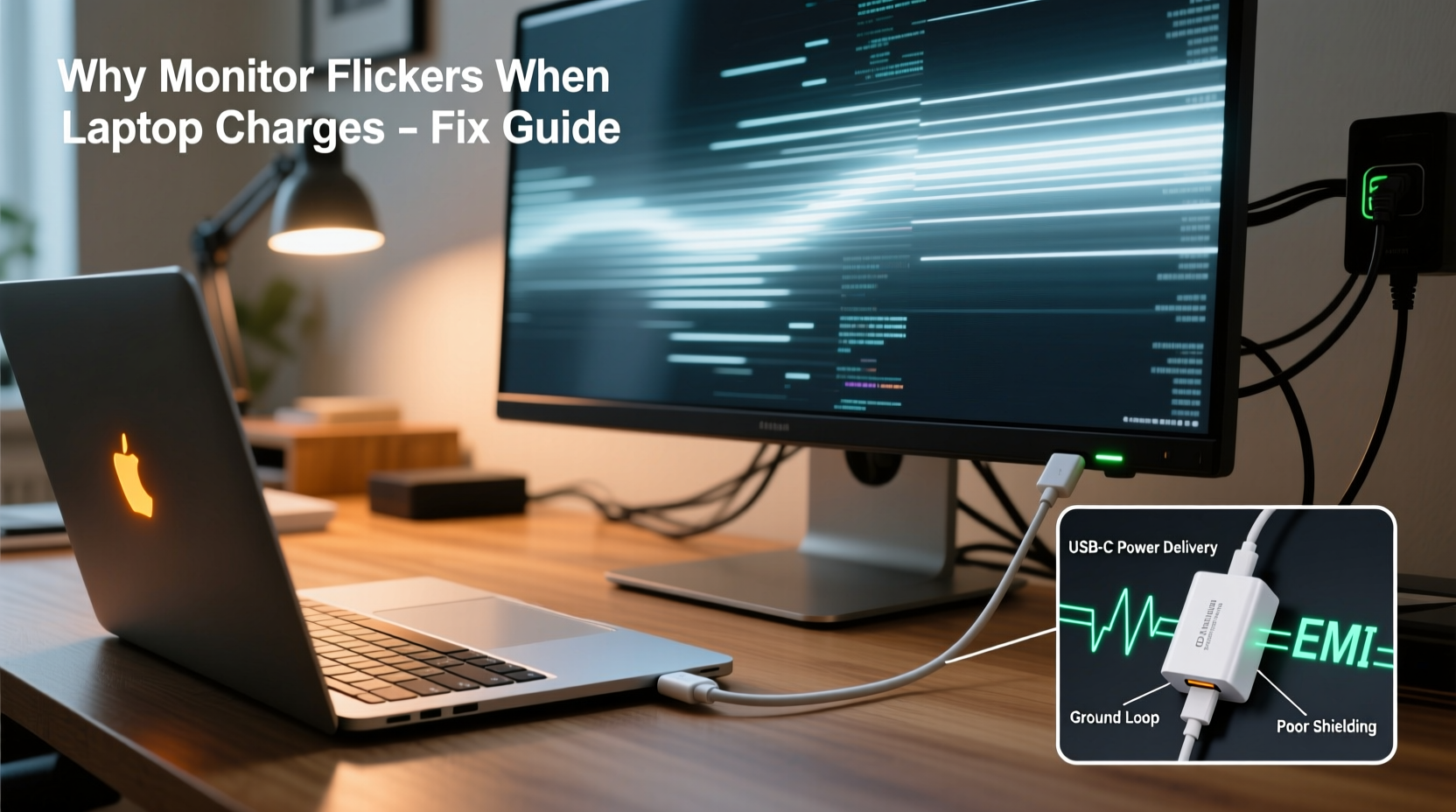
Monitor flicker during charging typically arises from electromagnetic interference (EMI), power delivery inconsistencies, grounding problems, or signal disruption in display connections. When a laptop begins charging, especially under heavy load or with high-wattage chargers, it draws more current, which can introduce electrical noise into nearby circuits—including those powering an external display.
One primary culprit is ground loop interference. This occurs when multiple devices—your laptop, monitor, and possibly docking station—are plugged into different outlets or power strips, creating slight voltage differences between their grounds. The resulting current flow through shared cables (like HDMI or DisplayPort) manifests as visual artifacts on-screen.
Another factor is poor-quality or damaged cables. Low-shielded cables are more susceptible to EMI generated by the charging circuitry, particularly if the laptop’s internal shielding is subpar. Additionally, some USB-C or Thunderbolt docks lack sufficient filtering, allowing noise to pass directly to the video signal.
“Electromagnetic interference from switching power supplies is one of the most overlooked sources of display instability in modern workspaces.” — Dr. Alan Reyes, Electrical Engineer & EMC Specialist
Step-by-Step Troubleshooting Guide
Resolving flickering requires systematic elimination of potential causes. Follow this structured approach to identify and correct the issue:
- Disconnect and Reconnect All Cables: Unplug the video cable from both the laptop and monitor. Inspect for bent pins or debris. Reconnect securely, ensuring full insertion.
- Test with a Different Cable: Swap your current HDMI, DisplayPort, or USB-C cable with a known high-quality, shielded alternative. Avoid long, thin, or coiled cables.
- Use a Different Port: If your laptop has multiple video outputs, try connecting via another port to rule out localized hardware faults.
- Plug Monitor and Laptop into the Same Power Strip: This minimizes ground potential differences and reduces the risk of ground loops.
- Try Charging Without the Monitor Connected: Observe if flickering persists on the laptop’s built-in screen. If not, the issue is likely isolated to the external display setup.
- Boot Without Charger: Run the laptop on battery only and connect the monitor. If flickering stops, the charger or power delivery system is contributing to interference.
- Update Graphics Drivers: Visit your GPU manufacturer’s website (Intel, AMD, NVIDIA) and install the latest drivers. Outdated software can misinterpret signal fluctuations as display changes.
- Disable Adaptive Sync Temporarily: Technologies like FreeSync or G-Sync may react unpredictably to signal noise. Turn them off in your display settings to test stability.
Common Hardware and Configuration Issues
Beyond basic troubleshooting, deeper hardware mismatches can trigger flickering. These include incompatible refresh rates, insufficient power delivery, and defective components.
For example, running a 144Hz monitor over a USB-C connection that only supports 60Hz due to bandwidth limitations can cause instability. Similarly, using a third-party charger that doesn’t meet the laptop’s voltage specifications may create ripple effects in the power supply, affecting connected peripherals.
| Issue | Symptoms | Solution |
|---|---|---|
| Ground Loop Interference | Flickering worsens when charger is plugged; improves when unplugged | Use same power strip for all devices; consider a ground loop isolator |
| Poor Cable Shielding | Flickering increases near other electronics or when charger heats up | Replace with certified, braided, shielded cable (e.g., HDMI 2.1 or DP 1.4) |
| Incompatible Charger | Flicker starts only with non-OEM chargers | Switch to original manufacturer charger or certified replacement |
| Faulty GPU or Port | Flickering persists across cables, ports, and monitors | Seek professional repair; may require motherboard-level diagnosis |
Mini Case Study: Remote Worker Resolves Persistent Flicker
Sophie, a UX designer working remotely from her home office, experienced constant flickering on her 4K monitor whenever she charged her Dell XPS 15. She used a USB-C hub to connect the monitor, keyboard, and charger simultaneously. Initially assuming a defective monitor, she replaced it—only for the new one to flicker identically.
After testing each component, she discovered the issue vanished when she unplugged the charger. Further investigation revealed her third-party 100W USB-C charger lacked proper EMI filtering. Switching back to the OEM charger eliminated the flicker entirely. Additionally, she began plugging all devices into a single surge protector, stabilizing the ground reference. Her workflow improved dramatically, and eye fatigue decreased within days.
Prevention and Long-Term Stability Tips
Once resolved, maintaining a flicker-free setup involves consistent best practices. Electromagnetic environments change over time—new devices, aging cables, or outlet wear can reintroduce issues.
- Invest in high-quality, short cables with double shielding and gold-plated connectors.
- Avoid daisy-chaining power strips or mixing grounded and ungrounded outlets.
- Keep video cables away from power cords; never bundle them tightly together.
- Use active noise suppression tools like ferrite chokes or inline display isolators for sensitive setups.
- Regularly inspect ports for dust, corrosion, or physical damage that could degrade signal integrity.
Expert Insight: Why Modern Laptops Are More Susceptible
Newer laptops, particularly ultrabooks with compact internal layouts, pack high-power components into tight spaces. The proximity of the charging circuitry to the GPU and display output increases cross-talk risks. As Dr. Reyes explains:
“The trend toward thinner laptops means less space for EMI shielding. Combined with higher-efficiency but noisier switch-mode power supplies, this creates perfect conditions for interference—especially when pushing high-resolution displays.”
This underscores the importance of using well-designed accessories and being mindful of electrical topology in your workspace.
Comprehensive Fix Checklist
Use this checklist to methodically address and prevent monitor flickering:
- ✅ Test the monitor with another device (e.g., desktop or gaming console)
- ✅ Replace the video cable with a certified, shielded version
- ✅ Plug laptop and monitor into the same power strip or outlet
- ✅ Try using the original OEM charger instead of third-party alternatives
- ✅ Update graphics drivers and BIOS firmware
- ✅ Disable adaptive sync (FreeSync/G-Sync) temporarily
- ✅ Clean display ports with compressed air or soft brush
- ✅ Test with a different monitor or TV to isolate the fault
- ✅ Check for Windows or macOS display calibration glitches (reset color profiles if needed)
- ✅ Consider a powered USB-C hub with dedicated EMI filtering
Frequently Asked Questions
Can a bad charger cause my external monitor to flicker?
Yes. Third-party or low-quality chargers often lack proper electromagnetic interference (EMI) filtering and voltage regulation. This can introduce electrical noise into the laptop’s circuitry, which may interfere with video signal transmission, especially through shared USB-C/Thunderbolt paths. Always use OEM or certified chargers to minimize risk.
Does flickering mean my monitor or laptop is dying?
Not necessarily. While persistent flickering can indicate hardware failure, it’s more commonly caused by configuration issues, poor cabling, or power interference. If the flickering stops when the charger is disconnected or when using a different setup, the core hardware is likely intact. However, if the issue spreads to other devices or persists across configurations, professional diagnostics are recommended.
Will using a VGA or DVI cable help avoid flickering?
No—and it may make things worse. Analog signals like VGA are far more susceptible to interference than digital standards like HDMI or DisplayPort. They also lack error correction and shielding capabilities found in modern cables. Stick with HDMI 2.0+, DisplayPort 1.4, or USB-C with DisplayPort Alt Mode for optimal signal integrity.
Final Thoughts and Action Plan
Monitor flickering during laptop charging is frustrating but rarely catastrophic. In most cases, the solution lies in improving power consistency, upgrading cabling, or eliminating ground loops. By following a logical diagnostic process and investing in quality components, you can achieve a stable, flicker-free workspace.
Start today: unplug your charger, swap your video cable, consolidate your power sources, and observe the difference. Small adjustments often yield immediate results. Don’t tolerate ongoing flicker—it affects focus, comfort, and long-term eye health.




 浙公网安备
33010002000092号
浙公网安备
33010002000092号 浙B2-20120091-4
Comments
No comments yet. Why don't you start the discussion?