
Monitor flickering during scrolling is a surprisingly common issue that affects both casual users and professionals. Whether you're browsing the web, reading documents, or editing spreadsheets, seeing your screen flash, shimmer, or pulse as you move content can be distracting and even lead to eye strain over time. While it might seem like a hardware defect, the root causes are often tied to specific technologies—particularly LED backlights and display refresh rates. Understanding these underlying factors allows you to diagnose and resolve the problem effectively without unnecessary replacements.
This article breaks down the technical reasons behind flickering during scroll, explains how LED dimming methods and refresh settings contribute, and provides actionable solutions across software, firmware, and hardware adjustments.
Understanding Monitor Flicker During Scrolling
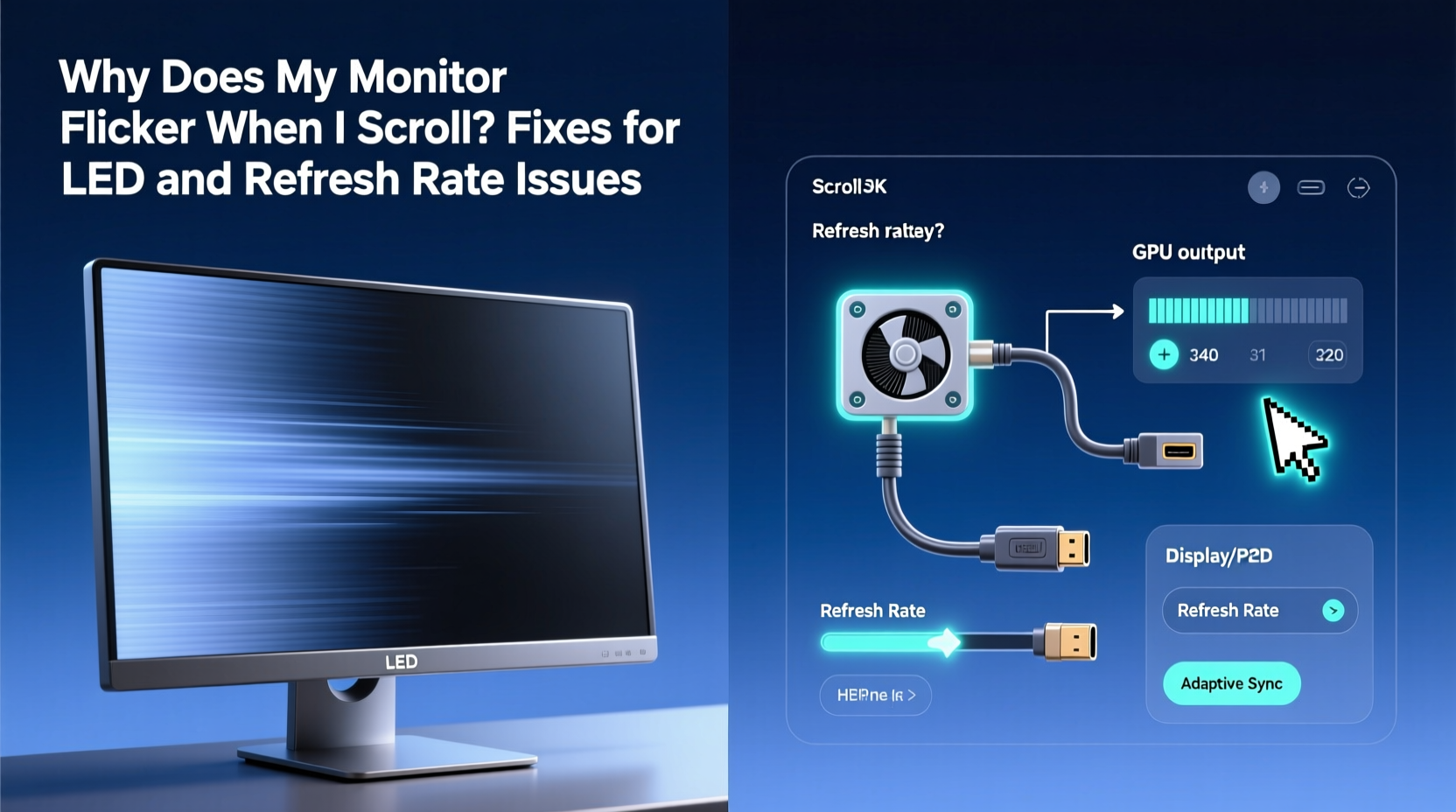
Flickering isn’t always visible under static conditions. It becomes most noticeable when content moves rapidly across the screen—such as when scrolling through long web pages or PDFs. The human eye is highly sensitive to motion artifacts, especially when they involve brightness fluctuations or inconsistent frame delivery.
The core reason lies in how modern monitors render motion. Most LCD screens use a sample-and-hold method: instead of refreshing the entire image at once like CRT displays, they maintain each frame until the next one appears. When content scrolls quickly, this persistence can cause perceived blurring or ghosting. Some monitors attempt to counteract this with backlight strobing or adaptive refresh techniques—but these can introduce flicker if not properly implemented.
Two primary culprits stand out:
- Pulse Width Modulation (PWM) used in LED backlights
- Mismatched or suboptimal refresh rate settings
Both are designed to improve visual quality but can backfire under certain conditions.
How LED Backlight Dimming Causes Flicker
LED-backlit monitors don’t dim light by reducing voltage. Instead, many use Pulse Width Modulation—a technique where the backlight rapidly turns on and off to simulate lower brightness. At full brightness, the light stays on continuously. But at lower settings, it pulses thousands of times per second.
While this flickering usually occurs too fast to see directly, some people are more sensitive than others. In fact, studies suggest up to 30% of users report discomfort from PWM-induced flicker, including headaches, fatigue, and difficulty focusing.
When scrolling, the combination of moving content and rapid backlight pulsing can create interference patterns—similar to a wagon-wheel effect in video. This makes flicker more apparent, especially in peripheral vision or low-light environments.
Not all monitors use PWM. High-end models may feature DC dimming, which adjusts brightness electronically without flickering. However, most budget and mid-range panels rely on PWM due to cost and design simplicity.
“Flicker sensitivity varies widely among individuals. What seems imperceptible to one person may be debilitating to another.” — Dr. Lena Torres, Vision Ergonomics Researcher, MIT Media Lab
Refresh Rate Mismatches and V-Sync Issues
Your monitor’s refresh rate—the number of times per second it redraws the image—is critical for smooth motion. Common rates include 60Hz, 75Hz, 120Hz, and 144Hz. Ideally, this should sync with your graphics card output and the content being displayed.
Scrolling introduces variable frame timing. Web browsers typically render scroll animations based on input speed and system performance, leading to inconsistent frame delivery. If your GPU sends frames out of sync with the monitor’s refresh cycle, you get tearing or stuttering—which some systems try to correct using adaptive sync features.
Technologies like NVIDIA G-Sync and AMD FreeSync dynamically adjust the monitor’s refresh rate to match the GPU’s frame rate. But when disabled or unsupported, mismatches occur. Even minor discrepancies between vertical sync (V-Sync) settings and actual frame pacing can manifest as flicker-like effects during motion.
In addition, mismatched refresh rates between multiple monitors can cause flicker on secondary displays when windows or cursors move between them.
Common Refresh Rate Problems That Trigger Flicker
- Running a 60Hz monitor at a non-native resolution with a different refresh option selected
- V-Sync turned off while playing high-frame-rate applications alongside desktop use
- Using HDMI instead of DisplayPort, limiting available refresh modes
- Outdated GPU drivers failing to communicate proper EDID data
Step-by-Step Guide to Fix Monitor Flicker When Scrolling
Resolving flicker requires a systematic approach. Follow these steps in order to isolate and eliminate the source of the problem.
- Adjust Brightness Settings
Increase your monitor’s brightness to 80–100%. Many PWM-based monitors reduce flicker significantly at higher brightness levels because the duty cycle (on-time vs. off-time) increases. Test scrolling behavior after adjustment. - Disable Adaptive Brightness or Eco Modes
Features labeled “Eco,” “Power Saving,” or “Ambient Light Detection” often modulate backlight intensity using aggressive PWM. Turn them off via the monitor’s OSD menu. - Set Native Resolution and Correct Refresh Rate
On Windows: Right-click desktop → Display settings → Advanced display → Choose native resolution and highest supported refresh rate.
On macOS: System Settings → Displays → Hold Option key and click \"Scaled\" → Select highest refresh option. - Enable V-Sync in Graphics Control Panel
For NVIDIA: Open NVIDIA Control Panel → Manage 3D Settings → Vertical Sync → “On.”
For AMD: Radeon Software → Graphics → Wait for Vertical Refresh → “Always On.” - Update GPU Drivers and Monitor Firmware
Visit your graphics card manufacturer’s website (NVIDIA, AMD, Intel) and install the latest driver. Also check the monitor brand’s support page for firmware updates—some address known flicker bugs. - Test Different Cables and Ports
Use a certified DisplayPort cable if available. HDMI 1.4 and earlier may limit refresh rates at higher resolutions, forcing the system into unstable modes. Avoid daisy-chained hubs or extenders. - Check Browser Hardware Acceleration
In Chrome/Edge: Settings → System → toggle off “Use hardware acceleration when available.” Restart browser and test scrolling. Re-enable if no improvement. - Try Another Monitor or Device
Connect your computer to a different monitor. If flicker disappears, the original monitor likely has a PWM or panel-level issue. Alternatively, connect another device (e.g., laptop) to the suspect monitor to determine if the issue follows the display or the source.
Do’s and Don’ts: Quick Reference Table
| Do | Don't |
|---|---|
| Use native resolution and maximum refresh rate | Run the monitor at non-standard refresh rates (e.g., 59Hz instead of 60Hz) |
| Keep brightness above 80% if flicker is present | Rely solely on software dimming apps that reduce brightness via gamma curves |
| Enable V-Sync or use G-Sync/FreeSync if supported | Ignore firmware update notifications from your monitor manufacturer |
| Use DisplayPort for high-refresh or high-resolution setups | Plug into unpowered USB-C hubs without verified DP Alt Mode support |
| Test with multiple devices to isolate the fault | Assume the issue is purely software-related without testing hardware variables |
Mini Case Study: Resolving Persistent Flicker in a Home Office Setup
Mark, a technical writer working remotely, began experiencing eye fatigue after upgrading his dual-monitor setup. His secondary display—a 27-inch IPS panel—flickered noticeably whenever he scrolled through research articles or long emails. The primary monitor showed no issues.
He first assumed it was a browser issue and tried disabling extensions, clearing cache, and switching from Chrome to Firefox. No change. He then adjusted brightness and contrast, but flicker persisted below 90% brightness.
Upon checking display settings, he discovered the problematic monitor was running at 59Hz instead of 60Hz—likely due to an incorrect EDID handshake over HDMI. Switching to a certified DisplayPort cable immediately corrected the refresh rate, and the flicker vanished. Further investigation revealed that the monitor’s firmware had an update addressing HDMI timing instability, which he applied.
The fix took less than 20 minutes and avoided a costly replacement. Mark now performs quarterly checks on driver and firmware versions across all connected displays.
Expert Tips to Prevent Future Flicker Issues
FAQ
Can monitor flicker damage my eyes?
There is no evidence that typical screen flicker causes permanent eye damage. However, prolonged exposure to perceptible flicker can lead to eye strain, headaches, and reduced concentration. Individuals with photosensitive conditions (e.g., migraines, epilepsy) should take extra precautions.
Is PWM always bad?
No. High-frequency PWM (above 2000Hz) is generally imperceptible and safe for most users. The problem arises with low-frequency PWM (below 1000Hz), commonly found in cheaper panels. Look for monitors advertising “high-frequency PWM” or “DC dimming” if sensitivity is a concern.
Why does flicker only happen when I scroll?
Scrolling creates dynamic motion that interacts with backlight pulsing and frame rendering timing. Static images may not reveal flicker because there’s no temporal contrast amplifying the effect. Additionally, browsers often render scroll animations asynchronously, increasing the chance of timing conflicts.
Final Checklist Before Seeking Replacement
Before concluding your monitor is defective, complete this checklist:- ✅ Set brightness to 80–100%
- ✅ Disable all eco/power-saving modes on the monitor
- ✅ Confirm native resolution and correct refresh rate (e.g., 60Hz, not 59.94Hz)
- ✅ Use DisplayPort instead of HDMI if possible
- ✅ Update GPU drivers and monitor firmware
- ✅ Test with another computer or device
- ✅ Disable hardware acceleration in your browser temporarily
- ✅ Enable V-Sync in your GPU control panel
Conclusion
Monitor flicker during scrolling is rarely random—it’s a symptom of how your display manages light output and motion rendering. By understanding the roles of LED backlight dimming and refresh rate synchronization, you gain control over your viewing environment. Simple adjustments like increasing brightness, selecting the correct refresh rate, or switching cables can eliminate flicker entirely.
Don’t accept visual discomfort as inevitable. Modern computing demands clarity, consistency, and comfort. Take the time to optimize your setup, stay informed about display technologies, and prioritize flicker-free hardware for long-term well-being.




 浙公网安备
33010002000092号
浙公网安备
33010002000092号 浙B2-20120091-4
Comments
No comments yet. Why don't you start the discussion?