
Have you ever noticed your screen flickering slightly every time you scroll through a webpage or document? It’s not just annoying—it can cause headaches, fatigue, and long-term eye strain. While occasional flickering might seem like a minor glitch, persistent issues during scrolling point to underlying technical or ergonomic causes. The good news is that most of these problems are fixable without replacing hardware. Understanding why this happens—and how to resolve it—can dramatically improve your comfort and productivity, especially if you spend hours in front of a screen.
What Causes Monitor Flickering During Scrolling?
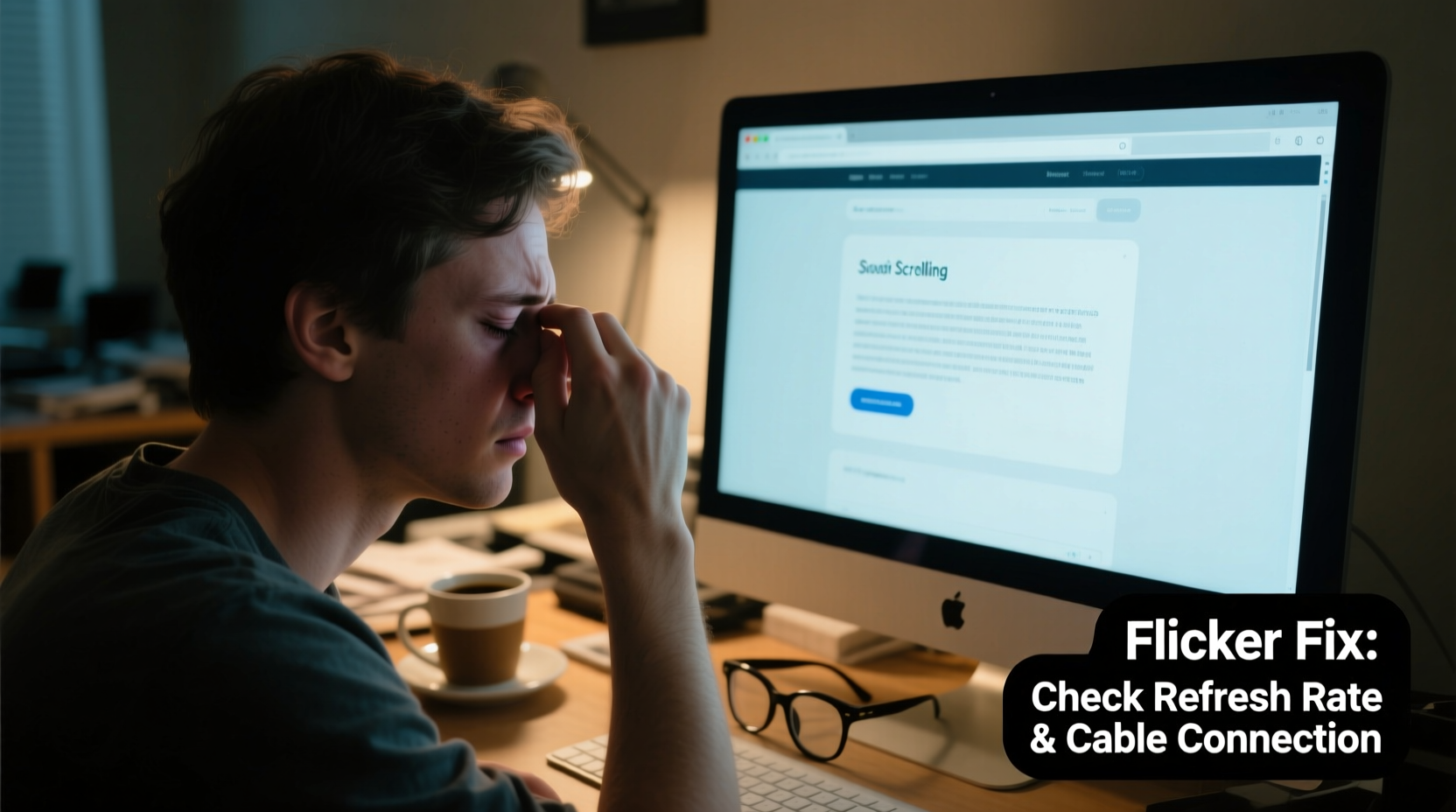
Monitor flickering during scrolling isn’t random. It typically stems from mismatches between your display’s refresh rate, graphics processing, and the way content is rendered on-screen. When you scroll, the screen rapidly redraws pixels to reflect new positions of text and images. If the timing of these redraws doesn’t align properly with the monitor’s refresh cycle, visual artifacts like flickering, tearing, or shimmering appear.
Several factors contribute:
- Low refresh rate: Monitors running at 60Hz may struggle to keep up with fast motion, making flicker more noticeable.
- Graphics driver issues: Outdated or corrupted drivers can mismanage frame delivery.
- VSync settings: Vertical Sync helps synchronize frame output with refresh rates but can sometimes introduce stutter or flicker if improperly configured.
- Cable quality: Damaged or low-bandwidth cables (like older HDMI or VGA) may fail to transmit stable signals during high-activity tasks.
- Backlight technology: Some LED backlights use pulse-width modulation (PWM) for brightness control, which can cause flickering visible during rapid screen changes.
Flickering isn't always a hardware flaw. Often, it's a software or configuration issue that can be corrected quickly.
Step-by-Step Guide to Diagnose and Fix Flickering
Resolving monitor flicker requires systematic troubleshooting. Follow this timeline to identify and eliminate the root cause.
- Observe when flickering occurs: Is it only during scrolling? In specific apps? Only in dark mode? Take note of patterns.
- Test with another device: Connect your monitor to a different computer or laptop. If the flicker persists, the issue likely lies with the monitor or cable.
- Swap the video cable: Replace your current HDMI, DisplayPort, or VGA cable with a known high-quality one. Avoid long or coiled cables that degrade signal integrity.
- Update graphics drivers: Visit your GPU manufacturer’s website (NVIDIA, AMD, Intel) and install the latest driver version.
- Adjust refresh rate: Go to Display Settings > Advanced Display > Refresh Rate and select the highest supported option (e.g., 75Hz or 120Hz).
- Disable hardware acceleration: In your browser (Chrome, Edge, Firefox), turn off hardware acceleration to see if flickering stops.
- Check power settings: Set your PC to “High Performance” mode. Power-saving modes can throttle GPU performance and cause inconsistent rendering.
- Enable adaptive sync: If your monitor supports FreeSync or G-Sync, enable it in the GPU control panel to reduce tearing and flicker.
This sequence isolates variables and often resolves the issue within 20 minutes. Many users report immediate improvement after updating drivers or switching cables.
Do’s and Don’ts: Managing Screen Flicker and Eye Strain
| Action | Do | Don’t |
|---|---|---|
| Display Settings | Set refresh rate to maximum supported value | Leave refresh rate at default 60Hz unnecessarily |
| Cables | Use certified DisplayPort or HDMI 2.0+ cables | Use damaged or unshielded cables |
| Graphics Drivers | Update regularly via official vendor site | Rely solely on Windows Update for GPU drivers |
| Brightness | Match ambient light; use 40–60% brightness indoors | Run at 100% brightness in dim rooms |
| Browser Settings | Disable hardware acceleration if flickering occurs | Ignore browser-specific flicker patterns |
Following these guidelines minimizes technical conflicts and ensures smoother visual performance across daily tasks.
Real Example: How Sarah Fixed Her Work-from-Home Flicker Issue
Sarah, a technical writer working remotely, began experiencing eye fatigue and screen flicker every time she scrolled through Google Docs or PDFs. At first, she assumed her aging monitor needed replacement. She tried adjusting brightness and taking more breaks, but the flickering persisted—especially in dark-themed applications.
After reading about PWM-related flicker, she tested her monitor using a slow-motion camera on her phone. She noticed a faint strobing pattern, confirming PWM was active at lower brightness levels. Instead of buying a new monitor, she raised the brightness to 70% and adjusted her room lighting to reduce contrast. The flicker became imperceptible.
She later updated her Intel integrated graphics driver and disabled hardware acceleration in Chrome. Combined, these steps eliminated all flickering. Sarah now experiences far less eye strain and no longer dreads long writing sessions.
Her experience shows that small adjustments—often overlooked—can yield dramatic improvements.
“Many cases of perceived screen flicker during scrolling are actually due to poor synchronization between GPU output and display refresh cycles. Ensuring both are optimized eliminates most issues.” — Dr. Alan Zhou, Display Systems Engineer at LG Electronics
How Backlight Technology Affects Flicker and Eye Comfort
One of the least understood contributors to flickering is backlight modulation. Most modern LED monitors don’t dim by reducing power continuously. Instead, they use Pulse Width Modulation (PWM)—rapidly turning the backlight on and off to simulate lower brightness. The faster the pulse, the less noticeable the flicker. However, cheaper panels use low-frequency PWM (below 200Hz), which some people can perceive peripherally, leading to discomfort.
You may not consciously see the flicker, but your brain detects the inconsistency, contributing to eye strain, headaches, and fatigue over time—especially during dynamic tasks like scrolling.
To check if your monitor uses PWM:
- Search online for your monitor model + “PWM test” or “flicker test.”
- Use a smartphone camera: Point it at the screen while dimmed. If you see moving dark bands, PWM is likely active.
- Consult review sites like TFT Central or Rtings.com, which measure PWM frequency.
If PWM is the culprit, consider:
- Raising brightness above 70%—many monitors switch to DC dimming at higher levels.
- Using ambient lighting to reduce the need for low brightness settings.
- Upgrading to a monitor labeled “flicker-free” or “low blue light,” which often use DC dimming.
Comprehensive Checklist: Stop Monitor Flicker Now
Use this checklist to systematically eliminate flickering and protect your eyes:
- ✅ Test flicker with a smartphone camera under low brightness
- ✅ Update graphics drivers from NVIDIA, AMD, or Intel website
- ✅ Replace old or low-quality video cables with high-speed alternatives
- ✅ Increase monitor refresh rate to 75Hz or higher if supported
- ✅ Disable hardware acceleration in browsers (Chrome, Edge, Firefox)
- ✅ Adjust brightness to 60–80% and ensure proper room lighting
- ✅ Enable adaptive sync (FreeSync/G-Sync) if available
- ✅ Switch power plan to “High Performance” in Windows
- ✅ Check for firmware updates for your monitor (via manufacturer site)
- ✅ Consider a flicker-free monitor if symptoms persist
Completing even half of these steps often leads to noticeable improvement. Prioritize driver updates, cable checks, and refresh rate adjustments—they address the most common causes.
Frequently Asked Questions
Is screen flicker harmful in the long term?
While occasional flicker isn’t dangerous, prolonged exposure to perceptible or imperceptible flicker (like low-frequency PWM) can lead to chronic eye strain, headaches, and reduced visual comfort. Over time, this may contribute to digital eye fatigue syndrome. Addressing flicker early helps maintain long-term ocular health.
Why does flickering only happen when I scroll in Chrome?
This is often due to Chrome’s hardware acceleration feature, which offloads rendering to the GPU. If your GPU drivers are outdated or incompatible, this can cause timing glitches during rapid screen updates. Try disabling hardware acceleration in Chrome Settings > System > “Use hardware acceleration when available.” If flickering stops, the GPU or driver is likely involved.
Can a bad power supply cause monitor flickering?
Indirectly, yes. An unstable power supply can cause voltage fluctuations that affect the GPU or monitor’s internal circuitry, especially under load. While rare, this can manifest as intermittent flickering. Ensure your PC is plugged into a reliable outlet or surge protector. Laptops on battery usually don’t have this issue unless the battery is failing.
Final Thoughts: Protect Your Eyes, Optimize Your Setup
Monitor flicker during scrolling is more than a nuisance—it’s a sign that your display system isn’t operating smoothly. Whether caused by outdated drivers, poor cabling, low refresh rates, or PWM-based backlighting, the solutions are accessible and often free. Taking the time to optimize your setup pays off in reduced eye strain, improved focus, and greater comfort during extended screen use.
Start with the basics: update drivers, inspect cables, and adjust refresh settings. Then refine your environment with proper lighting and brightness. Most users see results within a single troubleshooting session. If flickering persists, consider investing in a flicker-free monitor designed for visual comfort—your eyes will thank you.




 浙公网安备
33010002000092号
浙公网安备
33010002000092号 浙B2-20120091-4
Comments
No comments yet. Why don't you start the discussion?