
If your monitor starts flickering the moment you flip on a light switch—especially overhead or fluorescent lighting—it’s not just annoying; it can strain your eyes, disrupt productivity, and signal deeper electrical or hardware issues. This phenomenon is more common than you might think, affecting home offices, studios, and even professional workspaces. The root causes range from simple power fluctuations to incompatible hardware setups. The good news? Most of these issues are fixable without costly replacements or technician visits.
This guide breaks down the science behind monitor flickering triggered by lighting changes, identifies the most frequent culprits, and delivers practical, step-by-step solutions. Whether you're dealing with an LED display in a dimly lit bedroom or a high-resolution monitor in a brightly lit studio, understanding the interaction between your lighting and display systems is key to eliminating flicker for good.
Understanding Monitor Flicker: What Happens When Lights Turn On?
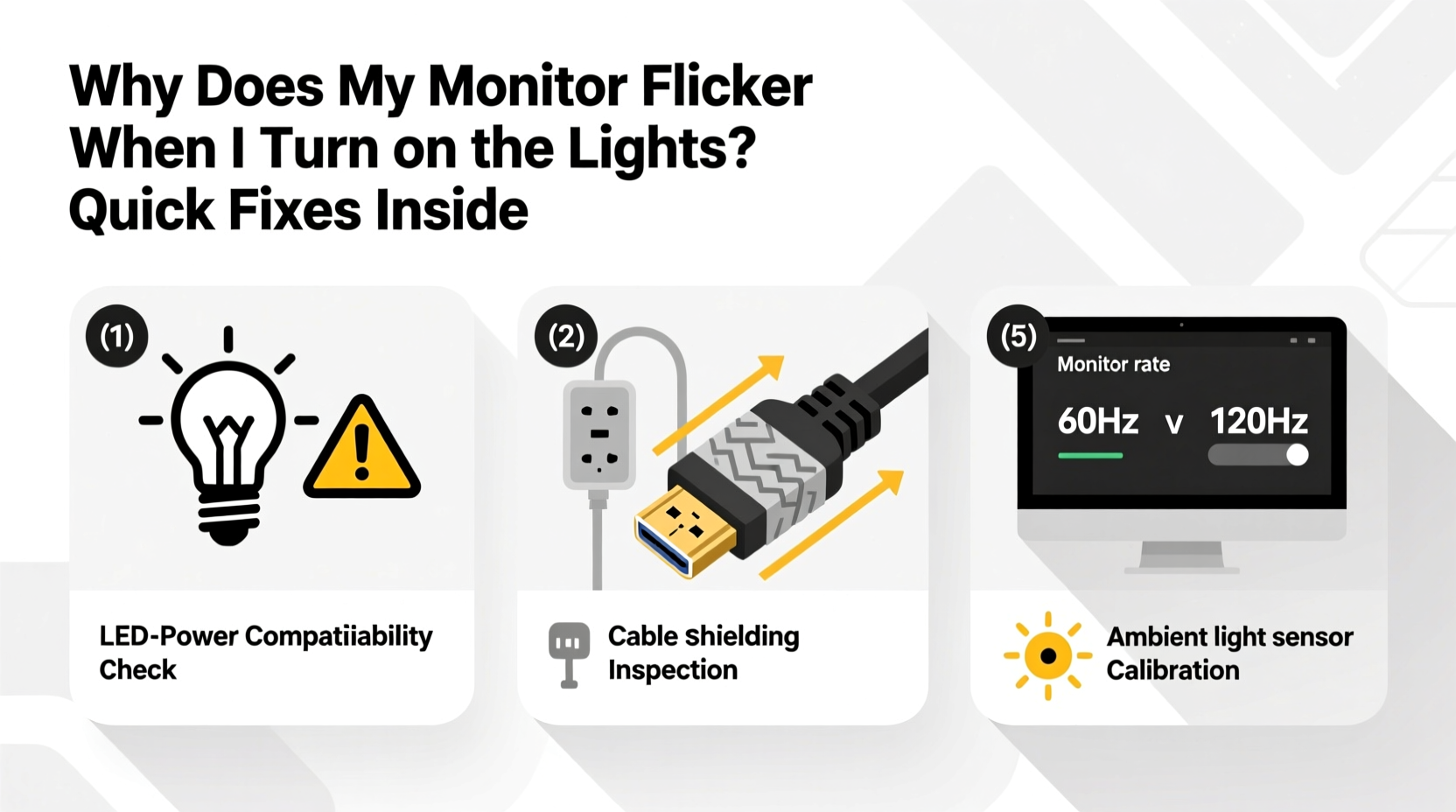
Monitor flicker refers to rapid, often imperceptible brightness fluctuations in your screen. While some flickering is inherent in certain display technologies (like PWM dimming in many LED-backlit monitors), sudden flickering that correlates with turning on lights points to external interference or instability in power delivery.
When you switch on lights—particularly older fluorescent bulbs, halogen fixtures, or high-wattage LEDs—you create a temporary surge in electrical demand. This surge can momentarily destabilize voltage across shared circuits, especially in older buildings or overloaded outlets. If your monitor shares a circuit with those lights, the fluctuation may interfere with the power supply feeding the monitor, causing visible flickering.
In addition to electrical surges, electromagnetic interference (EMI) from poorly shielded lighting ballasts or dimmer switches can radiate into nearby electronics. Monitors, particularly those with analog signal inputs like VGA, are vulnerable to this type of interference. Even modern digital connections like HDMI or DisplayPort aren’t immune if grounding or cable shielding is inadequate.
“Voltage drops caused by simultaneous appliance activation are one of the top overlooked causes of monitor instability.” — Dr. Alan Reyes, Electrical Systems Engineer, IEEE Member
Common Causes of Light-Triggered Monitor Flickering
Not all flickering stems from the same source. Identifying the specific cause is essential for applying the right fix. Below are the most frequent contributors:
- Shared Electrical Circuits: Monitors and lights plugged into the same circuit can compete for power during startup surges.
- Poor Power Supply Quality: Low-end or aging power strips and surge protectors may not regulate voltage effectively.
- Fluorescent or Dimmable Lighting: Magnetic ballasts in older fluorescents emit EMI; dimmers can introduce harmonic distortion into the electrical line.
- VGA Cables and Analog Signals: These are highly susceptible to interference from nearby electrical sources.
- Grounding Issues: Improperly grounded outlets or equipment can create voltage differentials that manifest as screen flicker.
- Monitor PWM Dimming Sensitivity: Some monitors use pulse-width modulation to control brightness, which can become unstable under fluctuating voltage.
Step-by-Step Troubleshooting Guide
Follow this logical sequence to isolate and resolve the flickering issue:
- Observe the Pattern: Does flickering happen only with specific lights? Only at full brightness? Only when other appliances run?
- Unplug Nearby Lights: Temporarily disconnect or turn off lights near the monitor. Test if flickering stops.
- Switch to a Different Outlet: Move the monitor to an outlet on a separate circuit (e.g., a different room or wall).
- Bypass Power Strips: Plug the monitor directly into the wall to eliminate potential filtering or regulation flaws in the strip.
- Replace VGA with Digital Cables: Swap out VGA for HDMI, DisplayPort, or DVI to reduce susceptibility to EMI.
- Test with Another Monitor: Use a different display on the same setup to determine if the issue is monitor-specific.
- Check Lighting Type: Replace older fluorescent bulbs with modern, low-EMI LEDs.
- Inspect Grounding: Ensure all outlets are properly grounded using a socket tester.
If flickering stops after moving the monitor to another circuit, the original circuit is likely overloaded or poorly regulated. If changing the cable eliminates flicker, interference was being picked up through the analog connection.
Do’s and Don’ts: Managing Monitor and Lighting Compatibility
| Do | Don’t |
|---|---|
| Use surge protectors with noise filtration and EMI/RFI protection | Plug high-draw appliances and monitors into the same power strip |
| Upgrade to LED monitors with DC dimming instead of PWM | Use dimmer switches on non-dimmable LED bulbs near electronics |
| Keep monitor cables away from power cords and lighting transformers | Run VGA cables parallel to electrical wiring |
| Install dedicated circuits for critical workstations | Ignore flickering as “normal” if it correlates with electrical events |
| Use shielded HDMI or DisplayPort cables | Assume all flickering is software-related without checking hardware |
Real-World Example: A Home Office Fix That Worked
Sarah, a freelance graphic designer in Portland, noticed her 27-inch IPS monitor would flicker violently every time she turned on her ceiling-mounted fluorescent fixture. The flickering lasted 3–5 seconds but disrupted her workflow and caused eye fatigue. She first assumed it was a graphics driver issue and reinstalled her GPU drivers multiple times—no change.
After reading about EMI risks, she tested a simple fix: switching to a floor lamp with an LED bulb. The flickering stopped immediately. Curious, she used a multimeter to check voltage stability and found a 12-volt drop when the fluorescent light turned on. She then moved her monitor to a different outlet on a separate circuit and replaced the VGA cable with a shielded DisplayPort. The issue never returned.
Sarah’s experience highlights how combining observation, basic tools, and incremental changes can solve complex-seeming problems without technical expertise.
Quick Fixes You Can Try Today
You don’t need an electrician or new equipment to start resolving flickering. Here are immediate actions you can take:
- Swap lighting bulbs: Replace old fluorescents with high-quality, EMI-free LEDs.
- Adjust monitor refresh rate: In Windows, go to Settings > System > Display > Advanced > Refresh Rate and select the highest stable option (e.g., 75Hz instead of 60Hz).
- Enable \"Flicker-Free\" mode: Many modern monitors have this setting in their OSD (On-Screen Display) under \"Display\" or \"Eye Care\" options.
- Use a UPS (Uninterruptible Power Supply): A small UPS with AVR (Automatic Voltage Regulation) smooths out power fluctuations before they reach your monitor.
- Reposition cables: Keep video cables at least 6 inches away from power lines and light fixtures.
“Even minor voltage sags can disrupt sensitive electronics. A $100 UPS often solves what seems like a $1,000 problem.” — Luis Mendez, IT Infrastructure Consultant
When to Seek Professional Help
While most flickering issues can be resolved at home, some situations require expert intervention:
- Flickering persists across multiple monitors and outlets.
- You detect burning smells, buzzing from outlets, or frequent breaker trips.
- Voltage tests show consistent drops below 110V (in a 120V system).
- Grounding tests reveal ungrounded or reversed polarity in outlets.
In such cases, contact a licensed electrician to evaluate your building’s wiring, load distribution, and grounding system. They can install dedicated circuits for sensitive electronics or recommend whole-house surge protection.
FAQ: Common Questions About Light-Induced Monitor Flicker
Can LED lights cause monitor flicker?
Yes, especially low-quality or non-dimmable LEDs used with dimmer switches. Poorly designed LED drivers can emit electrical noise that interferes with monitor power supplies. Always use UL-certified, EMI-compliant LEDs near electronics.
Is monitor flicker harmful to my eyes?
Yes. Prolonged exposure to flickering screens—even subtle flicker—can lead to eye strain, headaches, and reduced concentration. The risk increases if flickering is inconsistent or occurs at low frequencies (below 100Hz).
Why does only my monitor flicker, but not my TV or laptop?
Different devices have varying levels of power regulation and EMI shielding. Monitors often use cheaper internal power supplies than TVs or laptops. Additionally, desktop monitors typically rely on external power bricks or direct AC input, making them more vulnerable to line noise.
Final Checklist: Eliminate Monitor Flicker for Good
- ✅ Identify whether flickering coincides with specific lights or appliances.
- ✅ Move monitor to a different electrical circuit.
- ✅ Replace VGA cables with shielded digital alternatives (HDMI/DP).
- ✅ Upgrade lighting to high-quality, low-EMI LED bulbs.
- ✅ Use a surge protector with EMI/RFI filtering or a UPS with AVR.
- ✅ Enable flicker-free or low-blue-light modes in monitor settings.
- ✅ Test outlet grounding with an inexpensive plug-in tester.
- ✅ Consult an electrician if flickering persists or safety concerns arise.
Take Control of Your Workspace Stability
Monitor flickering triggered by turning on lights isn’t something you should just live with. It’s a symptom of mismatched electrical loads, outdated equipment, or preventable interference—all of which can be diagnosed and corrected. By applying the steps outlined here, from simple cable swaps to strategic circuit separation, you can restore visual stability and protect your long-term comfort and productivity.
Start with one change today: swap that old fluorescent bulb, replace your VGA cable, or test a different outlet. Small actions often yield immediate results. Once flicker is gone, you’ll wonder why you waited so long.




 浙公网安备
33010002000092号
浙公网安备
33010002000092号 浙B2-20120091-4
Comments
No comments yet. Why don't you start the discussion?