
Seeing a \"No Signal\" message on your monitor while your PC appears to be powered on can be frustrating, especially when you're in the middle of work or an important task. The issue may seem alarming at first, but in most cases, it's not a sign of permanent hardware failure. Instead, it typically points to a communication breakdown between your computer and display. This guide walks you through a systematic approach to identify the root cause—whether it’s a loose cable, incorrect input setting, faulty GPU, or deeper system problem—and restore your display efficiently.
Understanding the \"No Signal\" Message
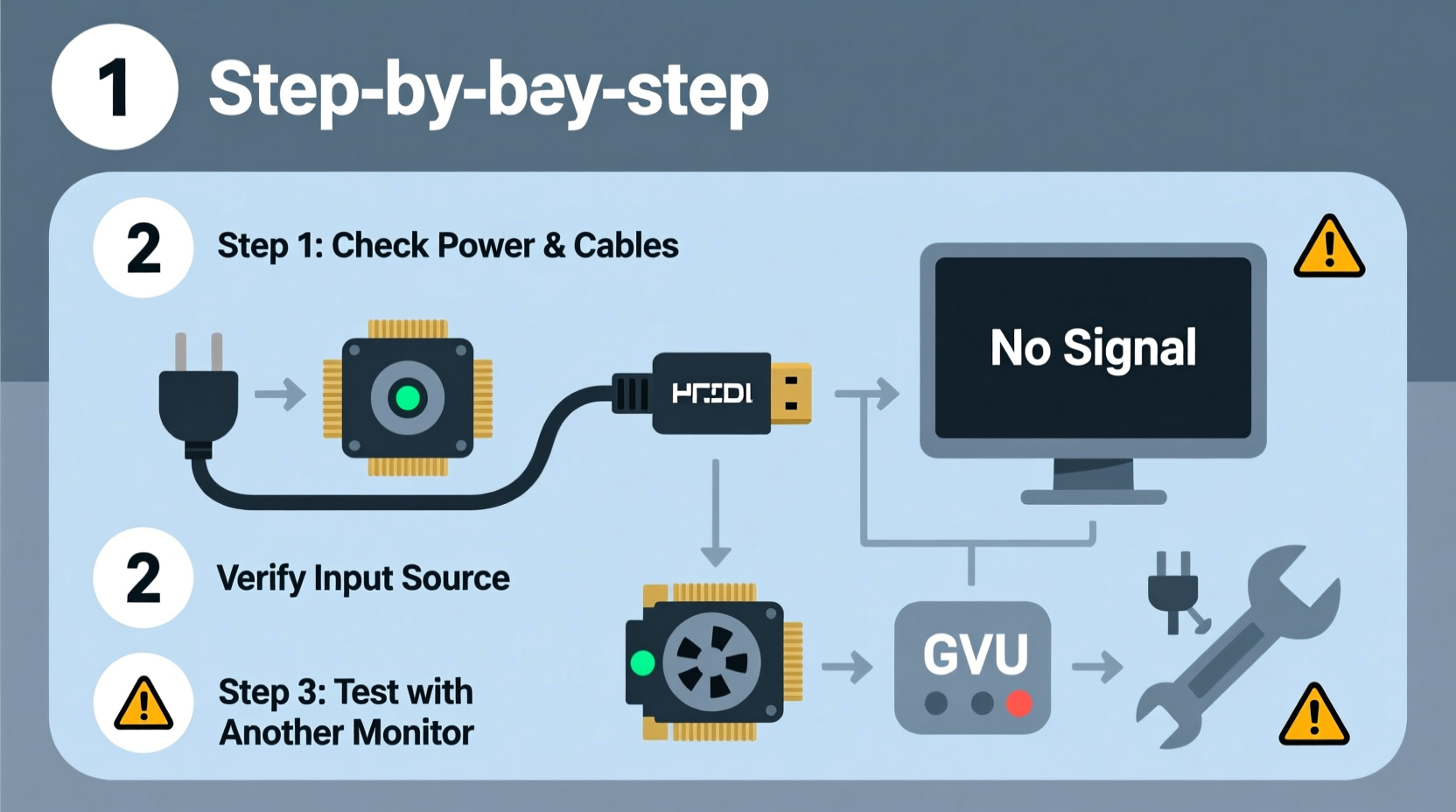
The \"No Signal\" or \"No Input Detected\" warning means that your monitor is receiving power but isn’t getting a video signal from your PC. Your computer might be running normally, but if the display isn’t receiving data, the screen remains blank. This disconnect doesn’t necessarily mean your PC is broken; it simply indicates that the video output path has been interrupted somewhere along the line.
Common causes include:
- Loose or damaged video cables (HDMI, DisplayPort, DVI, VGA)
- Incorrect input source selected on the monitor
- Graphics card issues (dedicated or integrated)
- Monitor settings or firmware glitches
- BIOS/UEFI or motherboard problems
- Power supply or RAM failures affecting boot process
Before jumping to conclusions about hardware failure, methodically eliminate the simplest possibilities first.
Step-by-Step Troubleshooting Process
Follow this logical sequence to isolate and resolve the issue without unnecessary replacements or technician visits.
- Verify Power Status: Confirm both the PC tower and monitor are truly powered on. Check for LED indicators on both devices. A blinking or off monitor light usually confirms lack of signal, while a solid white or blue light often means power is received but no input is detected.
- Check Monitor Input Source: Use the monitor’s physical buttons to open the on-screen menu and ensure the correct input (e.g., HDMI 1, DisplayPort) is selected. It’s easy to accidentally switch inputs, especially on multi-device setups.
- Inspect Video Cables: Examine the cable connecting your PC to the monitor. Look for bent pins, fraying, or loose connections. Reseat both ends firmly into the GPU (or motherboard for integrated graphics) and the monitor port.
- Test with Another Cable: Swap in a known-working cable of the same type. Even if a cable looks fine, internal damage can prevent signal transmission.
- Try a Different Port: If your GPU or motherboard has multiple video outputs, connect the monitor to another port. This helps determine if one output is faulty.
- Connect Monitor to Another Device: Plug the monitor into a laptop, game console, or another PC. If it works, the issue lies with your original PC—not the monitor.
- Test PC with Another Monitor: Connect your PC to a different display. If the second monitor works, your original monitor may be defective.
Hardware and System-Level Diagnostics
If basic checks don’t resolve the issue, move to deeper diagnostics involving internal components.
Check Graphics Card (GPU)
A failing or improperly seated GPU is a common culprit. For desktops with dedicated graphics:
- Open the case and ensure the GPU is fully inserted into the PCIe slot.
- Verify that the power connectors (6-pin or 8-pin) from the PSU are securely attached.
- Clean dust from the card and slot using compressed air.
- Reseat the GPU: Remove it completely and reinsert it firmly.
- If possible, test with a known-good GPU.
If your motherboard supports integrated graphics, remove the dedicated GPU and plug the monitor into the motherboard’s video output (HDMI/VGA). If the display works, the dedicated GPU is likely the issue.
RAM and Boot Issues
Improperly seated or failing RAM can prevent your PC from booting properly, halting before video initialization. Symptoms include fans spinning but no display output.
- Power off and unplug the PC.
- Open the case and locate the RAM sticks.
- Remove them, clean the gold contacts with a soft eraser, and reseat firmly until the clips snap into place.
- Try booting with one stick at a time, testing each individually.
“Many ‘no signal’ issues stem from RAM not being fully engaged in the slot. A slight gap can disrupt POST and prevent video handshake.” — Daniel Reyes, Senior PC Technician, TechFix Labs
Listen for Beep Codes
Some motherboards emit beep codes during startup (POST) to indicate hardware problems. No beeps at all may suggest a critical failure (power, CPU, or motherboard), while specific patterns can point to RAM or GPU errors. Consult your motherboard manual for beep code meanings.
Reset CMOS/BIOS
Corrupted BIOS settings can disable onboard graphics or misconfigure display output. Resetting CMOS can restore default settings:
- Turn off and unplug the PC.
- Locate the CMOS battery (a coin-cell on the motherboard).
- Remove it for 5–10 minutes, then reinsert.
- Alternatively, use the CLR_CMOS jumper if available.
After resetting, reconnect and power on. The system should reinitialize hardware correctly.
Troubleshooting Checklist
Use this concise checklist to methodically verify each potential cause:
- ✅ Monitor power light is on
- ✅ Correct input source selected (HDMI, DP, etc.)
- ✅ Video cable securely connected at both ends
- ✅ Try a different video cable
- ✅ Test monitor on another device
- ✅ Test PC with another monitor
- ✅ Reseat GPU and check power cables
- ✅ Reseat RAM modules
- ✅ Boot using integrated graphics (if available)
- ✅ Listen for POST beeps
- ✅ Reset CMOS/BIOS
- ✅ Test with minimal hardware (only CPU, one RAM stick, GPU)
Common Scenarios and Real Examples
Case Study: Office Worker Facing Daily Startup Issues
Sarah, a remote project manager, started experiencing “No Signal” messages every morning. Her PC powered on—fans spun, lights blinked—but her monitor stayed black. She’d reboot multiple times before it worked.
She followed the cable and input checks, which ruled out simple connection issues. After testing with a spare HDMI cable and confirming the monitor worked with her laptop, she suspected her PC. Opening the case, she noticed her GPU was slightly loose. After reseating it and securing the power cables, the problem disappeared. The vibration from daily desk movement had gradually dislodged the card.
This highlights how physical stability inside the case matters—even minor shifts can break critical connections.
Case Study: Student’s Gaming Rig Failure After Upgrade
Mark upgraded his RAM and GPU but got no display afterward. He assumed he’d damaged something. However, after double-checking, he realized he hadn’t plugged the 8-pin power connector into the new GPU. Once connected, the system booted normally. This is a common oversight during DIY upgrades.
Do’s and Don’ts Table
| Do’s | Don’ts |
|---|---|
| Always power down before adjusting internal hardware | Never force a component into a slot |
| Use compressed air to clean ports and cards | Don’t ignore POST beeps—they’re diagnostic tools |
| Test components individually when possible | Don’t assume the monitor is faulty without testing it elsewhere |
| Keep spare cables for quick swaps | Don’t skip checking input source settings |
| Document changes made during troubleshooting | Don’t panic and replace parts prematurely |
Frequently Asked Questions
Can a faulty power supply cause no signal?
Yes. If the PSU isn’t delivering stable power to the GPU or motherboard, the system may appear to turn on (fans spinning) but fail to initialize video output. A weak or failing PSU can also cause intermittent shutdowns or prevent proper POST.
Why does my monitor show \"No Signal\" but my PC is running?
This usually means your PC is booting, but the video signal isn’t reaching the monitor. Possible reasons include disconnected cables, incorrect input selection, GPU failure, or BIOS settings that disable primary display output. If you hear Windows login sounds or disk activity, the PC is likely running—just not sending video.
Does a BIOS update fix no signal issues?
Sometimes. If the issue stems from a compatibility bug with new hardware (like a CPU or GPU), a BIOS update can resolve it. However, updating BIOS requires a working display, so this is only viable if you can temporarily borrow a compatible GPU or use integrated graphics.
When to Seek Professional Help
If you’ve completed all the steps above and still see no signal, the problem may involve deeper hardware failure:
- Dead GPU: No response even after reseating and testing in another system.
- Failed motherboard: No POST, no beeps, or no power delivery to key components.
- Defective CPU: Rare, but possible if the processor isn’t initializing the boot process.
In such cases, professional diagnostics with specialized tools (like POST testers or known-good donor parts) are necessary. Consider visiting a certified repair center or contacting the manufacturer if under warranty.
Final Thoughts and Prevention Tips
Most \"No Signal\" issues are solvable with patience and systematic testing. The key is to start simple—cables and inputs—before moving to internal components. Many problems arise from loose connections or overlooked settings rather than catastrophic failures.
To prevent future occurrences:
- Secure cables with ties or clips to avoid accidental disconnection.
- Label inputs if using multiple devices.
- Keep your system clean and well-ventilated to avoid overheating-related shutdowns.
- Update drivers and BIOS periodically, especially after hardware changes.




 浙公网安备
33010002000092号
浙公网安备
33010002000092号 浙B2-20120091-4
Comments
No comments yet. Why don't you start the discussion?