
Seeing a blank screen with the message “No Signal” can be frustrating, especially when you're certain the HDMI cable is securely connected. This issue affects desktop users, gamers, office workers, and home theater enthusiasts alike. While it may appear to be a hardware failure, most cases stem from simple misconfigurations, faulty connections, or overlooked settings. Understanding the root causes and knowing how to systematically troubleshoot them can save time, money, and unnecessary equipment replacements.
The HDMI connection is designed to deliver high-definition audio and video between devices like computers, laptops, gaming consoles, and monitors or TVs. When the signal path breaks—due to hardware, software, or configuration issues—the receiving display defaults to a “No Signal” warning. The good news? Most of these problems are fixable without technical expertise.
Common Causes of the “No Signal” Message
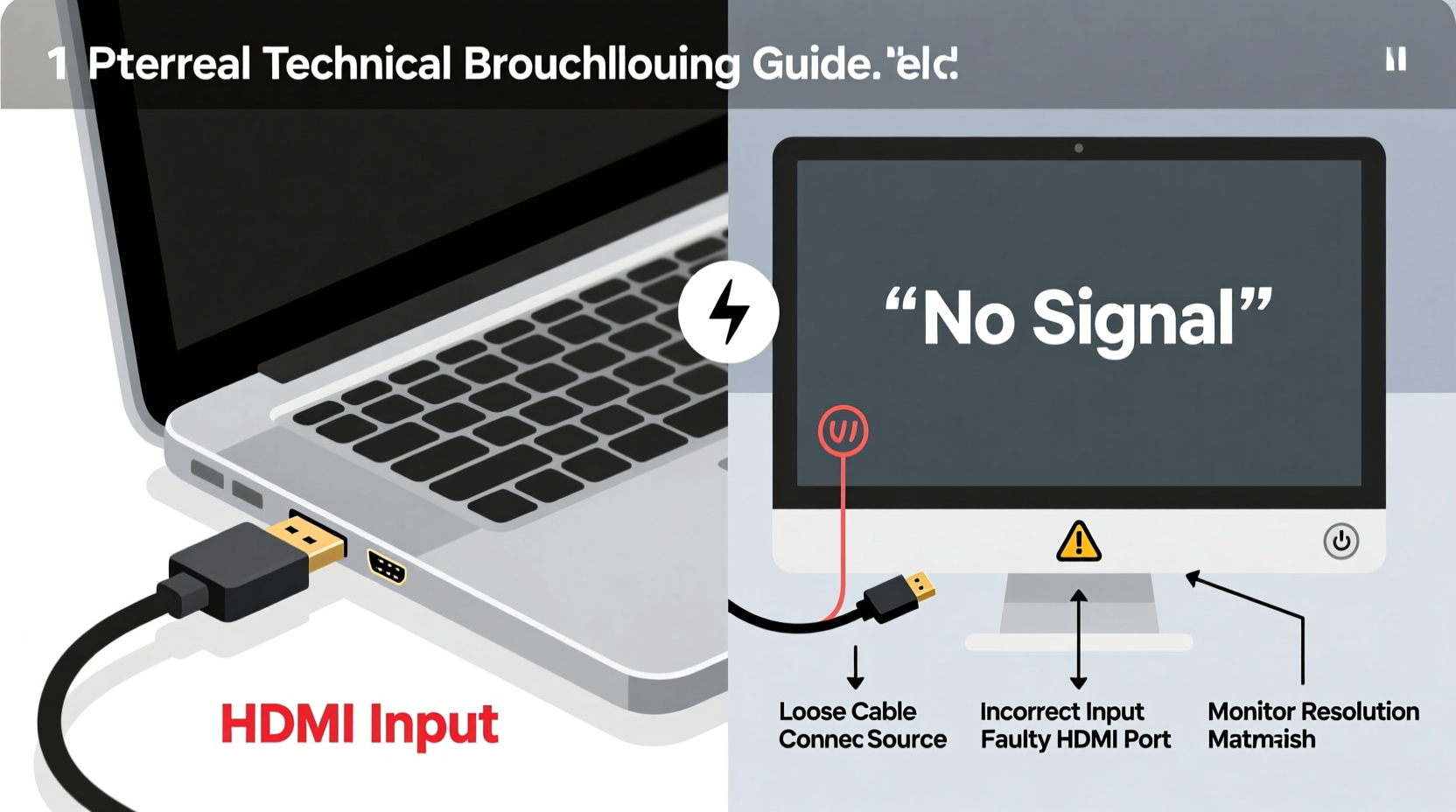
The “No Signal” error doesn’t always point to a single cause. Instead, it’s a generic response from your monitor indicating it’s not receiving a proper input from the source device. Below are the most frequent culprits:
- Loose or damaged HDMI cable – A poor physical connection interrupts data flow.
- Incorrect input source selected – Monitors often support multiple inputs (HDMI 1, HDMI 2, DisplayPort, etc.), and the wrong one may be active.
- Graphics driver issues – Outdated, corrupted, or missing drivers prevent the GPU from sending a signal.
- Disabled or undetected display – Your computer might not recognize the monitor due to power management or multi-display settings.
- Hardware failure – Faulty GPU, motherboard, HDMI port, or monitor can all interrupt the signal.
- Incompatible resolution or refresh rate – If the output exceeds the monitor’s supported specs, it won’t display anything.
- Power delivery issues – Some monitors require external power; others rely on USB-C or specific power modes that must be enabled.
Identifying which factor applies to your situation requires methodical testing—not guesswork.
Troubleshooting Steps to Restore the HDMI Signal
Follow this step-by-step guide to diagnose and resolve the issue efficiently. Start with the simplest checks before moving to advanced diagnostics.
- Check the physical connection
Ensure both ends of the HDMI cable are fully inserted into the source device (PC, laptop, console) and the monitor. Unplug and reseat them firmly. Try wiggling the cable gently—if the screen flickers, the cable or port may be damaged. - Verify the monitor’s input source
Use the monitor’s menu buttons (usually located on the bottom or side) to open the on-screen display (OSD). Navigate to the input/source selection and confirm it’s set to the correct HDMI port (e.g., HDMI 1 or HDMI 2). Many users overlook this setting after switching devices. - Test with another HDMI cable
Cables degrade over time. Use a known-working HDMI cable to rule out cable failure. If possible, try a shorter, certified High-Speed HDMI cable for better reliability. - Try a different HDMI port
If your monitor has multiple HDMI inputs, switch to another one and update the input source accordingly. Similarly, if your PC has more than one HDMI output (e.g., on the motherboard and GPU), test both. - Connect the monitor to another device
Plug the monitor into a different source—like a laptop, game console, or streaming box. If it works, the problem lies with your original device. If not, the monitor or cable is likely at fault. - Restart both devices
Power off the monitor and source device completely. Unplug them from power for 30 seconds, then reconnect and power them back on. This resets internal electronics and can clear temporary handshake failures. - Boot into Safe Mode (Windows)
If your PC powers on but shows no signal, try booting into Safe Mode. Restart the PC and press F8 or Shift + F8 during startup. If the display works in Safe Mode, a driver or software conflict is likely causing the issue. - Update or reinstall graphics drivers
Boot from another monitor or use remote access tools if available. Open Device Manager, locate your display adapter, and update the driver. Alternatively, download the latest driver from NVIDIA, AMD, or Intel’s website and perform a clean install.
Do’s and Don’ts When Fixing HDMI No Signal Issues
| Do’s | Don’ts |
|---|---|
| Use certified HDMI cables rated for your resolution (e.g., HDMI 2.0 for 4K@60Hz). | Don’t force a bent HDMI plug into a port—it can damage internal pins. |
| Label HDMI ports and cables if using multiple displays. | Don’t assume a working cable is always good—intermittent faults are common. |
| Keep firmware updated on monitors, GPUs, and motherboards. | Don’t ignore BIOS/UEFI settings—some systems disable onboard graphics when a GPU is installed. |
| Test components individually to isolate the faulty part. | Don’t skip power cycling—many HDMI handshake errors resolve after a full reset. |
Real-World Example: A Home Office Setup Failure
Consider Sarah, a freelance designer who uses a dual-monitor setup. One morning, her secondary monitor displayed “No Signal” despite being plugged in. She verified the HDMI cable was secure and even swapped cables, but the issue persisted. After checking input settings (set correctly to HDMI 2), she connected the monitor to her laptop—success. That ruled out the monitor and cable.
She then realized her primary PC had recently received a Windows update. Booting into Safe Mode allowed her to see the display. Using Device Manager, she uninstalled the NVIDIA graphics driver and reinstalled the latest version from the official site. Upon reboot, both monitors worked perfectly. The root cause? A corrupted driver installation triggered by an automatic update.
This case illustrates how software issues can mimic hardware failures—and why systematic isolation matters.
Expert Insight: What Professionals Look For
“Over 60% of ‘No Signal’ cases I see in technical support are resolved by checking the input source or replacing a $10 cable. People jump to worst-case scenarios too quickly. Always start with the physical layer—cables, ports, and power.” — Mark Tran, Senior Hardware Technician at PC Resolve Labs
Tran emphasizes that technicians follow the OSI model’s bottom-up approach: begin with Layer 1 (physical) before moving to software and configuration layers. This prevents wasted time and ensures accurate diagnosis.
When Hardware Might Be the Culprit
If all troubleshooting steps fail, consider hardware failure. Here’s how to assess each component:
- GPU (Graphics Processing Unit): If no display appears on any monitor connected via the GPU, but onboard graphics work, the GPU may be dead. Listen for beep codes during boot—some motherboards signal GPU failure with specific patterns.
- Monitor HDMI board: Internal circuitry within the monitor can fail. If the monitor works with DisplayPort or VGA but not HDMI, the HDMI receiver chip may be damaged.
- Port damage: Inspect the HDMI port on both devices. Bent or broken pins indicate physical damage requiring repair or replacement.
- Power supply issues: Some monitors draw power through USB-C or specific AC adapters. Ensure the power source delivers adequate voltage.
For desktop users, removing the GPU and using integrated graphics (if available) can help determine if the discrete GPU is the issue. Laptops with hybrid graphics may need a reset via a hard shutdown sequence (hold power for 60 seconds).
Preventive Checklist for Reliable HDMI Connections
- ✅ Confirm HDMI cable is securely seated at both ends.
- ✅ Select correct input source on the monitor.
- ✅ Test with a different HDMI cable or port.
- ✅ Verify the source device is powered on and not in sleep mode.
- ✅ Update graphics drivers and system firmware.
- ✅ Restart both devices after making changes.
- ✅ Test monitor with another device to isolate faults.
Frequently Asked Questions
Can a bad HDMI cable cause “No Signal”?
Yes. Even if the cable looks intact, internal wire breaks or shielding damage can disrupt the digital signal. HDMI either works perfectly or fails completely—there’s no “partial” signal. A faulty cable is one of the most common causes.
Why does my monitor detect HDMI but show no signal?
This typically means the monitor sees the cable is connected but isn’t receiving valid video data. Possible reasons include incorrect resolution settings, disabled display in OS, GPU not outputting signal, or driver issues. Try pressing Win + P (Windows) to cycle projection modes or restart the PC while the monitor is connected.
Does refreshing the HDMI connection help?
Yes. Unplugging and replugging the HDMI cable forces a renegotiation of the EDID (Extended Display Identification Data), which tells the source device what resolutions the monitor supports. This handshake reset can resolve compatibility glitches, especially after firmware updates or driver changes.
Conclusion: Take Control of Your Display Setup
The “No Signal” message is rarely a death sentence for your monitor or computer. In most cases, it’s a solvable issue rooted in connectivity, configuration, or software. By applying structured troubleshooting—starting with cables and input settings, then progressing to drivers and hardware—you can restore your display without professional help.
Remember: patience and logic beat panic every time. Keep spare cables on hand, label your setups, and stay updated on driver releases. A few minutes of careful testing today can prevent hours of frustration tomorrow.




 浙公网安备
33010002000092号
浙公网安备
33010002000092号 浙B2-20120091-4
Comments
No comments yet. Why don't you start the discussion?