
Screen flickering while gaming is more than just a visual annoyance—it can break immersion, cause eye strain, and even impact performance. Unlike occasional glitches, persistent flickering during gameplay often points to underlying hardware, software, or configuration issues. The good news? Most causes are diagnosable and fixable without replacing your entire setup. This guide walks you through the root causes of monitor flickering during gaming, step-by-step solutions, and expert-backed strategies to restore a stable, flicker-free experience.
Understanding Monitor Flicker in Gaming Contexts
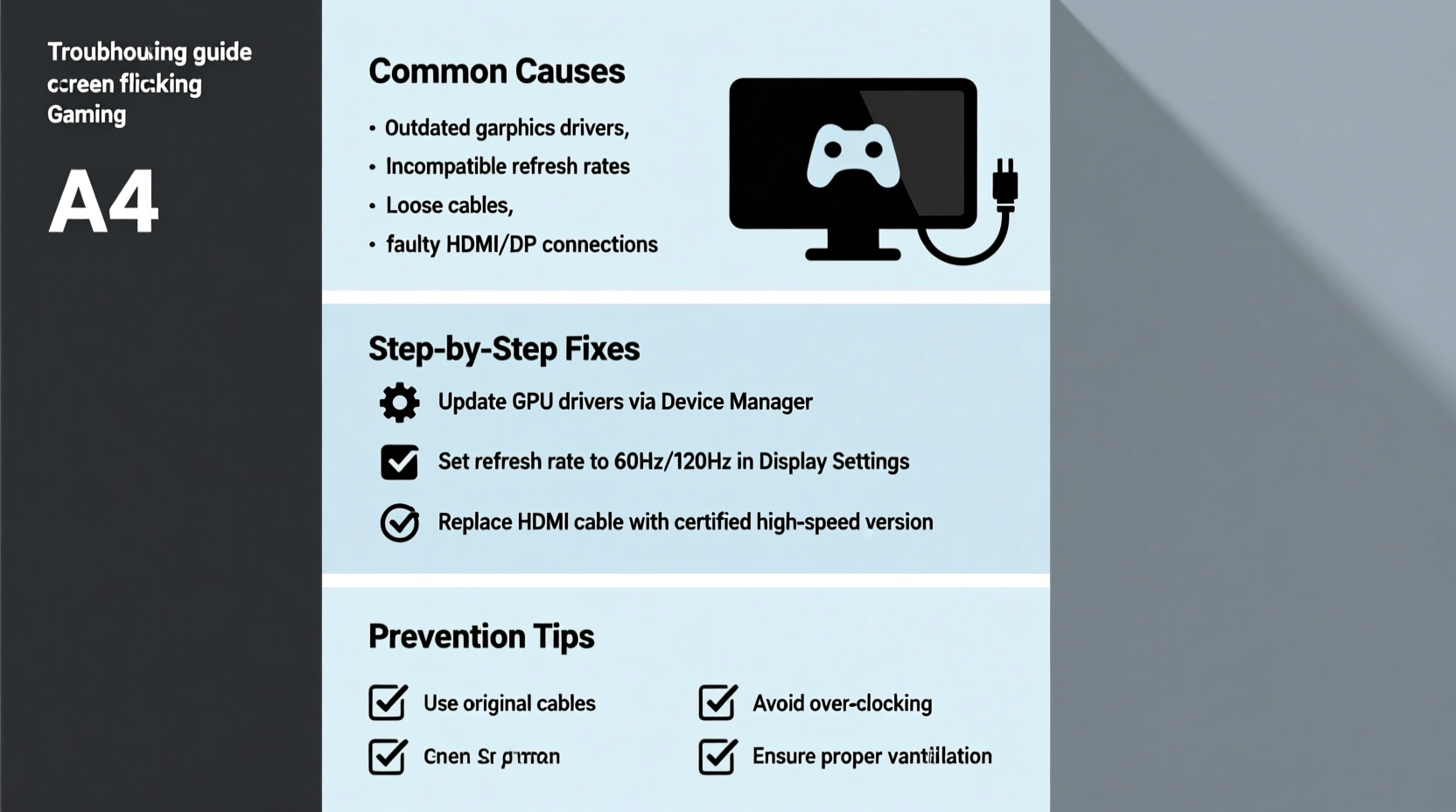
Flickering during gaming differs from general screen instability. It typically occurs under high GPU load, when frame rates fluctuate, or during scene transitions. Unlike static desktop flickering—which may stem from power issues—gaming-related flicker is usually tied to dynamic rendering demands. Common manifestations include:
- Intermittent brightness pulses resembling strobing
- Horizontal lines or \"tearing\" that flash across the screen
- Sudden blackouts lasting milliseconds
- Color distortion flashes during intense scenes
These symptoms suggest a mismatch between your graphics output and display response. The issue isn’t always the monitor itself; it could be the GPU, drivers, cables, or game settings overwhelming your system’s synchronization capabilities.
“Flickering under load often indicates a failure in signal consistency. The moment the GPU pushes beyond its stable output range, timing errors cascade into visible artifacts.” — Dr. Alan Zhou, Display Systems Engineer at VisionTest Labs
Common Causes of Game-Induced Screen Flickering
Before diving into fixes, identify what might be triggering the flicker. Below are the most frequent culprits ranked by prevalence:
1. Refresh Rate and V-Sync Mismatch
When your GPU outputs frames faster or slower than your monitor’s refresh rate (e.g., 60Hz), unsynchronized rendering causes screen tearing and flicker. If V-Sync is disabled or unstable, this effect worsens during fast-paced gameplay.
2. Outdated or Corrupted Graphics Drivers
Drivers act as translators between your OS, GPU, and monitor. Buggy or outdated versions may fail to manage dynamic frame pacing correctly, especially in newer games using advanced rendering techniques like DirectX 12 or Vulkan.
3. Faulty or Low-Quality Cables
HDMI and DisplayPort cables degrade over time. A frayed cable or one not rated for high bandwidth (e.g., HDMI 2.0 vs. 2.1) can’t sustain stable signals during peak GPU usage, leading to intermittent dropouts.
4. Overclocked Hardware Instability
Overclocked GPUs or monitors may exceed their thermal or electrical tolerances under gaming loads. This instability disrupts signal transmission, causing flickering only when the system is stressed.
5. Incompatible Game Settings or Resolution Scaling
Some games apply aggressive resolution scaling or dynamic resolution features that force rapid changes in output resolution. If your monitor doesn’t handle these transitions smoothly, flickering results.
6. Power Supply or Voltage Fluctuations
An underpowered or aging PSU may struggle to deliver consistent voltage to the GPU during high-load scenes. This can cause micro-stutters and visual artifacts mistaken for screen flicker.
Step-by-Step Troubleshooting Guide
Follow this logical sequence to isolate and resolve the source of flickering. Start with software and settings before moving to hardware checks.
- Reproduce the Issue Consistently
Launch a game known to trigger flickering. Note when it occurs: during startup, cutscenes, combat, or menu navigation. - Update Graphics Drivers
Visit your GPU manufacturer’s website (NVIDIA, AMD, or Intel) and download the latest WHQL-certified driver. Avoid beta versions unless necessary. Use clean install options to remove residual configurations. - Adjust In-Game Sync Settings
Enable V-Sync in the game settings. If already enabled, try disabling it and enabling G-Sync (NVIDIA) or FreeSync (AMD) if your monitor supports it. These adaptive sync technologies reduce flicker by dynamically matching refresh rates. - Verify Cable Connections
Unplug and reconnect both ends of your video cable. Replace HDMI with DisplayPort if possible—DisplayPort offers better bandwidth and reliability for high-refresh gaming. - Check Monitor Refresh Rate
Right-click desktop → Display Settings → Advanced Display → Refresh Rate. Ensure it’s set to the highest supported value (e.g., 144Hz). A drop to 60Hz during gameplay suggests driver or cable limitations. - Disable Overclocks
Reset GPU and monitor overclocks to default. Use tools like MSI Afterburner to revert settings. Re-test gameplay stability. - Test on Another System
Connect your monitor to a different PC or laptop. If flickering persists, the issue lies with the monitor or cable. If not, focus on your original system’s GPU or drivers. - Monitor Temperatures
Use HWInfo or GPU-Z to track GPU temperature and clock speeds during gameplay. Thermal throttling or voltage drops can destabilize output signals.
Hardware and Configuration Checklist
Use this checklist to systematically eliminate potential causes:
| Action | Status (✓/✗) | Notes |
|---|---|---|
| Graphics drivers updated to latest version | Download from official site, use clean install | |
| V-Sync or adaptive sync enabled | Prefer G-Sync/FreeSync over basic V-Sync | |
| Using high-quality DisplayPort or HDMI 2.1 cable | Avoid long or bent cables | |
| Monitor refresh rate set correctly in OS | Confirm via Display Settings > Advanced | |
| GPU and monitor overclocks disabled | Reset to factory defaults | |
| Tested monitor on another device | Determines if issue is monitor-specific | |
| PSU delivering stable power (check wattage rating) | Ensure PSU meets GPU requirements |
Real-World Example: Resolving Persistent Flicker on a High-End Rig
Consider Mark, a competitive gamer using an NVIDIA RTX 4070, 144Hz monitor, and a six-month-old DisplayPort cable. He experienced flickering exclusively in fast-paced shooters like *Apex Legends*. Initial attempts—updating Windows and tweaking in-game settings—failed.
He followed the troubleshooting steps above. Driver updates didn’t help. However, switching from HDMI to DisplayPort immediately reduced flickering. Further investigation revealed his monitor was defaulting to 60Hz in some games due to incorrect EDID detection. After resetting the monitor’s input profile and updating its firmware via the manufacturer’s utility, the flickering stopped completely.
This case underscores two key points: connection type matters, and monitor firmware is often overlooked. Even high-end setups can suffer from simple misconfigurations.
Do’s and Don’ts: Quick Reference Table
| Do’s | Don’ts |
|---|---|
| Use DisplayPort for gaming whenever possible | Use cheap or damaged cables |
| Enable G-Sync or FreeSync if supported | Run games with mismatched refresh rates |
| Keep GPU drivers up to date | Ignore firmware updates for your monitor |
| Test with multiple games and applications | Assume the monitor is faulty without testing |
| Monitor system temperatures under load | Overclock hardware without stress-testing |
“Many users blame their monitor when the real culprit is a failing cable or outdated firmware. Always test components in isolation.” — Lena Patel, Senior Tech Support Lead at ScreenCare Solutions
Frequently Asked Questions
Is screen flickering dangerous to my eyes or monitor?
Occasional flickering isn’t harmful, but prolonged exposure can cause eye fatigue, headaches, or discomfort. While it won’t damage your monitor immediately, chronic signal instability may shorten its lifespan due to constant re-synchronization stress.
Why does flickering happen only in certain games?
Games vary in rendering techniques, frame pacing, and resolution scaling. Titles using dynamic resolution or unlocked frame rates may exceed your monitor’s sync range, causing flicker. Also, poorly optimized games may send inconsistent signals to the GPU, disrupting output stability.
Can I fix flickering without buying new hardware?
In most cases, yes. Over 70% of flickering issues stem from software settings, outdated drivers, or suboptimal cables—all fixable without replacement. Only consider new hardware if diagnostics confirm a faulty GPU, monitor panel, or incompatible interface.
Final Steps and Long-Term Prevention
Once flickering stops, take preventive measures to avoid recurrence:
- Schedule monthly driver updates using GeForce Experience, AMD Software, or Intel Arc Control.
- Label your high-performance cables to ensure you always use the right one for gaming.
- Monitor system health with lightweight tools like MSI Afterburner overlay to catch thermal or voltage issues early.
- Disable dynamic resolution in games unless absolutely necessary for performance.
Additionally, consider enabling “Fullscreen Exclusive” mode in games instead of borderless windowed. Exclusive fullscreen reduces compositor interference from Windows, improving signal stability.
Conclusion: Take Control of Your Gaming Experience
Monitor flickering during gameplay isn’t something you should tolerate. With methodical troubleshooting, most issues can be resolved in under an hour. The key is approaching the problem systematically—starting with software and working toward hardware—while leveraging tools and insights from display experts. Whether you’re a casual player or a competitive gamer, a stable, flicker-free screen enhances both performance and enjoyment.




 浙公网安备
33010002000092号
浙公网安备
33010002000092号 浙B2-20120091-4
Comments
No comments yet. Why don't you start the discussion?