
If you’ve ever been typing a message or editing a document only to suddenly find your cursor darting across the screen—clicking where it shouldn’t, opening apps, or highlighting text—you’re not imagining things. This erratic behavior is more than just annoying; it disrupts productivity and can damage files if actions are executed unintentionally. The root cause? Often, it's touchpad interference.
Touchpad interference occurs when unintended contact with the touchpad triggers input signals that conflict with what your hands are actually doing on the keyboard. While modern laptops are designed to minimize this issue, it remains surprisingly common—especially on compact models where the touchpad sits close to the spacebar. Understanding why this happens and how to resolve it is essential for anyone who relies on their laptop daily.
Understanding Touchpad Interference: What Causes the Cursor to Jump?
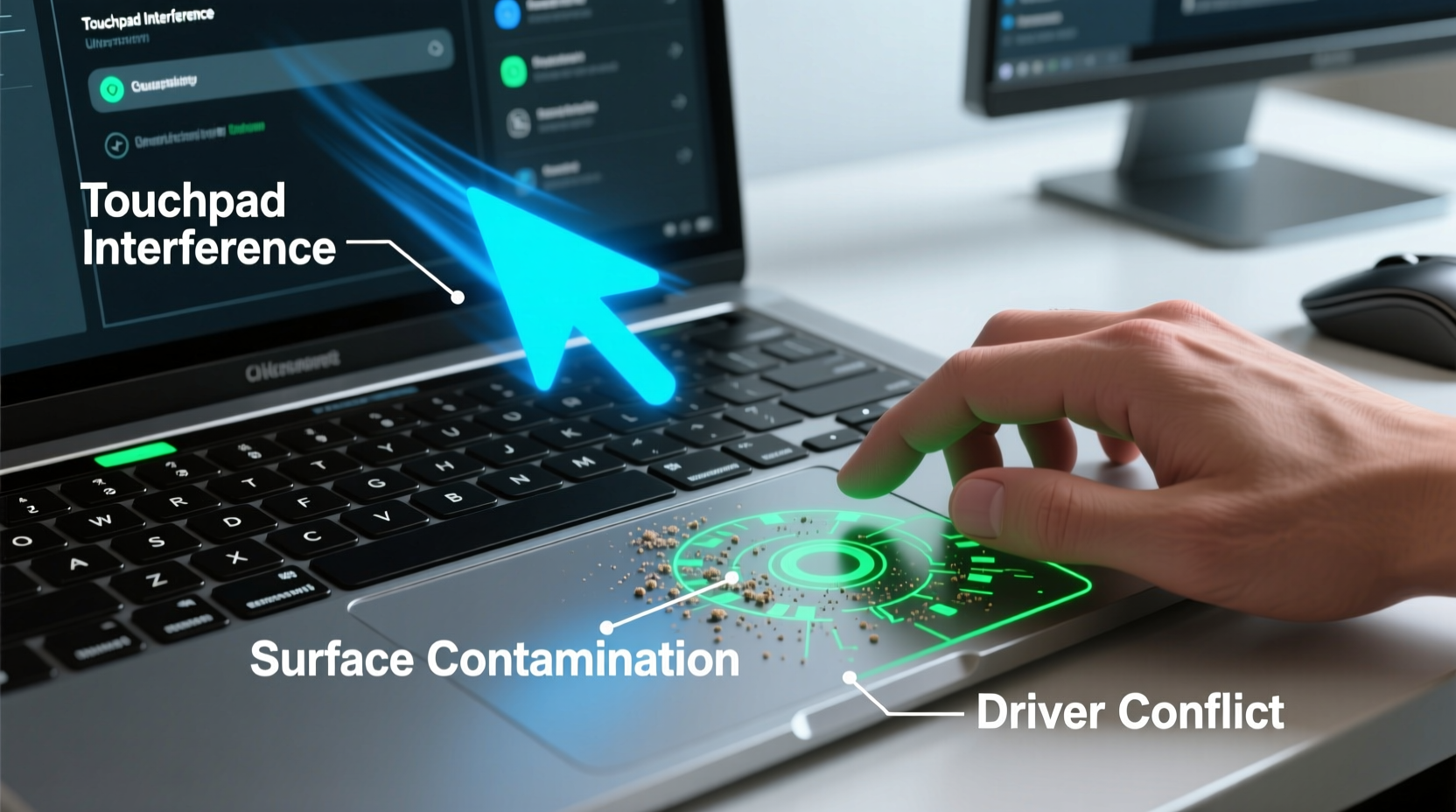
The primary reason your cursor jumps during typing is accidental palm contact with the touchpad. Most users rest their palms near the bottom edge of the keyboard while typing, and on many laptops, that area overlaps directly with the touchpad’s sensing zone. Even light brushing can register as movement, causing the pointer to jump or click unexpectedly.
Modern operating systems include features like “palm rejection” to mitigate this, but they aren’t foolproof. Factors such as sensitivity settings, driver performance, hardware quality, and user typing habits all influence how well these systems work.
Other causes of cursor jumping include:
- Electromagnetic interference (EMI): Nearby devices like phones, chargers, or poorly shielded electronics may interfere with the touchpad’s capacitive sensors.
- Driver issues: Outdated, corrupted, or incompatible touchpad drivers can misinterpret input signals.
- Firmware bugs: Some laptops ship with firmware that doesn’t properly manage idle states or gesture recognition.
- Damaged hardware: Physical wear or moisture exposure can create false touch signals.
- Software conflicts: Third-party mouse utilities or accessibility tools might override default behaviors.
Step-by-Step Guide to Fix Touchpad Interference
Resolving cursor jumping requires a methodical approach. Start with software adjustments before moving to hardware diagnostics.
- Enable Palm Rejection (if available): On Windows, go to Settings > Devices > Touchpad. Look for options labeled \"Ignore accidental touches\" or \"Palm detection.\" Enable them. On macOS, System Settings under Trackpad often includes smart tap and silent clicking options that reduce false inputs.
- Adjust Touchpad Sensitivity: High sensitivity increases false triggers. Lower the responsiveness in your OS settings:
- Windows: In Touchpad settings, adjust \"Touch sensitivity\" to 'Low' or 'Medium.'
- macOS: Reduce tracking speed slightly in Accessibility > Pointer Control.
- Update or Reinstall Drivers: Outdated Synaptics, ELAN, or Precision Touchpad drivers are frequent culprits.
- Press Win + X, select Device Manager.
- Expand \"Mice and other pointing devices.\"
- Right-click your touchpad device and choose \"Update driver.\"
- If no update is found, visit your laptop manufacturer’s support site and download the latest driver manually.
- Disable Touchpad While Typing: This feature prevents input during active keystrokes.
- In Windows, ensure \"Leave touchpad on when a mouse is connected\" is unchecked and look for \"Tap to click\" or \"Delay after typing\" settings.
- On some systems, install the manufacturer’s utility (e.g., Dell Touchpad Utility, Lenovo Vantage) to access advanced timing controls.
- Check for Electromagnetic Interference: Place your laptop away from power adapters, wireless chargers, or metal surfaces. Test the touchpad in a different room or environment to rule out EMI.
- Run Hardware Diagnostics: Many manufacturers include built-in diagnostic tools (e.g., HP Support Assistant, Dell Diagnostics). Use these to test touchpad functionality at the firmware level.
Do’s and Don’ts: Best Practices for Touchpad Management
| Do’s | Don’ts |
|---|---|
| Use keyboard shortcuts like Win + Ctrl + D for virtual desktops instead of relying on gestures. | Don’t place your wrist directly on the touchpad while typing—even slight pressure counts. |
| Keep your hands clean and dry; oily or damp skin increases conductivity and false touches. | Don’t ignore firmware updates; they often include touchpad stability fixes. |
| Consider an external mouse for long work sessions to eliminate reliance on the touchpad entirely. | Don’t use third-party touch enhancers unless absolutely necessary—they can destabilize native drivers. |
| Regularly restart your system to clear stuck processes affecting input services. | Don’t attempt DIY repairs on internal touchpad circuits without proper expertise. |
Real Example: A Remote Worker’s Struggle with Cursor Jumps
Sarah, a freelance copywriter based in Portland, began experiencing severe cursor issues six months into using her new ultrabook. During client calls, she’d be typing notes when suddenly the cursor would jump, highlight paragraphs, and sometimes trigger right-click menus mid-sentence. At first, she assumed it was user error—perhaps typing too fast. But after losing part of a draft due to an accidental deletion caused by a rogue click, she knew something was wrong.
She tested the laptop on battery vs. charger, ruled out external mice, and noticed the problem worsened when her phone was charging beside the laptop. After reading about electromagnetic interference, she moved her phone five inches away—and the jumping decreased significantly. She then updated her ELAN touchpad driver through the manufacturer’s portal and enabled “disable touchpad while typing” with a 0.5-second delay. Since then, she hasn't had a single incident.
Sarah’s case highlights how multiple factors—proximity interference, outdated drivers, and lack of behavioral settings—can combine to create persistent issues. Solving one piece wasn’t enough; addressing all three was key.
“Many users blame themselves for touchpad errors, but the real issue often lies in configuration gaps or overlooked environmental factors.” — Dr. Alan Zhou, Human-Computer Interaction Researcher at MIT Media Lab
Comprehensive Checklist to Prevent Cursor Jumping
Use this checklist regularly to maintain smooth touchpad operation:
- ✅ Ensure palm rejection is enabled in OS settings
- ✅ Set touchpad sensitivity to medium or low
- ✅ Turn on “disable touchpad while typing” with a short delay (0.3–0.7 seconds)
- ✅ Update touchpad drivers monthly or via automatic updates
- ✅ Keep the touchpad surface clean and free of grease or dust
- ✅ Avoid placing conductive objects (phones, keys, watches) near the touchpad
- ✅ Test with an external USB mouse to isolate hardware vs. software problems
- ✅ Disable unnecessary gestures (e.g., three-finger swipe) that may trigger accidentally
- ✅ Restart your laptop weekly to refresh input service processes
- ✅ Check for BIOS/firmware updates from your laptop manufacturer
Frequently Asked Questions
Can dirty hands really affect my touchpad?
Absolutely. Oils, sweat, and lotions increase skin conductivity, making the touchpad more likely to register partial or lingering touches. Wiping your hands before extended typing sessions—or cleaning the touchpad surface with a microfiber cloth—can reduce false inputs.
Why does my cursor jump even when I’m not touching the laptop?
This could indicate electrical noise or grounding issues. Try unplugging the charger and running on battery. If the problem stops, your power adapter may be introducing interference. Alternatively, faulty circuitry or moisture inside the touchpad assembly can cause phantom touches. In such cases, professional servicing is recommended.
Is there a way to completely disable the touchpad without a function key?
Yes. In Windows, go to Device Manager, locate the touchpad under \"Mice and other pointing devices,\" right-click, and select \"Disable device.\" You can re-enable it later. On macOS, there's no direct disable option, but connecting an external mouse often automatically disables the trackpad depending on settings.
Conclusion: Take Control of Your Cursor Experience
Cursor jumping isn’t just a minor annoyance—it’s a symptom of deeper interface friction between human behavior and machine design. With awareness and proactive maintenance, most touchpad interference issues are preventable. From adjusting simple settings to updating critical drivers and managing your workspace environment, each step brings you closer to seamless control.
Don’t accept erratic cursor behavior as normal. Modern computing should empower precision, not hinder it. Implement the strategies outlined here, revisit your settings periodically, and consider switching to an external mouse for intensive tasks. Small changes yield significant improvements in focus, accuracy, and overall digital comfort.




 浙公网安备
33010002000092号
浙公网安备
33010002000092号 浙B2-20120091-4
Comments
No comments yet. Why don't you start the discussion?