
Random PC freezes are among the most frustrating issues users face. One moment your system runs smoothly; the next, it’s completely unresponsive—mouse frozen, keyboard ignored, screen stuck. While occasional lag can be normal, persistent freezing signals a deeper issue. The real challenge lies in determining whether the root cause is hardware-related or software-driven. Misdiagnosing the problem can lead to wasted time, unnecessary upgrades, or unresolved instability. This guide breaks down the key differences between hardware and software triggers, offers structured diagnostic methods, and provides actionable solutions to restore reliability.
Understanding the Nature of PC Freezes
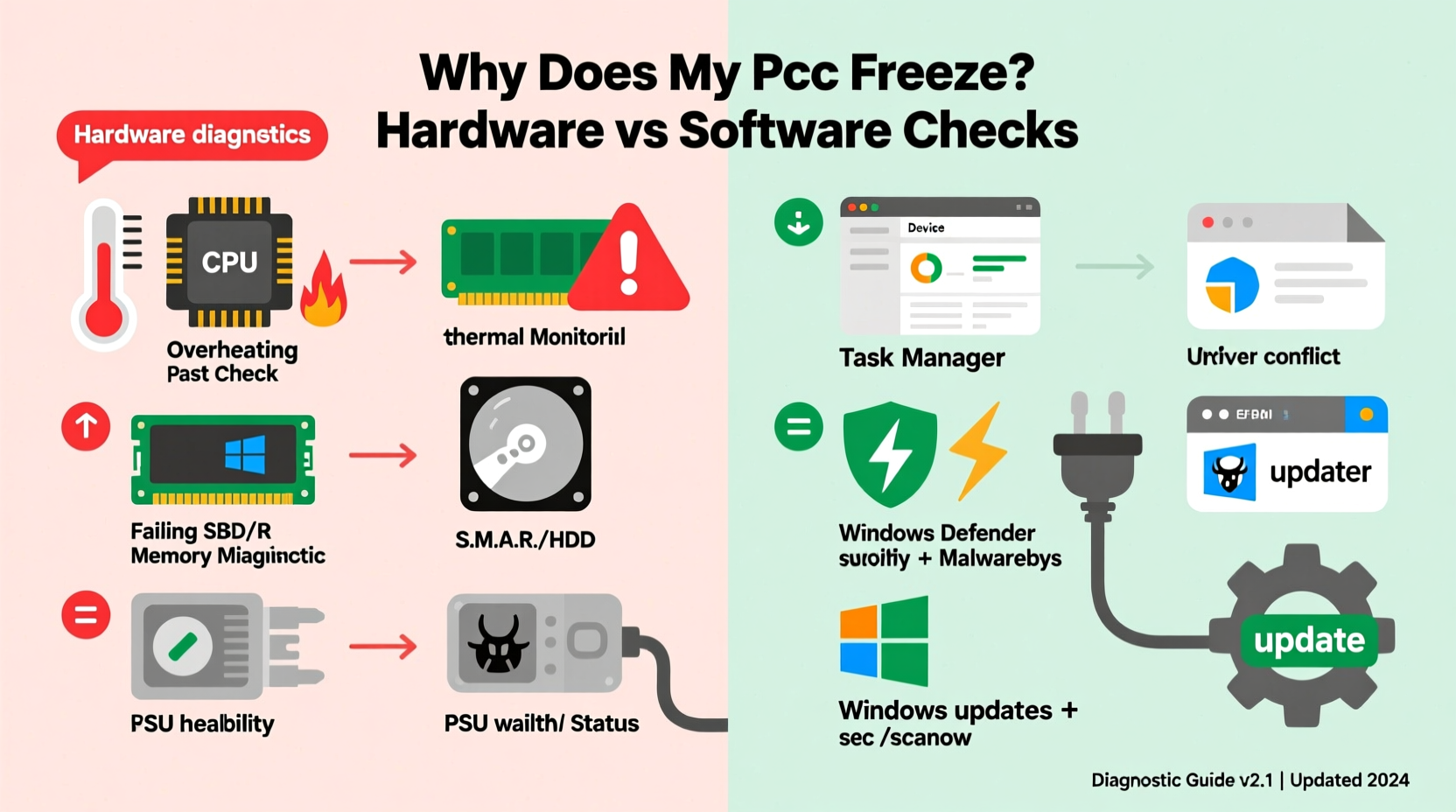
A system freeze occurs when the operating system stops responding to input, often accompanied by a black or grayed-out screen, spinning cursor, or complete lockup. Unlike crashes that result in a Blue Screen of Death (BSOD), freezes typically don’t generate error logs, making them harder to trace. However, the behavior during a freeze can offer critical clues:
- Sudden total lockup – No response from mouse, keyboard, or task manager.
- Screen artifacts or flickering – Visual glitches before freezing may point to GPU failure.
- Freezing under load – Occurs during gaming, video rendering, or multitasking.
- Freezing at idle – Happens even with minimal programs running.
- Recovery after restart – System works fine until the same trigger reappears.
These patterns help differentiate between hardware limitations and software conflicts. Hardware failures tend to worsen over time and correlate with system stress, while software issues often appear after updates, installations, or specific application use.
Common Software Causes of Random Freezing
Software-related freezes stem from conflicts within the operating system, drivers, or applications. These issues are often intermittent but reproducible under certain conditions.
Outdated or Corrupted Drivers
Graphics, chipset, and storage drivers play a crucial role in system stability. An outdated GPU driver might cause freezes during high-resolution gaming, while a faulty network driver could hang the system during large downloads.
Background Processes and Bloatware
Excessive startup programs, poorly coded utilities, or malware can consume CPU and RAM silently. Over time, this leads to resource exhaustion, causing the system to freeze unexpectedly.
Operating System Bugs
Windows updates, while essential, sometimes introduce compatibility issues. A recent patch might conflict with existing software or firmware settings, triggering instability.
Application Conflicts
Some programs, especially security suites or virtualization tools, run at deep system levels. If two such applications interfere, they can cause deadlocks—where processes wait indefinitely for resources—resulting in a full system freeze.
Malware and Cryptominers
Certain malware strains hijack system resources without displaying obvious signs. A cryptominer, for instance, can max out CPU usage in the background, leading to overheating and eventual freeze.
“Over 60% of ‘hardware’ complaints we see in repair shops turn out to be driver or OS-level software issues.” — David Lin, Senior Technician at CoreFix PC Repair
Hardware Issues That Trigger System Lockups
When hardware fails or operates beyond its limits, the entire system can become unstable. Unlike software problems, hardware-related freezes are often progressive and load-dependent.
Failing RAM (Memory)
Corrupted or defective RAM can cause data read/write errors. These manifest as random freezes, especially when accessing large files or running memory-intensive applications. In some cases, the system may freeze during boot.
Overheating Components
CPU and GPU temperatures above safe thresholds (typically >90°C) trigger thermal throttling or shutdowns. Dust-clogged fans, dried thermal paste, or poor airflow contribute to heat buildup. Systems may freeze under load and recover after cooling.
Failing Power Supply (PSU)
An aging or underpowered PSU may not deliver stable voltage. This causes sudden power drops to components, leading to immediate lockups. These freezes often occur during peak usage and may be accompanied by reboot loops.
Degraded Storage Drives
Mechanical hard drives with bad sectors or SSDs with worn NAND cells struggle to read/write data efficiently. When the OS waits indefinitely for disk I/O, the entire system appears frozen.
Loose or Faulty Connections
RAM not fully seated, GPU dislodged from PCIe slot, or loose SATA cables can create intermittent faults. These may cause freezes that seem random but are actually tied to physical movement or vibration.
Diagnostic Checklist: Is It Hardware or Software?
To determine the source of freezing, follow this systematic checklist. Start with software, as these fixes are non-invasive and often resolve the issue.
Software Diagnostic Steps
- Boot into Safe Mode and observe if freezes persist.
- Check Task Manager for abnormal CPU, RAM, or disk usage.
- Update all drivers, especially graphics and chipset.
- Run a full antivirus and anti-malware scan.
- Uninstall recently installed software or updates.
- Use Windows Memory Diagnostic or third-party tools like Malwarebytes and CCleaner.
Hardware Diagnostic Steps
- Monitor temperatures using HWMonitor or Core Temp.
- Run MemTest86 for at least one full pass to test RAM.
- Check S.M.A.R.T. status of your drive using CrystalDiskInfo.
- Inspect internal components for dust, damage, or loose connections.
- Test with a known-good power supply if possible.
- Reseat RAM and GPU modules.
| Symptom | More Likely Cause | Action |
|---|---|---|
| Freezes only during gaming/video editing | Hardware (GPU/CPU/PSU) | Check temps, update GPU drivers, test under load |
| Freezes after Windows update | Software | Roll back update, check for patches |
| System unresponsive, fan noise increases | Overheating | Clean fans, reapply thermal paste |
| Freezes at random times, no pattern | RAM or PSU | Run MemTest86, test with different PSU |
| Blue Screen appears before freeze | Driver or OS crash | Analyze minidump file with BlueScreenView |
Real-World Example: Diagnosing a Persistent Freeze Issue
Consider Mark, a graphic designer using a three-year-old desktop for Adobe Premiere Pro. His system began freezing during 4K timeline scrubbing. Initially, he assumed his aging HDD was the culprit and upgraded to an NVMe SSD. The freezes continued.
He then checked Task Manager and noticed GPU usage spiking to 99% with temperatures reaching 95°C. After cleaning the dust from his GPU heatsink and replacing dried thermal paste, the temperature dropped to 78°C under load—and the freezes stopped.
This case illustrates how a hardware symptom (overheating) was triggered by environmental neglect rather than component failure. A simple maintenance step resolved what seemed like a major system flaw.
Step-by-Step Troubleshooting Timeline
Follow this 7-day plan to methodically isolate the cause of random freezes:
- Day 1: Boot into Safe Mode. Use the system normally. If no freezes occur, the issue is likely software-related.
- Day 2: Run Windows Update and update all drivers via Device Manager or manufacturer website.
- Day 3: Perform a full malware scan using Malwarebytes and Windows Defender.
- Day 4: Monitor system temperatures during idle and load using HWMonitor.
- Day 5: Run MemTest86 overnight to test RAM integrity.
- Day 6: Check disk health using CrystalDiskInfo. Look for “Caution” or “Bad” S.M.A.R.T. status.
- Day 7: Open the case and inspect physical components—reseating RAM and GPU, checking cable connections, and cleaning dust.
If the system remains stable after Day 7, the issue was likely isolated. If freezing persists, consider professional diagnostics or component replacement.
Frequently Asked Questions
Can a virus cause my PC to freeze?
Yes. Some advanced malware consumes excessive CPU or memory, leading to system unresponsiveness. Cryptominers, in particular, run hidden processes that push hardware to its limits, often causing overheating and freezes.
Why does my PC freeze but not crash with a BSOD?
A freeze without a crash screen usually indicates a deadlock or hardware communication failure where the OS cannot generate an error log. This is common with failing storage devices or power delivery issues that prevent the system from writing crash dumps.
Is it safe to keep using a freezing PC?
Prolonged use of a freezing system risks data corruption, file loss, and further hardware degradation. For example, repeated disk timeouts can accelerate SSD wear. It’s best to diagnose and fix the issue promptly.
Conclusion: Take Control of Your System Stability
Random PC freezes don’t have to be a mystery. By understanding the distinctions between hardware and software triggers, you gain the power to diagnose and resolve issues efficiently. Most problems stem from manageable causes—outdated drivers, dust buildup, memory errors, or rogue software. With careful observation, systematic testing, and the right tools, you can restore smooth performance without costly replacements.




 浙公网安备
33010002000092号
浙公网安备
33010002000092号 浙B2-20120091-4
Comments
No comments yet. Why don't you start the discussion?