
Autocorrect is one of those features we both rely on and silently resent. It's meant to save time, prevent typos, and streamline communication. But too often, it transforms a simple message into something confusing, embarrassing, or outright nonsensical. You type “duck” intending to vent about your day, and suddenly you’re sending a message about birds. This isn’t just annoying—it undermines trust in your device. The good news: most autocorrect errors are fixable. Understanding why they happen is the first step toward reclaiming control over your typing experience.
Why Autocorrect Gets It Wrong So Often
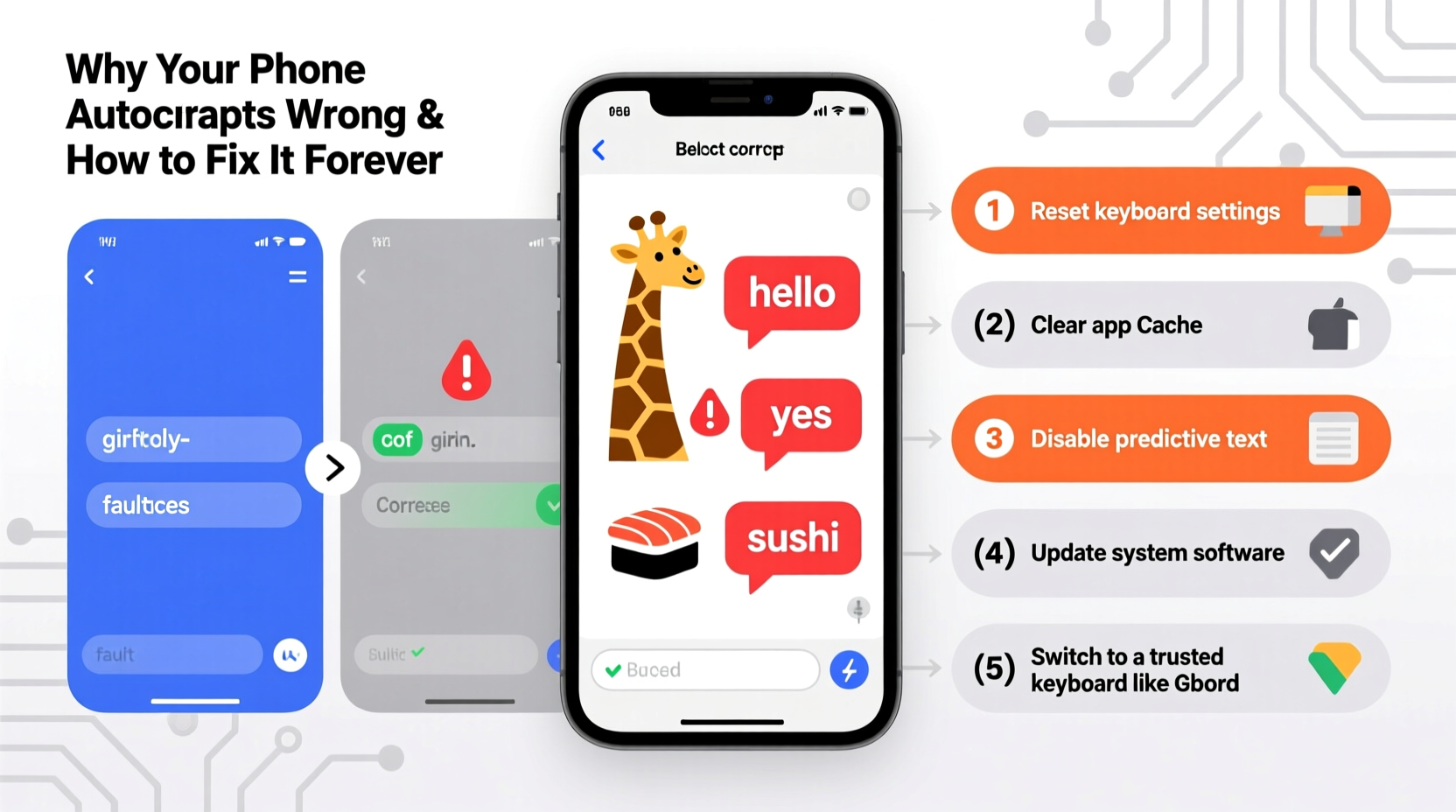
At its core, autocorrect uses predictive algorithms based on language models, user behavior, and learned vocabulary. While powerful, these systems aren’t perfect. They make assumptions based on patterns—not context. When you type quickly, use slang, or switch between formal and casual language, the system can misfire.
One major reason for persistent errors is that autocorrect learns from your habits—both correct and incorrect ones. If you accidentally accept a wrong suggestion enough times, the phone starts treating it as intentional. Over time, this creates a feedback loop where mistakes compound rather than improve.
Another issue lies in regional language variations. A British English speaker might type “colour,” only to have their American-configured phone change it to “color.” While not technically wrong, it’s unwanted—and repeated corrections train the system to ignore your preferences.
“Autocorrect works best when trained correctly, but most users never reset or recalibrate it after initial setup.” — Dr. Lena Park, Human-Computer Interaction Researcher at MIT
How Autocorrect Learns (and Unlearns) Your Habits
Your phone doesn’t just guess words—it builds a personal dictionary. Every time you type a new word or accept a correction, that data gets stored locally on your device. On iOS, this is managed through the keyboard’s dynamic model; on Android, Google’s Gboard uses cloud-synced learning combined with on-device processing.
This personalization is helpful when used properly. For example, if you frequently type “Dr. Alvarez,” the keyboard will eventually stop suggesting “dr. albatross.” But problems arise when:
- You tap a suggested word without reviewing it.
- You manually correct a word incorrectly (e.g., changing “their” to “there” when you meant “they’re”).
- The system misinterprets abbreviations or nicknames.
Once an error becomes part of your personal lexicon, the keyboard treats it as valid. That’s why some people end up with “omg” turning into “omelette” or “mom” becoming “mop”—the algorithm has been misled by repeated misuse.
Step-by-Step Guide to Resetting and Retraining Autocorrect
To fix autocorrect permanently, you need to reset its memory and rebuild it with accurate input. Follow these steps carefully—this process works across both iPhone and Android devices.
- Clear the keyboard dictionary: This removes all custom words and bad habits the system has learned.
- Disable predictive text temporarily: This prevents interference while you retrain the keyboard.
- Type deliberately for 48 hours: Use proper spelling and avoid shortcuts during this period.
- Re-enable predictions and monitor results: Let the system rebuild based on corrected usage.
- Add frequent terms manually: Include names, technical words, or common phrases to your personal dictionary.
On iPhone: Clear All Learned Data
Navigate to Settings > General > Transfer or Reset iPhone > Reset > Reset Keyboard Dictionary. Confirm the action. Note: This erases all custom words and previous corrections, so take a moment afterward to re-add essential contacts and terms.
On Android (Gboard): Manage Personal Dictionary
Open Settings > System > Languages & input > Virtual keyboard > Gboard > Text correction > Personal dictionary. Here, you can delete individual entries or clear all. To reset entirely, go to Manage apps > Gboard > Storage > Clear Data, then restart the app.
After resetting, spend a few days typing slowly and accurately. Avoid using slang unless you want it preserved. Over time, the keyboard adapts to your real writing style—not the corrupted version it previously assumed.
Common Settings That Worsen Autocorrect Errors
Many users unknowingly enable settings that increase the likelihood of incorrect corrections. These features may seem helpful but often cause more harm than good.
| Setting | What It Does | Recommended Action |
|---|---|---|
| Auto-capitalization | Automatically capitalizes first letters | Keep enabled unless it interferes with coding or usernames |
| Predictive Text (Quick Suggestions) | Shows word predictions above the keyboard | Disable temporarily during retraining; re-enable later |
| Auto-replace | Swaps typed text with predefined phrases (e.g., “omw” → “On my way!”) | Review and remove unwanted replacements |
| Grammar Correction | Changes sentence structure automatically | Turn off if you prefer full control over tone and phrasing |
| Spell Check Language | Determines which dictionary is used | Ensure it matches your primary language variant (e.g., UK vs US English) |
Misconfigured languages are especially problematic. If your phone uses U.S. English but you write in Australian English, expect constant corrections for words like “favourite” or “realise.” Double-check your language settings under keyboard preferences to ensure alignment with your actual usage.
Mini Case Study: How Sarah Fixed Her Persistent Autocorrect Fails
Sarah, a freelance writer from Manchester, found herself constantly embarrassed by her phone’s autocorrections. She’d type “I’ll send the draft later” only to see it changed to “I’ll lend the brat father.” Confused clients followed. She tried ignoring it, assuming it was unfixable. After researching, she realized her keyboard had learned incorrectly due to rushed typing and accidental accepts.
She followed the reset process: cleared her keyboard dictionary, disabled predictive text for three days, and typed each message slowly and accurately. She also added client names and industry jargon to her personal dictionary. Within a week, her autocorrect improved dramatically. More importantly, it stopped making absurd substitutions. Her productivity increased, and her messages finally reflected her intended tone.
Sarah’s experience shows that while autocorrect issues feel random, they’re usually rooted in specific, correctable behaviors. With deliberate effort, even long-standing problems can be resolved.
Checklist: Fix Autocorrect Forever
Use this checklist to systematically eliminate autocorrect errors:
- ✅ Back up important notes or messages before resetting.
- ✅ Clear your keyboard dictionary (iOS: Reset Keyboard Dictionary; Android: Clear Gboard data).
- ✅ Verify your preferred language is set correctly in keyboard settings.
- ✅ Disable predictive text and auto-replace temporarily.
- ✅ Manually add frequently used words, names, and technical terms.
- ✅ Type slowly and accurately for at least 48 hours post-reset.
- ✅ Re-enable predictions only after consistent accuracy is restored.
- ✅ Regularly review and clean your personal dictionary every few months.
Frequently Asked Questions
Can I turn off autocorrect completely?
Yes. On iPhone: Go to Settings > General > Keyboard and toggle off “Auto-Correction.” On Android: Open Gboard settings > Text correction and set “Auto-correction” strength to “Off.” However, disabling it entirely means losing helpful typo protection. A better approach is refining its behavior instead of removing it.
Why does autocorrect keep changing the same word repeatedly?
This usually happens because the system has learned an incorrect association. Either you accepted the wrong suggestion multiple times, or the word conflicts with a saved shortcut. Check your personal dictionary and replace or delete conflicting entries. Also, ensure the original word isn’t flagged as misspelled in your selected language pack.
Will resetting my keyboard delete my messages?
No. Resetting the keyboard dictionary only removes learned words and typing habits. It does not affect your messages, contacts, or any other personal data. Your conversation history remains intact.
Expert Tips for Long-Term Autocorrect Success
Maintaining accurate autocorrection requires ongoing attention. Think of it like training a smart assistant—it needs consistent feedback to perform well.
One overlooked strategy is periodic audits. Every two to three months, review your personal dictionary. Remove outdated nicknames, incorrect entries, or obsolete abbreviations. This keeps the prediction engine lean and relevant.
Also, consider switching to a third-party keyboard if built-in options continue to fail. Apps like Grammarly Keyboard or SwiftKey offer advanced customization, multi-language support, and clearer learning controls. SwiftKey, for instance, allows you to import writing samples to train the model on your natural voice.
Conclusion: Take Control of Your Typing Experience
Autocorrect doesn’t have to be a source of frustration. Behind every misplaced word is a solvable configuration issue or learned behavior. By understanding how the system works, resetting corrupted data, and actively guiding its learning process, you can transform autocorrect from a liability into a reliable tool.
The fix isn’t instant magic—it requires intention. But the payoff is clear: fewer misunderstandings, greater confidence in your messages, and no more explaining why you didn’t mean to call your boss “biscuit.” Start today. Reset your keyboard, retrain it with care, and enjoy a smoother, smarter typing experience for good.




 浙公网安备
33010002000092号
浙公网安备
33010002000092号 浙B2-20120091-4
Comments
No comments yet. Why don't you start the discussion?