
Autocorrect is one of those features we both rely on and love to hate. It's meant to make typing faster and more accurate, but all too often, it transforms a simple message into an embarrassing or confusing mess. You tap out \"I'll be there in five,\" only for your phone to change it to \"I'll be there in *fire*.\" What went wrong? And more importantly—can you actually fix it?
The truth is, autocorrect doesn’t malfunction randomly. It’s responding to patterns, inputs, and settings that may have drifted over time. Whether you're using an iPhone or an Android device, understanding how predictive text works—and why it sometimes fails—is the first step toward regaining control of your messages.
How Autocorrect Actually Works
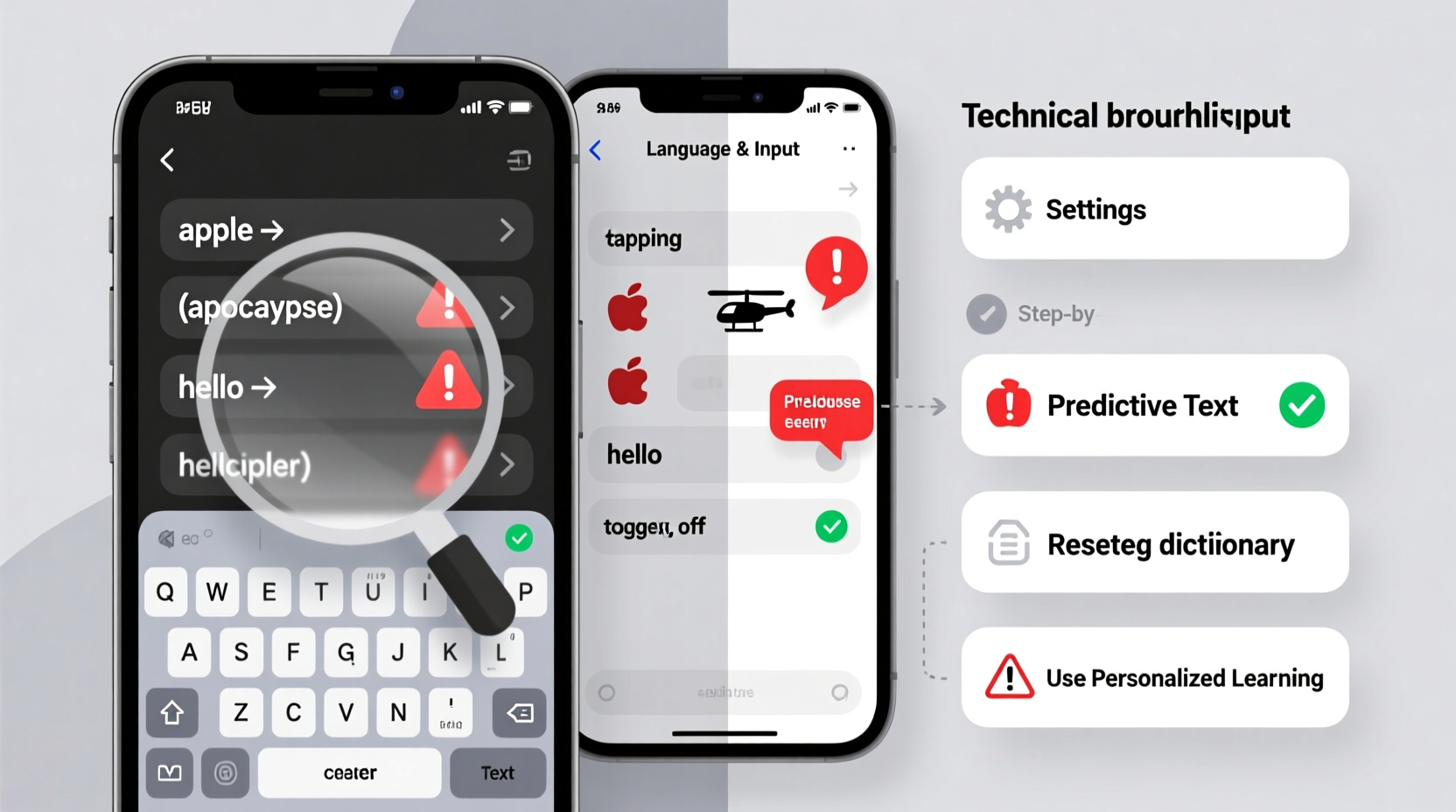
At its core, autocorrect is a combination of dictionary-based correction and machine learning. When you type, your phone compares your input against a built-in dictionary of words, common phrases, and personal language patterns. If a word is misspelled or resembles another common word, the system suggests or automatically replaces it.
Modern smartphones go further by tracking your typing habits. Over time, they learn which words you use frequently, who you message, and even your sentence structure. This personalized model helps predict what you’re about to type next—but it can also become corrupted or skewed if fed incorrect data.
For example, if you repeatedly accept an incorrect suggestion (like typing “duck” but letting it become “ducking”), your phone learns to associate that substitution as intentional. The same happens when you mistype names or accept slang variants without correction.
“Autocorrect isn’t broken—it’s trained incorrectly. Most issues stem from accumulated bad data, not software failure.” — Dr. Lena Park, UX Researcher at Mobile Interaction Lab
Common Reasons Why Autocorrect Gets It Wrong
Before jumping into fixes, it helps to identify the root cause. Here are the most frequent culprits behind erratic autocorrection:
- Inaccurate keyboard language settings: If your phone thinks you’re typing in Spanish or French, it will apply rules from those languages—even when you’re writing in English.
- Corrupted personal dictionary: Over time, custom words added accidentally (or malware-like entries) can interfere with predictions.
- Poor touch accuracy: Swiping too fast or tapping near the edge of keys leads to unintended inputs, which autocorrect then “fixes” poorly.
- Overactive prediction: Some keyboards prioritize speed over precision, replacing words before you’ve finished typing them.
- Outdated software: Bugs in older OS versions can cause glitches in text processing engines.
- Third-party keyboard interference: Apps like Gboard, SwiftKey, or Fleksy may behave differently than default keyboards and introduce new bugs.
Step-by-Step Guide to Fix Autocorrect Issues
Follow this comprehensive process to reset and retrain your phone’s autocorrect system. These steps apply to both iOS and Android, with specific instructions noted where applicable.
- Check your keyboard language settings
- iOS: Go to Settings > General > Keyboard > Keyboards > Add New Keyboard. Ensure only the correct language (e.g., English - U.S.) is active. Remove duplicates or foreign keyboards.
- Android: Open Settings > System > Languages & input > Virtual keyboard > Manage keyboards. Disable any unnecessary languages.
- Reset the keyboard dictionary
- iOS: Navigate to Settings > General > Transfer or Reset iPhone > Reset > Reset Keyboard Dictionary. You’ll need to enter your passcode. Note: This erases all learned words and shortcuts.
- Android (Gboard): Open Gboard settings > Text correction > Reset suggestions. Alternatively, clear app data via Settings > Apps > Gboard > Storage > Clear Data.
- Review text replacements and shortcuts
- iOS: Settings > General > Keyboard > Text Replacement. Look for suspicious entries like “omw” → “I hate everyone” or “mom” → “monster.” Delete anything unfamiliar.
- Android: In Gboard, go to Settings > Dictionary > Personal dictionary. Browse by language and remove erroneous entries.
- Adjust autocorrect sensitivity
- iOS: Settings > General > Keyboard. Toggle off “Auto-Correction” temporarily to test if issues persist. For finer control, keep “Predictive” on but disable aggressive corrections.
- Android: In Gboard, go to Text correction and adjust sliders for “Auto-correction,” “Show correction suggestions,” and “Next-word suggestions.” Lower sensitivity reduces false positives.
- Update your operating system
- Both iOS and Android regularly patch bugs related to keyboard performance. Check for updates under Settings > General > Software Update (iOS) or Settings > System > System Update (Android).
- Test with a different keyboard app
- If problems continue, install a reputable third-party keyboard like Microsoft SwiftKey or Grammarly Keyboard. These offer advanced customization and cloud-synced learning models that may perform better than defaults.
Do’s and Don’ts of Managing Autocorrect
| Do | Don't |
|---|---|
| Regularly review your personal dictionary for odd entries | Ignore repeated incorrect suggestions without rejecting them |
| Use proper capitalization and punctuation to guide context | Type angrily without correcting mistakes—this trains bad behavior |
| Train your phone by manually selecting correct suggestions | Install unknown keyboard apps from untrusted sources |
| Back up important contacts and notes before resetting dictionaries | Assume autocorrect errors are harmless—they can damage professional communication |
| Disable swipe typing if accuracy suffers | Let children play with your phone unsupervised—they might add weird shortcuts |
Real Example: How One User Fixed Years of Autocorrect Chaos
Sarah, a marketing manager in Chicago, spent months apologizing for bizarre messages. Her phone kept changing “meeting” to “mating,” “client” to “clown,” and once changed “Thanks for the update” to “Thanks for the butt plug” in a company-wide email thread. Mortified, she avoided texting clients altogether.
After consulting IT support, they discovered her personal dictionary had over 300 unrecognized entries, many added during a team-building prank week where coworkers secretly installed joke shortcuts. Worse, her keyboard was set to “English (UK)” despite living in the U.S., causing regional spelling conflicts.
She followed the reset process: wiped the keyboard dictionary, removed fake text replacements, switched back to U.S. English, and retrained her phone by carefully accepting correct suggestions for two weeks. Within days, her autocorrect improved dramatically. Six months later, she reported zero major errors.
“It felt like getting my voice back,” Sarah said. “I didn’t realize how much stress those little mistakes were causing until they stopped.”
When to Consider Disabling Autocorrect Entirely
While fixing autocorrect is ideal, some users—especially professionals who type technical terms, names, or code—may find it more efficient to turn the feature off completely.
This doesn’t mean giving up convenience. Many opt for a middle ground: keeping word prediction visible but disabling automatic replacements. That way, you see suggestions without being forced into them.
Frequently Asked Questions
Can malware cause autocorrect to go crazy?
While rare, malicious apps can modify system dictionaries or inject harmful text replacements. If you notice sudden, widespread changes after installing a new app, uninstall it immediately and reset your keyboard dictionary. Stick to official app stores and avoid granting unnecessary permissions to keyboard-related apps.
Why does my phone correct words I already spelled right?
This usually happens due to overzealous prediction algorithms. Your phone may believe you intended a more common word. For instance, typing “their” might get changed to “there” because the latter appears more frequently in general usage. Adjusting the “auto-correction strength” setting can reduce this behavior.
Will resetting my keyboard dictionary delete my saved passwords?
No. The keyboard dictionary only stores words you've typed, learned phrases, and custom shortcuts. It does not affect passwords saved in iCloud Keychain, Google Password Manager, or third-party vaults. However, always back up critical data before performing system resets.
Final Checklist: Regain Control of Your Autocorrect
- ✅ Verify your keyboard language matches your primary typing language
- ✅ Review and clean up text replacements (Settings > Text Replacement)
- ✅ Reset the keyboard dictionary to erase bad training data
- ✅ Turn off auto-correction temporarily to test accuracy
- ✅ Update your phone’s operating system and keyboard app
- ✅ Retrain your phone by consistently rejecting wrong suggestions
- ✅ Consider switching to a more customizable keyboard like SwiftKey
Conclusion: Take Back Your Words
Autocorrect shouldn’t feel like a battle. With the right adjustments, it can become a reliable tool instead of a source of frustration. The key is recognizing that most issues aren’t permanent—they’re the result of small misconfigurations that accumulate over time.
By resetting your keyboard settings, cleaning up rogue entries, and retraining your phone with consistent input, you can restore accuracy and confidence in every message you send. Don’t let one misplaced letter undermine your professionalism or relationships.




 浙公网安备
33010002000092号
浙公网安备
33010002000092号 浙B2-20120091-4
Comments
No comments yet. Why don't you start the discussion?