
Autocorrect is supposed to make typing faster and more accurate. But when it consistently changes “duck” to “d*ck,” swaps “meet me” with “meat bee,” or insists on turning your carefully typed message into a cryptic riddle, it stops being helpful and starts being frustrating. You're not alone—millions of users battle unpredictable autocorrection every day. The good news? Most of these issues stem from predictable causes, and nearly all can be fixed with the right adjustments. This guide dives deep into why your phone’s autocorrect misbehaves and provides practical, customizable solutions that restore control to your fingertips.
The Root Causes of Autocorrect Gone Wrong
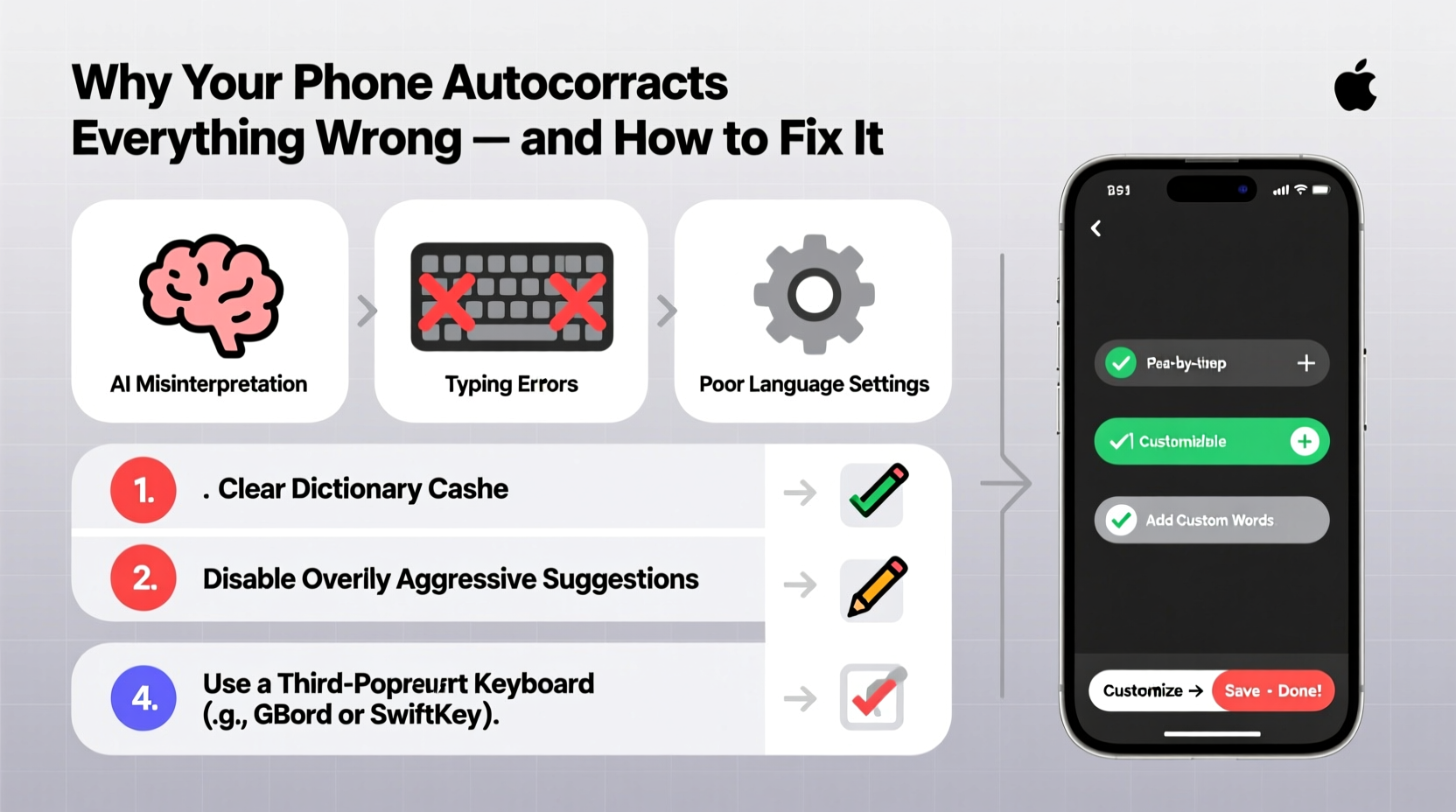
Before fixing the problem, it helps to understand what’s really happening under the hood. Modern smartphones use complex predictive algorithms that blend dictionary matching, machine learning, and personal typing habits to suggest corrections. While powerful, this system isn’t perfect—and several factors contribute to its frequent mistakes.
- Overly aggressive prediction models: Phones prioritize speed and context, sometimes at the expense of accuracy. If you’ve typed “omw” before, it may auto-replace “on my way” even when unintended.
- Learning from errors: Accidentally accepting a wrong suggestion teaches your phone that the mistake was correct. Over time, this compounds confusion.
- Poor regional language settings: If your device defaults to U.S. English but you use British spelling, autocorrect will flag “colour” as incorrect.
- Outdated or bloated user dictionaries: Custom words added accidentally (like typos saved as shortcuts) can trigger unwanted replacements.
- Contextual misinterpretation: AI-driven keyboards try to guess intent, but sarcasm, slang, or technical terms often get mangled.
Step-by-Step Guide to Regaining Control
Regaining reliable typing doesn’t require factory resets or third-party apps. Follow these steps to systematically retrain and refine your phone’s autocorrect behavior.
- Reset your keyboard dictionary: This clears learned errors without affecting other data. On iOS: Settings > General > Transfer or Reset iPhone > Reset > Reset Keyboard Dictionary. On Android: Settings > System > Languages & input > Virtual keyboard > [Your Keyboard] > Clear Data or Reset Settings.
- Review custom text replacements: Both platforms allow shortcut expansions (e.g., “omw” → “On my way”). Check for conflicting or outdated entries. iOS: Settings > General > Keyboard > Text Replacement. Android: Settings > Language & input > Personal dictionary.
- Adjust prediction sensitivity: Disable “Predictive” or “Auto-correction” temporarily to test if issues persist. Re-enable gradually once baseline accuracy improves.
- Re-add essential vocabulary: Manually enter industry-specific terms, names, or commonly used phrases to build a clean, intentional dictionary.
- Train the system deliberately: When a correct word appears in suggestions, tap it—even if you typed it correctly. This reinforces proper patterns.
Customizable Fixes That Work Across Devices
Different operating systems offer varying levels of control. Below are proven strategies tailored to each platform, ensuring long-term reliability.
iOS-Specific Solutions
Apple’s keyboard learns quickly but can become overzealous. Take back control with these tweaks:
- Disable “Auto-Correction” entirely in Settings > General > Keyboard if errors outweigh benefits.
- Use the “Period Shortcut” wisely: Double-tapping space inserts a period, but this can interfere with deliberate spacing. Turn off in Keyboard settings if problematic.
- Add frequently used phrases to Text Replacement with unique triggers (e.g., “addr” → full address).
- Enable “Check Spelling” and “Capitalization” while disabling “Predictive” for a minimalist, error-resistant setup.
Android-Specific Adjustments
Android offers deeper customization, especially with Gboard or SwiftKey. Leverage these features:
- In Gboard: Go to Preferences > Next-word suggestions and toggle off if predictions feel intrusive.
- Use the “Dictionary” section to add domain-specific words (medical, tech, etc.) and prevent their correction.
- Clear personalized learning data periodically: App Info > Gboard > Storage > Clear Cache & Data.
- Switch to “Typing Mode”: Glide typing reduces reliance on correction compared to tap-typing.
Do’s and Don’ts of Managing Autocorrect
| Do | Don’t |
|---|---|
| Manually add nicknames, brand names, and technical terms to your personal dictionary | Accept incorrect suggestions just to move faster |
| Regularly audit text replacements for outdated or erroneous entries | Ignore persistent mis-corrections—they indicate deeper learning issues |
| Use punctuation deliberately; avoid double-space periods if they cause formatting issues | Rely solely on default settings without personalizing preferences |
| Test changes in Notes or Messages before relying on them in critical communication | Assume all problems are hardware-related or unfixable |
Real Example: How Sarah Fixed Her Chronic Autocorrect Fails
Sarah, a freelance writer, found her iPhone constantly changing “their” to “there” and replacing client names with random emojis. After months of frustration, she decided to act. She reset her keyboard dictionary, reviewed her text replacements (removing dozens of accidental shortcuts), and manually added 30+ client names and industry terms. She disabled predictive text during drafting and re-enabled it only after two weeks of clean typing. Within a month, her error rate dropped by over 80%. More importantly, she regained confidence in her messaging—no longer double-checking every sentence for sabotage.
“I realized I’d been training my phone to fail,” she said. “Once I took charge of the dictionary, everything changed.”
“We often blame technology for failures we’ve inadvertently taught it to repeat. User-controlled dictionaries are the most underused tool in modern typing.” — Dr. Lena Torres, Human-Computer Interaction Researcher, MIT Media Lab
Advanced Customization: Third-Party Keyboards Worth Trying
If built-in options still fall short, consider switching to a third-party keyboard designed for precision and flexibility.
- SwiftKey (Android/iOS): Uses AI to adapt to your writing style across apps. Offers cloud sync, theme customization, and robust personal dictionary management.
- Fleksy (iOS/Android): Focuses on speed and accessibility. Allows extensive gesture controls and near-zero visual feedback, ideal for touch typists.
- Gboard with Voice Typing: For users who prefer dictation, pairing voice input with manual editing bypasses many autocorrect pitfalls.
When adopting a new keyboard, import only essential shortcuts and disable auto-learning initially. Gradually enable features as trust in accuracy builds.
FAQ: Common Autocorrect Questions Answered
Why does my phone keep changing the same word over and over?
This usually means you’ve accidentally accepted the correction before. Your phone interprets this as confirmation that the change was correct. To fix it, delete the word from your personal dictionary and type it correctly multiple times to retrain the system.
Can I turn off autocorrect for specific apps only?
Not natively on most phones. However, some third-party keyboards like SwiftKey allow per-app settings. Alternatively, use minimal-correction modes in distraction-free writing apps (e.g., iA Writer, Bear) that disable system-level suggestions.
Is there a way to stop autocorrect without losing predictive text?
Yes. On both iOS and Android, you can disable “Auto-Correction” while keeping “Predictive Text” active. This shows suggestions without automatically replacing what you type, giving you full control over acceptance.
Final Checklist: Fix Autocorrect Like a Pro
- Reset your keyboard dictionary to erase bad habits.
- Review and clean up text replacements and shortcuts.
- Add important words (names, jargon) to your personal dictionary.
- Adjust settings: disable auto-correction temporarily, fine-tune capitalization and punctuation.
- Retrain the system by typing accurately and accepting correct suggestions.
- Consider switching to a customizable third-party keyboard if issues persist.
- Perform quarterly maintenance: audit shortcuts and clear cache/data as needed.
Take Back Control of Your Typing Experience
Autocorrect shouldn’t feel like an adversary. With a few strategic adjustments, you can transform it from a source of daily annoyance into a silent assistant that respects your voice. The key lies in understanding how it learns and taking deliberate steps to guide its behavior. Whether you’re texting a friend, emailing a client, or posting online, precise communication matters—and you deserve tools that support it, not sabotage it.




 浙公网安备
33010002000092号
浙公网安备
33010002000092号 浙B2-20120091-4
Comments
No comments yet. Why don't you start the discussion?