
Autocorrect is one of those features we both rely on and curse daily. It’s supposed to make typing faster and more accurate, but too often, it changes “duck” to “dick,” swaps “meet” for “meat,” or turns a heartfelt message into an accidental insult. You’ve probably gone through the trouble of adding words to your dictionary, correcting errors repeatedly, and even restarting your phone—yet autocorrect still seems determined to misunderstand you. Why? And more importantly, what can you do about it?
The issue isn’t just random glitches. Autocorrect systems are complex blends of machine learning, linguistic models, and user behavior tracking. When they fail—even after being trained—it usually points to deeper problems in how the system interprets language, adapts to personal usage, or handles software limitations.
How Autocorrect Actually Works (and Where It Fails)
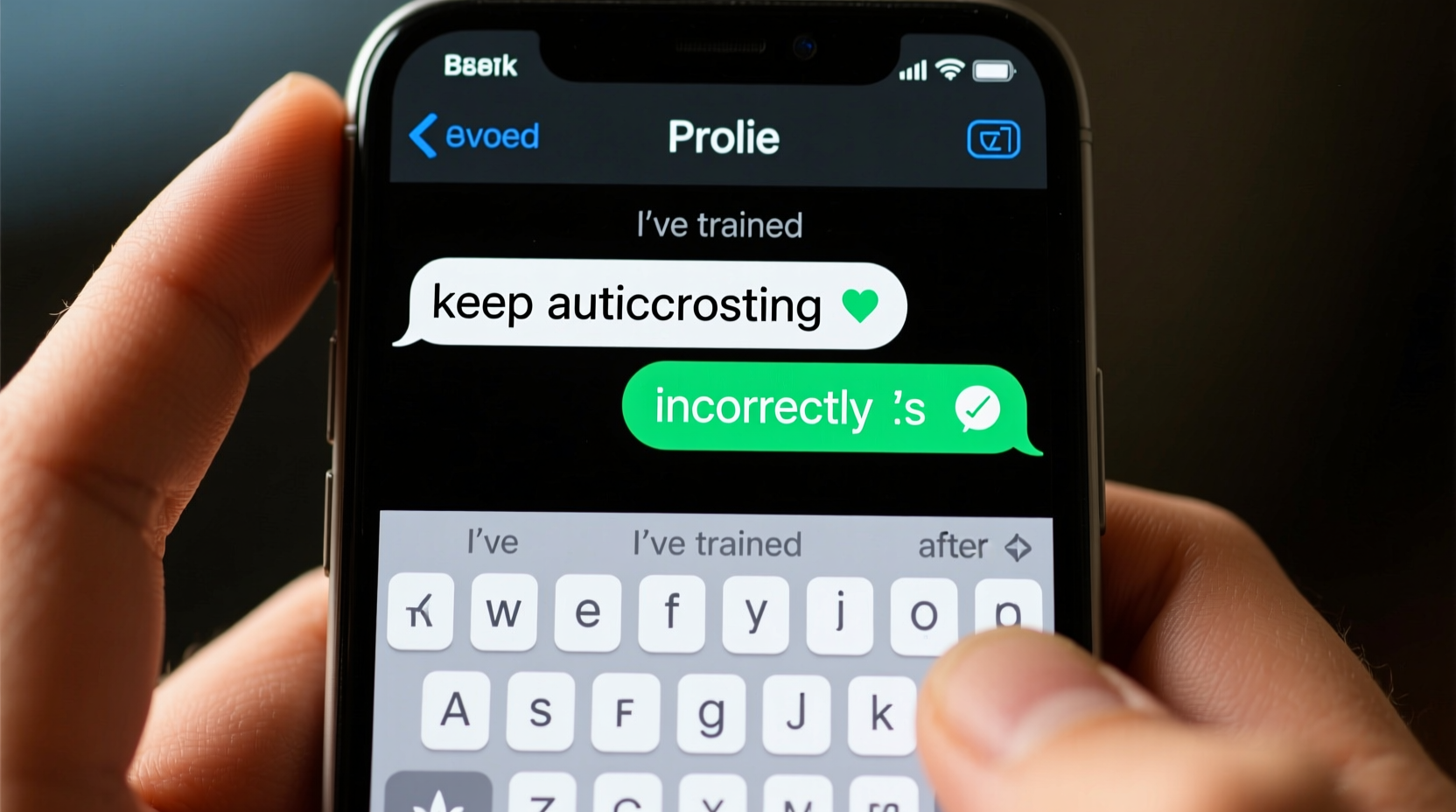
Modern smartphones use predictive text engines that combine several technologies: statistical language models, contextual analysis, phonetic matching, and personalized dictionaries. On iOS, this is powered by the QuickType keyboard; on Android, Google’s Gboard uses neural networks trained on vast datasets of real-world language use.
When you type, the system doesn’t just match letters—it predicts based on:
- The frequency of word usage across millions of users
- Contextual patterns (e.g., “I’ll see you at the ___” likely leads to “meeting” or “party”)
- Your personal typing history and learned vocabulary
- Phonetic similarity (so “nite” might become “night”)
But here’s the catch: while these systems are powerful, they’re not perfect. They prioritize general language trends over individual quirks. So if you frequently type niche terms—names, technical jargon, slang, or non-English words—the algorithm may override them with more common alternatives, no matter how many times you correct it.
“Even advanced AI models struggle with personalization at scale. The balance between universal accuracy and individual adaptation remains a core challenge.” — Dr. Lena Torres, NLP Researcher at Mobile UX Labs
Why Training Your Keyboard Doesn’t Always Stick
You’ve tapped the correction bubble. You’ve added words manually. You’ve even typed “X Æ A-12” a dozen times hoping your phone would finally accept Elon Musk’s child’s name. Yet the corrections persist. Here’s why training often fails:
1. Delayed Learning Cycles
Most mobile operating systems don’t update their predictive models in real time. Corrections you make today might take hours—or even days—to be fully integrated, especially if background processing is limited due to battery optimization.
2. Conflicting Data Sources
Your phone balances three data sources: global language models, device-specific dictionaries, and cloud-synced preferences. If there’s a conflict—say, a word is flagged as incorrect in the global model—it can override your personal entries.
3. Overcorrection Bias
Some keyboards are tuned to be overly aggressive. They assume typos are more likely than intentional misspellings or creative spelling. This means even correctly spelled rare words (like “Schrödinger”) get “corrected” to something simpler (“Schrodinger” or worse, “Shredding”).
4. Sync & Reset Issues
If you use multiple devices synced via iCloud or Google Account, inconsistent syncing can cause learned words to disappear after updates or reinstalls. One device learns “Tayshia” (a name), but another reverts to suggesting “tasha” because the sync failed.
Step-by-Step Guide to Fix Stubborn Autocorrect
Before giving up and switching to voice dictation, try this systematic approach to reclaim control over your keyboard:
- Clear Mislearned Words
Go to Settings > General > Keyboard > Text Replacement (iOS) or Settings > System > Languages & input > Personal dictionary (Android). Remove any incorrect entries where the keyboard has memorized bad corrections. - Add Custom Words Properly
Manually enter names, brands, or niche terms into your personal dictionary. Use exact capitalization and spelling. For example, add “Jonáthan” with the accent exactly as you intend to use it. - Disable Aggressive Auto-Correction
On iPhone: Settings > Keyboard > toggle off “Auto-Correction.”
On Android: Open Gboard > Preferences > disable “Auto-correction” and consider reducing “Correction strength.” - Reset Keyboard Dictionary (Last Resort)
If the problem is widespread, reset the typing dictionary entirely. On iOS: Settings > General > Transfer or Reset iPhone > Reset > Reset Keyboard Dictionary. Note: This erases all learned behavior, so only do this if other fixes fail. - Update Your OS and Keyboard App
Outdated software may have bugs affecting prediction accuracy. Check for system updates and ensure Gboard (if used) is updated via the Play Store.
Do’s and Don’ts of Managing Autocorrect Behavior
| Do | Don't |
|---|---|
| Add frequently used names and technical terms to your personal dictionary | Rely solely on tapping corrections without verifying dictionary entries |
| Type consistently—use the same spelling each time | Switch between abbreviations and full forms randomly (e.g., “Dr.” vs “Doctor”) |
| Use keyboard shortcuts for long or complex words | Assume the cloud will save your settings across devices without checking |
| Test new words in Notes before using them in messages | Disable spell check entirely—this removes useful feedback loops |
| Back up your device regularly to preserve learned data | Ignore repeated corrections—they may indicate deeper input issues |
Real Example: The Case of “Kaitlyn” vs “Caitlin”
Sarah, a college student from Portland, spent months frustrated every time she typed her roommate’s name. No matter how many times she corrected “Caitlin” to “Kaitlyn,” her iPhone insisted on reverting. She added “Kaitlyn” to her contacts and dictionary, but the keyboard kept “fixing” it.
After troubleshooting, she discovered two issues: First, her contact was saved as “Caitlin” due to an initial typo. Second, her keyboard had learned “Caitlin” as a high-frequency word because she’d accidentally sent texts with the wrong spelling early on.
She fixed it by:
- Correcting the contact name
- Deleting “Caitlin” from her personal dictionary
- Typing “Kaitlyn” ten times in a row in a Notes app to retrain the model
- Disabling “Predictive” temporarily to prevent interference
Within a day, her phone stopped correcting the name. Her experience shows that persistence matters—but so does understanding the underlying system.
Expert Tips for Long-Term Autocorrect Success
Maintaining a well-trained keyboard requires ongoing attention. Consider these strategies to reduce frustration over time:
- Standardize Your Spelling: Pick one form for nicknames, brands, or made-up words and stick with it.
- Leverage Shortcuts: Set up text replacements like “omw” → “On my way!” or “@dr” → “Dr. Patel” to bypass prediction entirely.
- Monitor New Updates: OS updates sometimes reset or alter keyboard behavior. Recheck settings after major upgrades.
- Limit Third-Party Keyboards: While apps like SwiftKey offer great features, they may not integrate as deeply with your OS’s learning engine.
Frequently Asked Questions
Why does my phone keep changing words I spell correctly?
Even correctly spelled words can be altered if they resemble common typos or are low-frequency in the language model. For example, “dye” might become “die” because the latter is far more common. The system assumes you made a mistake unless it’s been explicitly trained otherwise.
Can I turn off autocorrect for certain apps only?
Not natively on most phones. However, some third-party keyboards allow per-app settings. Alternatively, you can disable auto-correction globally and rely on manual spell check, which gives you more control without constant interference.
Does deleting a mis-corrected word help train the keyboard?
Yes, but inconsistently. Simply backspacing a correction doesn’t always register as feedback. To properly train the system, tap the suggested correction (to revert it) or manually select the right word from the suggestion bar. This signals intent more clearly than deletion alone.
Checklist: Regain Control of Your Autocorrect
- ✅ Review and clean your personal dictionary
- ✅ Add important names, places, and terms manually
- ✅ Disable aggressive auto-correction if overzealous
- ✅ Test corrections in a safe environment (like Notes)
- ✅ Reset keyboard dictionary if problems persist
- ✅ Update your OS and keyboard app
- ✅ Use consistent spelling and capitalization
- ✅ Set up text shortcuts for frequent phrases
- ✅ Monitor behavior after software updates
- ✅ Back up your device to preserve learned data
Conclusion: Take Back Your Words
Autocorrect shouldn’t feel like a battle. While it’s designed to assist, its default settings often favor statistical averages over personal expression. The fact that you’ve tried training it shows you’re already ahead of most users. Now, with a clearer understanding of how these systems work—and why they sometimes resist change—you can take targeted steps to make your keyboard truly yours.
Don’t settle for a phone that constantly misunderstands you. Implement the fixes outlined here, stay consistent with your inputs, and remember: technology should adapt to you, not the other way around.




 浙公网安备
33010002000092号
浙公网安备
33010002000092号 浙B2-20120091-4
Comments
No comments yet. Why don't you start the discussion?