
Autocorrect is meant to make typing faster and more accurate. Yet for many users, it feels like a constant battle—correcting words only to see them mangled moments later. Even after adding custom words, disabling aggressive corrections, or using the same phrases daily, the keyboard seems oblivious. This frustrating disconnect between user intent and machine response raises a critical question: Why does your phone’s autocorrect still get things wrong, even when you’ve trained it?
The answer lies in how modern predictive text systems are designed—not just by individual habits, but by layers of algorithms, language models, privacy settings, and device limitations. Understanding these factors can help you regain control over your typing experience.
How Autocorrect Actually Learns (And Why It Seems to Forget)
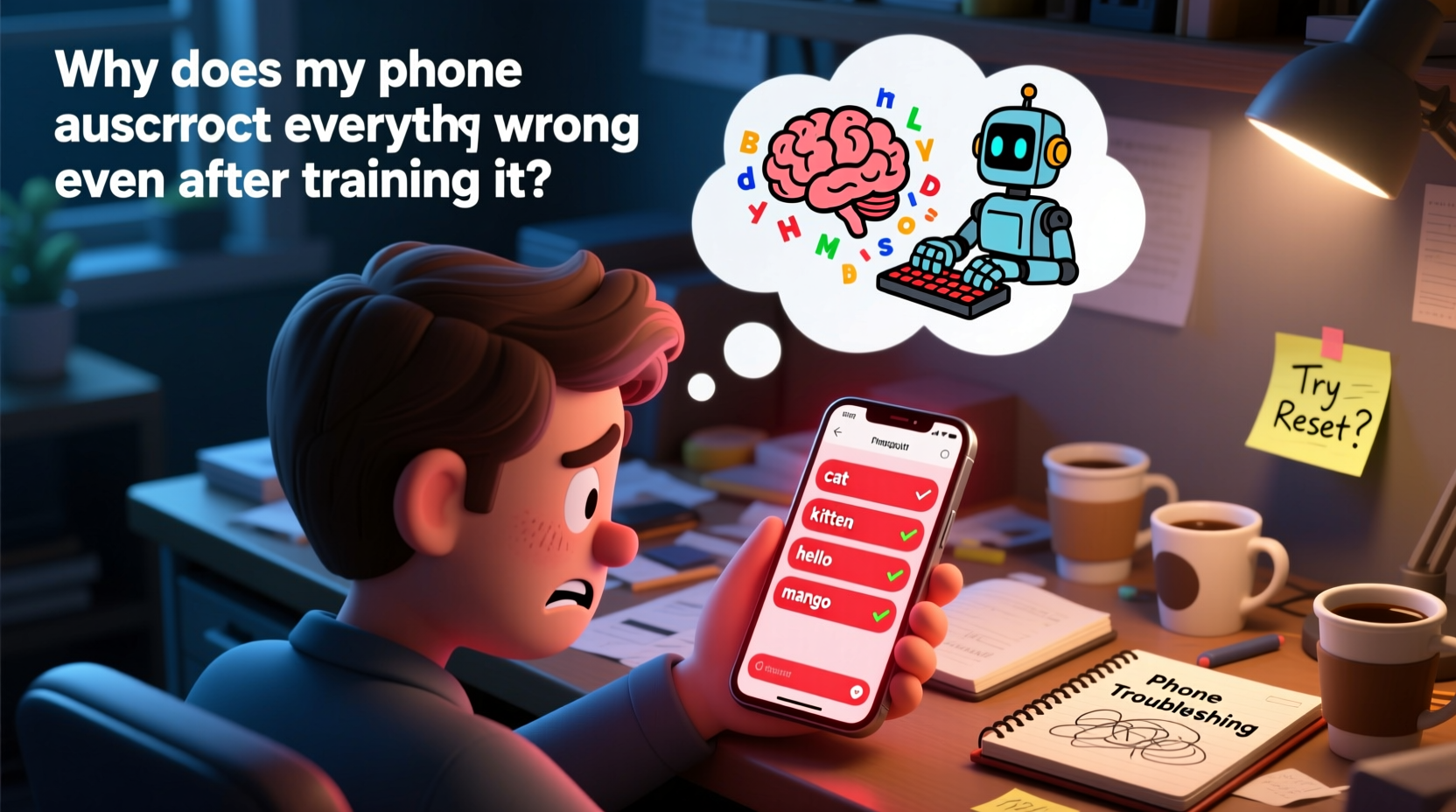
Modern smartphone keyboards use a combination of statistical language models, contextual prediction engines, and personalization features. While they do adapt to your typing over time, the learning process isn’t as straightforward as “type a word once, remember forever.”
Most autocorrect systems operate on two levels:
- Global Language Model: A preloaded database of common words, phrases, grammar rules, and regional variations based on vast datasets. This model ensures that \"teh\" becomes \"the,\" regardless of who's typing.
- Personal Dictionary & Behavior Tracking: A secondary layer that logs words you frequently use, especially those not in standard dictionaries—names, slang, technical terms, or brand names.
However, this dual-layer system has flaws. The global model often overrides personalized inputs because it assumes statistical popularity trumps individual usage. For example, if you type “Jon” repeatedly, but the system defaults to “John” due to higher frequency in its dataset, the correction persists—even if you manually revert it dozens of times.
“Autocorrect prioritizes linguistic probability over personal consistency. That means it will favor what most people say, not necessarily what you mean.” — Dr. Lena Patel, Computational Linguist at Mobile UX Labs
Common Reasons Autocorrect Ignores Your Training
Even diligent users find their efforts undermined by hidden design choices. Below are the top reasons your phone may appear to ignore your input:
1. Overriding Algorithms with Low Personalization Weight
Many operating systems assign minimal weight to user corrections. Repeatedly changing “Frak” back to “Frank” might register, but unless the system sees enough context (e.g., usage across apps, contacts, messages), it won’t treat it as a learned pattern.
2. Sync Conflicts Across Devices
If you use multiple devices synced through iCloud, Google Account, or Microsoft services, inconsistent dictionary syncing can cause regressions. A word added on your tablet might not carry over to your phone, or worse, get erased during a sync reset.
3. Keyboard App Limitations
Not all keyboards are created equal. Stock Android Gboard and iOS’s native keyboard have robust learning capabilities, but third-party apps (like SwiftKey or Fleksy) vary widely in how well they retain user data. Some prioritize cloud-based predictions over local learning, which reduces accuracy for niche vocabulary.
4. Aggressive Auto-Capitalization and Grammar Rules
Phones often apply rigid grammatical assumptions. Typing “iPhone” at the start of a sentence? Your keyboard may insist on “Iphone,” believing that “I” must be capitalized independently. These rules are hard-coded and rarely adapt to brand names or stylized spelling.
5. Privacy Settings Blocking Data Collection
iOS and Android allow users to disable “Improve Typing Suggestions” or similar options for privacy. While this protects sensitive data, it also disables advanced learning features. Without permission to analyze your typing patterns beyond the device level, the keyboard remains static.
Step-by-Step Guide to Retrain Your Phone’s Autocorrect
Fixing persistent autocorrect issues requires deliberate retraining. Follow this sequence to maximize effectiveness:
- Add Words Manually to Your Personal Dictionary
- iOS: Settings > General > Keyboard > Text Replacement. Tap \"+\" and enter the phrase and shortcut (e.g., “Jon” with shortcut “jon”).
- Android: Open any typing field, long-press the comma key, select “Open Dictionary,” then add the word under “Personal dictionary.”
- Use the Word Consistently in Context
Type the word correctly in full sentences across different apps—messaging, notes, email. The more contextual variety, the better the system learns its proper usage.
- Disable Overzealous Corrections Temporarily
Turn off “Auto-correction” briefly while typing tricky words. Once entered correctly, re-enable it. This prevents the system from reinforcing bad patterns.
- Train Against False Positives
When autocorrect changes a correct word incorrectly (e.g., “Kaitlyn” → “Katherine”), tap the suggestion bar to revert it *immediately*. Do this every time—it signals error feedback.
- Clear and Reset Keyboard Cache (Android Only)
Go to Settings > Apps > Gboard (or current keyboard) > Storage > Clear Cache. Then retrain key terms. Avoid clearing data unless necessary—it resets all learning.
- Restart After Major Changes
After updating dictionaries or changing settings, restart your phone. Some systems batch-process learning updates upon reboot.
Do’s and Don’ts of Autocorrect Training
| Action | Recommended? | Reason |
|---|---|---|
| Add names to contact list with correct spelling | ✅ Yes | Contact names are often used to train predictive text. |
| Use abbreviations without defining them first | ❌ No | Unrecognized shortcuts confuse the system. |
| Type the same corrected word in 3+ different apps | ✅ Yes | Multi-context usage strengthens learning. |
| Assume one correction is enough | ❌ No | Systems need repeated reinforcement. |
| Enable cloud sync for keyboard data | ✅ Yes (with caution) | Sync improves consistency across devices. |
| Disable predictive text entirely | ❌ No | You lose adaptive benefits; better to fine-tune instead. |
Mini Case Study: Fixing Persistent Name Corrections
Sarah, a project manager, constantly battled her iPhone changing “Teagan,” a team member’s name, to “Tegan” or “Regan.” Despite typing it correctly over 50 times, the correction persisted.
She followed a structured approach:
- Added “Teagan” to her personal dictionary via Settings > General > Keyboard > Text Replacement.
- Sent five iMessages using “Hi Teagan,” ensuring the name appeared in conversation context.
- Created a contact card for Teagan with correct spelling and photo.
- Disabled “Auto-Correction” temporarily while sending an email about Teagan to avoid triggering false corrections.
- Re-enabled autocorrect and tested in Notes.
Within 48 hours, the phone stopped correcting “Teagan.” The combination of dictionary entry, contextual use, and contact integration gave the system enough signals to recognize the word as valid and preferred.
Expert Tips to Maximize Autocorrect Accuracy
Frequently Asked Questions
Why does my phone keep changing words I’ve already corrected?
The underlying language model may still consider the incorrect version statistically more likely. Corrections require repetition and contextual reinforcement before the system treats them as learned behavior. Also, some updates or sync events can reset local dictionaries.
Can I completely turn off autocorrect without losing my saved words?
Yes. Disabling “Auto-Correction” in keyboard settings stops real-time changes but preserves your personal dictionary. You’ll still benefit from predictive suggestions without unwanted alterations.
Will resetting my keyboard settings help fix broken autocorrect?
Sometimes—but cautiously. Resetting clears all learned data, so you’ll need to retrain the system. It can help if the dictionary is corrupted, but only do this after backing up important entries or if other fixes fail.
Checklist: Optimize Your Autocorrect Experience
- ✅ Add frequently used words and names to your personal dictionary
- ✅ Ensure contact names match preferred spellings
- ✅ Use correct words in varied contexts (texts, emails, notes)
- ✅ Toggle off auto-correction temporarily when introducing new terms
- ✅ Enable keyboard learning permissions (iOS: “Predictive”; Android: “Use personalized suggestions”)
- ✅ Keep your keyboard app updated
- ✅ Restart your phone after major dictionary changes
- ✅ Monitor for sync conflicts across devices
Conclusion: Take Control of Your Typing Experience
Autocorrect shouldn’t feel like an adversary. While it’s built on broad assumptions about language, it *can* be shaped by consistent, informed input. The key is understanding that training isn’t instantaneous—it’s cumulative. Every time you correct a mistake, add a word, or use proper context, you’re feeding the system data that, over time, leads to better results.
Rather than disabling autocorrect altogether, refine how you interact with it. Use the tools available, stay consistent, and don’t underestimate the power of small, repeated actions. With patience and precision, your phone can learn to work with you—not against you.




 浙公网安备
33010002000092号
浙公网安备
33010002000092号 浙B2-20120091-4
Comments
No comments yet. Why don't you start the discussion?