
If you've ever typed \"duck\" only for your iPhone to change it to \"dick,\" or tried to send a quick message that turned into an incomprehensible jumble of words, you're not alone. Autocorrect on iOS has earned a reputation—sometimes humorous, often frustrating—for turning simple messages into linguistic disasters. While Apple’s keyboard is generally reliable, glitches happen. Whether it's overzealous corrections, stubborn predictive text, or a complete failure to learn your vocabulary, these issues can disrupt communication and productivity.
The root causes vary: sometimes it's a misconfigured setting, other times it's a corrupted dictionary or a software bug introduced in an update. The good news? Most iOS keyboard problems are fixable without resetting your device or losing data. With the right approach, you can regain control over your typing experience and stop autocorrect from rewriting your life one typo at a time.
Understanding How iOS Autocorrect Works
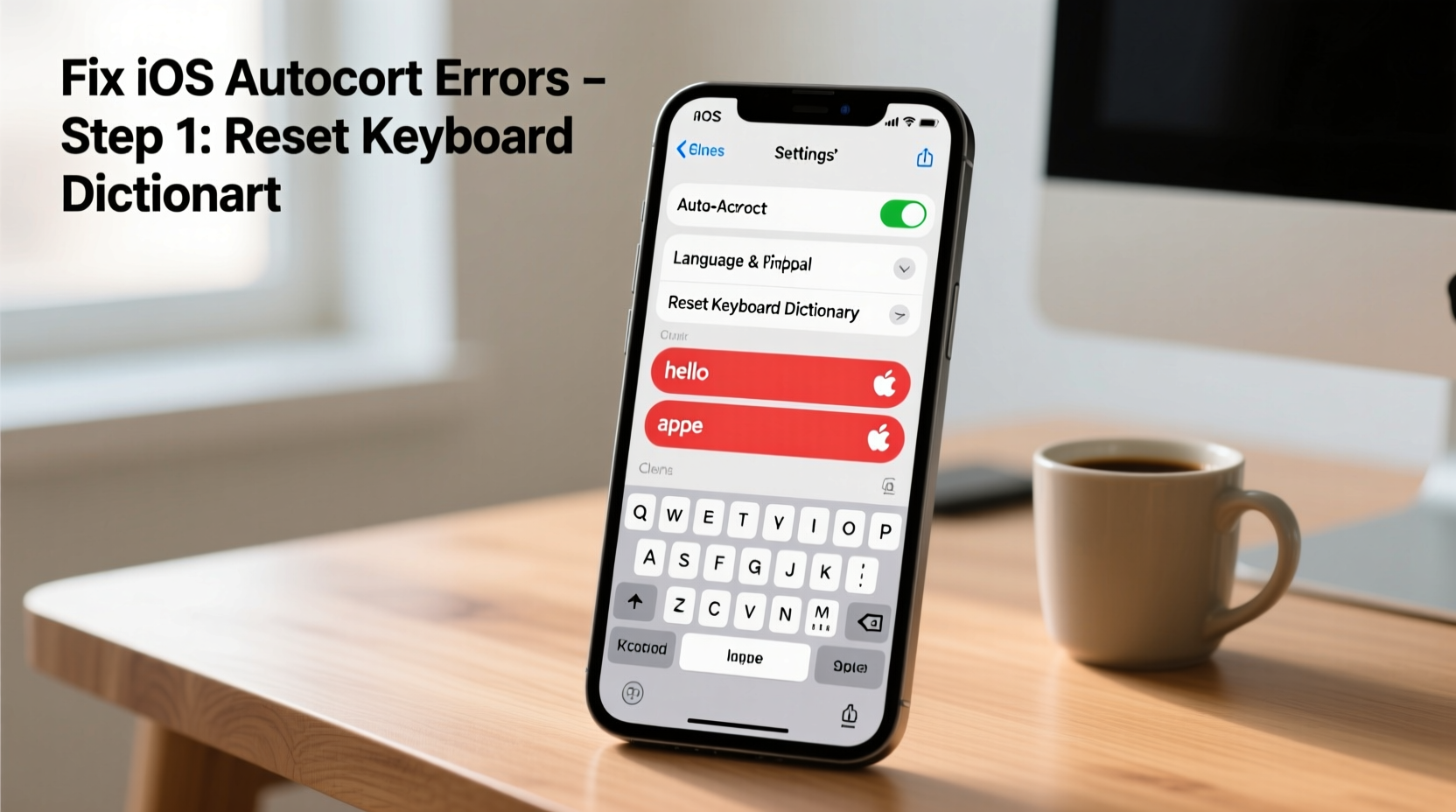
iOS uses a combination of predictive algorithms, machine learning, and user-specific language models to power its keyboard features. When you type, the system evaluates each word against:
- A built-in dictionary of common words and phrases
- Your personal vocabulary (learned over time)
- Contextual sentence structure predictions
- Regional spelling variations (e.g., British vs. American English)
Autocorrect kicks in when the system believes you’ve made a typo. Predictive text suggests the next word based on usage patterns. And the “learn” function stores new words you use regularly—names, slang, technical terms—so they’re recognized later.
But this system isn’t perfect. If the learning model gets confused—say, by repeated corrections you didn’t approve—it starts making incorrect assumptions. Worse, if the personal dictionary becomes corrupted, iOS may forget all your custom entries or start replacing words unpredictably.
“Autocorrect errors often stem from a mismatch between user behavior and the algorithm’s expectations. When the system fails to adapt, frustration follows.” — Dr. Lena Patel, Human-Computer Interaction Researcher, Stanford University
Common Causes of iOS Keyboard Problems
Before diving into fixes, it helps to understand what might be causing the issue. Here are the most frequent culprits:
- Corrupted keyboard dictionary: iOS maintains a personal dictionary file. If this gets damaged, autocorrect stops recognizing your words correctly—or invents new ones.
- Multiple active keyboards or languages: Having several keyboards enabled can confuse the prediction engine, especially if they share similar layouts.
- Outdated iOS version: Bugs in older versions may cause erratic behavior that’s resolved in updates.
- Overactive predictive text: Sometimes suggestions interfere more than help, especially if the AI misreads your intent.
- Third-party app interference: Some apps modify keyboard behavior or conflict with system-level settings.
- Accidental settings changes: A single toggle flipped during a software update can disable essential functions like “Auto-Correction” or “Predictive.”
Step-by-Step Guide to Fix iOS Keyboard Issues
Follow this structured troubleshooting process to resolve autocorrect problems efficiently. Start with the simplest steps and move to advanced options only if needed.
Step 1: Restart Your iPhone
A basic restart clears temporary memory glitches that might affect the keyboard. Press and hold the side button and either volume button, then slide to power off. Wait 30 seconds before turning it back on.
Step 2: Check Keyboard Settings
Navigate to Settings > General > Keyboard. Ensure these toggles are ON:
- Enable Auto-Correction
- Predictive
- Auto-Capitalization
- Check Spelling
If any were off, turn them on and test typing in Messages or Notes.
Step 3: Reset All Settings
This won’t erase your data but will restore system settings—including keyboard preferences—to default. Go to Settings > General > Transfer or Reset iPhone > Reset > Reset All Settings. You’ll need to re-enter Wi-Fi passwords and reconfigure some preferences.
Step 4: Clear the Keyboard Dictionary
To remove corrupted learned words:
- Go to Settings > General > iPhone Storage
- Wait for the list to load, then find and tap “System”
- Look for “Keyboard Dictionary” — size varies but typically ranges from 1MB–10MB
- Tap it and select “Delete Dictionary” (this option appears only if corruption is detected or after a reset)
- Restart your phone. iOS will rebuild the dictionary as you type new words.
Step 5: Update iOS
Apple frequently patches keyboard bugs. Go to Settings > General > Software Update. Install any available updates. After updating, monitor typing behavior for a day to see improvements.
Step 6: Remove Unused Keyboards
Too many input methods create confusion. Under Settings > General > Keyboard > Keyboards, tap “Edit” and delete any keyboards you don’t use (e.g., French, Emoji-only, or third-party ones).
Step 7: Test in Safe Mode (via App Isolation)
Since iOS doesn’t have a true safe mode, test keyboard behavior in built-in apps like Notes or Mail. If autocorrect works fine there but fails in a specific app (like WhatsApp), the issue lies with the app, not iOS. Reinstall the problematic app to reset its permissions.
Tips and Best Practices to Prevent Future Issues
Once you’ve fixed the immediate problem, take steps to keep your keyboard running smoothly.
Add frequently used words—especially names or technical terms—to your personal dictionary manually:
- Go to Settings > General > Keyboard > Text Replacement
- Tap the + icon
- In “Phrase,” enter the correct word (e.g., “Dr. Alvarez”)
- In “Shortcut,” add a unique trigger (e.g., “dralv”) or leave blank for full-word recognition
Now, even if autocorrect tries to change it, iOS will prioritize your saved phrase.
Also, avoid tapping correction suggestions you know are wrong. Each acceptance teaches the system bad habits. Instead, manually delete and retype the word to reinforce correct usage.
Do’s and Don’ts: iOS Keyboard Management
| Do’s | Don’ts |
|---|---|
| Do update iOS regularly to benefit from keyboard bug fixes | Don’t ignore persistent autocorrect errors—they rarely fix themselves |
| Do add important names and jargon to Text Replacement | Don’t enable multiple language keyboards unless necessary |
| Do restart your phone monthly to clear system cache | Don’t accept incorrect autocorrections—train the system properly |
| Do use predictive text to speed up typing once trained | Don’t rely solely on third-party keyboards for critical communication |
Real Example: Sarah’s Autocorrect Nightmare
Sarah, a project manager in Toronto, found her iPhone changing “team meeting” to “teem mating” in work emails. At first, she laughed it off. But when her boss replied, “Interesting phrasing…”, she knew she had a real problem.
She followed the reset process: restarted the phone, checked settings, and discovered her predictive text was off. She turned it back on, then added key phrases like “Q3 report” and “client call” to Text Replacement. Over the next week, she consciously rejected incorrect suggestions. Within days, her autocorrect began behaving normally. By proactively managing her keyboard settings, Sarah avoided further embarrassment—and improved her typing efficiency.
FAQ: Common Questions About iOS Autocorrect
Why does my iPhone keep changing words I spell correctly?
This usually happens when the keyboard’s learning model has been trained incorrectly—perhaps by accepting wrong suggestions in the past—or if the personal dictionary is corrupted. Resetting the keyboard dictionary and retraining it with correct inputs typically resolves this.
Can I turn off autocorrect without disabling predictive text?
No, not independently. However, you can disable “Auto-Correction” while keeping “Predictive” on. Go to Settings > General > Keyboard and toggle off “Auto-Correction.” You’ll still see word suggestions above the keyboard, but your original typing won’t be altered automatically.
Will resetting my keyboard dictionary delete my messages?
No. The keyboard dictionary only stores learned words and custom shortcuts. Your messages, contacts, photos, and other data remain completely unaffected by this action.
Final Checklist: Fix Autocorrect Like a Pro
Use this checklist to systematically address and prevent iOS keyboard issues:
- ✅ Restart your iPhone to clear temporary glitches
- ✅ Verify Auto-Correction and Predictive are enabled
- ✅ Remove unused keyboards and languages
- ✅ Add important words to Text Replacement
- ✅ Update to the latest iOS version
- ✅ Reset all settings if problems persist
- ✅ Clear the keyboard dictionary as a last resort
- ✅ Retrain the system by rejecting incorrect suggestions
Take Control of Your Typing Experience
Autocorrect should serve you, not sabotage your messages. While iOS offers powerful tools to enhance typing, they require occasional maintenance and mindful usage. By understanding how the system learns, applying targeted fixes, and following best practices, you can transform a frustrating keyboard into a reliable tool.
Don’t wait for another embarrassing typo to take action. Audit your keyboard settings today, clean up your learned words, and start building a smarter, more accurate typing experience. Small adjustments now can save you hours of frustration—and countless awkward explanations—down the line.




 浙公网安备
33010002000092号
浙公网安备
33010002000092号 浙B2-20120091-4
Comments
No comments yet. Why don't you start the discussion?