
It starts subtly—a word misspelled, a correct term replaced with something absurd. Then it escalates: your name becomes \"nape,\" “meeting” turns into “eating,” and suddenly you’re sending messages that make no sense. If this sounds familiar, you're not alone. Many smartphone users report that their autocorrect seems to degrade or behave unpredictably after software updates. What was once a helpful typing assistant becomes a source of frustration. The good news? This isn’t random malfunctioning—it’s often the result of predictable changes in system behavior, and it can be fixed.
Autocorrect is more than just a convenience feature; it’s an intelligent language model trained on your personal usage patterns over time. When a major OS update rolls out—whether iOS or Android—the underlying language processing engine may reset, retrain, or temporarily lose access to your learned vocabulary. This disruption can cause your device to revert to default dictionaries, forget custom words, or misinterpret context until it relearns your habits. Understanding why this happens—and knowing how to respond—is key to restoring a smooth, accurate typing experience.
Why Autocorrect Degrades After System Updates
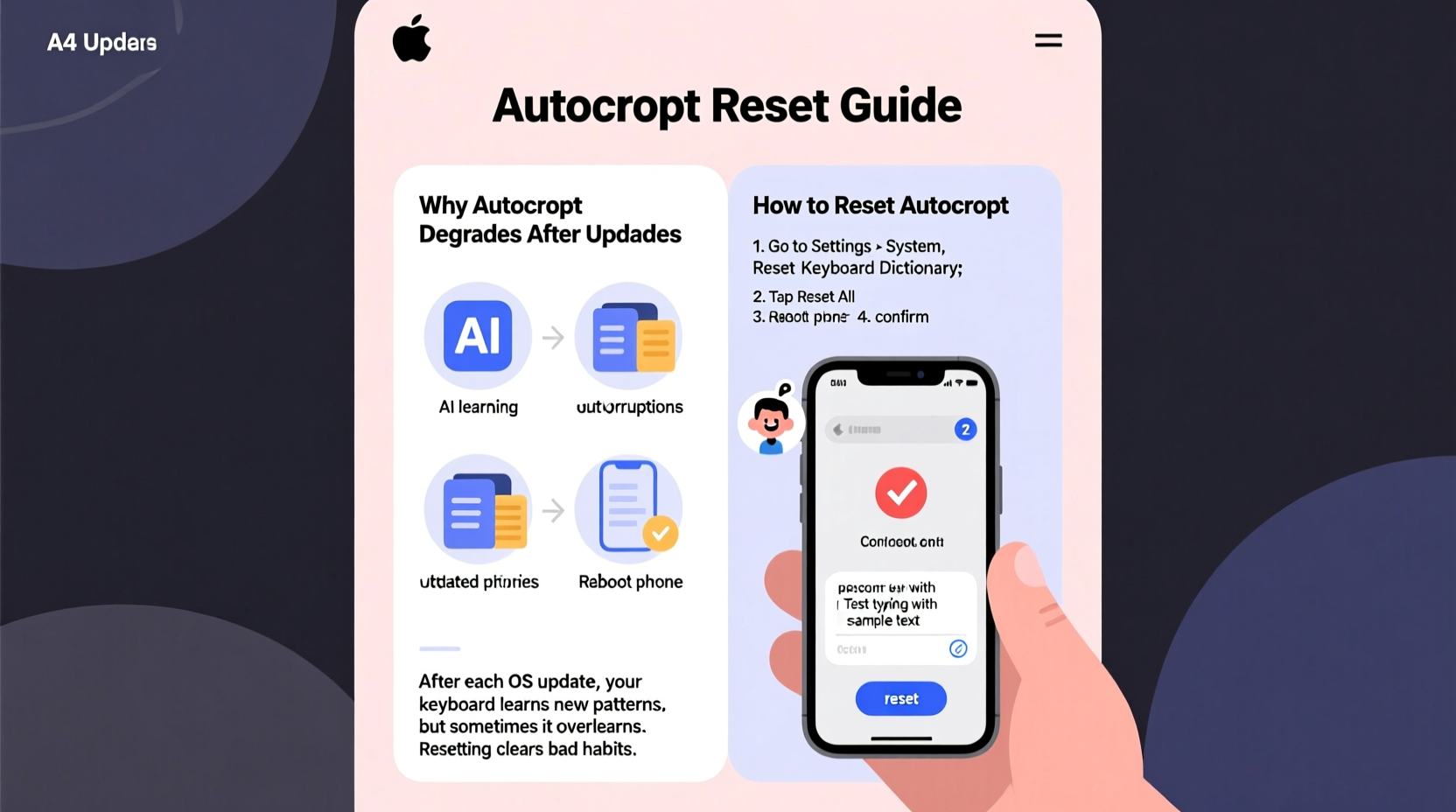
Software updates are designed to improve security, performance, and features—but they don’t always preserve user-specific data seamlessly. When your phone receives an update, several background processes related to predictive text are affected:
- Language model reset: Some updates clear or overwrite the personalized language model used by the keyboard. This includes slang, nicknames, frequently used phrases, and even regional spellings.
- New dictionary standards: Updates may introduce stricter grammar rules or standardized spelling norms that conflict with informal or localized writing styles.
- Keyboard app reinitialization: Third-party keyboards (like Gboard or SwiftKey) might lose cached data during an update, requiring retraining.
- Bug regressions: Occasionally, new bugs are introduced in the update that affect prediction accuracy or cause incorrect substitutions.
Apple and Google both acknowledge that post-update autocorrect issues are common enough to warrant troubleshooting guides. According to internal documentation from Apple Support, iOS updates sometimes trigger a “re-learning phase” for QuickType, where the keyboard must rebuild its understanding of your writing style from scratch.
“After a major OS release, users may notice temporary degradation in predictive text performance as the system re-adapts to individual input patterns.” — Apple Language Technologies Team, Internal Release Notes
How to Reset and Re-Train Your Autocorrect System
The solution isn't always to disable autocorrect entirely—instead, focus on resetting and retraining the system so it works *with* you, not against you. Below is a step-by-step guide tailored for both iOS and Android devices.
Step-by-Step: Reset Keyboard Settings on iPhone (iOS)
- Open the Settings app.
- Tap General, then select Transfer or Reset iPhone.
- Choose Reset.
- Select Reset Keyboard Dictionary. You’ll need to enter your passcode.
- Confirm the action. Note: This will erase all custom words and learned corrections.
After resetting, begin typing normally. Use full sentences, include names, technical terms, and common phrases you use daily. Within a few days, iOS will start offering accurate suggestions again.
Step-by-Step: Fix Autocorrect on Android (Gboard Example)
- Open Settings > System > Languages & input.
- Tap Virtual keyboard, then select Gboard.
- Go to Text correction > Corrections.
- Adjust settings like “Show correction suggestions” and “Auto-correction strength.”
- To reset learning data: Go back to Gboard settings > Advanced > Reset Gboard settings.
Alternatively, uninstall updates for Gboard via the Play Store, then reinstall the latest version to force a clean setup.
Best Practices to Prevent Future Autocorrect Issues
While you can’t stop updates from happening, you can minimize their impact on your typing experience. Implement these strategies to maintain a stable, reliable autocorrect function over time.
Maintain a Personal Dictionary
Both iOS and Android allow you to add custom words to your dictionary. This is especially useful for names, technical jargon, or niche terminology.
- iOS: Settings > General > Keyboard > Text Replacement. Tap + to add shortcuts (e.g., “omw” → “On my way!”).
- Android: Gboard > Settings > Dictionary > Personal dictionary. Add words per language or globally.
Enable Contextual Learning Features
Modern keyboards use AI to understand context. Make sure these features are enabled:
- iOS: Ensure “Predictive” is turned on in Settings > Keyboard.
- Android: In Gboard, enable “Learn from what you type” under Privacy settings.
Avoid Over-Correcting Manually
Constantly tapping the “X” next to suggested corrections can teach the system that all predictions are wrong—even good ones. Instead, let the suggestion sit if it’s close, and only override when necessary.
| Do | Don’t |
|---|---|
| Type naturally and accept reasonable suggestions | Repeatedly reject minor corrections (e.g., “color” vs “colour”) |
| Add proper nouns to your dictionary | Rely solely on third-party apps to bypass autocorrect |
| Use consistent phrasing for common messages | Switch between multiple keyboards without reason |
Real User Experience: How Sarah Fixed Her Frustrating Autocorrect
Sarah, a freelance writer from Portland, noticed her iPhone started changing “client” to “silent” after updating to iOS 17. At first, she dismissed it as a glitch. But when “deadline” became “deadlineck” and her son’s name “Liam” turned into “Loam,” she knew something was wrong.
She tried toggling autocorrect off and on, but the issue persisted. Then she remembered reading about keyboard dictionary resets. She followed the steps to reset her keyboard dictionary, then spent two days deliberately typing full emails and messages—using client names, project titles, and even emojis she commonly inserted.
By day three, her suggestions improved dramatically. By day five, her autocorrect was better than before: it predicted entire phrases and stopped interfering with her flow. “It felt like getting my old phone brain back,” she said. “I just had to retrain it like a new employee.”
Expert Insight: What Developers Say About Predictive Text Stability
Dr. Alan Zhou, a computational linguist who worked on early versions of Android’s predictive input system, explains that machine learning models in mobile keyboards walk a fine line between adaptability and stability.
“The challenge isn’t just recognizing words—it’s understanding intent. Every update risks disrupting the delicate balance between general language rules and personal expression. That’s why resets are sometimes necessary, but they should come with clearer user guidance.” — Dr. Alan Zhou, NLP Researcher & Former Google ATAP Team
He emphasizes that while cloud-synced dictionaries help preserve data across devices, local learning still plays a critical role in responsiveness. “Your phone knows when you’re being sarcastic, when you’re texting quickly, or when you use abbreviations. That nuance takes time to rebuild after a wipe.”
Troubleshooting Checklist: Fixing Post-Update Autocorrect
- ✅ Reset keyboard dictionary (iOS: Settings > General > Reset > Reset Keyboard Dictionary)
- ✅ Re-add important custom words and shortcuts
- ✅ Verify predictive text is enabled in keyboard settings
- ✅ Avoid excessive manual corrections for a few days
- ✅ Type complete messages instead of relying on voice input
- ✅ Update or reinstall keyboard app (especially on Android)
- ✅ Check for follow-up patches—many autocorrect bugs are fixed in minor updates within weeks
Frequently Asked Questions
Will resetting my keyboard dictionary delete my saved passwords?
No. The keyboard dictionary only stores words you’ve typed, including custom additions. It does not store passwords, which are managed separately by the operating system or password managers.
Can I back up my keyboard dictionary before an update?
Not directly through standard settings. However, if you use a third-party keyboard like SwiftKey, which syncs to your Microsoft account, your learned words can be restored after reinstalling. Native iOS and Gboard dictionaries are typically backed up in iCloud and Google Account respectively, but restoration isn’t guaranteed immediately after an update.
Why does my phone keep correcting ‘OK’ to ‘Ok’ or ‘ok’?
This is often due to case-sensitive learning models. If you previously accepted a lowercase version, the system may prioritize it. To fix this, consistently type “OK” in all caps for several uses. On Android, go to Gboard > Text correction > Auto-capitalization and adjust rules accordingly.
Conclusion: Take Control of Your Typing Experience
Autocorrect shouldn’t feel like a game of chance. While updates are essential for security and functionality, they shouldn’t sabotage your ability to communicate clearly. The temporary decline in performance is usually a sign that your device needs to relearn your habits—not that it’s broken. By proactively resetting your keyboard settings, rebuilding your personal dictionary, and giving the system time to adapt, you can restore (and even improve) your typing accuracy.
Don’t wait for the next update to catch you off guard. Apply these strategies now: audit your current settings, add essential custom words, and ensure predictive features are optimized. A small investment today can prevent hours of frustration tomorrow. Share your own tips or autocorrect horror stories in the comments—your experience might help someone else regain control of their keyboard too.




 浙公网安备
33010002000092号
浙公网安备
33010002000092号 浙B2-20120091-4
Comments
No comments yet. Why don't you start the discussion?