
Autocorrect is one of the most relied-upon features on modern smartphones. It’s designed to save time, reduce typos, and make communication smoother. But if you’ve noticed that your phone seems to be “learning the wrong things” — changing words incorrectly, inserting bizarre suggestions, or misreading simple phrases — you’re not alone. Many users report that their autocorrect performance degrades over time, despite no hardware changes. The root causes are often hidden in the way predictive text systems adapt to user behavior, accumulate bad data, or suffer from outdated algorithms. Fortunately, most issues can be resolved with targeted software fixes.
This article explores why autocorrect deteriorates, how your phone’s language model evolves (sometimes for the worse), and what practical steps you can take to reset and improve its performance.
How Autocorrect Learns From You — And Why That Backfires
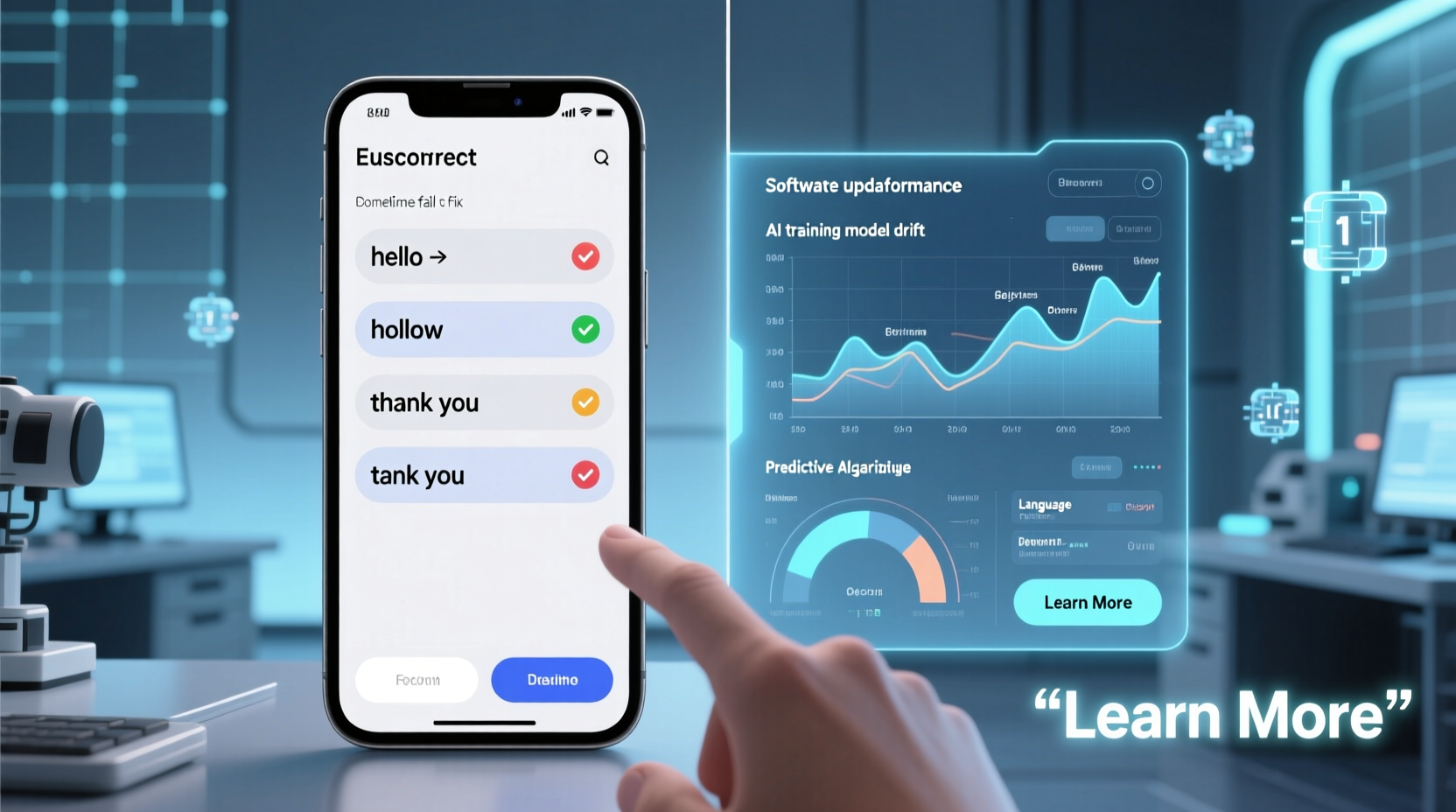
Modern autocorrect systems use adaptive machine learning models. On both iOS and Android, your keyboard tracks the words you type, the corrections you accept or reject, and even context patterns like messaging style or app usage. Over time, it builds a personalized dictionary and prediction engine tailored to your habits.
The problem? These systems don’t always distinguish between intentional input and mistakes. If you frequently type “teh” instead of “the” and accept the correction, the system may begin to assume “teh” is a valid word. Worse, if you accidentally tap the wrong suggestion and don’t correct it, that error gets logged as a preference.
Dr. Lena Patel, computational linguist at Stanford University, explains:
“Personalized language models are only as good as the feedback they receive. When users don’t actively manage corrections, the model starts reinforcing errors—like a student copying wrong answers from a peer.”
This phenomenon, known as *feedback loop corruption*, is a primary reason why autocorrect feels less accurate after months of use. The more you rely on it without oversight, the more entrenched the mistakes become.
Common Software Factors That Degrade Autocorrect Performance
While user behavior plays a role, several underlying software mechanisms contribute to declining autocorrect quality:
- Dictionary bloat: Your personal dictionary accumulates misspellings, slang, and abbreviations that weren’t meant to be permanent.
- Prediction model drift: As new apps and typing contexts emerge (e.g., switching from emails to social media), the model struggles to recalibrate quickly.
- Outdated OS versions: Older operating systems lack improvements in natural language processing introduced in newer updates.
- Third-party keyboard bugs: Apps like Gboard or SwiftKey may introduce glitches after updates or fail to sync cloud dictionaries properly.
- Corrupted cache files: Temporary data used by the keyboard app can become corrupted, leading to erratic behavior.
Step-by-Step Guide to Reset and Improve Autocorrect Accuracy
If your phone keeps changing “duck” to “ducking” in professional emails or insists on replacing “iOS” with “boss,” it’s time for a reset. Follow this sequence to clean up your keyboard’s memory and restore reliable predictions.
- Clear keyboard dictionary data:
- iOS: Go to Settings → General → iPhone Storage → Keyboards → Clear Data. This removes learned words without affecting passwords or contacts.
- Android (Gboard): Open Gboard → Settings → Text Correction → Personal Dictionary → Delete all custom entries. Then go to System → Languages & Input → Virtual Keyboard → Gboard → Advanced → Reset Settings.
- Disable and re-enable predictive text: Turn off predictive suggestions for 24 hours, then re-enable them. This forces the system to rebuild its short-term prediction cache.
- Update your operating system: Install the latest OS update. Apple and Google regularly release NLP (natural language processing) improvements that enhance contextual understanding.
- Re-train the keyboard: For one week, manually correct every mistake and avoid using swipe typing. Let the system re-learn your patterns with high-quality input.
- Review third-party keyboard permissions: Ensure no other apps are injecting text or interfering with keyboard behavior via accessibility services.
This process typically takes 3–7 days to show noticeable improvement. During this period, expect more frequent corrections—but they’ll gradually become smarter and more relevant.
Do’s and Don’ts of Managing Autocorrect Behavior
| Action | Do | Don't |
|---|---|---|
| Adding new words | Add technical terms or names through official settings (e.g., iOS Personal Dictionary) | Type them repeatedly without formal addition—this confuses the prediction engine |
| Using swipe typing | Use consistently if it works well for you | Switch between tap and swipe constantly—it disrupts pattern recognition |
| Correcting mistakes | Tap the undo arrow or manually fix errors immediately | Ignore incorrect substitutions—they reinforce bad predictions |
| Keyboard updates | Install updates promptly for bug fixes and AI improvements | Skip multiple updates—the longer you wait, the harder recovery becomes |
| Cloud sync | Enable sync across devices if you use the same keyboard everywhere | Sync across shared devices—others’ typing habits will pollute your model |
Mini Case Study: Recovering Autocorrect After a Year of Neglect
Sophie, a freelance writer from Portland, noticed her iPhone kept changing “they’re” to “there” in client emails—even after repeated corrections. She also found that common words like “blog” were being replaced with “bog.” Frustrated, she assumed her phone was defective.
After consulting a tech support forum, she followed the reset steps outlined above. She cleared her keyboard data, updated iOS, and spent three days manually typing without swipe gestures. Within a week, her autocorrect success rate improved dramatically. More importantly, she began reviewing suggestions before accepting them—a habit that prevented regression.
“I didn’t realize I was training my phone to make mistakes,” Sophie said. “Now I treat autocorrect like a coworker—I guide it instead of letting it run wild.”
Expert-Recommended Maintenance Checklist
To keep autocorrect functioning optimally, follow this quarterly maintenance checklist:
- ✅ Clear learned words every 3–4 months
- ✅ Update your OS and keyboard app regularly
- ✅ Manually correct at least 90% of errors (don’t ignore them)
- ✅ Remove unused or incorrect entries from personal dictionary
- ✅ Disable unnecessary third-party keyboards
- ✅ Reboot your phone after major software updates
- ✅ Use consistent spelling—avoid alternating between “color” and “colour” unless region settings reflect that
Consistent maintenance prevents the slow erosion of accuracy. Think of it like changing your car’s oil—small efforts prevent major breakdowns later.
Frequently Asked Questions
Why does autocorrect learn words I never use?
This usually happens when you accept a suggestion by accident or when a third-party app injects text into the keyboard system. Some clipboard managers or password auto-fill tools can interfere with input detection, causing the keyboard to log unintended words as accepted corrections.
Can resetting my keyboard delete saved passwords?
No. Keyboard resets only affect learned words, prediction models, and personalized dictionaries. Passwords stored in iCloud Keychain or Google Password Manager are encrypted and separate from keyboard data.
Is there a way to stop autocorrect from capitalizing random words?
Yes. On iOS, go to Settings → General → Keyboard → Auto-Capitalization and ensure it’s enabled. If the issue persists, disable “Period Shortcut” (which inserts a period when double-spacing) as it sometimes conflicts with capitalization logic. On Android, check Gboard settings under Text Correction → Capitalization to adjust sensitivity.
When to Consider Switching Keyboards
If you’ve followed all recommended fixes and still experience poor performance, it may be time to try a different keyboard app. While built-in options are generally reliable, third-party alternatives offer advanced customization and better error handling.
Top alternatives include:
- Grammarly Keyboard: Best for professionals who want real-time grammar and tone suggestions.
- Microsoft SwiftKey: Offers superior swipe typing and cross-device sync with deep learning models.
- FlorisBoard: Open-source, privacy-focused option for Android users concerned about data collection.
Note: Third-party keyboards require permission to process text. Only install apps from trusted developers and review privacy policies carefully.
Conclusion: Take Control of Your Typing Experience
Autocorrect doesn’t have to get worse over time. With awareness and regular maintenance, you can keep it accurate, helpful, and aligned with your communication style. The key is understanding that autocorrect isn’t just a passive tool—it’s an active learner shaped by your habits. Poor input leads to poor output. But with deliberate corrections, periodic resets, and smart settings management, you can reverse the decline and even improve performance beyond factory defaults.




 浙公网安备
33010002000092号
浙公网安备
33010002000092号 浙B2-20120091-4
Comments
No comments yet. Why don't you start the discussion?