
Autocorrect is one of those features we both rely on and love to hate. It’s designed to make typing faster and more accurate, but too often it transforms a simple message into something confusing—or worse, embarrassing. You type “duck” as a placeholder, only for your phone to send “****” to your boss. Or you try to say “on my way,” and it becomes “on my *lay*.” If your phone’s autocorrect keeps changing words in ways that feel unpredictable or intrusive, you’re not alone. Millions of users struggle with this daily. The good news? Most of these issues are fixable with the right approach.
Understanding why autocorrect behaves the way it does—and knowing how to adjust its settings—is key to regaining control over your digital communication. This guide breaks down the root causes behind erratic autocorrect behavior and provides practical, tested solutions across iOS and Android devices.
Why Autocorrect Changes Words Without Permission
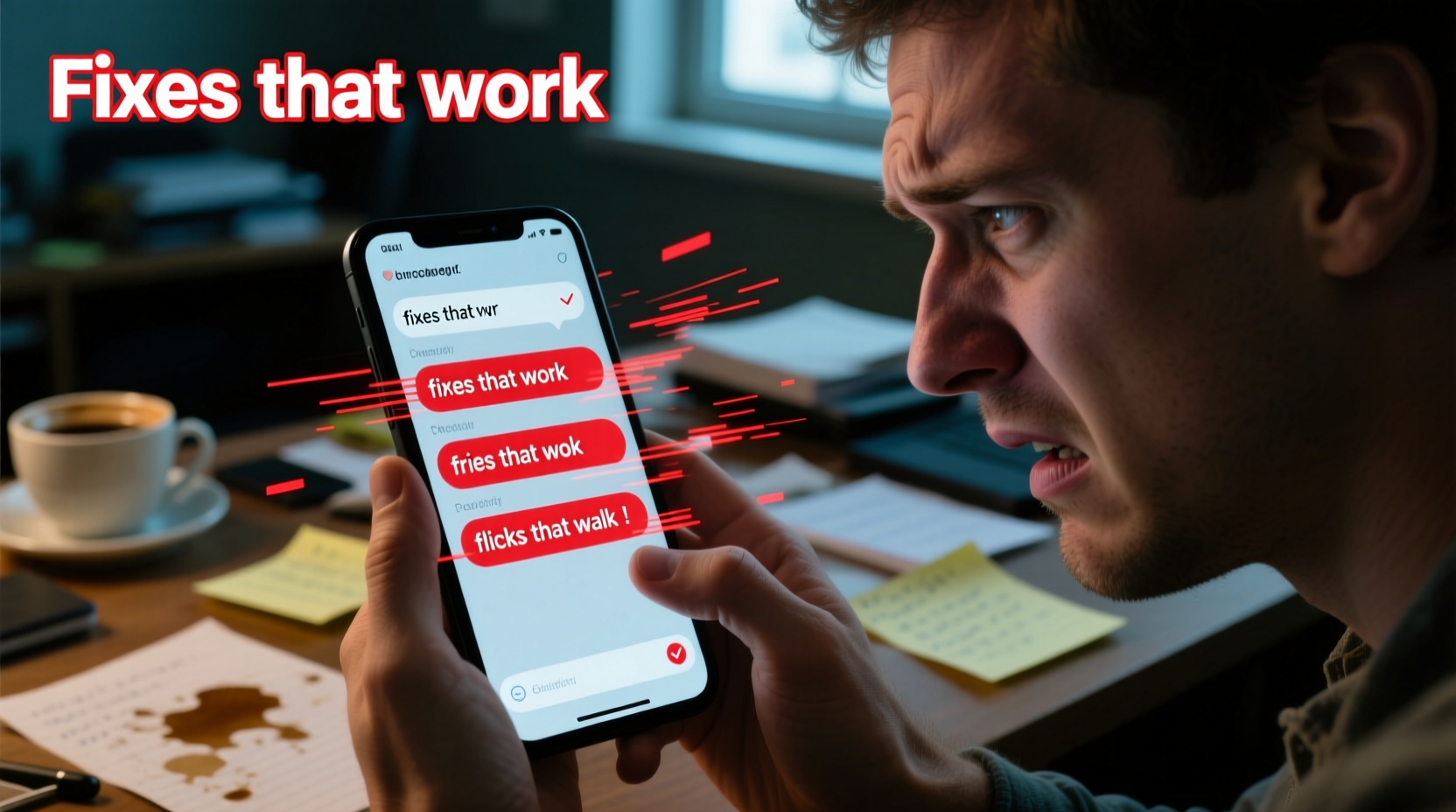
At its core, autocorrect uses predictive algorithms and machine learning to guess what you meant to type. While this sounds helpful, several factors can cause it to misfire:
- Learning from user input: Your phone learns from every word you type, including slang, abbreviations, and even typos. If you accidentally accept a wrong suggestion multiple times, the system may start treating it as correct.
- Overactive prediction: Predictive text engines aim to anticipate your next word, but they sometimes override your actual input—especially if you type quickly or use uncommon vocabulary.
- Dictionaries gone rogue: Custom words added to your dictionary (even unintentionally) can trigger unwanted substitutions. For example, if “omw” was saved as “on my way,” it might replace similar-looking phrases elsewhere.
- Keyboard app quirks: Third-party keyboards like Gboard or SwiftKey have their own AI models and cloud-synced preferences, which may behave differently than default keyboards.
- Regional language settings: Mismatched language packs or multiple active languages can confuse the system, leading to incorrect word replacements based on foreign spellings.
“Autocorrect isn’t broken—it’s just trained poorly. Most issues stem from accumulated data errors rather than software flaws.” — Dr. Lena Torres, UX Researcher at Mobile Interaction Lab
Step-by-Step Guide to Fixing Autocorrect Issues
Before resorting to factory resets or switching devices, follow this systematic troubleshooting process. These steps apply to both iPhones and Android phones, with specific instructions where needed.
- Clear Learned Keyboard Data
Over time, your keyboard accumulates learned words and habits. Resetting this data removes incorrect assumptions.
iOS: Settings → General → iPhone Storage → Find “Settings” app → Offload App → Reinstall
Android (Gboard): Settings → System → Languages & input → Virtual keyboard → Gboard → Advanced → Reset Gboard settings - Review Personal Dictionary Entries
Check for any unintended entries that could be triggering unwanted corrections.
iOS: Settings → General → Keyboard → Text Replacement
Look for entries where shortcuts replace common words (e.g., “omw” → “on my lay”). Delete suspicious ones.
Android: Settings → System → Languages & input → Personal dictionary → Review and remove problematic entries. - Disable Predictive Text Temporarily
Turn off predictions to see if the issue stems from overzealous suggestions rather than spelling correction.
iOS: Settings → General → Keyboard → Toggle off “Predictive”
Android: Gboard settings → Text correction → Show suggestion strip → Off - Adjust Auto-Correction Sensitivity
Some Android devices allow fine-tuning of correction aggressiveness.
Go to: Gboard → Text correction → Auto-correction strength → Set to “Low” or “Medium” - Ensure Correct Language Settings
Multiple enabled languages can interfere with word recognition.
iOS: Settings → General → Keyboard → Keyboards → Edit → Remove unnecessary languages
Android: Gboard → Languages → Select primary language only, disable others - Update Keyboard Software
Outdated versions may contain bugs affecting accuracy. Always ensure you’re running the latest version via the App Store or Google Play Store.
Do’s and Don’ts When Managing Autocorrect
| Do | Don't |
|---|---|
| Regularly review your personal dictionary for incorrect entries | Add slang or abbreviations unless absolutely necessary |
| Use built-in spell check alongside autocorrect for double verification | Accept every suggested word without checking context |
| Reset keyboard data every few months as maintenance | Ignore persistent misspellings—they may indicate deeper dictionary issues |
| Test changes in Notes or Messages before relying on them in emails | Assume third-party keyboards are always better—some introduce new problems |
Real Example: How One User Fixed Years of Frustration
Sarah, a freelance writer from Portland, had been battling autocorrect for years. Her phone consistently changed “their” to “there,” “you’re” to “your,” and once sent “I’ll meet you at the bar” as “I’ll meet you at the bra” to her client. She assumed it was just part of using a smartphone—until she missed a deadline because her editor misunderstood a key instruction due to a corrected typo.
Determined to fix it, Sarah followed the step-by-step reset process. She discovered that her personal dictionary contained dozens of auto-replacements she never added intentionally—likely picked up from quick taps while typing. She also found that two language packs (U.S. English and U.K. English) were active simultaneously, causing inconsistent spelling behavior.
After removing duplicate languages, clearing learned data, and disabling predictive text temporarily, Sarah noticed immediate improvement. She now reviews her dictionary quarterly and types more deliberately when sending important messages. “It’s not magic,” she says. “It’s about taking back control. My phone works *for* me again.”
Expert Tips to Prevent Future Autocorrect Problems
Prevention is far more effective than constant troubleshooting. Incorporate these expert-backed habits into your routine to minimize future issues.
- Type slowly and confirm each word when sending critical messages. Rushing increases the chance of accidental substitutions.
- Use voice typing selectively. While dictation reduces keystrokes, errors in speech recognition can compound autocorrect mistakes.
- Avoid using the same shortcut for multiple phrases. Conflicting entries create confusion in the system’s logic.
- Enable hardware keyboard shortcuts if you frequently connect external keyboards—these bypass some mobile-specific quirks.
- Back up your device regularly. If a reset fixes the problem, consider creating a backup snapshot to return to that clean state later.
“The best defense against bad autocorrect is awareness. Users who understand how their keyboard learns are less likely to fall victim to its mistakes.” — Marcus Lin, Senior Developer at OpenKeyboard Project
Frequently Asked Questions
Why does my phone keep changing the same word repeatedly?
This usually happens when your phone has incorrectly learned a word replacement. For instance, if you once typed “cat” but accepted “car” as a correction, the system may begin assuming that’s what you meant. To stop this, delete the erroneous entry from your personal dictionary and avoid confirming incorrect suggestions in the future.
Can I turn off autocorrect completely without losing spell check?
Yes. On iOS: Go to Settings → General → Keyboard → toggle off “Auto-Correction” while leaving “Check Spelling” on. On Android: In Gboard settings, disable “Auto-correction” under Text correction, but keep “Spell checker” enabled. This gives you error highlighting without automatic changes.
Does using a third-party keyboard improve autocorrect accuracy?
Not necessarily. Apps like Gboard or SwiftKey offer advanced features like cloud sync and GIF integration, but they also collect more data and may introduce new bugs. Many users report improved reliability by switching back to the default keyboard after troubleshooting. Try both and compare performance in real-world use.
Final Checklist: Regain Control Over Your Autocorrect
Use this checklist to systematically address and prevent autocorrect issues:
- ✅ Clear learned keyboard data and reset settings
- ✅ Audit and clean your personal dictionary
- ✅ Disable predictive text temporarily to test accuracy
- ✅ Ensure only one primary language is active
- ✅ Adjust auto-correction sensitivity (especially on Android)
- ✅ Update your keyboard app and operating system
- ✅ Test changes in low-stakes environments (like Notes)
- ✅ Establish a monthly maintenance habit to prevent recurrence
Conclusion: Take Back Your Typing Experience
Autocorrect doesn’t have to be a source of frustration. With a clear understanding of how it learns and adapts, you can transform it from a nuisance into a reliable tool. The fixes outlined here—from resetting learned behaviors to managing language settings—are proven to resolve the most common complaints users face. What matters most is consistency: regular maintenance and mindful typing go a long way toward preventing recurring issues.
You don’t need to accept glitchy technology as inevitable. By taking a few minutes to audit your phone’s keyboard settings, you can dramatically improve accuracy, reduce embarrassment, and communicate with confidence. Start today—your next message will thank you.




 浙公网安备
33010002000092号
浙公网安备
33010002000092号 浙B2-20120091-4
Comments
No comments yet. Why don't you start the discussion?