
It’s a familiar frustration: you eagerly install the latest iOS update, only to notice your iPhone’s battery draining at an alarming rate. What was once a full day of usage now barely lasts half that. You’re not imagining it—many users report accelerated battery drain immediately following a new iOS release. While updates bring security patches, new features, and performance improvements, they can also introduce unexpected power consumption issues. The good news is that most post-update battery problems are temporary or fixable. Understanding the root causes—and knowing what steps to take—can help you regain control over your device’s battery life.
Why iOS Updates Can Impact Battery Life
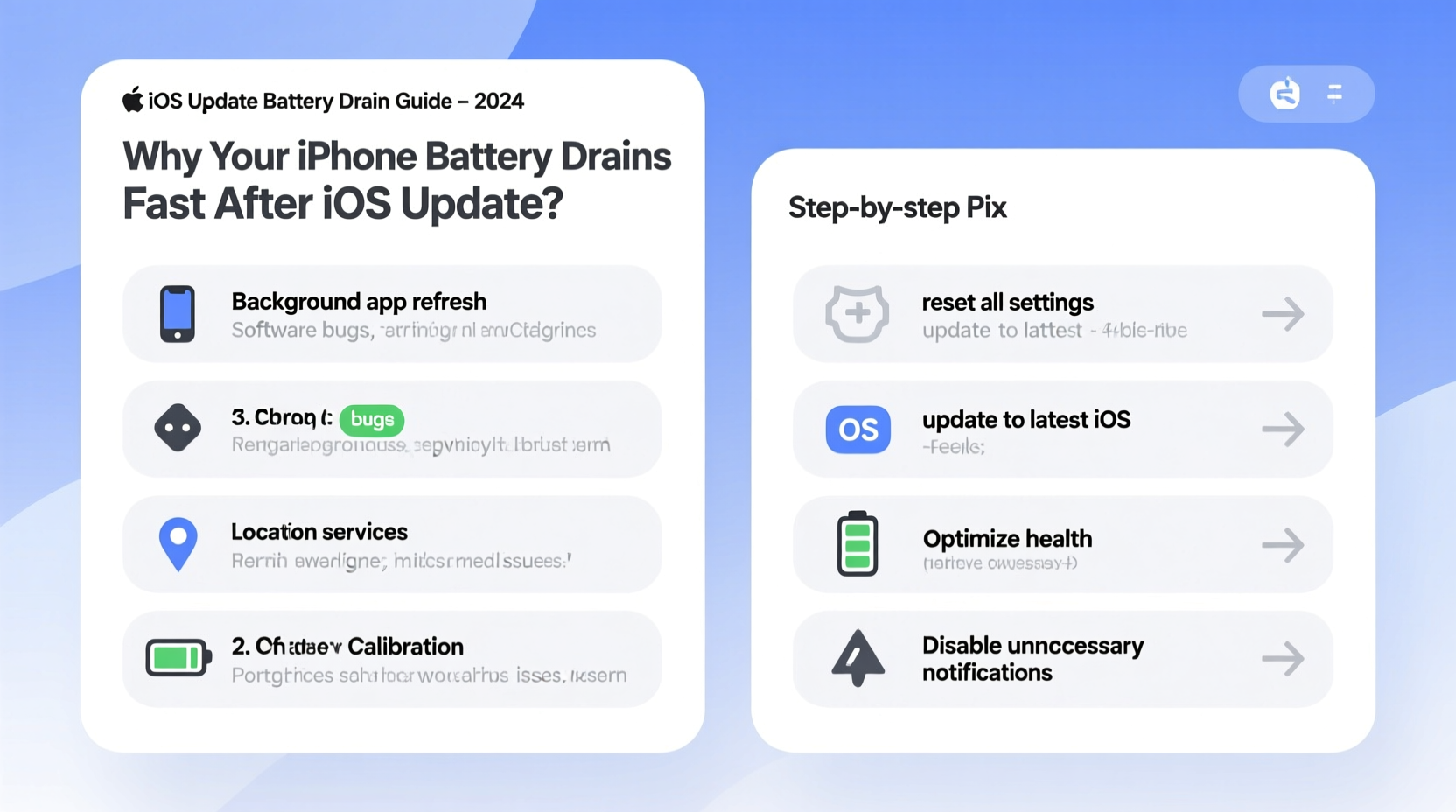
iOS updates often include significant changes to system architecture, background processes, and app compatibility. When Apple rolls out a major version—like iOS 17 or iOS 18—it introduces new features such as enhanced Siri capabilities, redesigned widgets, or improved privacy tracking. These additions require more processing power and may trigger intensive background activity on devices that weren’t optimized for them yet.
Additionally, during and immediately after an update, your iPhone runs numerous background tasks. These include:
- Indexing data: Rebuilding Spotlight search, Messages, and Photos databases.
- Optimizing storage: Compressing files and reorganizing system resources.
- Updating apps: Third-party apps adapt to new APIs and permissions.
- Location recalibration: Maps and location services relearn your habits.
This surge in background activity is normal but can last anywhere from a few hours to two days. During this time, your battery may deplete faster than usual—even when idle.
Common Causes of Post-Update Battery Drain
While some battery strain is expected initially, persistent poor performance indicates deeper issues. Below are the most frequent culprits behind rapid battery depletion after an iOS update.
1. Background App Refresh Overuse
Some apps continue running in the background even when closed. After an update, these apps may temporarily misbehave or refresh too frequently, consuming excessive power.
2. Poor Network Signal and Constant Reconnection
Updated software sometimes resets network settings or struggles with carrier compatibility. If your phone constantly searches for Wi-Fi or cellular signals, it uses more energy.
3. Location Services Misconfiguration
New iOS versions often reset location permissions. Apps like social media, weather, or fitness trackers might gain unrestricted access, leading to constant GPS use.
4. Push Email and Notifications Flood
Email accounts set to “Push” constantly check for new messages. Combined with aggressive notification settings, this creates continuous background activity.
5. Outdated or Incompatible Third-Party Apps
Not all developers update their apps immediately after a new iOS release. Older apps may run inefficiently or crash repeatedly, forcing the system to restart them—each instance using extra power.
6. Screen Brightness and Auto-Brightness Glitches
Some users report that auto-brightness fails after an update, keeping the screen at maximum brightness regardless of environment.
7. Battery Health Degradation Coinciding with Update
If your battery health is already below 80%, a software update may expose existing weaknesses. The new OS demands more from aging hardware, accelerating perceived drain.
“Software updates can act as a stress test for older batteries. What seemed manageable before may suddenly become unsustainable.” — Dr. Alan Reyes, Mobile Systems Engineer at Stanford University
Step-by-Step Fixes to Restore Battery Life
Don’t panic if your iPhone dies by midday after an update. Try these solutions in order—they range from quick tweaks to deeper system resets.
Step 1: Wait 24–48 Hours for Optimization
Let your phone settle. Avoid restarting unnecessarily and allow background processes to finish. Charge it overnight and use it normally the next day. Often, battery stability returns within two days.
Step 2: Check Battery Usage by App
- Go to Settings > Battery.
- Wait a minute for the data to load.
- Review which apps consume the most power under “Last 24 Hours” and “Last 10 Days.”
- If an app shows unusually high background activity (e.g., Facebook using 40% while open only 10 minutes), consider updating or uninstalling it.
Step 3: Reset All Settings
This doesn’t erase your data but restores network, display, and privacy settings to default—often resolving hidden glitches.
- Navigate to Settings > General > Transfer or Reset iPhone > Reset.
- Select Reset All Settings.
- Re-enter your passcode and confirm.
- Reconnect to Wi-Fi and reconfigure preferences.
Step 4: Disable Unnecessary Background App Refresh
Restrict apps from waking up your phone unnecessarily.
- Go to Settings > General > Background App Refresh.
- Turn off the global toggle, or selectively disable it for non-essential apps (e.g., games, social media).
Step 5: Review Location Services Permissions
Limit GPS access to only essential apps.
- Open Settings > Privacy & Security > Location Services.
- Scroll through the list and tap on high-usage apps.
- Change permission to While Using the App instead of Always.
- For apps like Weather or News, consider setting to Never.
Step 6: Switch Email from Push to Fetch
Instead of real-time email checks, schedule periodic fetches.
- Go to Settings > Mail > Accounts > Fetch New Data.
- Select Fetch instead of Push.
- Set frequency to Hourly or Manually.
Step 7: Turn Off Motion Effects and Reduce Transparency
iOS animations look sleek but consume GPU resources. Reducing motion helps extend battery life.
- Go to Settings > Accessibility > Motion.
- Enable Reduce Motion.
- Then go to Settings > Accessibility > Display & Text Size.
- Turn on Reduce Transparency.
Essential Checklist to Improve iPhone Battery After iOS Update
- ✅ Wait 24–48 hours post-update before troubleshooting
- ✅ Check Battery Usage in Settings
- ✅ Update all third-party apps via App Store
- ✅ Disable Background App Refresh for non-critical apps
- ✅ Set Location Services to “While Using” or “Never”
- ✅ Change email fetch from Push to Hourly
- ✅ Enable Low Power Mode temporarily
- ✅ Reset All Settings if issues persist
- ✅ Calibrate battery with one full charge cycle
Do’s and Don’ts: Managing Battery Performance
| Do | Don't |
|---|---|
| Keep iOS updated once initial bugs are resolved | Ignore repeated battery warnings from the system |
| Use Low Power Mode during critical times | Leave Bluetooth, Wi-Fi, or Personal Hotspot on indefinitely |
| Disable Raise to Wake if unused | Run benchmark or stress-test apps unnecessarily |
| Monitor battery health monthly | Charge overnight regularly (increases long-term degradation) |
| Restart your iPhone weekly | Store your phone in extreme temperatures |
Real Example: Sarah’s iOS 17 Battery Crisis
Sarah, a freelance photographer in Portland, upgraded her iPhone 13 to iOS 17 on launch day. Within hours, she noticed her battery dropping from 100% to 30% in just four hours of light use. Alarmed, she tested different scenarios: turning off camera apps, disabling location, and reducing brightness—but nothing helped.
After reading online forums, she checked her battery usage and discovered that Instagram was consuming 58% of her battery despite being open for less than 30 minutes. A quick visit to the App Store revealed an available update for Instagram. After installing it, background activity dropped dramatically. She also reset her location settings and disabled push email. Within 24 hours, her battery life returned to normal.
Sarah’s experience highlights a key point: third-party apps are often the silent offenders. An iOS update exposes inefficiencies in outdated software, making timely app updates crucial.
Frequently Asked Questions
Will resetting my iPhone fix battery drain after an update?
A full factory reset can resolve deep-seated software conflicts, but it should be a last resort. Start with “Reset All Settings,” which preserves your data. If problems persist, back up your phone and perform a full reset. Often, this clears corrupted cache files causing abnormal battery usage.
Can a software update permanently damage my battery?
No. Software cannot physically damage your battery. However, a poorly optimized update may accelerate wear over time by increasing charge cycles or heat generation. Once fixed, battery degradation should return to normal levels. Long-term harm typically comes from heat exposure and charging habits, not software alone.
How do I know if my battery needs replacement after an update?
Go to Settings > Battery > Battery Health & Charging. If “Maximum Capacity” is below 80%, your battery is significantly degraded. If you notice swelling, sudden shutdowns, or excessive heat, contact Apple Support. A new battery can restore up to 95% of original performance, especially on models older than two years.
Final Thoughts and Action Plan
Rapid battery drain after an iOS update is a widespread but usually temporary issue. The combination of background indexing, app incompatibility, and altered system behavior creates a perfect storm for power loss. Most cases resolve themselves within a couple of days. For those that don’t, targeted adjustments—from resetting settings to managing app permissions—can make a dramatic difference.
Remember, your iPhone is designed to balance performance and efficiency. When that balance is disrupted by a major software shift, small interventions can restore harmony. Monitor your usage patterns, keep apps updated, and don’t hesitate to recalibrate your device’s settings after major changes.




 浙公网安备
33010002000092号
浙公网安备
33010002000092号 浙B2-20120091-4
Comments
No comments yet. Why don't you start the discussion?