
It’s a frustratingly common experience: you wake up, plug in your phone for the latest software update, and after the installation completes, your battery seems to vanish twice as fast. What was once a full-day charge now barely lasts until lunchtime. You haven’t changed your usage habits, yet your device feels sluggish and power-hungry. This sudden drop in battery performance isn’t imaginary—it happens to millions of users after OS updates from Apple, Google, or Samsung. The good news is that most cases are fixable without needing hardware repairs or factory resets. Understanding why this occurs and applying targeted fixes can restore stability and extend your battery life significantly.
Why Updates Drain Battery Life
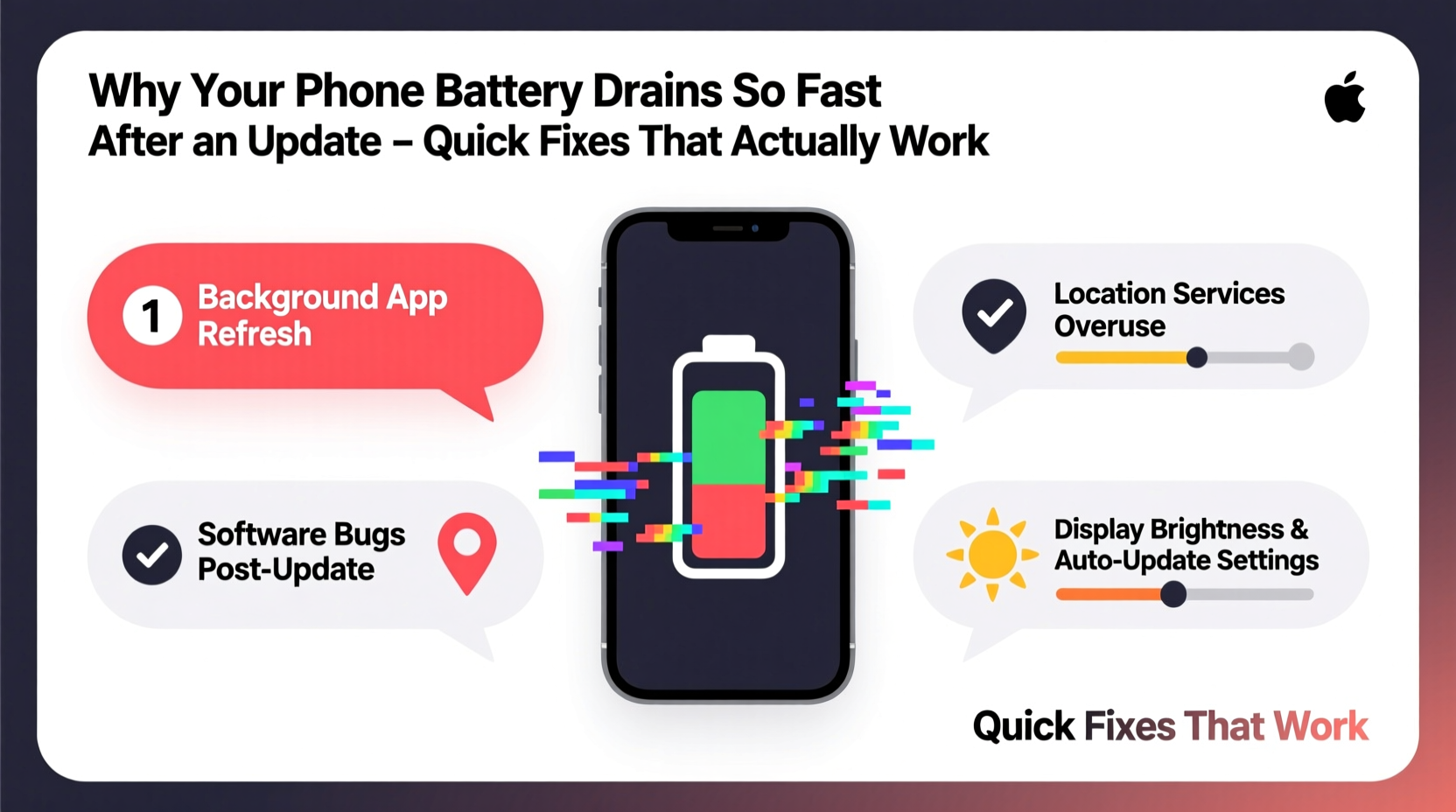
Software updates often introduce new features, security patches, background processes, and system optimizations. While these changes improve long-term functionality, they can initially cause excessive battery drain. During and after an update, your phone runs background indexing tasks—rebuilding search databases, optimizing app compatibility, syncing cloud data, and recalibrating sensors. These processes consume CPU cycles and keep the screen or radios active longer than usual, leading to rapid battery depletion.
Additionally, some updates modify default settings. For example, adaptive brightness might be reset, location services re-enabled globally, or background app refresh turned back on. Even minor UI changes like increased animation intensity or higher default screen brightness contribute to faster discharge.
“After a major OS update, it's normal for battery life to dip temporarily due to system optimization tasks. But if poor performance persists beyond 48 hours, user intervention is usually required.” — Dr. Lena Park, Mobile Systems Analyst at TechInsight Labs
Step-by-Step: Immediate Fixes That Work
If your phone is losing charge unusually fast post-update, follow this structured approach to diagnose and resolve the issue within hours—not days.
- Allow 24–48 Hours for System Optimization
Give your phone time to complete background indexing. Avoid closing apps manually or force-stopping services during this period, as it may prolong the process. - Restart Your Device
A simple reboot clears temporary glitches and stops rogue processes spawned by the update. Hold the power button, select restart, and wait 30 seconds before turning it back on. - Check Battery Usage by App
Go to Settings > Battery > Battery Usage (Android) or Settings > Battery > Battery Health & Charging (iOS). Identify which apps are consuming disproportionate power. Look for unusual spikes from system apps like Google Play Services, Location, or Camera. - Disable Unnecessary Background Activity
Restrict background data and refresh for non-essential apps. On Android: Settings > Apps > [App Name] > Battery > Background Restrictions. On iOS: Settings > General > Background App Refresh. - Reset All Settings (Not Data)
This restores network, display, and system preferences to defaults without erasing personal files. On iPhone: Settings > General > Transfer or Reset iPhone > Reset > Reset All Settings. On Android: Settings > System > Reset Options > Reset Wi-Fi, Mobile & Bluetooth.
Battery Drain Do’s and Don’ts After an Update
| Do | Don’t |
|---|---|
| Keep your phone updated with patch releases (e.g., iOS 17.1.1 or Android 14 QPR2) | Ignore persistent overheating or swelling—seek service immediately |
| Review location permissions and disable for apps that don’t need them | Leave Bluetooth, GPS, or Wi-Fi scanning always on |
| Use built-in battery health tools to monitor capacity over time | Install third-party \"battery booster\" apps—they often worsen performance |
| Enable dark mode if you have an OLED screen | Charge overnight regularly; aim to keep battery between 20%–80% |
| Clear cache partition (Android) or offload unused apps (iOS) | Factory reset prematurely—try other solutions first |
Real-World Example: Sarah’s iPhone 15 After iOS 17.4
Sarah, a freelance photographer in Portland, noticed her iPhone 15’s battery dropped from 100% to 30% in just four hours after updating to iOS 17.4. She wasn’t shooting more photos or using intensive apps. Using the battery breakdown in Settings, she discovered that “System Services” accounted for 42% of usage, primarily due to continuous location tracking by Find My and Photos indexing.
She disabled significant locations under Privacy > Location Services > System Services, limited background refresh for iCloud Photos, and toggled off Motion Calibration & Distance. Within one day, her standby time improved dramatically. By the second day, her battery lasted nearly as long as before the update. Her case highlights how subtle permission resets during updates can silently drain power.
Advanced Optimization Techniques
When basic troubleshooting doesn’t suffice, deeper adjustments can reclaim lost efficiency.
- Calibrate Your Battery Gauge
Over time, software misreads actual charge levels. Fully drain your phone until it shuts down, then charge it uninterrupted to 100%. Repeat once monthly to maintain accuracy. - Limit Animation and Visual Effects
iOS offers Reduce Motion and Increased Contrast options under Accessibility. Android users can adjust Animator Duration Scale via Developer Options (set all three scales to 0.5x). - Update All Apps Post-OS Upgrade
Older app versions may not be optimized for the new OS, causing crashes and repeated restarts that eat battery. Open the App Store or Google Play and update every app. - Disable Always-On Display (if applicable)
Phones like the iPhone 14 Pro/15 Pro or Samsung Galaxy S23+ use AOD, which keeps pixels lit even when locked. Disable it in Display settings unless essential.
Frequently Asked Questions
Is it normal for battery to drain faster right after an update?
Yes, especially within the first 24 hours. Your phone performs indexing, caching, and syncing operations that require extra processing. If high drain continues beyond two days, further action is needed.
Can a software update permanently damage my battery?
No. Software cannot physically degrade lithium-ion cells. However, inefficient code or misconfigured settings can accelerate wear over time by increasing heat and charge cycles. Proper optimization prevents unnecessary stress.
Should I downgrade to the previous OS version?
Generally not recommended. Older versions lack security patches and may conflict with current apps. Only consider downgrading if a known bug affects your model and a fix hasn't been released—check official forums first.
Essential Checklist: Restore Battery Life in One Day
Follow this checklist to systematically address post-update battery issues:
- ✅ Reboot your phone after the update completes
- ✅ Wait 24 hours before making drastic changes
- ✅ Open battery usage menu and identify top consumers
- ✅ Restrict background data for non-critical apps
- ✅ Turn off location services for apps that don’t require it
- ✅ Enable Battery Saver or Low Power Mode temporarily
- ✅ Update all apps through the store
- ✅ Reset settings (not full erase) if problems persist
- ✅ Monitor for 24 hours and reassess
- ✅ Contact manufacturer support if no improvement
“Most post-update battery complaints stem from resurfaced settings or unoptimized background tasks—not faulty hardware. User awareness and timely adjustment make all the difference.” — Marcus Tran, Senior Support Engineer at Android Authority Support Team
Conclusion: Take Control of Your Phone’s Performance
Your phone shouldn’t become unusable just because it received a software update. While temporary battery fluctuations are expected, prolonged drain is avoidable with informed action. By understanding how updates affect system behavior and applying precise fixes—from resetting settings to managing background activity—you regain control over your device’s efficiency. These strategies aren’t temporary hacks; they promote healthier long-term usage habits that protect both battery life and overall performance.




 浙公网安备
33010002000092号
浙公网安备
33010002000092号 浙B2-20120091-4
Comments
No comments yet. Why don't you start the discussion?